
Publishing requires the latest draft to save successfully first. If you see a save error when publishing:
Check your internet connection
Wait a moment and try publishing again
If the error persists, refresh the editor and retry
This guide walks you through creating help center articles manually using the article editor. You'll learn how to create, edit, and publish articles without using AI-powered tasks.
Before creating articles manually, ensure you have:
An authenticated member of the organization.
You can also use AI-powered tasks to create articles in seconds.
Navigate to your dashboard and open the Help Center section in the sidebar.
Find the section where you want to create the article.
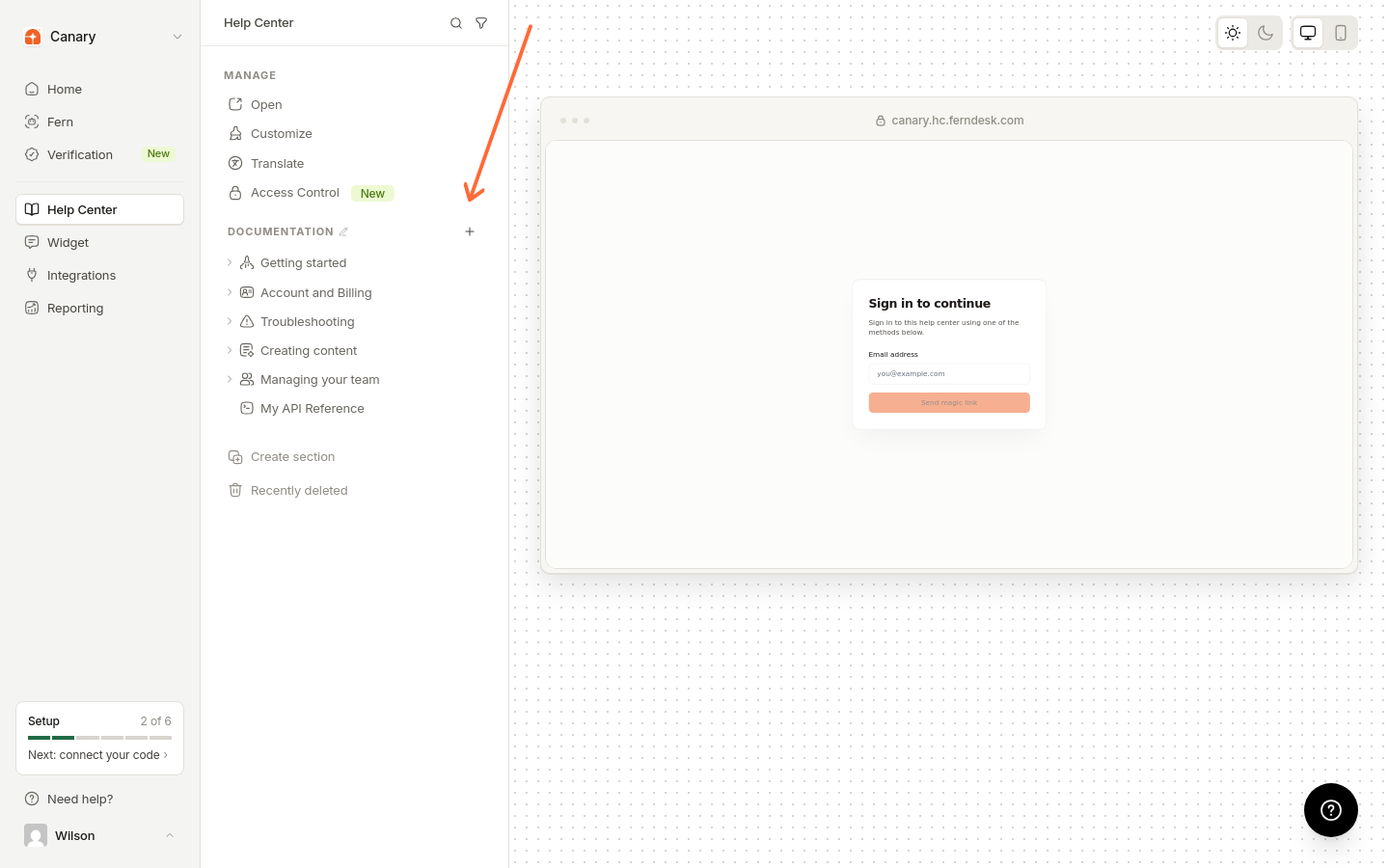
Click the + control on the section and select Create Article.
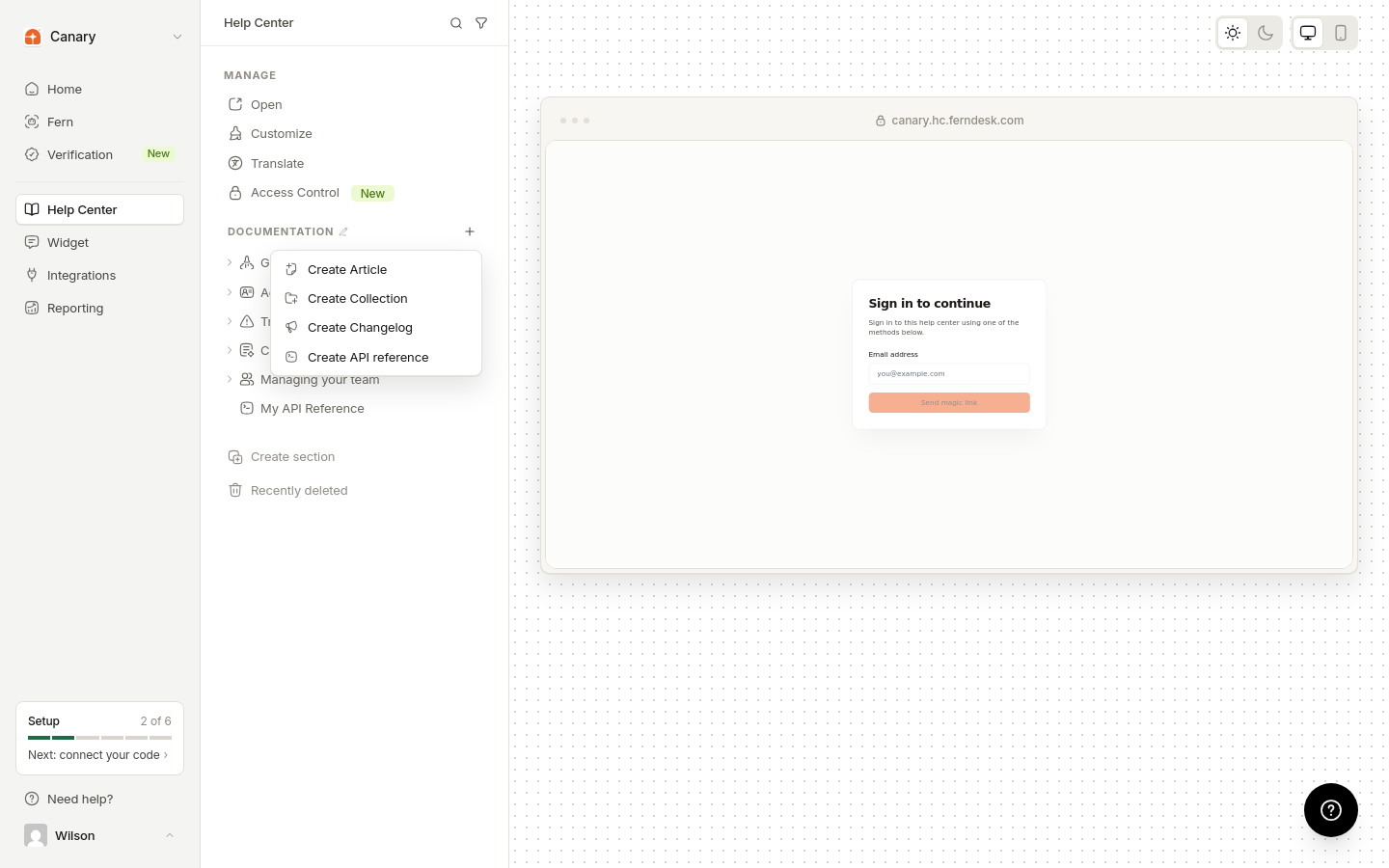
Your new article will open in the editor, ready for you to add content.
The article editor provides a rich text editing experience with auto-save and content blocks:
Auto-save: Your changes are automatically saved as drafts in the background while you work
Rich text formatting: Use the editor toolbar to format text, add links, insert images, and more. You can also edit images to crop or annotate them after insertion.
Markdown paste: Paste markdown-formatted text into a paragraph and it converts to formatted content. This works for headings, lists, blockquotes, code blocks, links, and tables. Markdown conversion does not run inside list items, task items, or code blocks - paste plain text there instead
Content blocks: Press / in the editor to insert cards, steps, task lists, details sections, and grouped code examples - see Content blocks
Title and subtitle: Edit these fields directly at the top of the editor
Collection placement: Change which collection contains your article using the breadcrumb navigation
All changes are saved as drafts until you publish. Your readers won't see unpublished changes.
When you select a block in the editor, a visible highlight appears around it to show which block is active. This helps when editing or moving content blocks.
To compare unpublished edits, open earlier versions, or restore a previous version, see Restore a previous article version. To recover a deleted article, see Restore a deleted article.
Review your content in the editor.
Click Publish article in the header, or Publish changes if you are updating a published article.
Publishing waits for any active draft save to finish, then makes the article live.
If a draft save fails when you click Publish, publishing stops. Fix the save issue, then try again.
Open More article actions for options such as View published version, Version history, and Discard changes.
Publishing requires the latest draft to save successfully first. If you see a save error when publishing:
Check your internet connection
Wait a moment and try publishing again
If the error persists, refresh the editor and retry