
Check the following:
Verify your API key is correct and has not expired.
Ensure your subdomain is accurate. Ferndesk automatically normalizes short values to the full domain format.
Make sure your BoldDesk API key has permission to read tickets.
Connect your BoldDesk account to Ferndesk so Fern can read your resolved support tickets and identify documentation gaps.
You need an active BoldDesk account and an API key with access to your tickets. If you do not have an account, create one on the BoldDesk website.
Subdomain: The part of your BoldDesk URL before .bolddesk.com. For example, if your URL is yourcompany.bolddesk.com, your subdomain is yourcompany. You can enter the short form or the full domain.
API Key: Generate an API key in your BoldDesk profile settings under the API Keys tab.
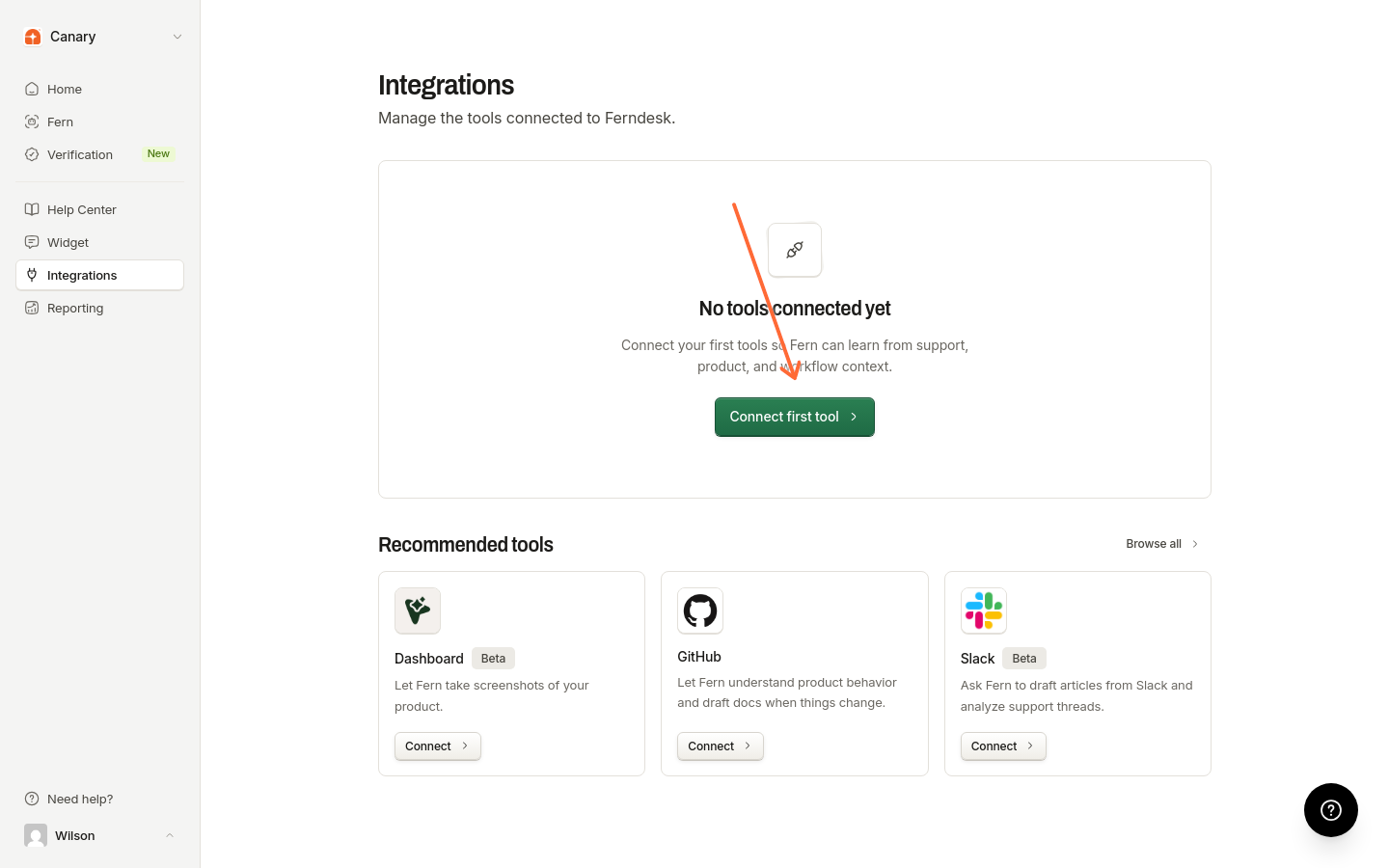
Go to the Integrations page in your Ferndesk dashboard and select Connect first tool. If tools are already connected, select Connect integration instead.
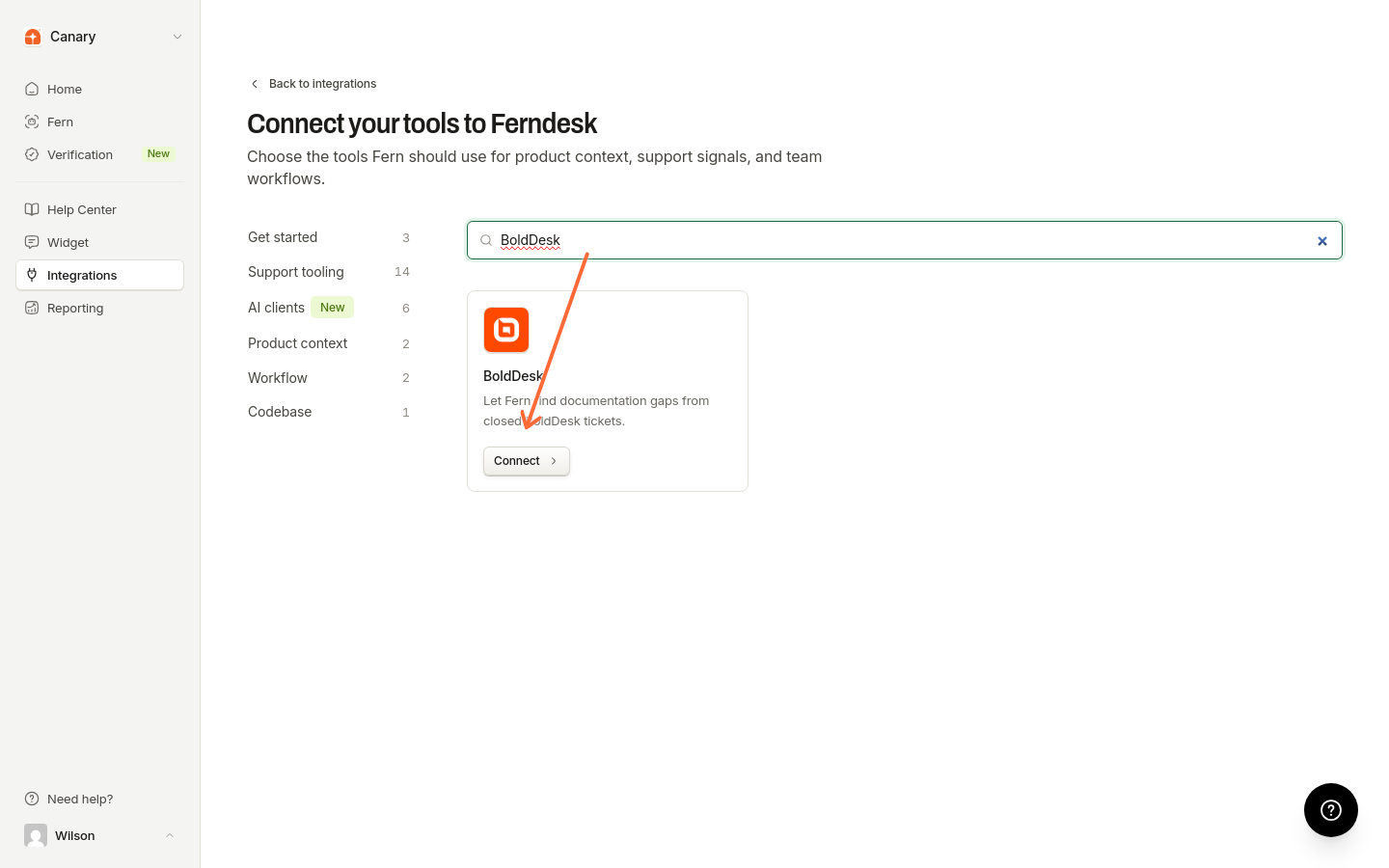
In the Connect your tools to Ferndesk catalog, find BoldDesk and select Connect.
Enter your BoldDesk subdomain and API key in the connection modal.
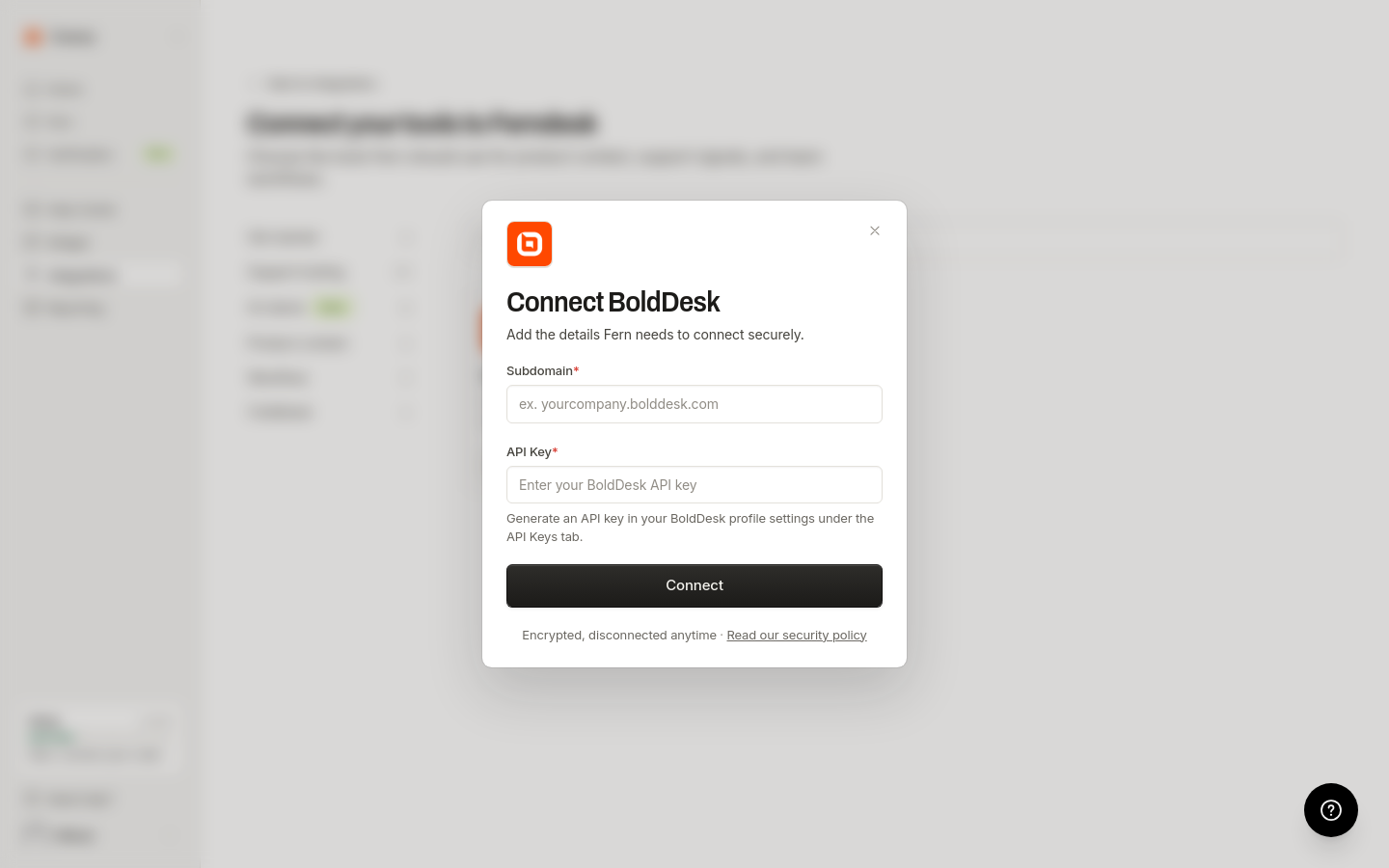
Click Connect to complete the setup.
Once connected, the BoldDesk connection shows a Manage action. Select it to manage the connection.
Fern can read your resolved BoldDesk tickets to identify patterns in customer questions. Support trends from BoldDesk appear in Reporting under Intelligence. To automatically receive documentation gap recommendations, enable scheduled audits in Settings > Automations.
Check the following:
Verify your API key is correct and has not expired.
Ensure your subdomain is accurate. Ferndesk automatically normalizes short values to the full domain format.
Make sure your BoldDesk API key has permission to read tickets.
For more information on BoldDesk features, visit the BoldDesk Help Center.