
Use Ferndesk with AI tools
Connect Ferndesk to tools like Claude, ChatGPT, or Cursor so you can search, draft, and publish help content without leaving that tool.
MCP (Model Context Protocol) is the connection method. You do not need an API key. Your AI tool opens a Ferndesk sign-in window, you approve access, and the connection is ready.
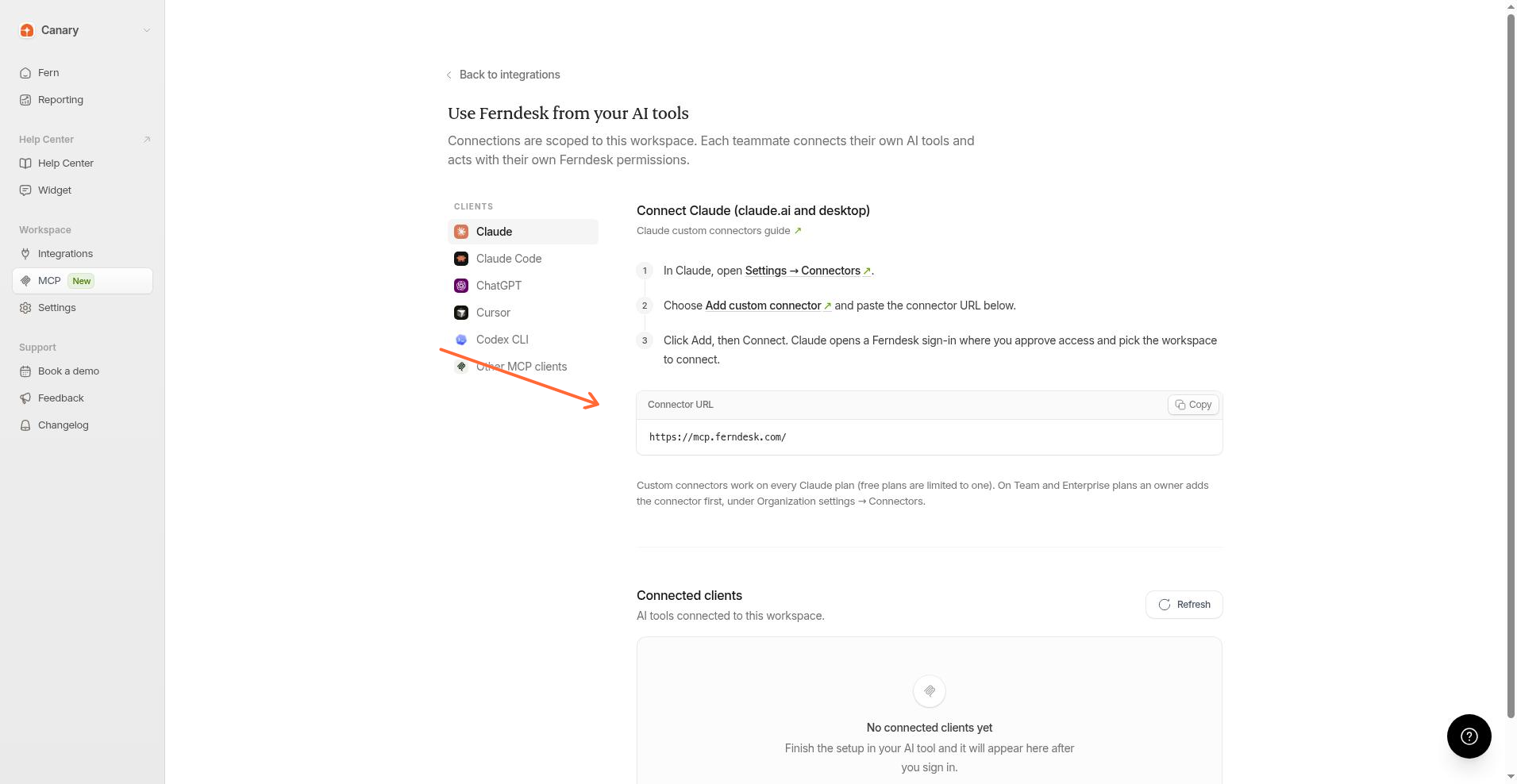
What you can do
After you connect, your AI tool can work with your Ferndesk workspace.
Search and open help articles
Browse collections
Create and update article drafts
Publish article drafts
Look up conversations and analytics when your account has access
List, create, and update help center users and their user groups
Connect an AI tool
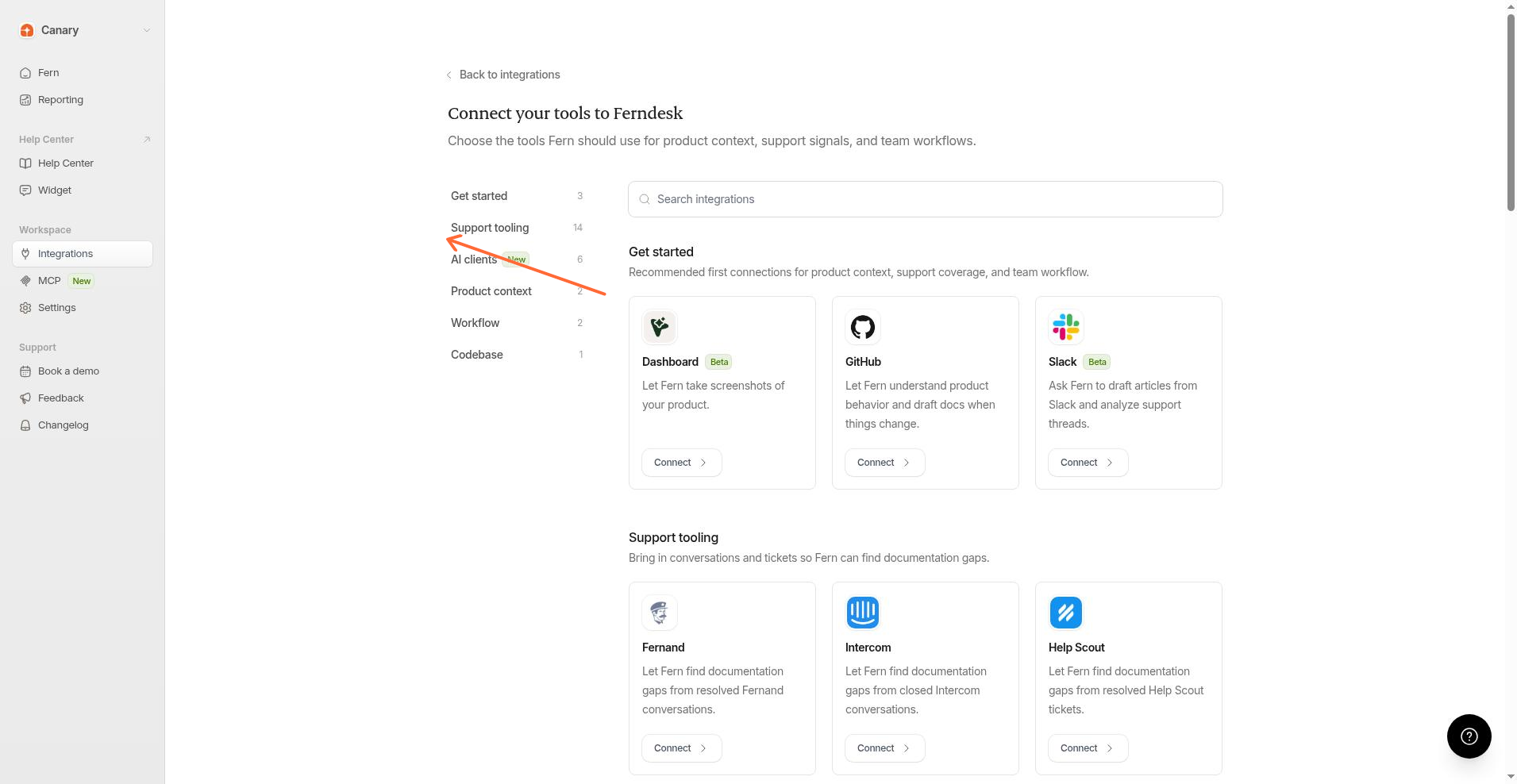
In Ferndesk, go to Integrations.
Open AI clients.
Choose your tool in the Clients list.
Follow the setup steps on the page. Copy the Connector URL when the steps ask for it.
Approve Ferndesk access when the sign-in window opens, and pick the workspace to connect.
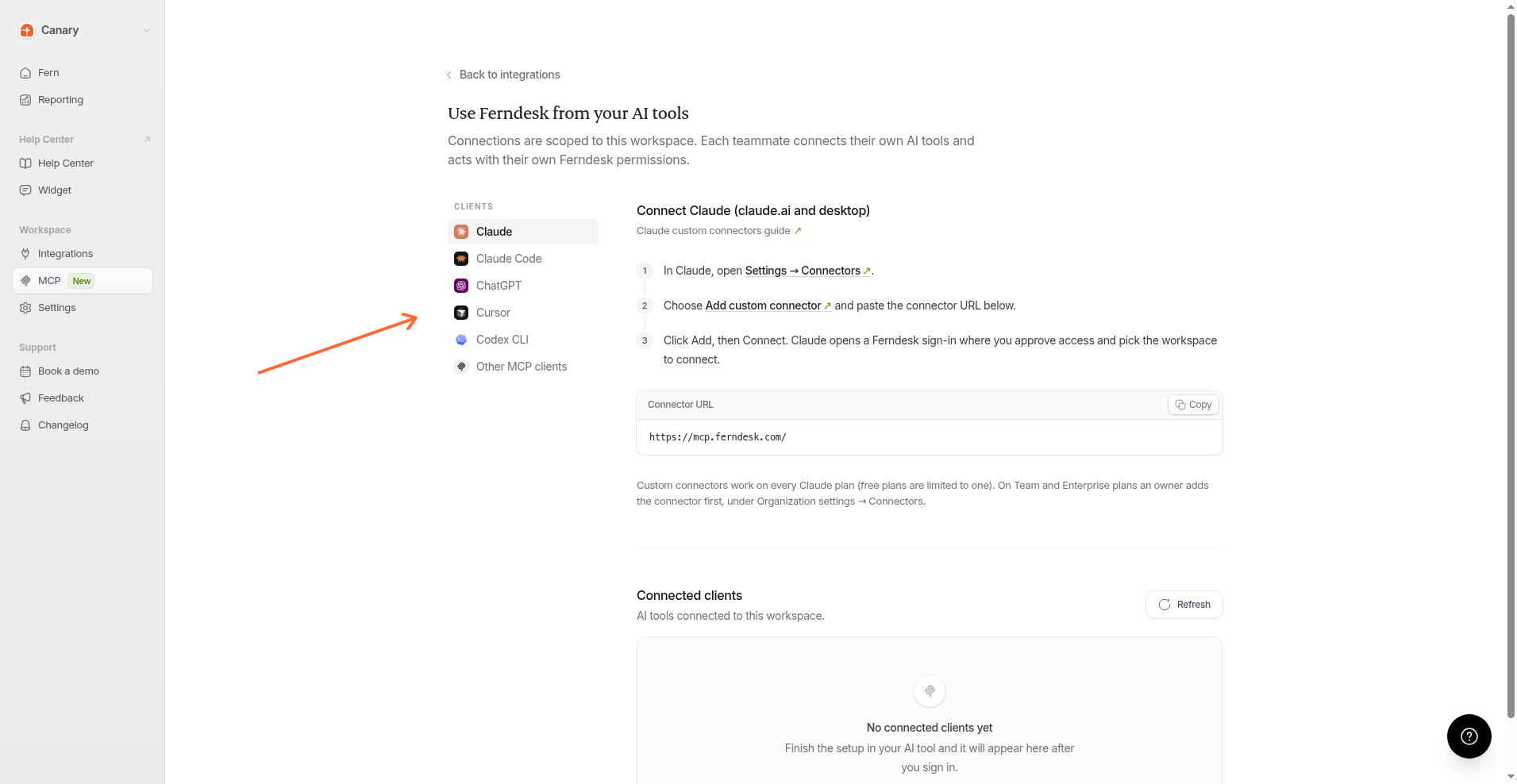
Step-by-step guides for each tool:
See or remove a connection
Open Integrations → AI clients and scroll to Connected clients.
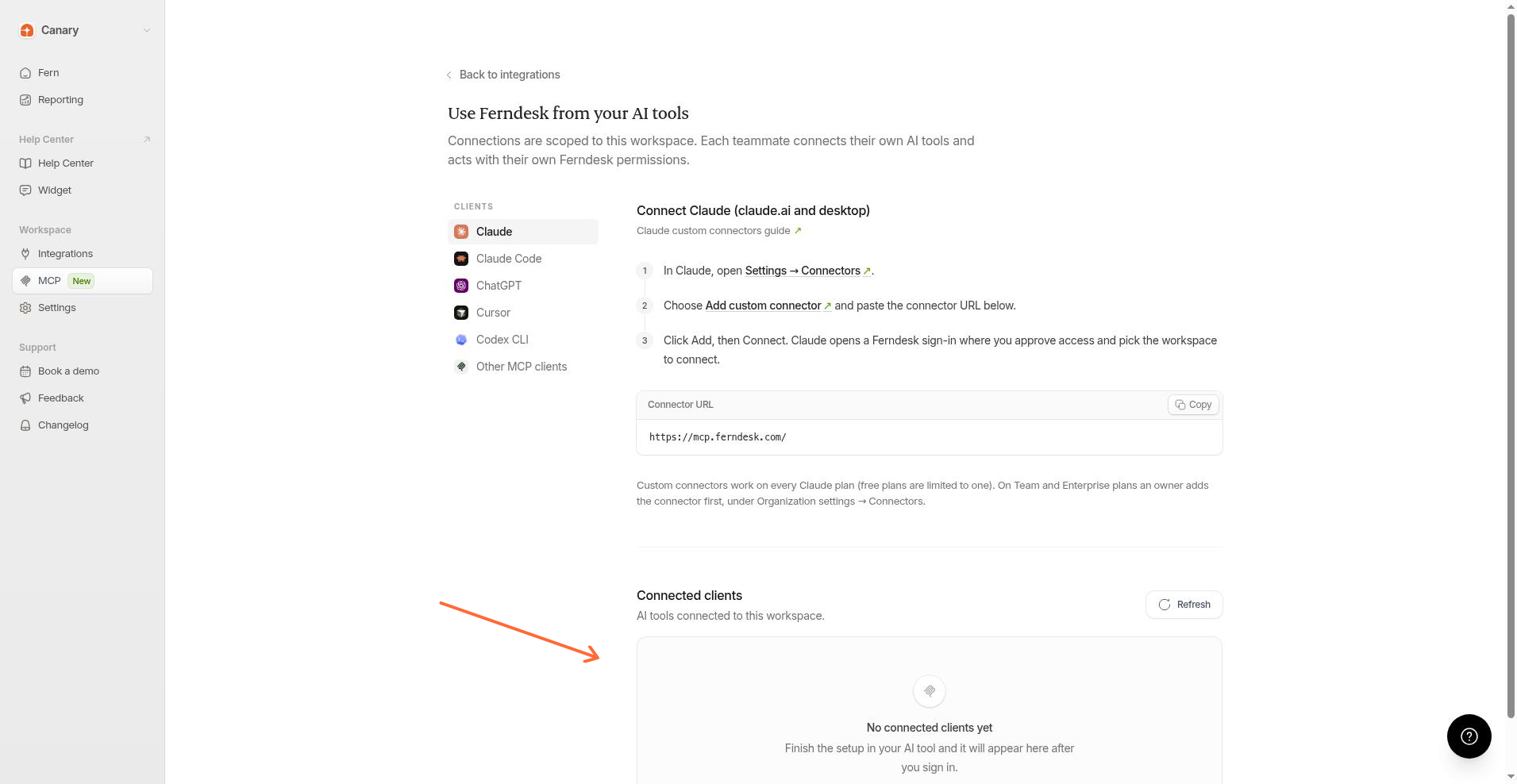
No connected clients yet means setup is not finished in the AI tool yet.
Refresh updates the list.
Revoke, then confirm with Revoke access, removes a connection you own. Owners and admins can revoke any connection.
Let your customers use your help center in AI tools
Turn on the help center MCP server so readers can search your published docs from their own AI tools. See Let readers use your help center in AI tools.