
Gmail Integration
Connect your Gmail account to Ferndesk so Fern can read your email support conversations and identify documentation gaps.
Before you begin
You need a Gmail account and an App Password. If you do not have a Gmail account, create one on the Gmail website.
To generate an App Password, you must first enable 2-Step Verification on your Google Account. For detailed instructions, see our guide on creating and managing Gmail App passwords or the Google Account Help center.
Find your connection details
Email: The Gmail address you want to connect to Ferndesk.
App Password: A Google App Password generated for your account. Do not use your regular Gmail password.
Connect Gmail
Go to the Integrations page in your Ferndesk dashboard.
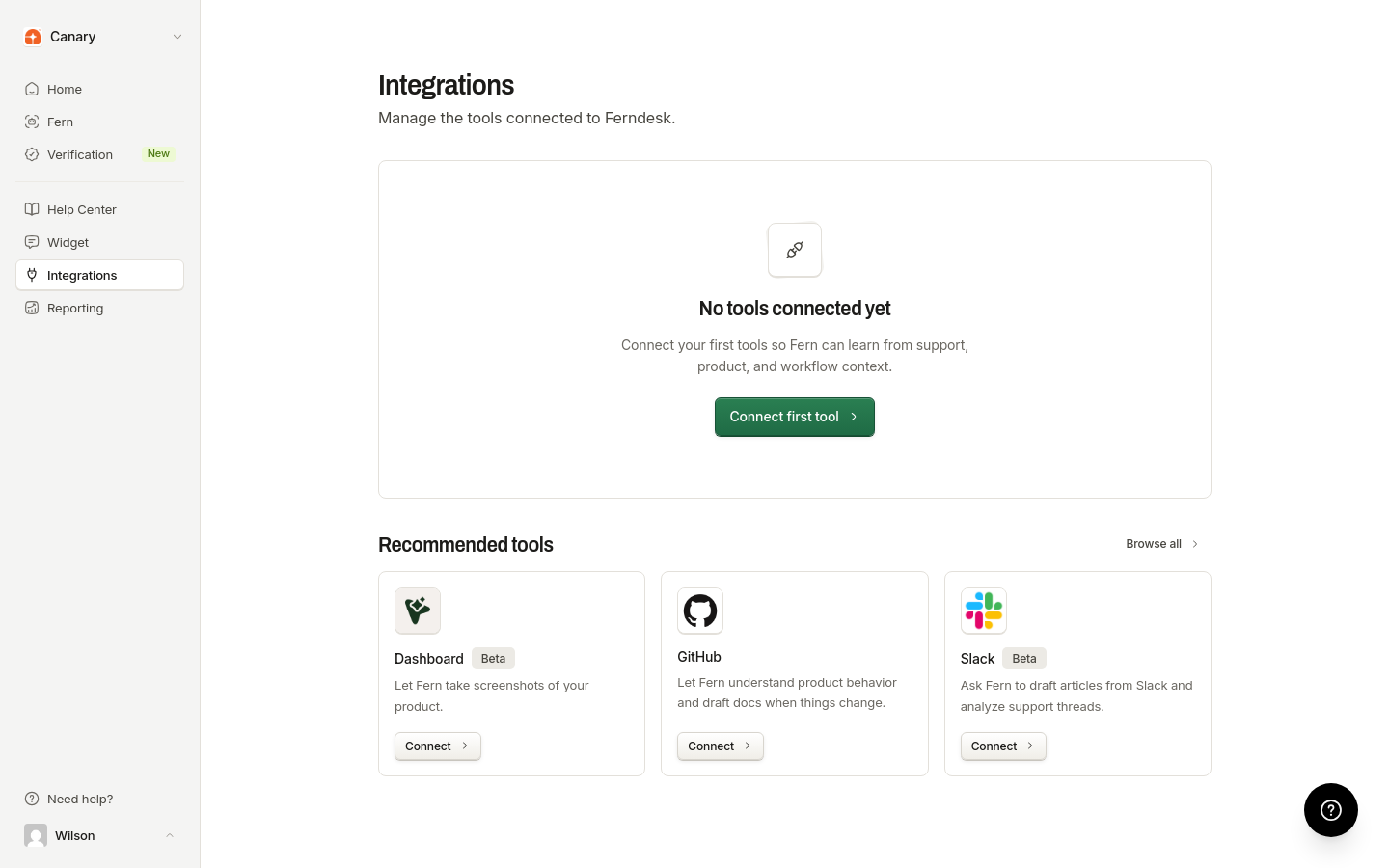
Click Connect first tool or Connect integration to open the connection catalog.
Find the Gmail card and click Connect.
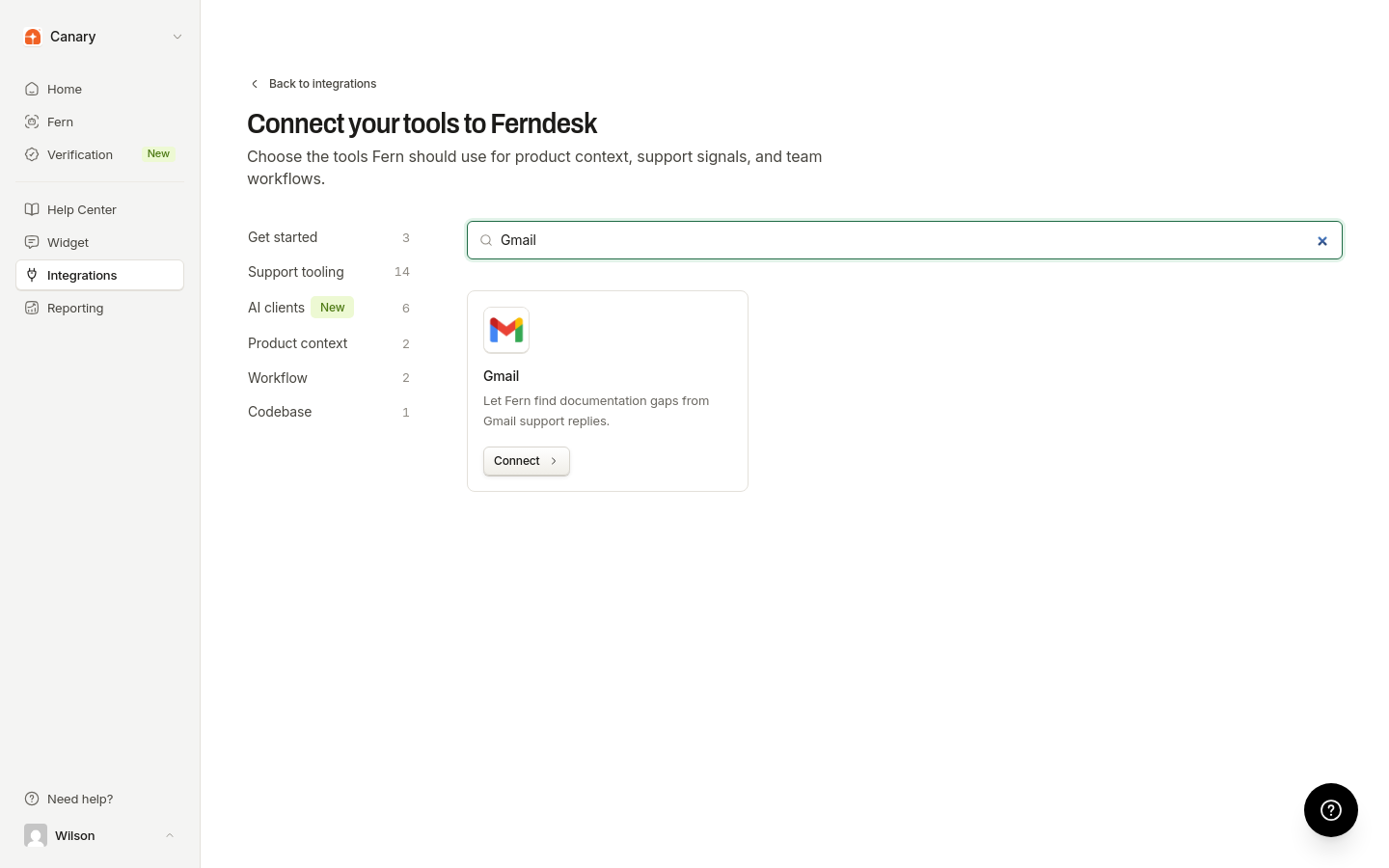
Enter your Gmail address and the App Password you generated.
Click Connect to complete the setup.
Once connected, the Gmail integration appears in your connections list with a Manage button.
What happens after connecting
Fern can read your resolved email conversations to identify patterns in customer questions. Support trends from Gmail appear under Reporting > Support Trends. To automatically receive documentation gap recommendations, enable scheduled audits in Settings > Automations.
Additional resources
For more information on Gmail features, visit the Gmail Help Center.