
Connect other MCP clients
Paste the Ferndesk Connector URL into any AI tool that supports remote MCP connections. Sign-in happens in the browser, and there is no API key.
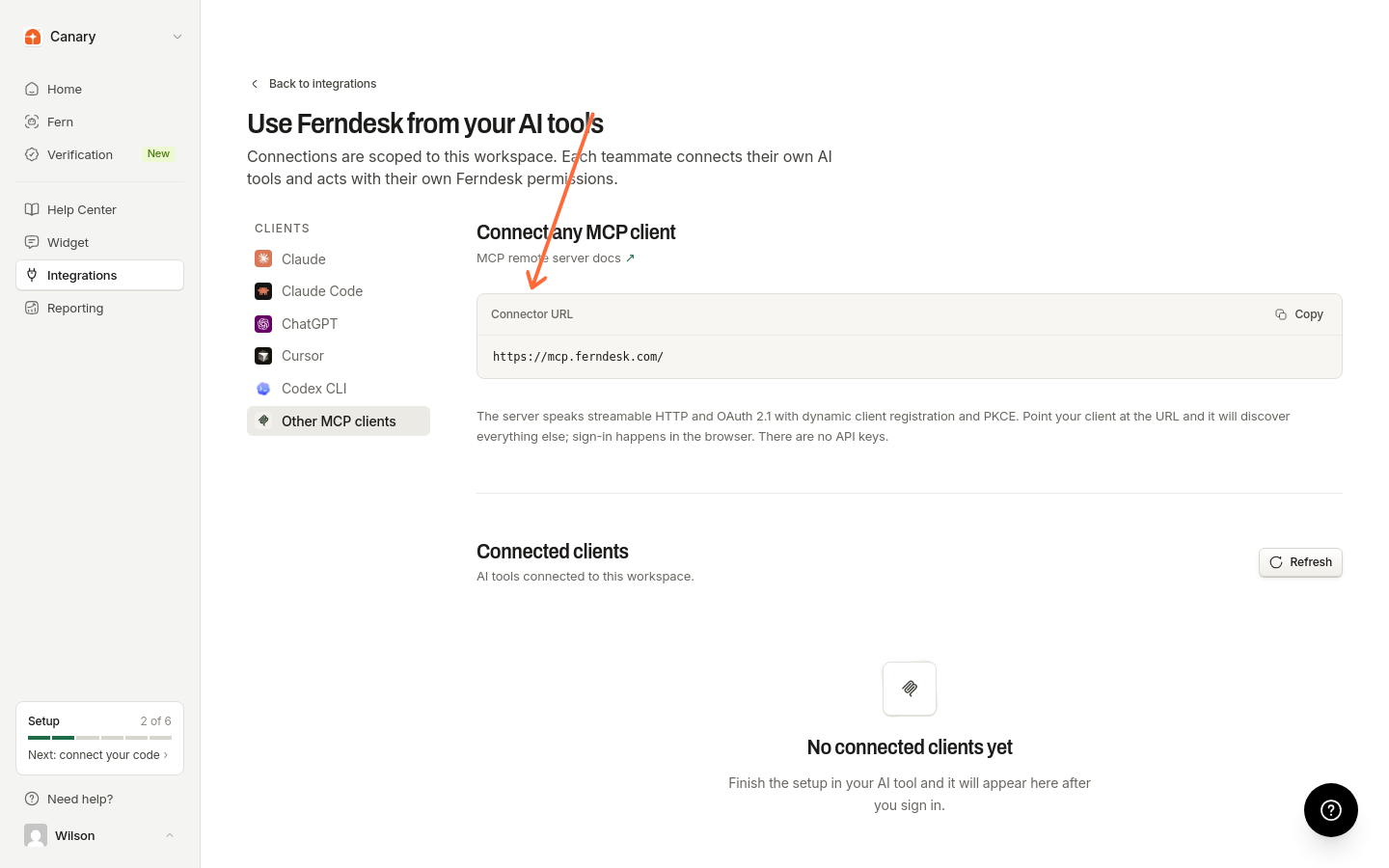
Get your connector URL
Copy the URL from Other MCP clients on the AI clients page.
In Ferndesk, go to Integrations.
Click Browse all to open the integrations catalog.
Open AI clients.
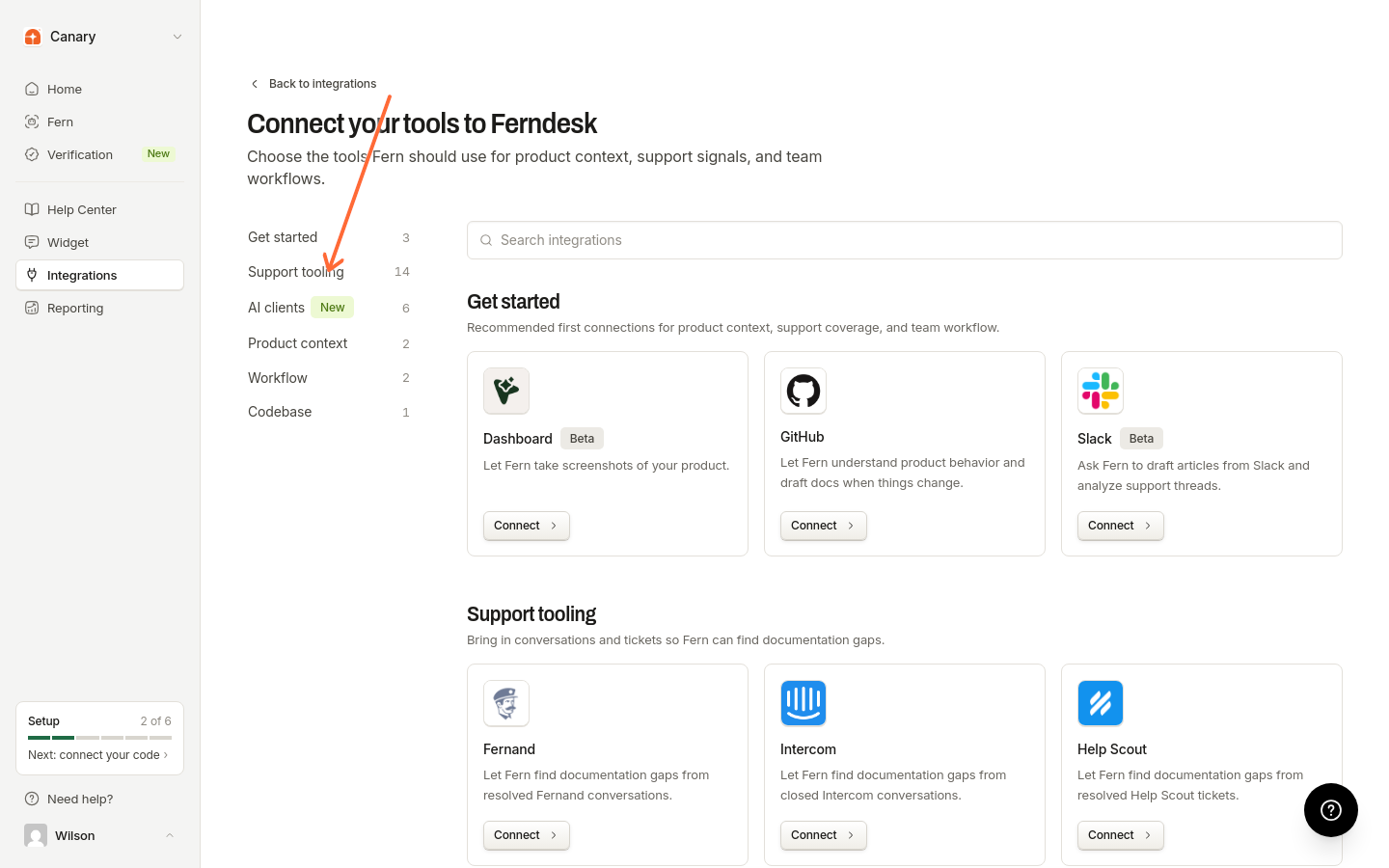
In the Clients list, choose Other MCP clients.
Under Connect any MCP client, copy the Connector URL.
The page links to the MCP remote server docs if your tool needs more detail about remote connections.
Add the URL in your AI tool
Point your tool at the connector URL, then approve access in the browser.
In your AI tool, open the settings for remote MCP servers or remote connections.
Add a new remote server and paste the Connector URL.
When the browser sign-in window opens, approve Ferndesk access and pick the workspace to connect.
MCP (Model Context Protocol) is the connection method. After you paste the URL, the tool discovers the rest automatically. There are no API keys to create or paste.
Confirm the connection
After you sign in, the client appears under Connected clients on the same AI clients page.
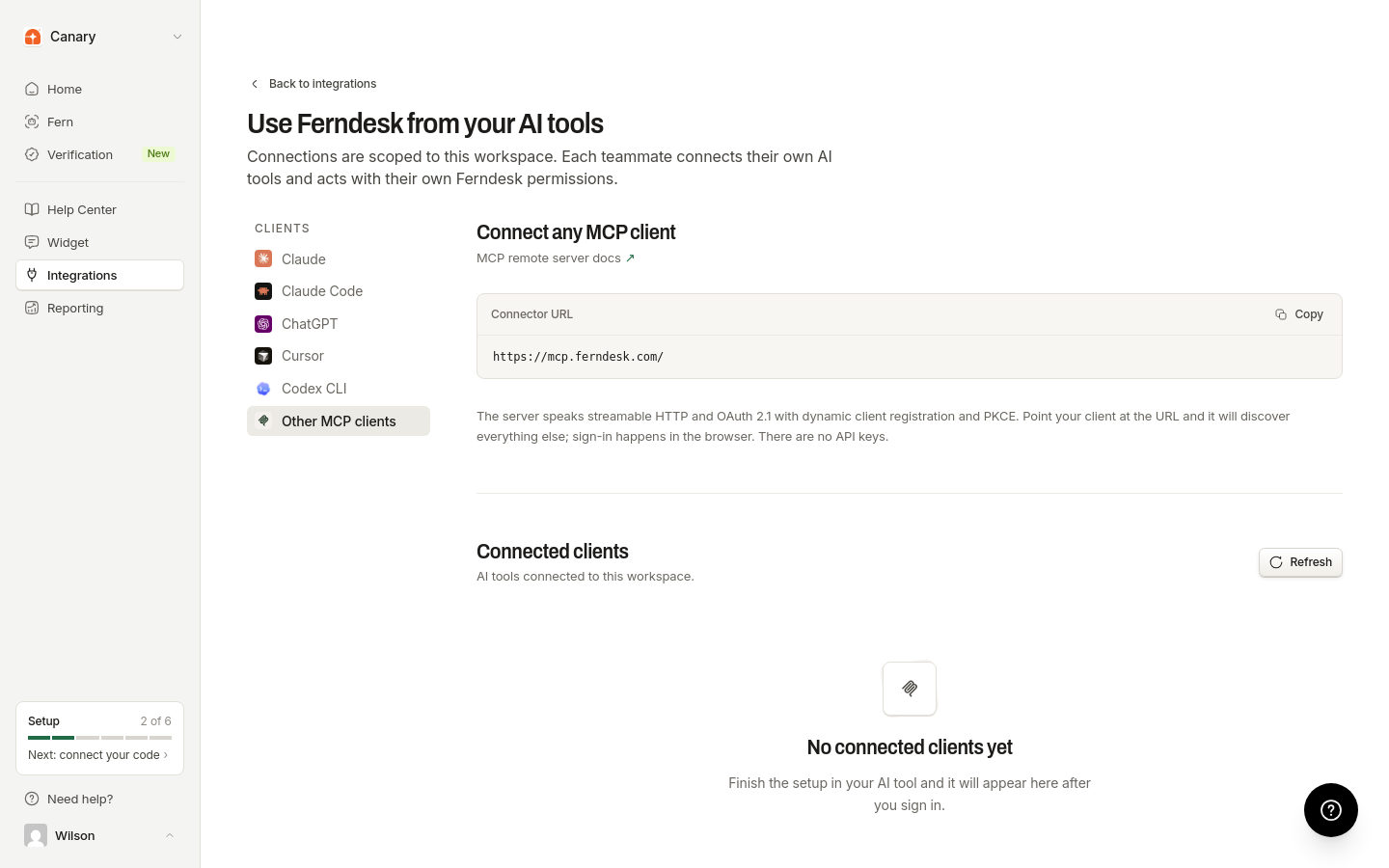
If you see No connected clients yet, finish setup in your AI tool first. The connection appears after you sign in.
Click Refresh to update the list.
For what you can do after connecting, and how to revoke a connection, see Use Ferndesk with AI tools.
Letting customers search your published help center from their own AI tools is a separate setup. See Let readers use your help center in AI tools.