
How to connect Pylon
Connect your Pylon account to Ferndesk so Fern can read your resolved support tickets and identify documentation gaps.
Before you begin
You need permission to manage API tokens in your Pylon workspace. If you don't see the API Tokens page, ask a workspace admin for help.
Get your Pylon API token
Log in to your Pylon dashboard.
Go to Settings > API Tokens.
Click Create.
Give your token a name (like "Ferndesk") and click save.
Copy the token immediately. It is only shown once.
See Pylon's guide for more details.
Connect Pylon
Go to the Integrations page in your Ferndesk dashboard.
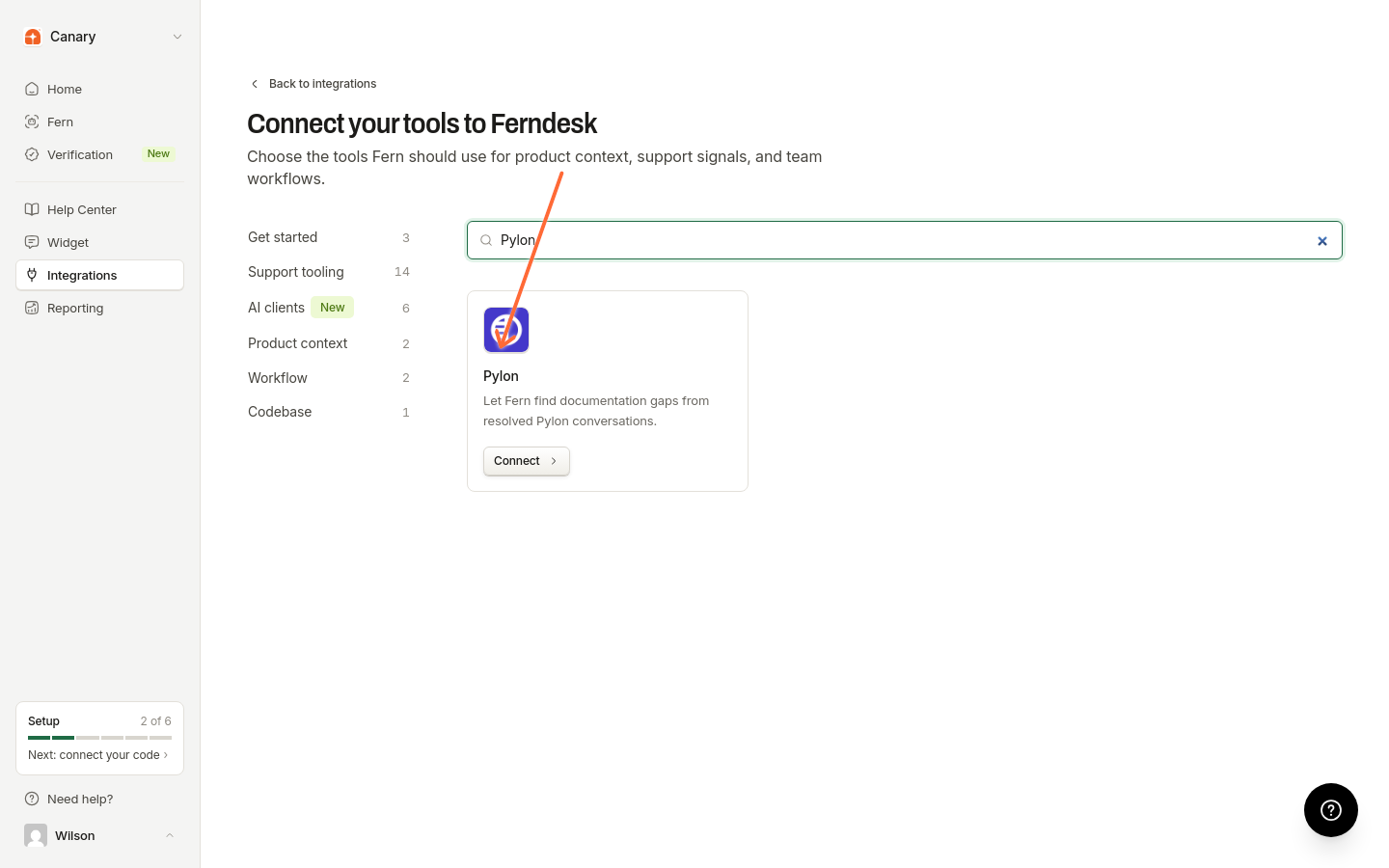
Find the Pylon card and click Connect.
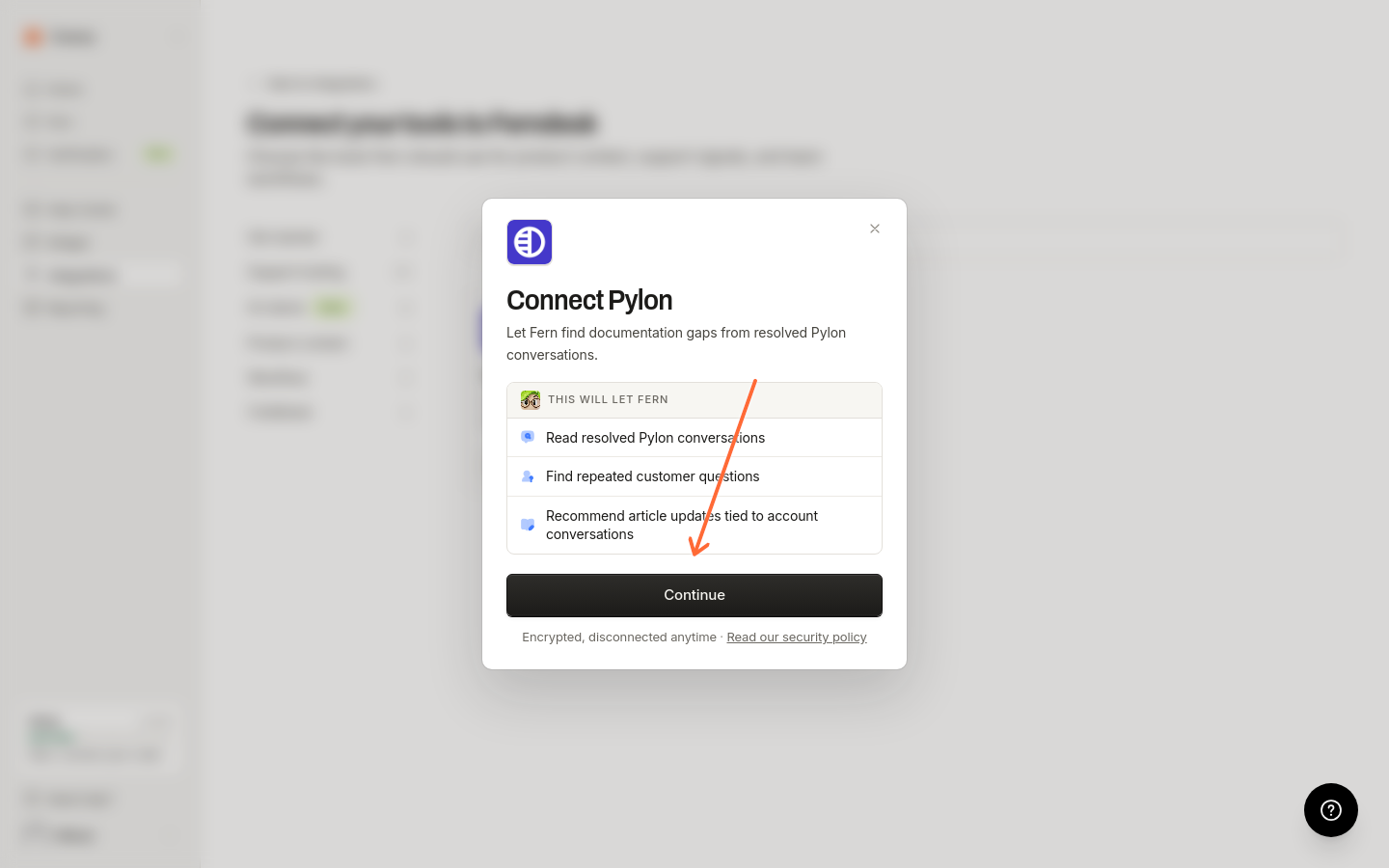
Click Continue to open the API key form.
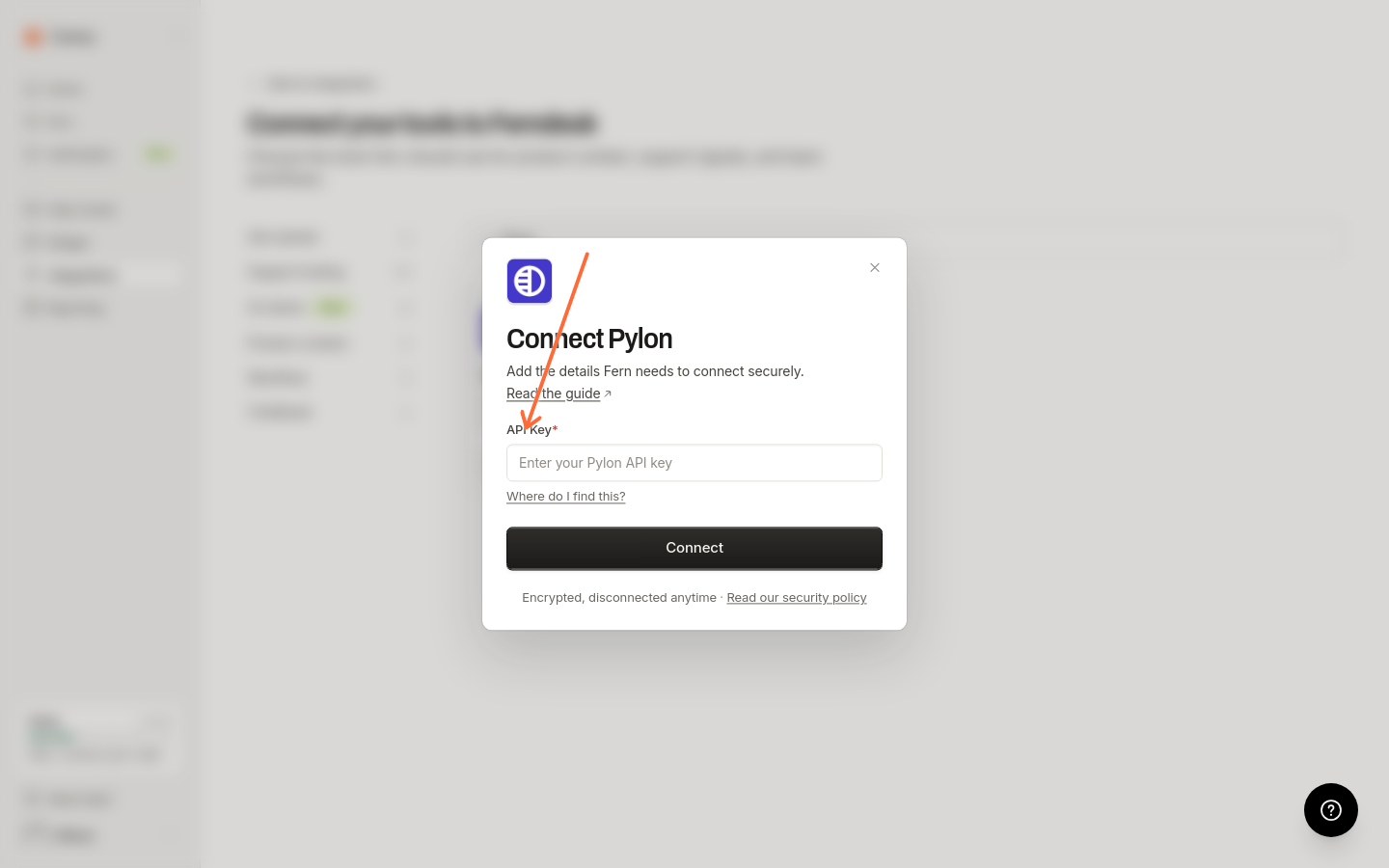
Enter your Pylon API token, then select Connect to complete the setup.
Once connected, you will see a "Connected to Pylon" confirmation. The card shows Manage; on the connection detail page you can use Disconnect or Edit configuration.
What happens after connecting
Fern will begin importing your resolved tickets to identify documentation gaps and suggest updates to your help center. Support trends from Pylon appear in Reporting under Intelligence. To automatically receive documentation gap recommendations, enable scheduled audits in Settings > Automations.
What data is synced
Ferndesk imports resolved, closed, and archived tickets along with their messages (excluding internal notes). Imported support messages are encrypted and stored for support-signal analysis.
Manage your connection
To disconnect or update your API key, go back to the Integrations page, find Pylon, and click Manage.