
You need to be signed into your Ferndesk workspace before connecting an integration. Make sure you are logged in and that you are in the correct organization. If you have access to multiple Ferndesk workspaces, switch to the one where you want to add the GitHub connection.
GitHub integration
Connect your GitHub account to Ferndesk so Fern can browse your codebase and understand how features work, which helps generate more accurate and relevant help center articles.
You need a GitHub account to complete this integration. If you do not have one, create one on the GitHub website.
Connect GitHub
From your Ferndesk dashboard, click Integrations in the sidebar.
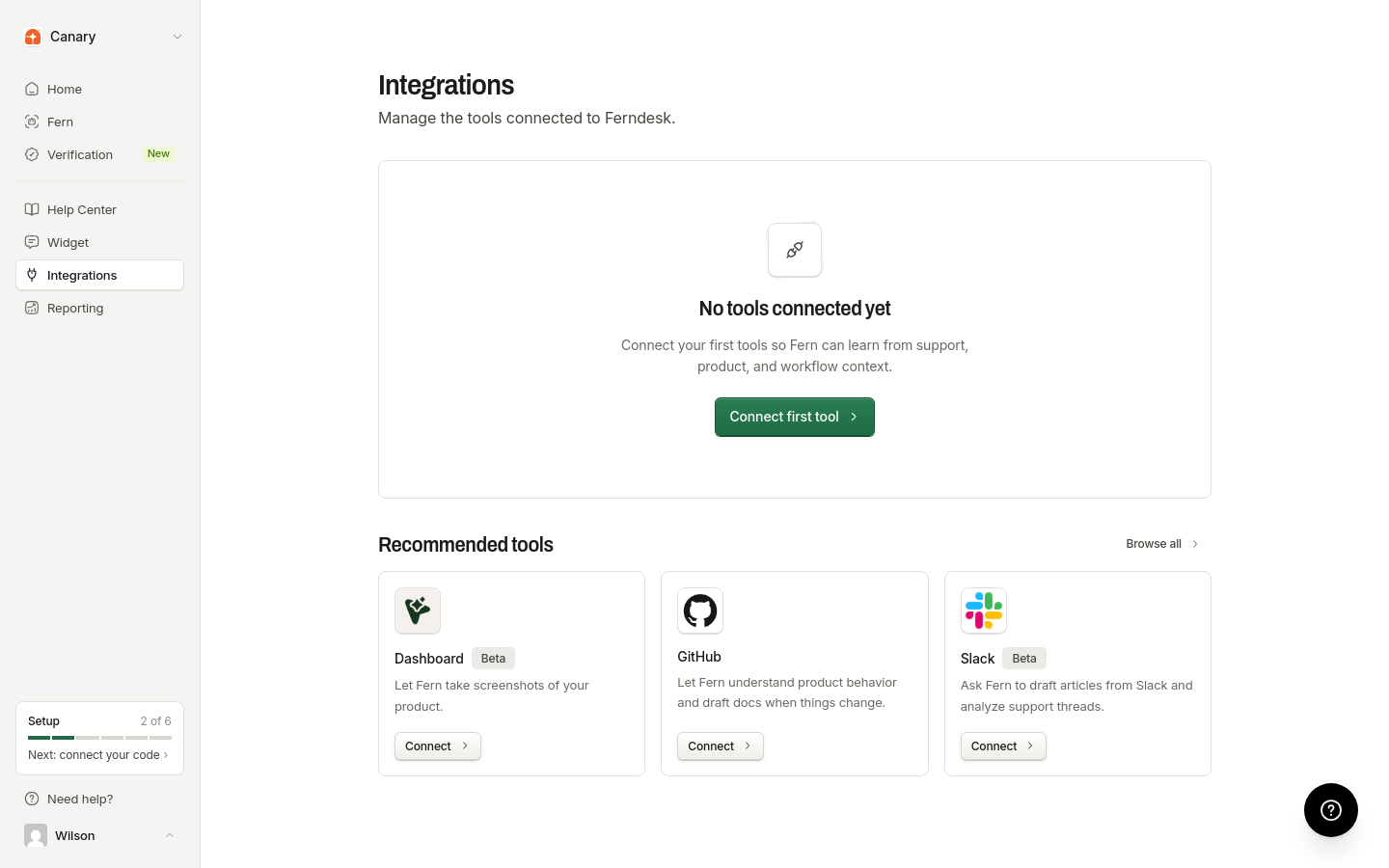
After opening Integrations, click Connect first tool, Connect integration, or Browse all, then find GitHub and click Connect.
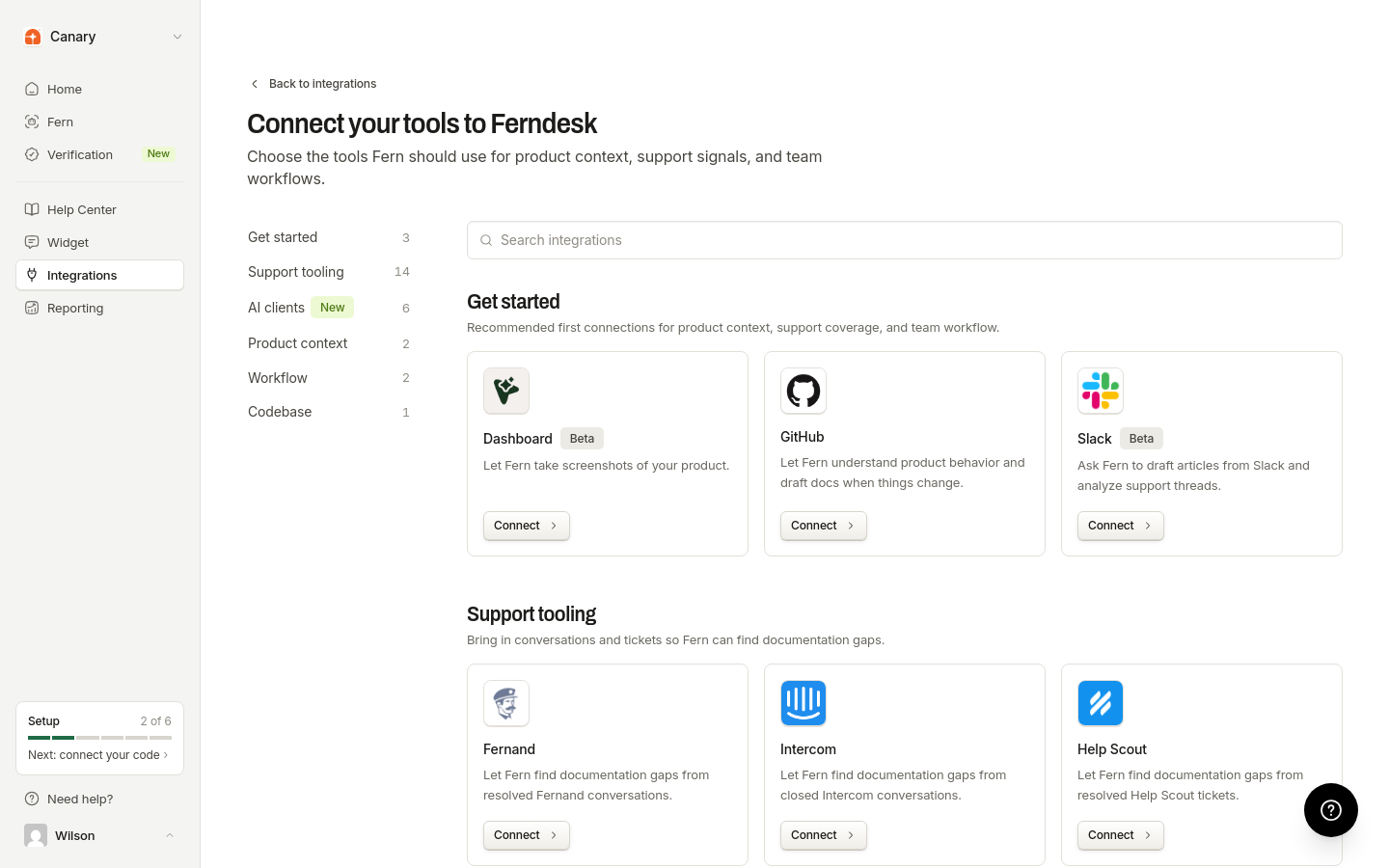
You will be redirected to GitHub to authorize the connection. Log in to your GitHub account if you are not already logged in.
Grant Ferndesk permission to access your GitHub account. You can select which repositories to connect. You can choose multiple repositories if your project spans multiple repos, such as a backend and dashboard in separate repositories. The GitHub account completing this authorization must have access to the GitHub App installation.
After authorizing, you will be redirected back to Ferndesk. The GitHub integration will show as connected.
Once connected, Fern can browse your codebase to provide more accurate and relevant help center articles.
Reuse a GitHub connection
If you manage multiple Ferndesk workspaces that share a GitHub installation, you can reuse an existing GitHub connection from another workspace instead of authorizing it again. Owners and admins can reuse a connection from a workspace they manage.
In the GitHub connection dialog, choose Reuse a GitHub connection.
Select a connection from another workspace you manage. Reusable connections are grouped by GitHub installation, and connections already linked to this workspace cannot be selected. The selected connection shows the workspaces using it.
After you reuse a connection, its current repositories start ignored in this workspace so you can choose your own repositories before Fern uses the code. Other workspaces keep their own repository settings.
Manage connected repositories
Which repositories Fern uses is set per workspace in Ferndesk. Open Integrations from the dashboard sidebar, select your GitHub connection, and find the Repositories section.
Mark each repository as Included or ignored for the current workspace. The setting saves automatically, and new repositories are included automatically.
Ignored repositories are excluded from Fern's code research and future code change processing for this workspace.
This selection is separate from the repositories the GitHub installation can access, which you manage in GitHub itself. Marking a repository as ignored in Ferndesk does not change the GitHub installation's access to it.
Repository and branch scoping
When Fern browses your codebase, it can target a specific repository or branch from your connected GitHub account instead of relying only on the default repository.
If you have multiple repositories connected, Fern can focus on the relevant repo during analysis. For branch-specific work, such as reviewing an unreleased feature or a pull request, Fern can also browse a specific branch when one is provided.
You can also set a production branch for each repository so Fern knows which branch represents your live code. See Set a production branch below.
To let Fern browse a repository, mark it as Included in the Repositories section of your GitHub connection. Only included repositories are used by Fern in this workspace.
Set a production branch
Set a production branch for each included repository so Fern knows which branch represents your live code. Without one, Fern uses the repository's default branch. Each included repository can use a different branch, and branch changes save automatically.
Choose a production branch
Open Integrations from the dashboard sidebar and select your GitHub connection.
Find the Repositories section on the connection detail page.
Find the repository you want to configure. Use the search field if you have many repositories.
Click the branch selector for that repository, then search for a branch or choose one from the list.
Switch back to the default branch
Open the branch selector and choose Use default branch. Fern goes back to using the repository's default branch.
Production branches affect how Fern processes GitHub merges. For code research, Fern uses the repository's default branch unless your request supplies a specific branch.
When a configured branch no longer exists
If a production branch is deleted or renamed on GitHub, the Production branches card warns that the branch no longer exists. Choose another branch or select Use default branch to resume.
When GitHub notifies Ferndesk that a branch was deleted, Fern removes the setting and falls back to the default branch. This requires the GitHub App to subscribe to Delete events.
Troubleshooting
I see "Authentication required to connect GitHub"
I see "GitHub OAuth organization does not match the active session"
The GitHub account or organization you are authorizing belongs to a different organization than the one you are signed into in Ferndesk. Make sure you are:
Signed into the correct Ferndesk workspace
Authorizing the GitHub account or organization that corresponds to that Ferndesk organization
If you need to connect a different GitHub organization to a different Ferndesk workspace, switch to that workspace in Ferndesk first, then connect GitHub.
Connecting GitHub fails with an access error after authorizing
The GitHub account that completed the authorization does not have access to the GitHub App installation, so Ferndesk does not create the connection. Ask the owner or administrator of the GitHub organization where the Ferndesk app is installed to complete the connection instead.
Choosing which repositories to connect is separate from installation access and happens after the connection is created.
The GitHub authorization page shows an error
This can happen if:
Your session expired. Try signing out of Ferndesk and signing back in.
The OAuth state became invalid. Close the authorization window and click Connect again in Ferndesk.
Additional resources
For more information on GitHub features, visit the GitHub Documentation.
Was this helpful?
Was this helpful?