
You need to be signed into your Ferndesk workspace before connecting an integration. Make sure you are logged in and that you are in the correct organization. If you have access to multiple Ferndesk workspaces, switch to the one where you want to add the Intercom connection.
Intercom integration
Connect your Intercom account to Ferndesk so Fern can read your closed conversations and identify documentation gaps.
Before you begin
You need an active Intercom account to complete this integration. If you do not have one, create one on the Intercom website.
Connect Intercom
Go to the Integrations page in your Ferndesk dashboard.
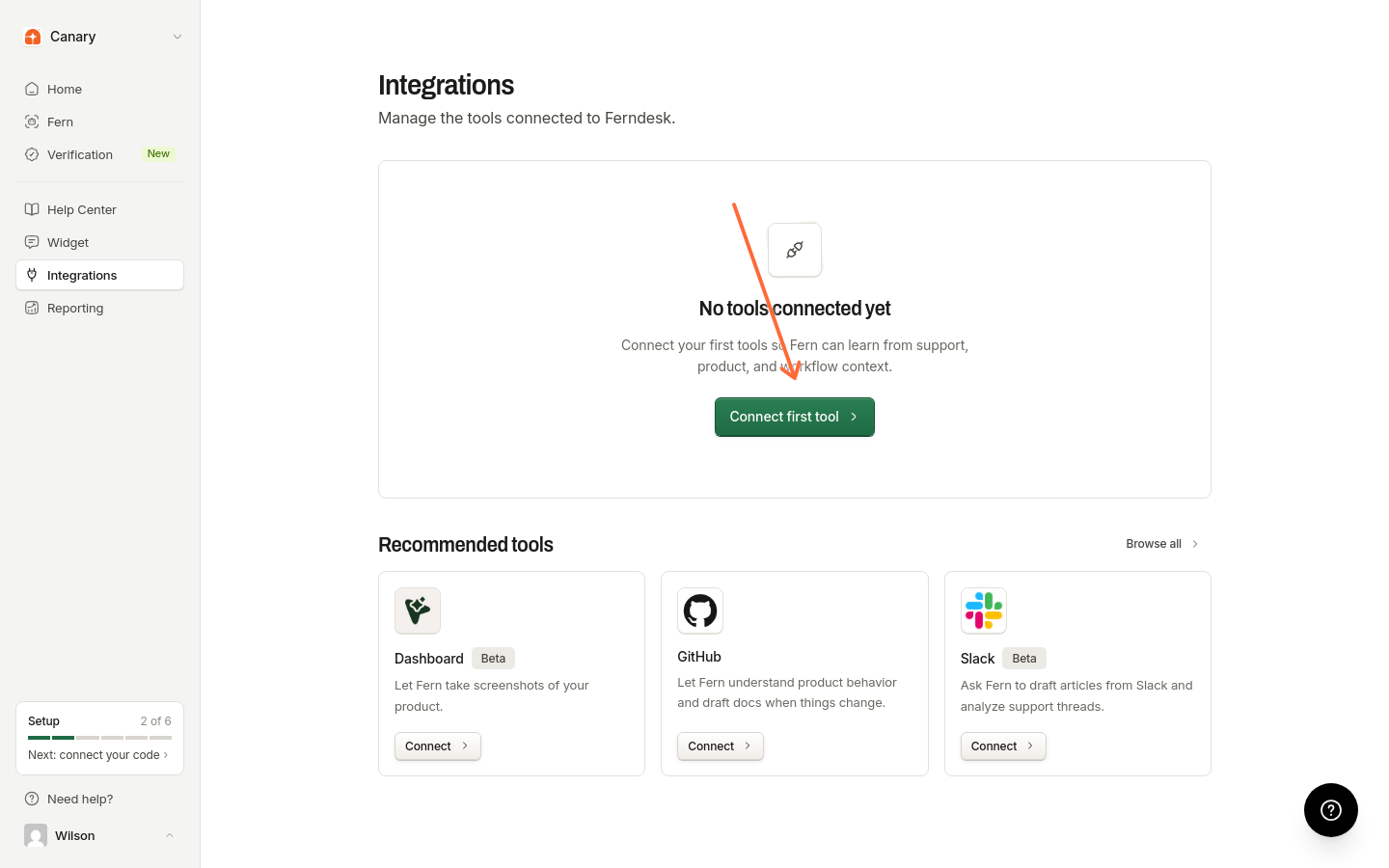
Choose Connect first tool, Connect integration, or Browse all to open the catalog, then select Intercom under Support tooling.
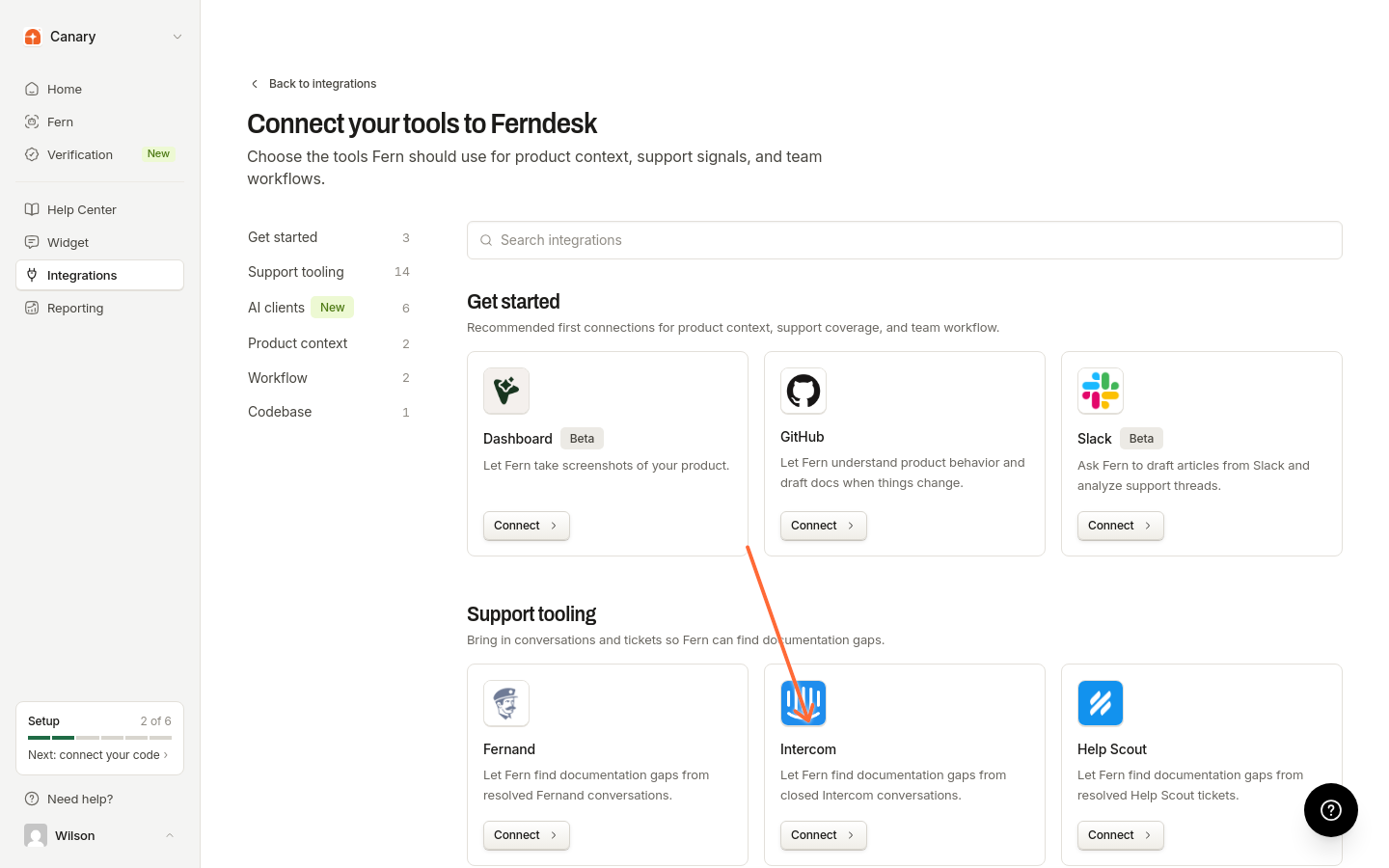
In the connection dialog, click Connect Intercom to open Intercom's authorization page.
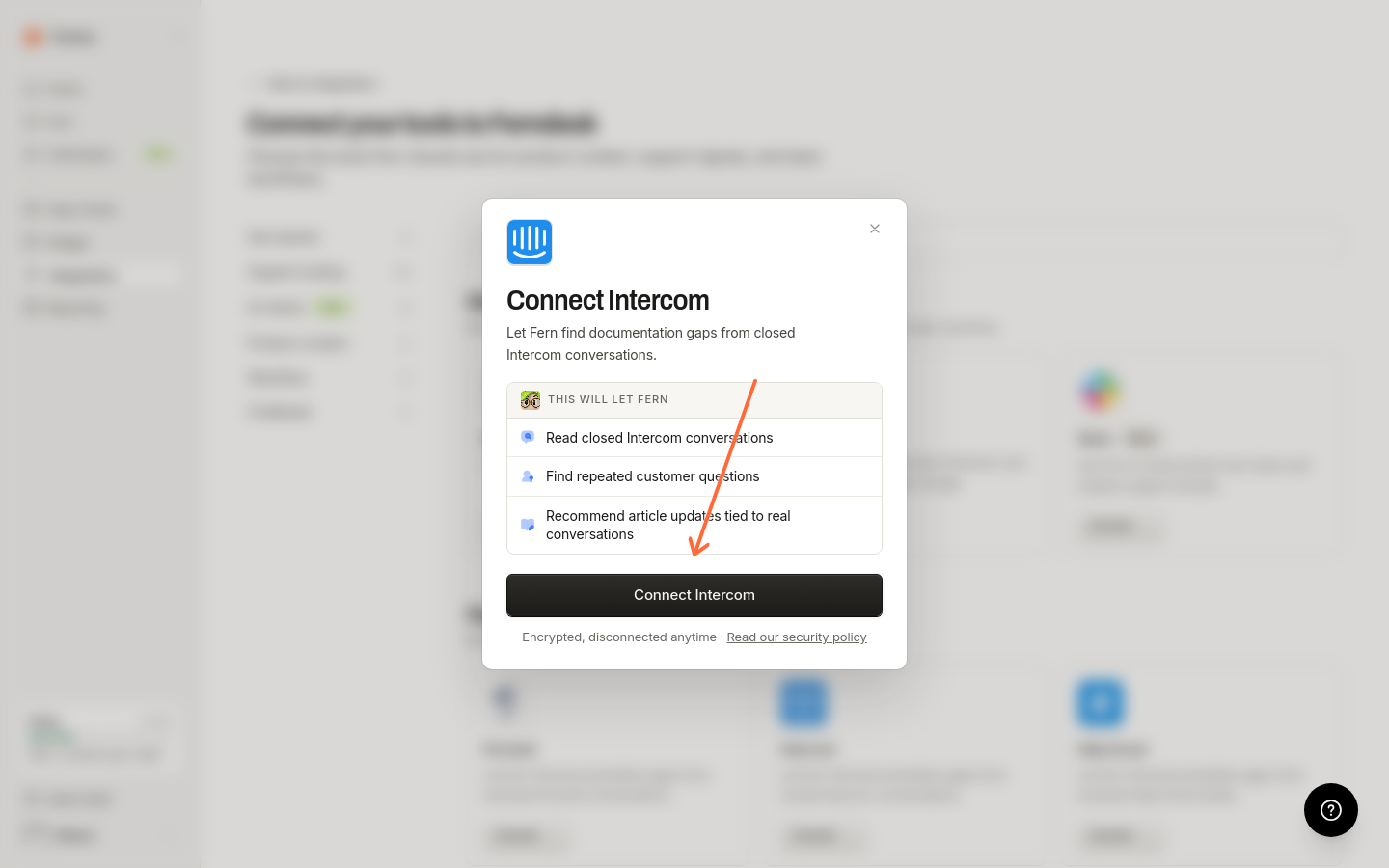
Log in to your Intercom account if you are not already logged in, then grant Ferndesk permission to access your closed conversations.
After authorizing, you will be redirected back to Ferndesk.
Once connected, the Intercom connection appears on the Integrations page with a Manage action.
What happens after connecting
Fern reads your closed Intercom conversations to identify patterns in customer questions. Support trends from Intercom appear in Reporting under Intelligence. To automatically receive documentation gap recommendations, enable scheduled audits in Settings > Automations.
Manage connections
Select Manage for the Intercom connection to open its detail page, where you can reconnect or disconnect. Add additional Intercom workspaces through the catalog.
Troubleshooting
I see "Authentication required to connect Intercom"
I see "Intercom OAuth organization does not match the active session"
The Intercom account you are authorizing belongs to a different organization than the one you are signed into in Ferndesk. Make sure you are:
Signed into the correct Ferndesk workspace
Authorizing the Intercom workspace that corresponds to that Ferndesk organization
The authorization page shows an error or fails to load
This can happen if:
Your session expired. Try signing out of Ferndesk and signing back in.
The OAuth state became invalid. Close the authorization window and click Connect again in Ferndesk.
Additional resources
For more information on Intercom features, visit the Intercom Help Center.
Was this helpful?
Was this helpful?