
Configure widget settings
Customize your Self-Service Widget to match your brand and support workflow. Every setting shows a live preview as you edit.
Admin or owner access is required to customize widget settings.
Access widget settings
Open the widget customization panel from the dashboard. The sections below appear in the panel in the same order as this article.
Open your Ferndesk dashboard.
Navigate to Help Center → Widget.
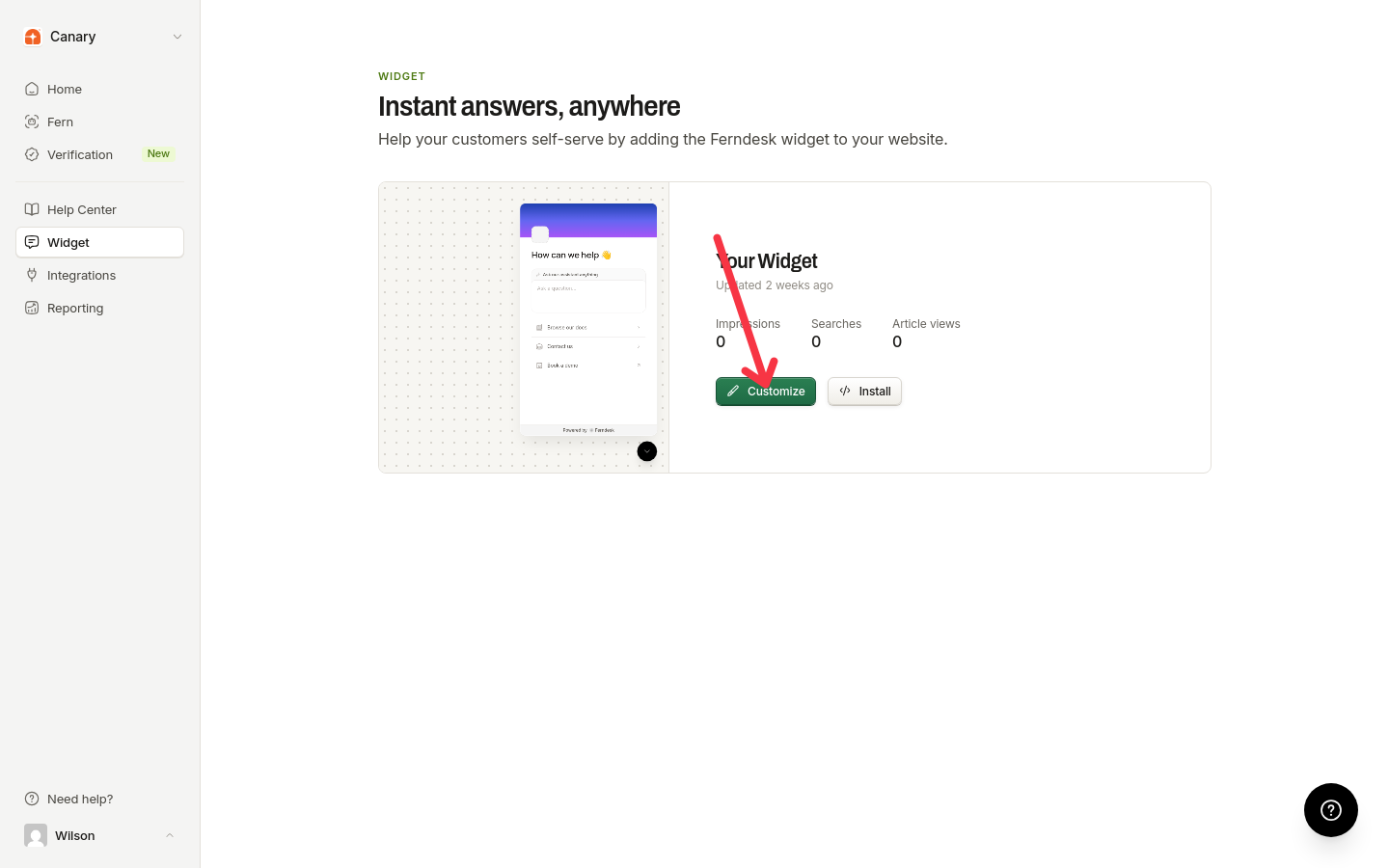
Click Customize on the card of the widget you want to customize.
Manage widgets
Your organization can run several widgets, one per site or app. In Help Center → Widget, the Widget dashboard lists every widget in creation order, and the list refreshes each time you open the page, so widgets a teammate added or removed appear without a reload. Each card shows a live preview, its 30-day activity (impressions, searches, and article views), and Customize and Install actions, plus a menu with Rename and Delete.
Create a widget
In Help Center → Widget, click New widget.
Enter a name and click Create widget. The new widget's customization page opens.
Your first widget skips naming: click Create widget on the empty Widget page and it is created with the default name Help widget.
Rename a widget
Open the menu on the widget's card and choose Rename, then click Save name. The name is only shown to your team, so you can tell your widgets apart.
Widget names are trimmed of surrounding spaces and must be between 1 and 80 characters. Blank or longer names are rejected.
Delete a widget
Open the menu on the widget's card and choose Delete, then click Delete widget in the confirmation. Any site or app that installed the widget's snippet stops showing it shortly after deletion. The widget's text, translations, and contact settings are deleted with it, and this can't be undone.
The confirmation shows how often the widget loaded in the last 30 days, so you can check whether sites still use it before deleting.
Branding
Control your widget's visual identity: logo, colors, and fonts.
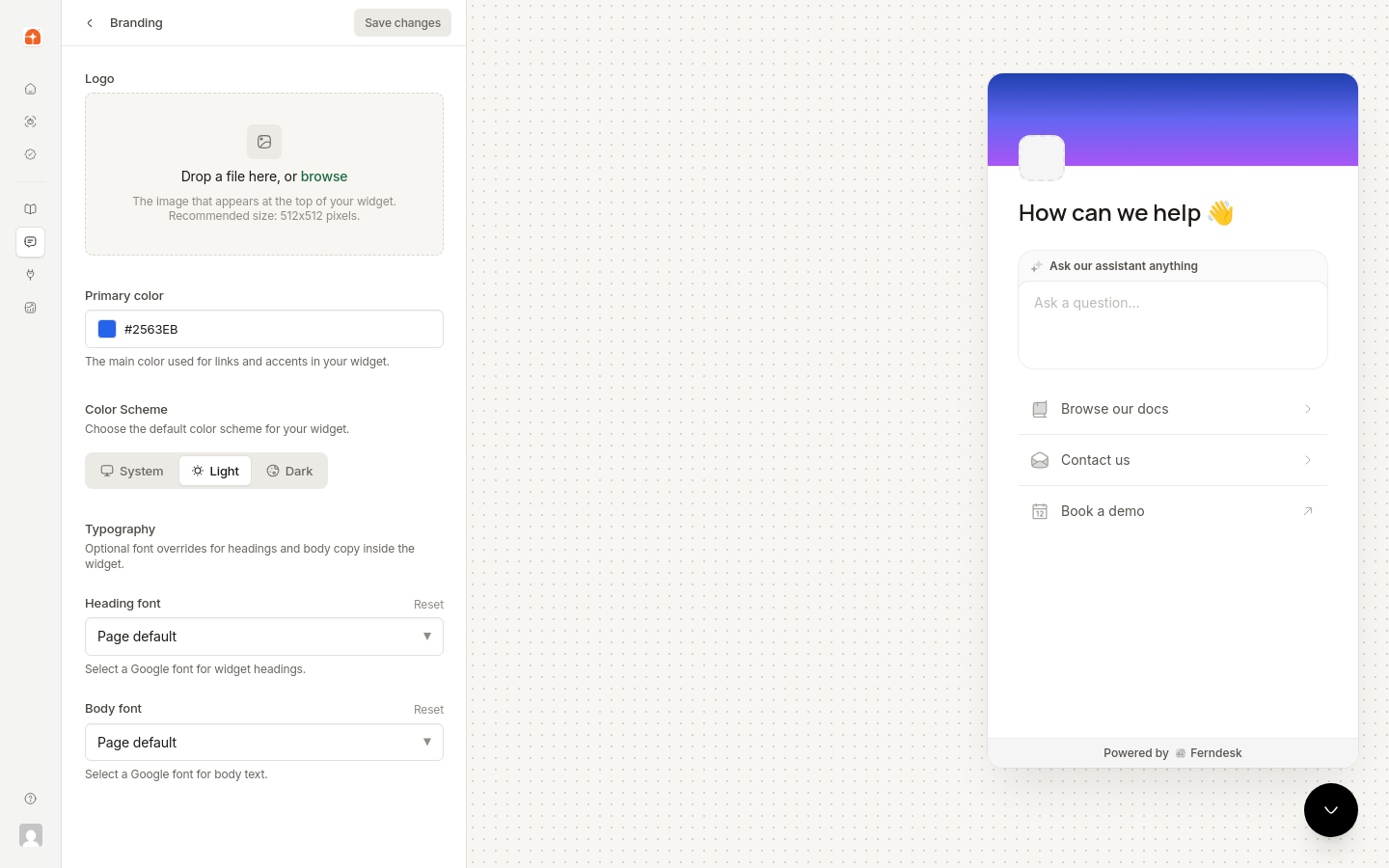
Logo: Upload PNG, JPG, or SVG (recommended 512x512px)
Primary color: Brand color for buttons and accents
Color scheme: Choose system, light, or dark mode
Heading font and Body font: Choose from Google Fonts
Square logos work best. The widget automatically resizes images to fit.
Launcher
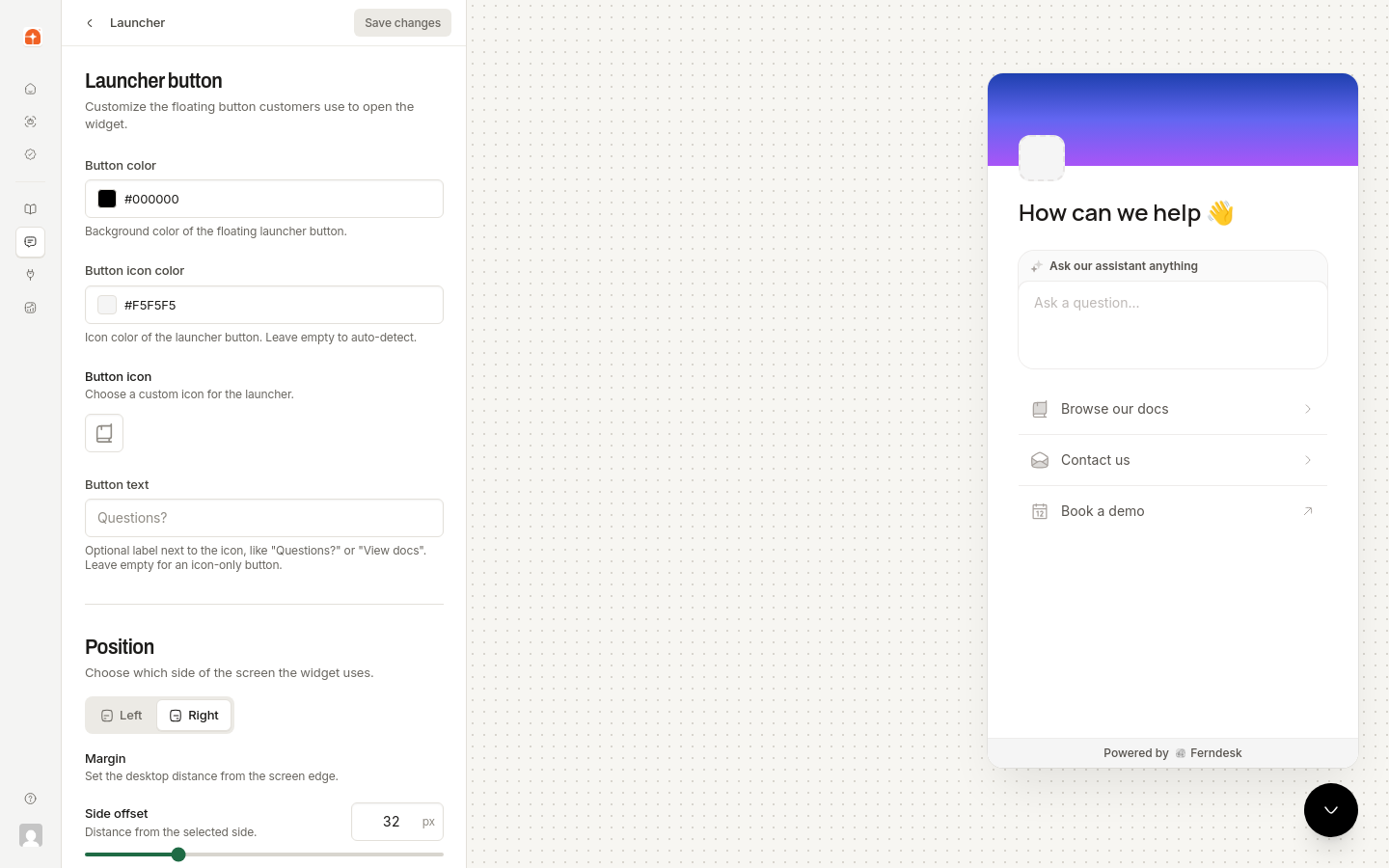
The launcher is the floating button visitors click to open the widget. Customize how it looks and where it sits on the page.
Button
Button color: Background color of the launcher button
Button icon: Icon displayed inside the launcher button
Button icon color: Color of the icon. Leave empty to auto-detect based on button background contrast, or choose a specific hex color
Button text: Optional label shown next to the icon. Leave empty to keep the icon-only launcher. Accepts up to 40 characters, for example "Questions?" or "View docs"
Size: Icon size inside the launcher (16–32 pixels, default: 24)
Rounding: Choose Full for the pill-shaped launcher or Custom to set your own Corner radius (0–32 pixels)
Position
Choose where the launcher button appears on the page:
Left: Places the launcher in the bottom-left corner
Right: Places the launcher in the bottom-right corner (default)
The widget panel opens from the same side as the launcher position. A launcher in the bottom-left opens the panel from the left, and a launcher in the bottom-right opens it from the right.
Margin
Control the spacing around the launcher button:
Side offset: Distance from the left or right edge of the viewport (0–128 pixels, default: 32)
Bottom offset: Distance from the bottom edge of the viewport (0–128 pixels, default: 32)
Side offset applies to the selected position. If the launcher is on the left, side offset controls distance from the left edge. If on the right, it controls distance from the right edge.
Padding
Launcher padding: Internal spacing around the icon inside the button (8–40 pixels, default: 16)
Header
Set the title and background at the top of the widget panel.
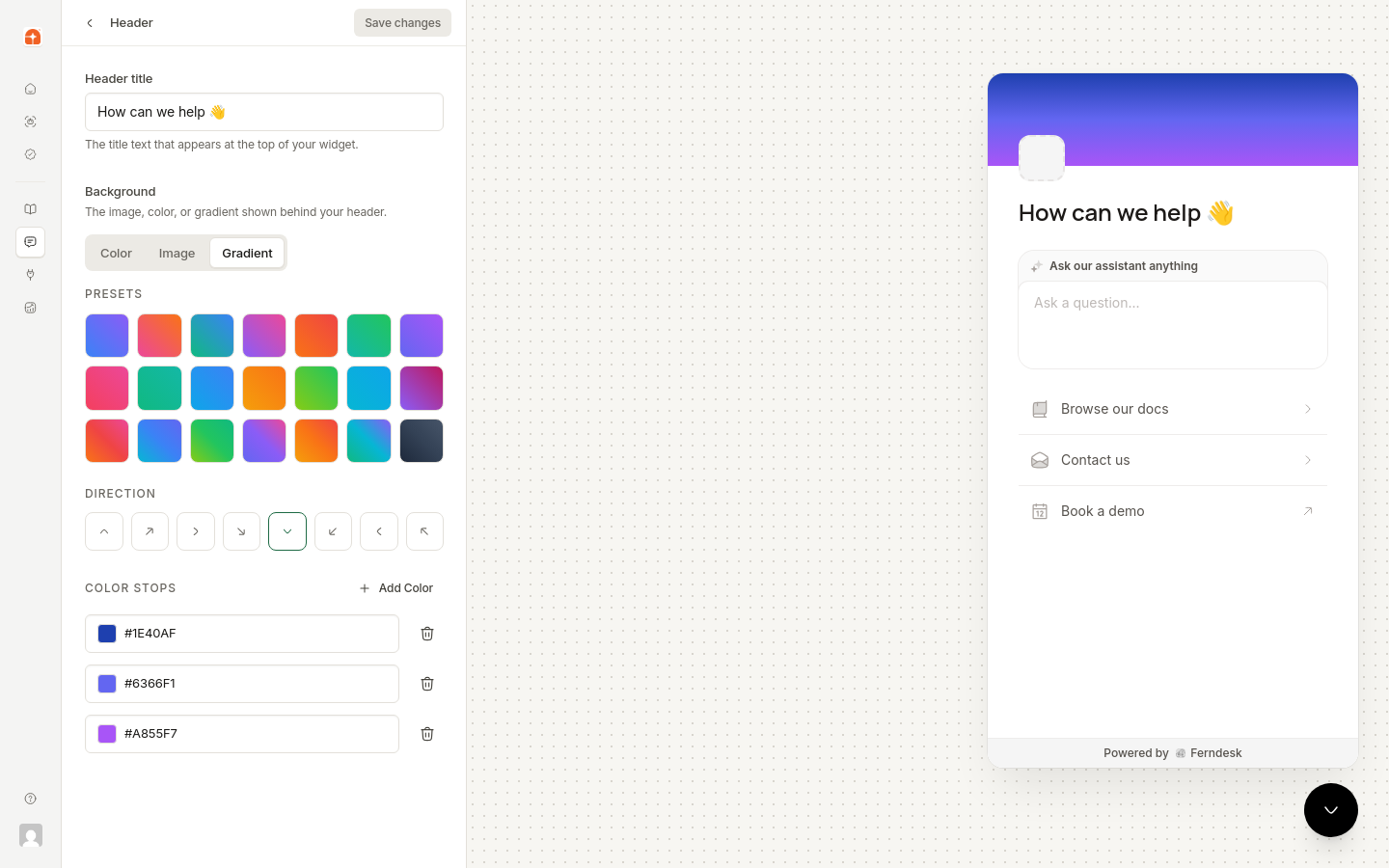
Title: Main heading (default: "How can we help?")
Background: Choose a color, image, or gradient behind the header
Color: Select a solid background color
Image: Choose an image from Templates or Unsplash, or upload your own
Gradient: Select a preset gradient background
AI Answers
Enable AI-powered chat to help customers find answers through natural language queries. When enabled, the widget shows a chat interface that synthesizes answers from your published articles with inline citations.
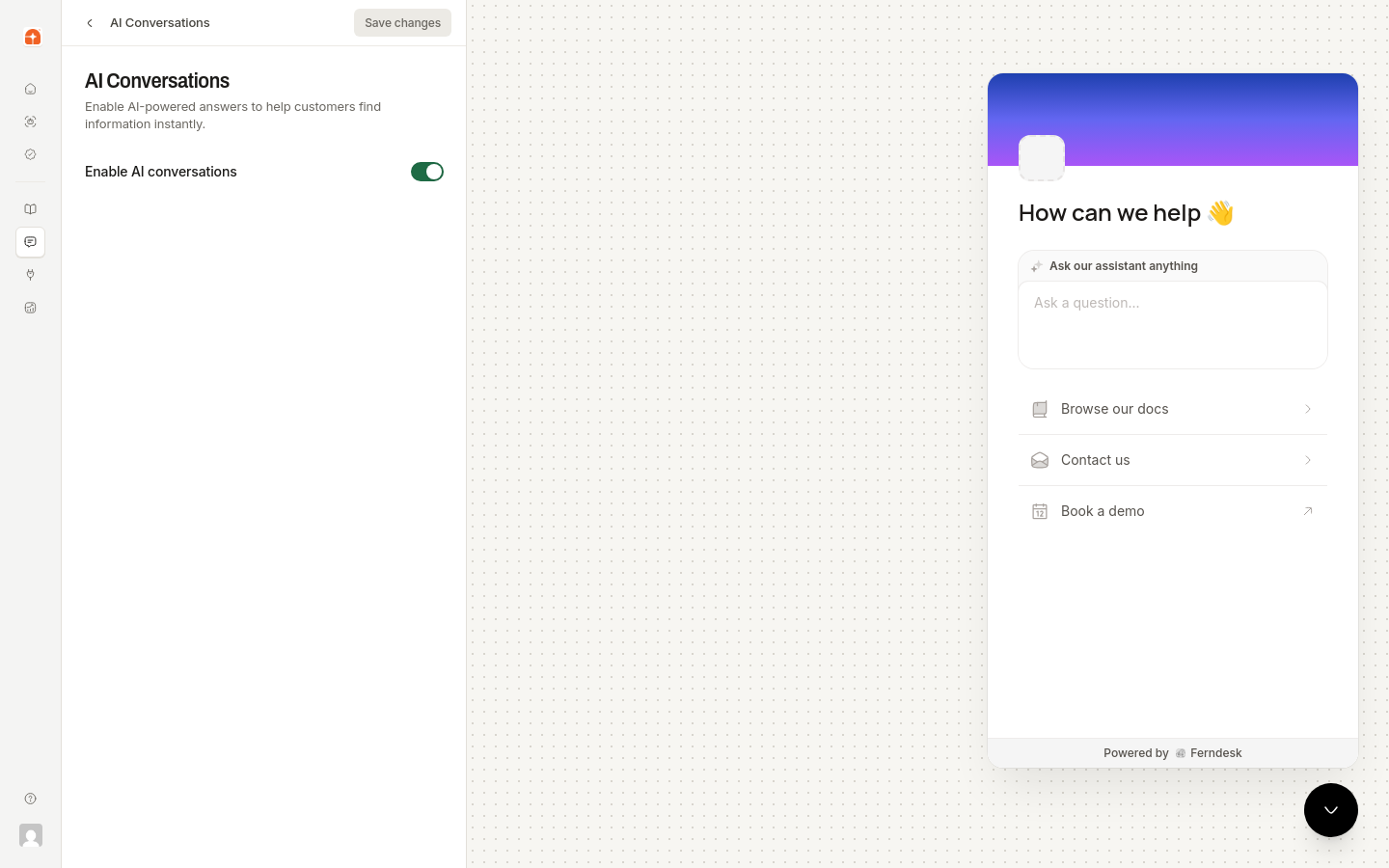
The AI assistant only searches published content. Publish relevant articles before enabling this feature.
This toggle only turns AI answers on for the widget. Response behavior is a shared assistant setting, not a widget setting: tone, answer length, screenshots, standing instructions, and off-limits topics are managed once at Settings → AI Assistant and apply to both your help center and your widget. See Customize the AI assistant for the available options.
Links
Add up to 5 quick-access links to your widget. Drag and drop to reorder them.
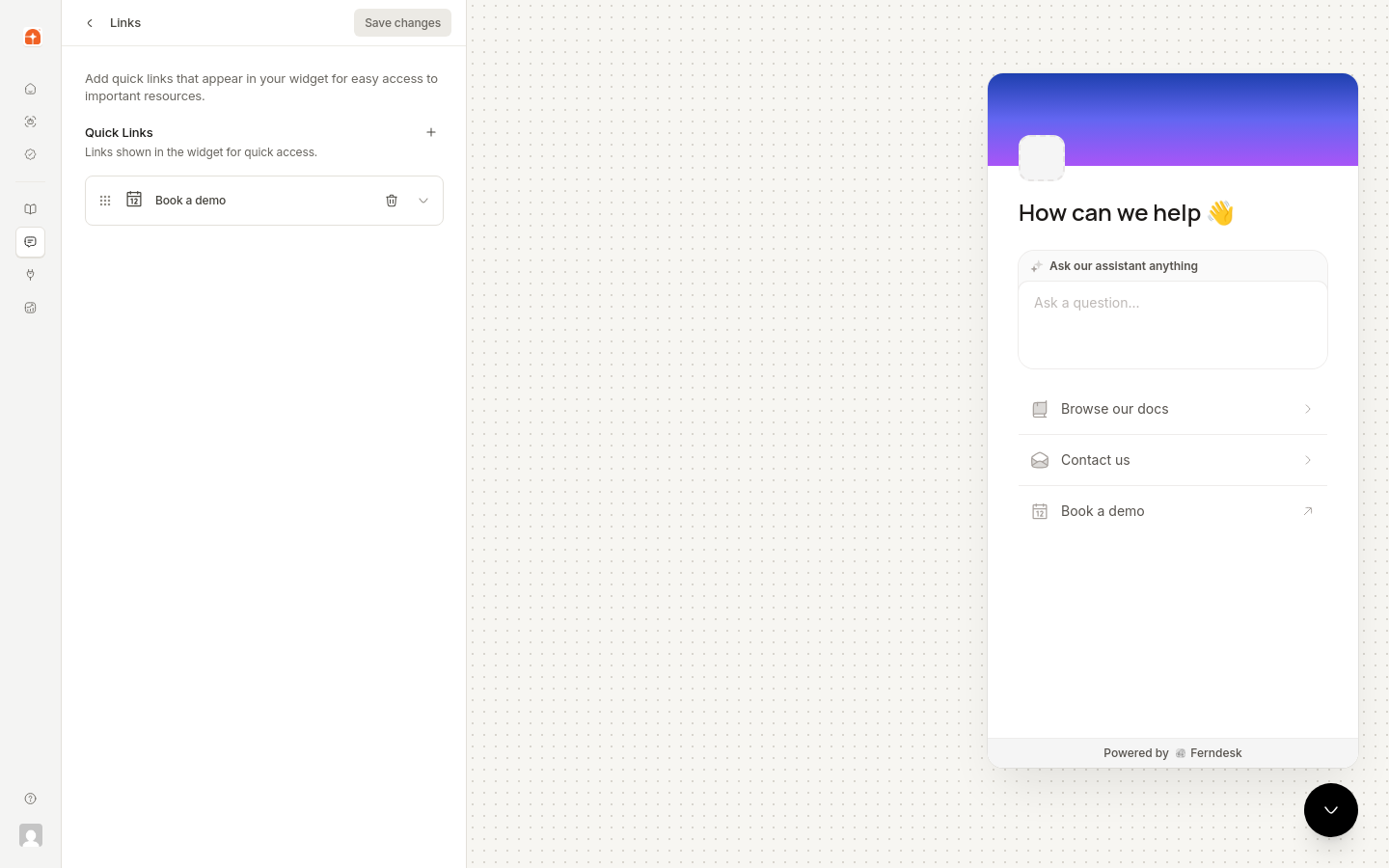
Each link includes:
Icon: Choose from available icons
Label: Link text
URL: Destination (internal or external)
Open in new tab: Toggle whether the link opens in a new browser tab. Turn this off to open the link in the same tab. Your site can also listen for clicks with the Ferndesk SDK.
Contact
Choose how customers reach your support team. The Contact section has four tabs: Form, Link, Chat, and None.
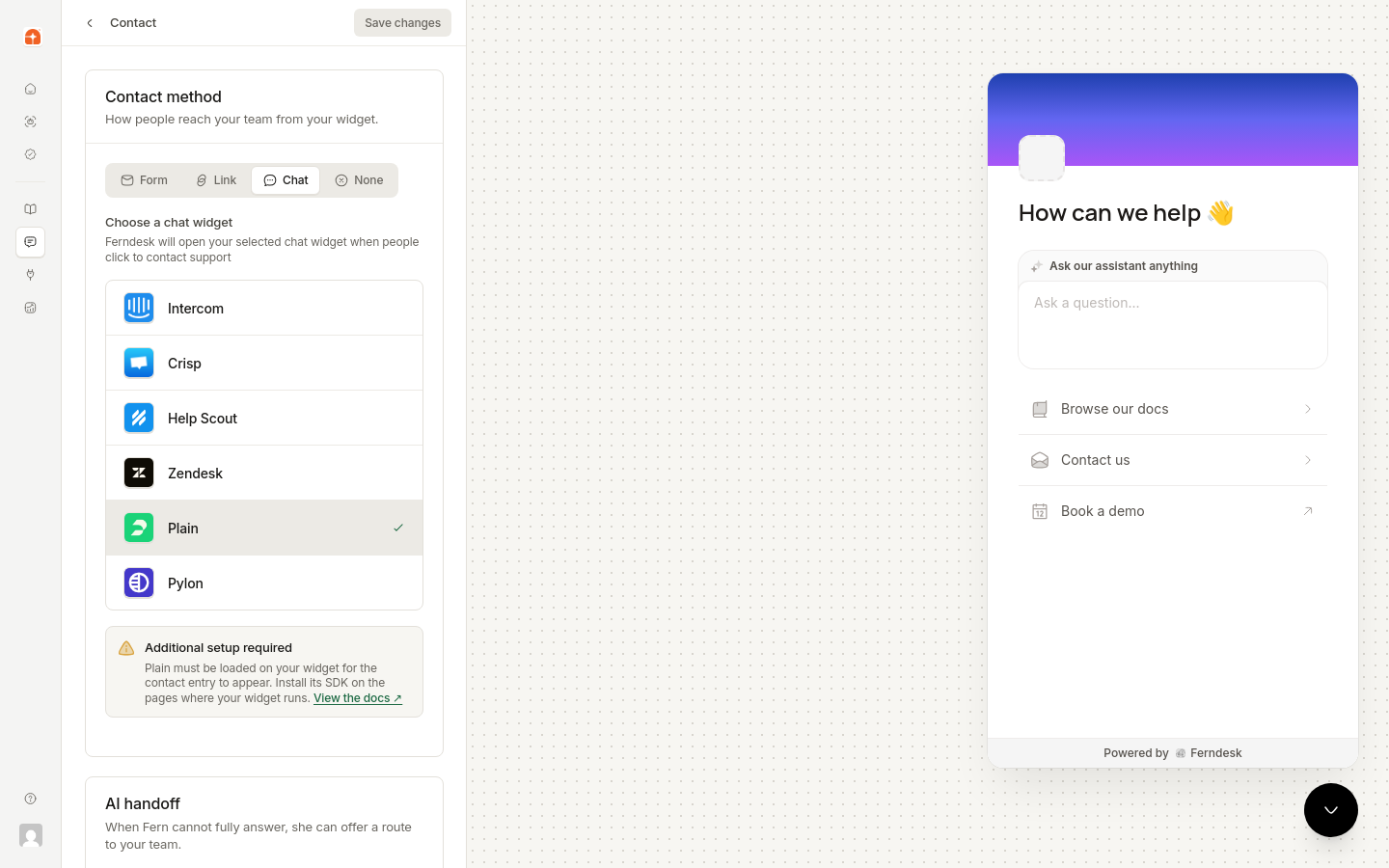
File uploads are only available with the Form contact method.
Form
Display a contact form that sends messages to your support email. Visitors can attach image files to their messages.
Attachment requirements
When visitors attach images to their contact message, the following limits apply:
File types: JPEG, PNG, GIF, WebP, HEIC, HEIF
Per-file size: Up to 5 MB per file
Maximum files: Up to 3 images per message
Total size: Up to 15 MB combined
Contact form settings
Configure:
Support email address: Where messages are sent
Contact title: Heading on the contact page
Contact description: Brief explanation
Button text: Submit button label (default: "Get in touch")
If a visitor starts filling out the contact form but closes the widget or navigates away, their draft is preserved. When they reopen the widget, their name, email, subject, message, and any attached files are restored automatically. Drafts clear only after successful submission.
Link
Redirect users to an external support page or ticketing system.
Contact link URL: Destination URL
Button text: Button label
Chat
Hand off to your existing chat platform when visitors click the contact button. The chat widget stays hidden until Ferndesk opens it, so visitors see your self-service content first.
Supported platforms:
Intercom: Opens the Intercom Messenger
Crisp: Opens Crisp Live Chat
Help Scout: Opens the Help Scout Beacon
Pylon: Opens the Pylon chat widget
Zendesk: Opens the Zendesk Web Widget
Plain: Opens the Plain chat widget
Each platform requires you to install its widget on your site with the default launcher hidden. See Using Ferndesk with other chat platforms for setup instructions.
None
Hide the contact option for fully self-service support.
Escalation strategy
Control when the AI assistant offers a route to your team during widget conversations.
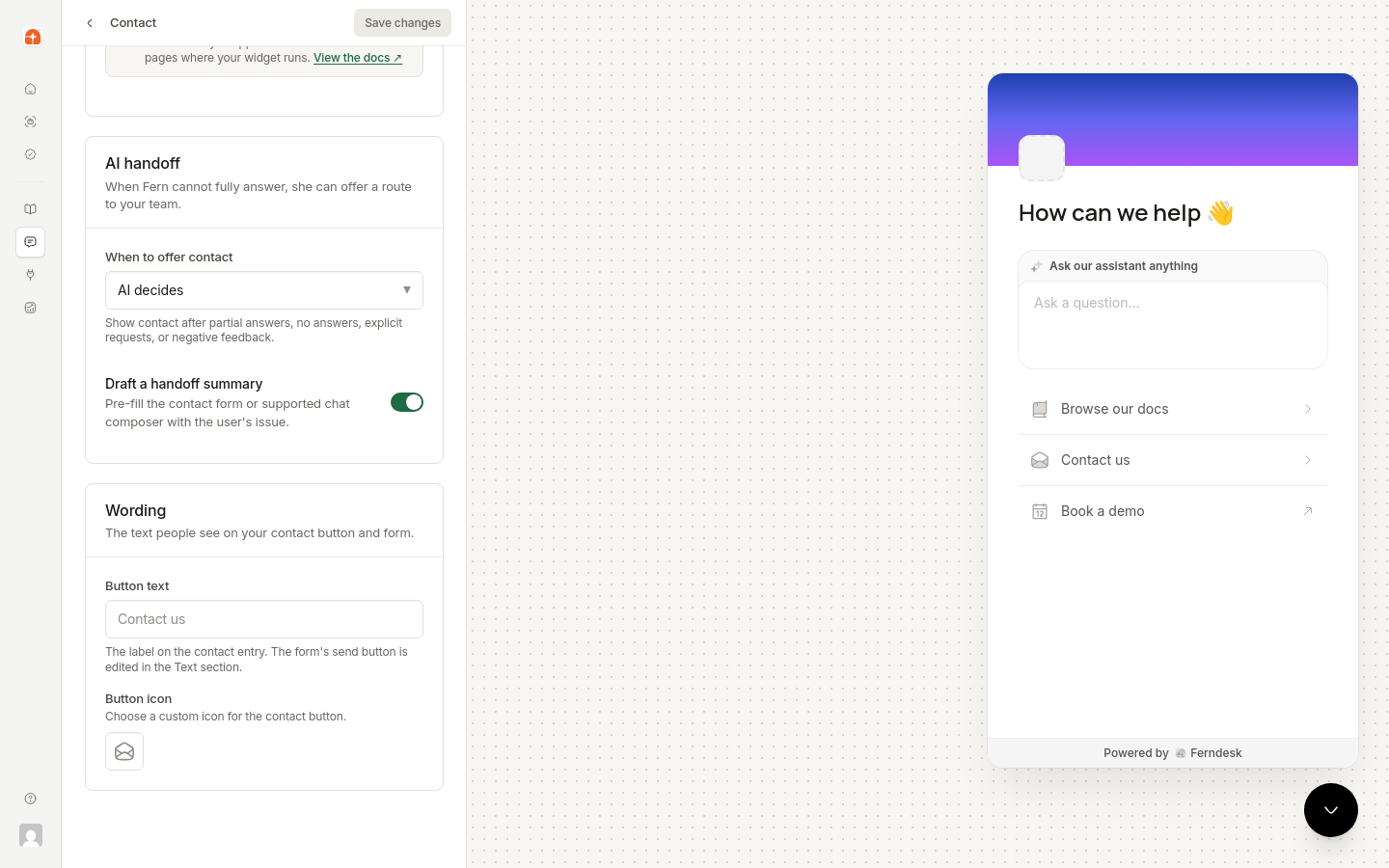
Under AI handoff behavior, select AI decides, Always visible, or Off. See AI escalation and handoff behavior for how each option works.
Enable Draft a handoff summary to have the AI generate a summary of the conversation before handoff.
Escalation strategy settings apply to the widget AI assistant. Configure help center AI handoff behavior separately in Help Center → Customize → Contact.
Translations
Translate your widget's UI strings into multiple languages. Visitors see the widget in the language matching your help center's primary language or their selected language.
Widget translations sync with your help center languages. Add languages in Help Center → Translate first. For each language:
Select a field to translate.
Click Re-translate with AI to auto-generate translations, or edit the translation text manually.
Check the preview, which updates in real time on the right.
The widget automatically displays in the appropriate language when visitors browse your translated help center.
Powered By
Toggle the "Powered by Ferndesk" link in the widget footer on or off.
Install
Copy the embed code snippet and paste it into your site's HTML before the closing </body> tag. The snippet includes your unique widget ID and loads the widget automatically. Each widget has its own snippet and widget ID, so you can install different widgets on different sites or apps.
Changes to widget settings apply immediately to your live widget after saving.