
Verify you have edit permissions. External help desks (synced from Zendesk, Intercom, etc.) are read-only in Ferndesk.
How to create and manage collections
Collections organize your articles into a navigable folder structure. They power your help center's sidebar navigation and collection pages, making it easier for customers to find content.
You need edit permissions in your workspace to create and manage collections.
Create a collection
1
Open the content tree
Go to Help Center in the sidebar.
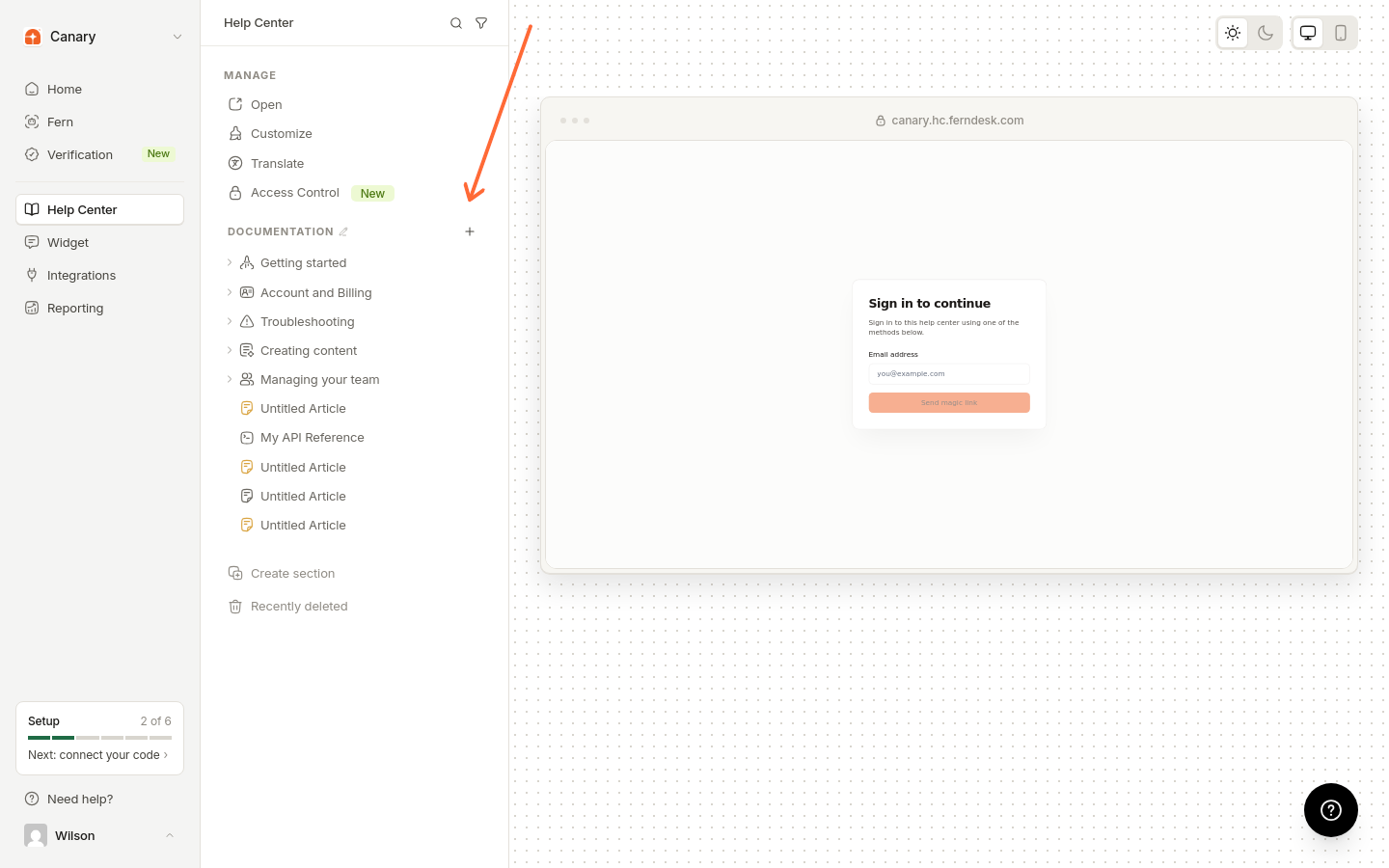
2
Start creating
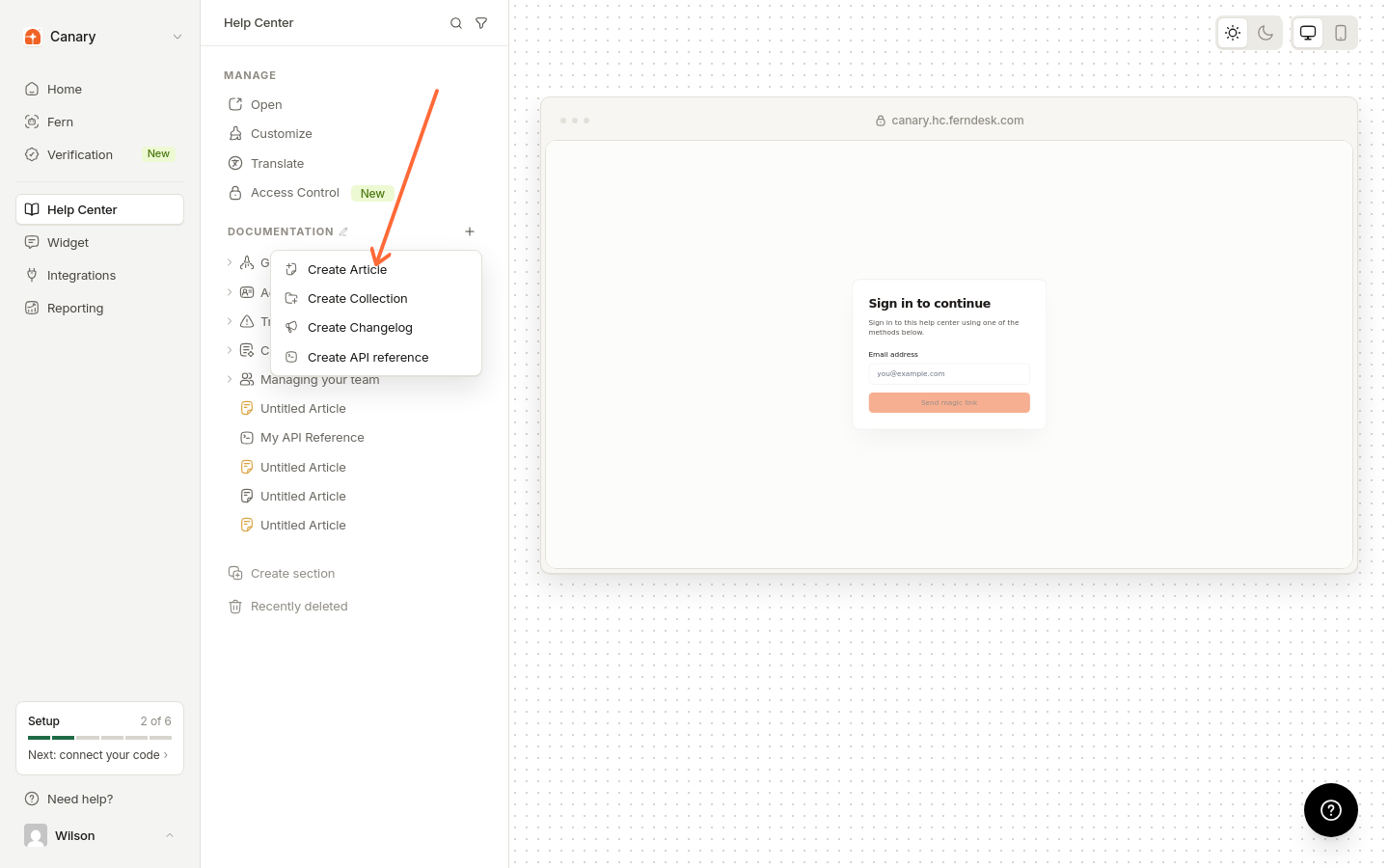
In the relevant section, click Add content to {section name}, then select Create Collection. To create a nested collection, hover over a collection and click ⋮ > Create sub-collection.
3
Enter collection details
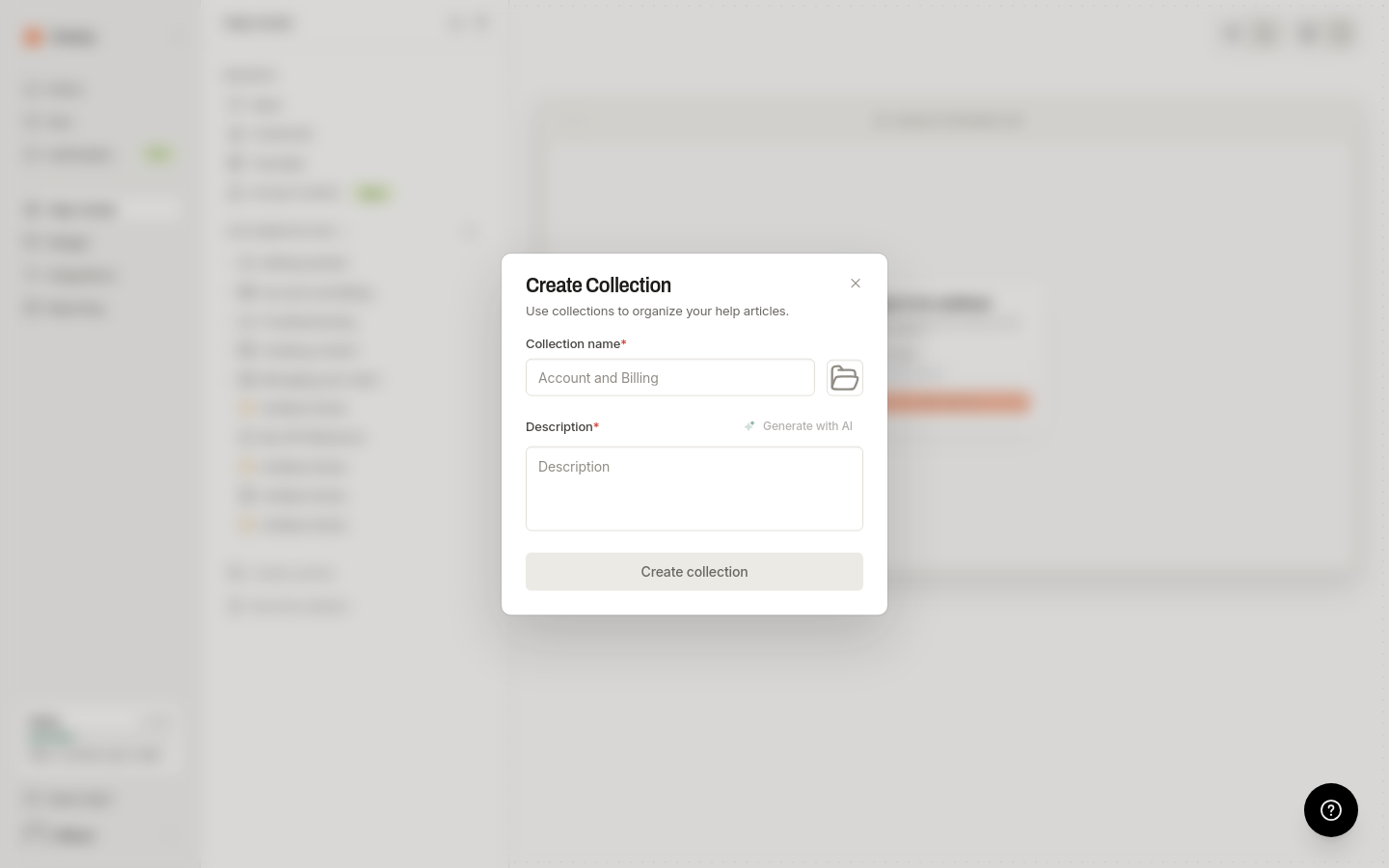
Enter a Collection name, add a description, and choose an icon.
4
Create the collection
Click Create collection.
To publish dated updates such as release notes, create a changelog instead of a collection. Changelogs live at a section root and sort their entries by entry date, newest first. See Changelogs.
Manage collections
Edit: Click the collection to open it in the main Help Center pane. The collection editor has Content, Access, and Translations tabs, where you can change the name, description, or icon. To remove an icon, open the icon picker and click Remove icon.
Reorder: Drag collections in the content tree.
Delete: Click ⋮ → Delete collection, then confirm in the confirmation dialog. Nested content is deleted with the folder. Articles stay in Recently deleted for 30 days; folders do not. See Restore a deleted article.
Move articles: Drag articles between collections, or use the breadcrumb selector in the article editor.
Take a collection off the help center
Collections have no publish control of their own. Publishing state lives on articles, so to remove a standard collection from the public help center, unpublish every article in it and in its sub-collections.
Unpublish the articles
Open the article in the editor.
Click More article actions in the editor header.
Select Unpublish article.
There is no bulk action, so repeat this for each article, including the articles in the collection's sub-collections.
What happens once every article is unpublished
When no article in the collection's tree is published anymore, the collection disappears from navigation, your sitemap, and llms.txt, and its public URL returns a 404.
A parent collection stays visible while any sub-collection still contains a published article.
In a secondary language that only shows translated content, a collection is hidden from that language's view when none of its articles are published in that language.
Changelog collections are not affected by this rule.
To restrict who can read a collection instead of taking it off the help center, use Collection access.
Edit collection translations
If your help center has multiple languages enabled, open the Translations tab in the collection editor to translate a collection's name and description. See How to edit collection translations for details.
Troubleshooting
Can't create collections
Missing create button
Make sure you're viewing your own workspace's help center, not an external one.
Was this helpful?
Was this helpful?