
Zendesk integration
Connect your Zendesk account to Ferndesk so Fern can read your resolved tickets and identify documentation gaps.
Before you begin
You need an active Zendesk account and an API token. If you do not have an account, create one on the Zendesk website.
Find your connection details
Subdomain: The part of your Zendesk URL before
.zendesk.com. For example, if your URL isyourcompany.zendesk.com, your subdomain isyourcompany.Email: The email address of any verified Zendesk user on the account; the token is not tied to its creator.
API Token: Generate an API token in your Zendesk Admin Center under Apps and integrations > APIs > API tokens. For detailed instructions, see the Zendesk documentation.
Connect Zendesk
Go to the Integrations page in your Ferndesk dashboard.
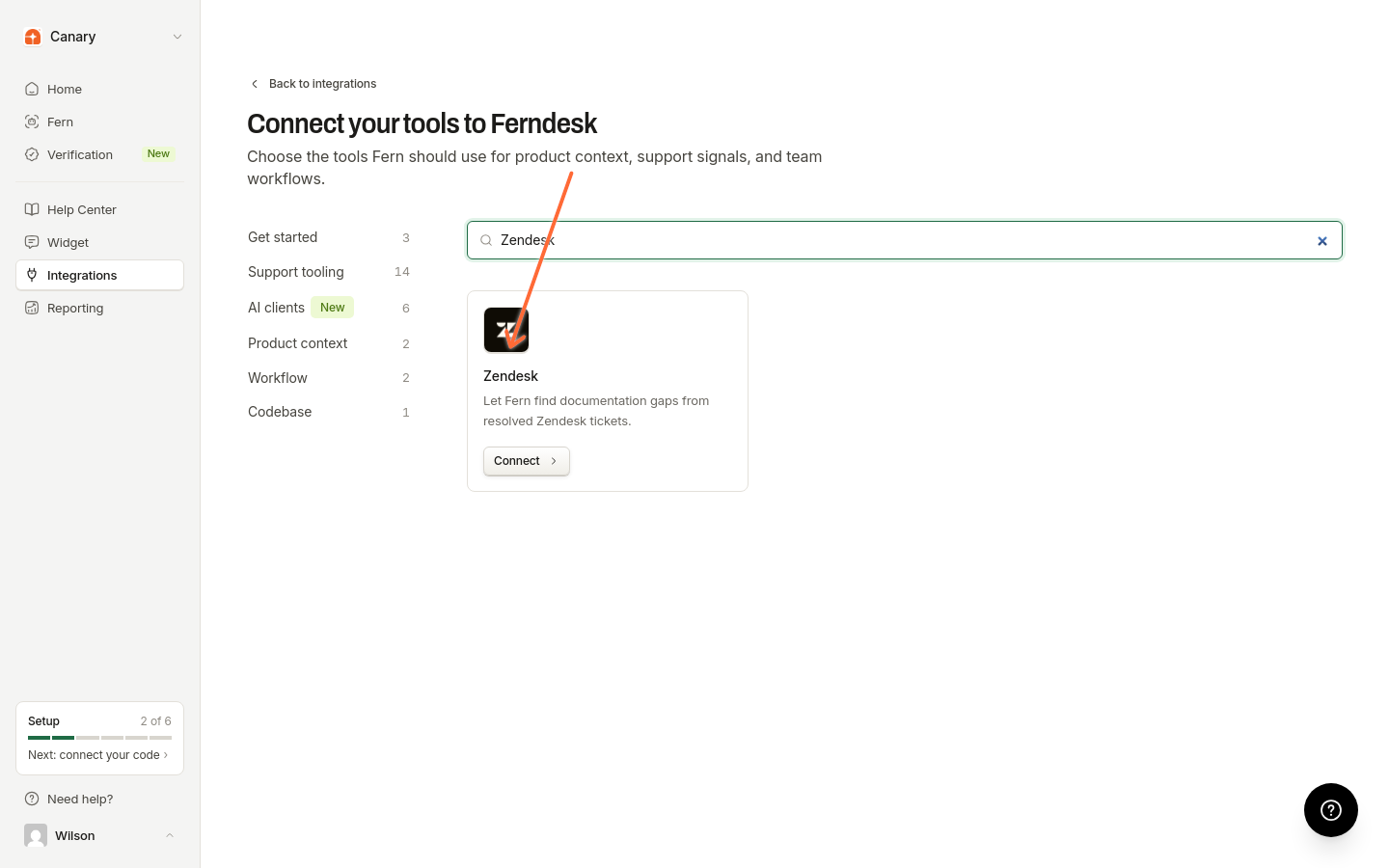
Find the Zendesk card and click Connect.
Enter your Zendesk subdomain, email, and API token in the connection modal.
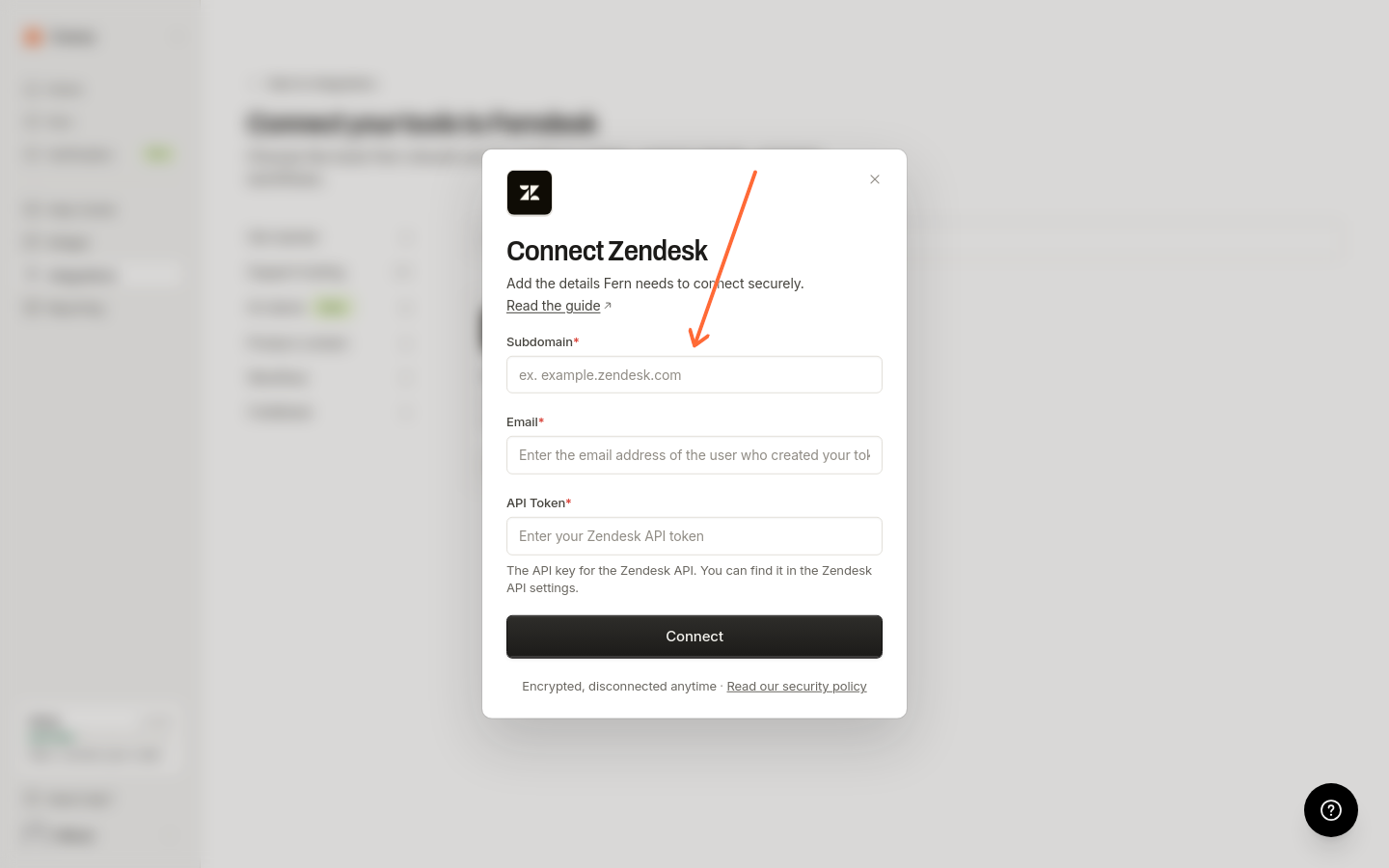
Click Connect to complete the setup.
Once connected, the Zendesk card shows a Manage button.
What happens after connecting
Fern can read your resolved Zendesk tickets to identify patterns in customer questions. Support trends from Zendesk appear in Reporting under Intelligence. To automatically receive documentation gap recommendations, enable scheduled audits from the account menu under Workspace settings > Fern > Automations.
Additional resources
For more information on Zendesk features, visit the Zendesk Help Center.