
Connect ChatGPT
Connect ChatGPT to Ferndesk so you can work with your help content from ChatGPT. Copy the connector URL from Ferndesk, turn on Developer mode in ChatGPT, create an app with that URL, and complete the Ferndesk sign-in.
Developer mode is available on Plus, Pro, Business, Enterprise, and Edu plans on the web. On Business and Enterprise, a workspace admin has to allow it first.
Copy the connector URL in Ferndesk
Get the ChatGPT connector URL from Integrations before you set up the app in ChatGPT.
In Ferndesk, go to Integrations.
From Integrations, select Connect integration or Browse all. In the catalog, open AI clients.
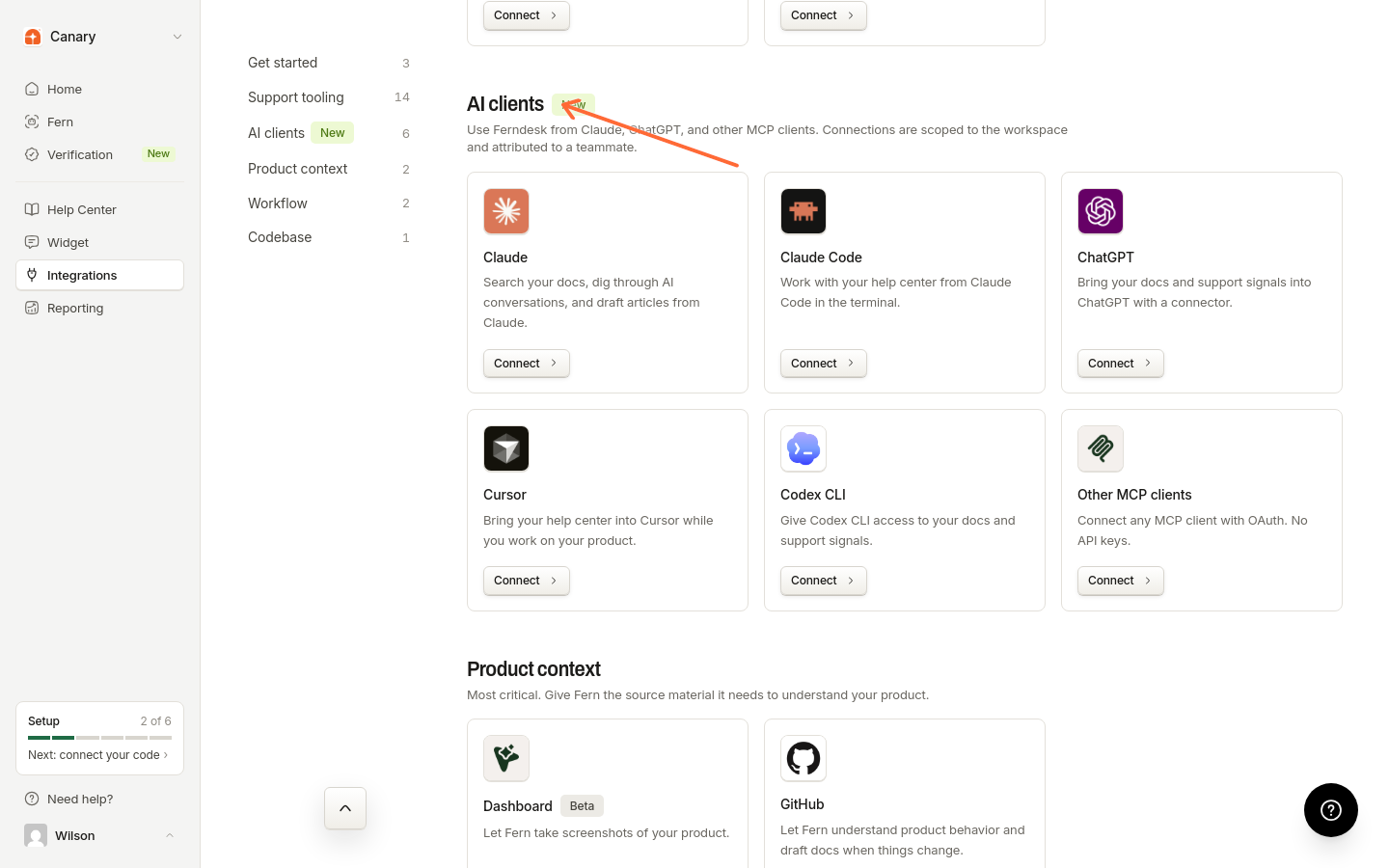
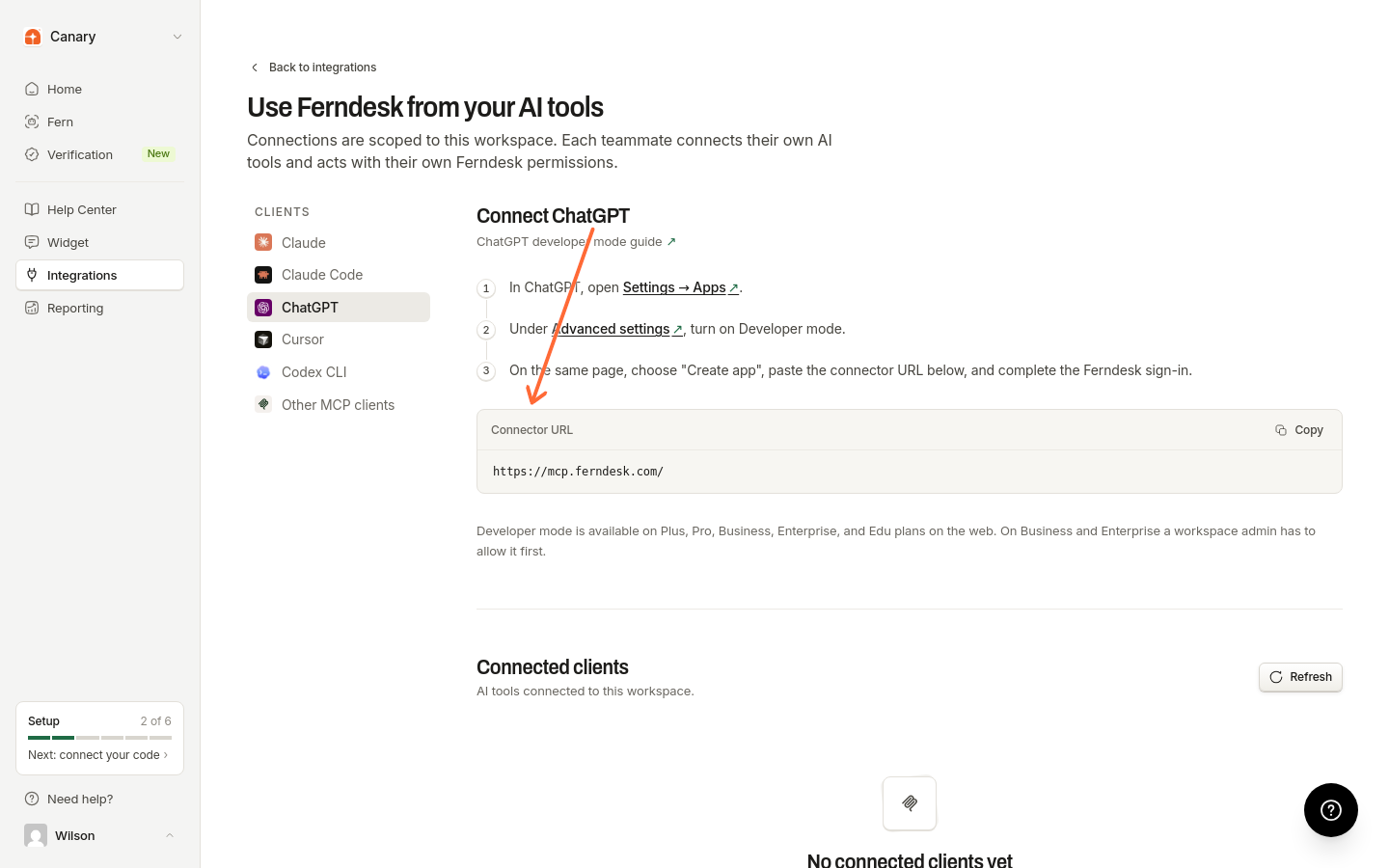
Choose ChatGPT in the Clients list.
Copy the Connector URL.
Connect ChatGPT
Turn on Developer mode in ChatGPT, then create an app with the connector URL and sign in to Ferndesk.
In ChatGPT, open Settings → Apps.
Under Advanced settings, turn on Developer mode.
On the same page, choose Create app, paste the connector URL, and complete the Ferndesk sign-in.
For more on Developer mode, see the ChatGPT developer mode guide.
Confirm the connection
After you sign in, open Integrations → AI clients in Ferndesk and check Connected clients.
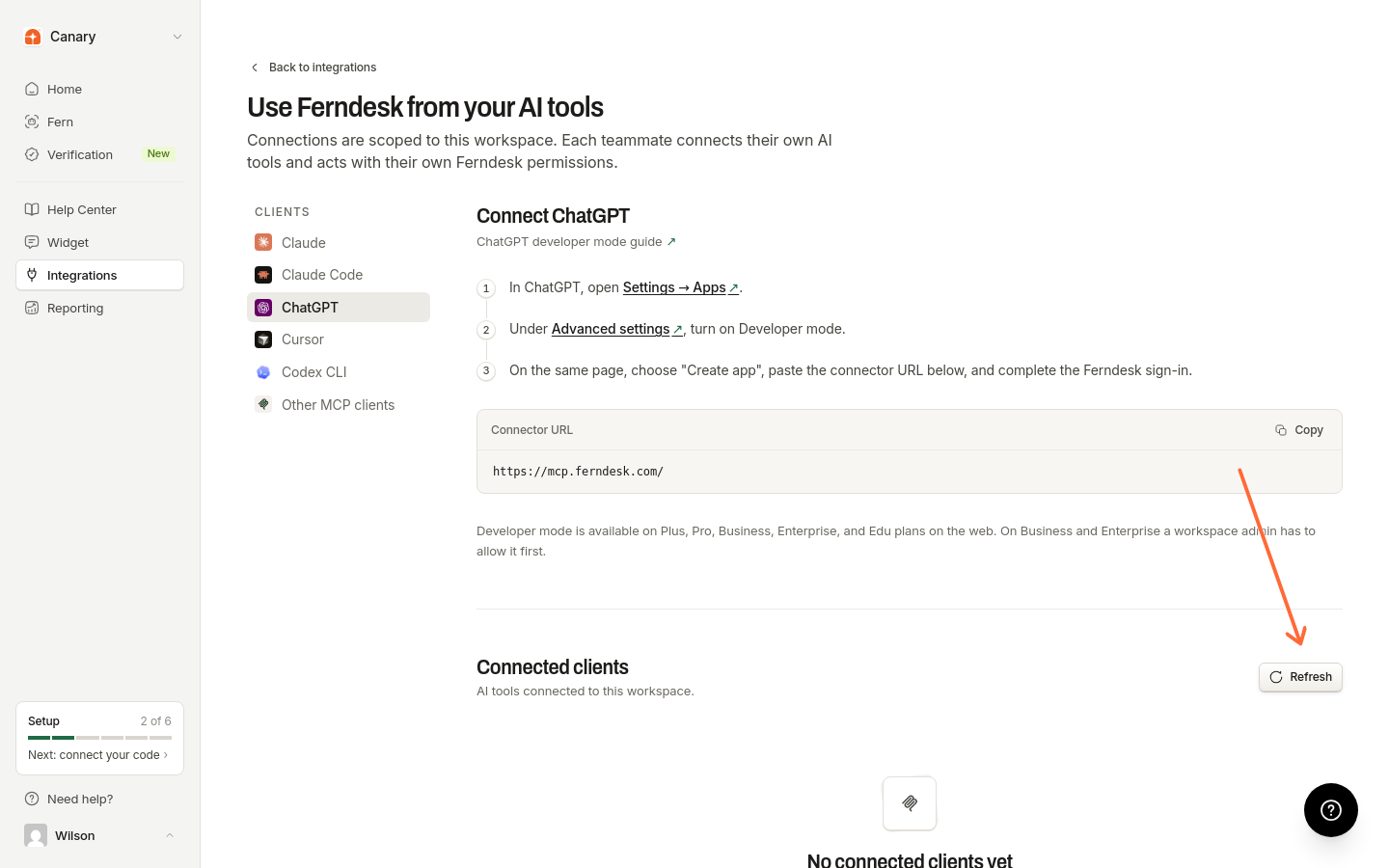
If nothing is connected yet, you see No connected clients yet. Finish setup in ChatGPT first. After signing in, select the workspace if prompted and click Allow access. Then return to Ferndesk and refresh Connected clients.
Click Refresh to update the list.
For an overview of AI tools and what you can do after connecting, see Use Ferndesk with AI tools.