
Connect Claude Code
Connect Claude Code to Ferndesk so you can work with your help center from the terminal. You run one command, sign in when Claude Code opens a browser window, and the connection shows up under Connected clients.
For an overview of what AI tools can do with Ferndesk, see Use Ferndesk with AI tools.
Open the Claude Code setup
In Ferndesk, open the Claude Code setup page so you can copy the terminal command that includes your connector URL.
Go to Integrations in your Ferndesk dashboard.
Open AI clients.
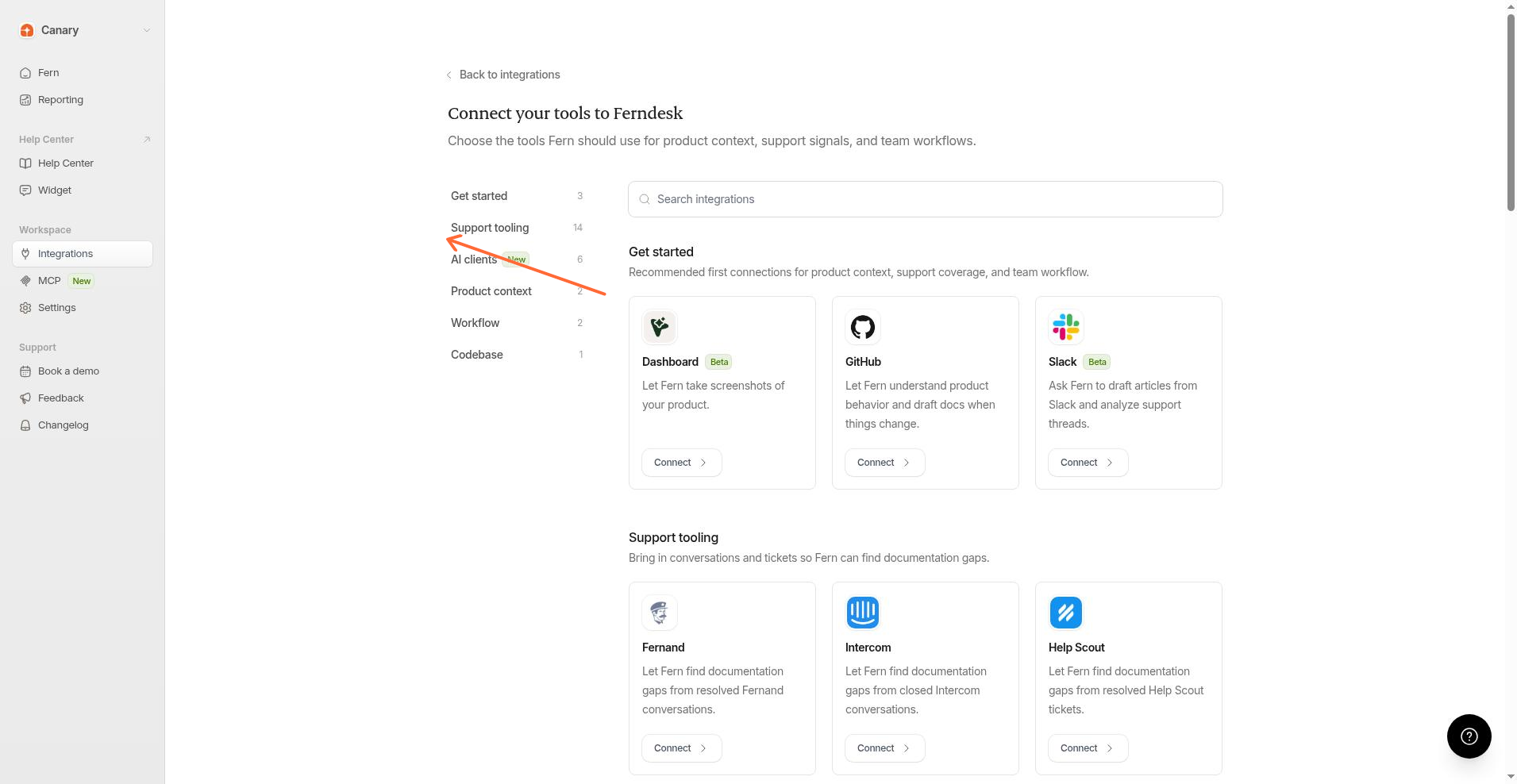
In the Clients list, select Claude Code.
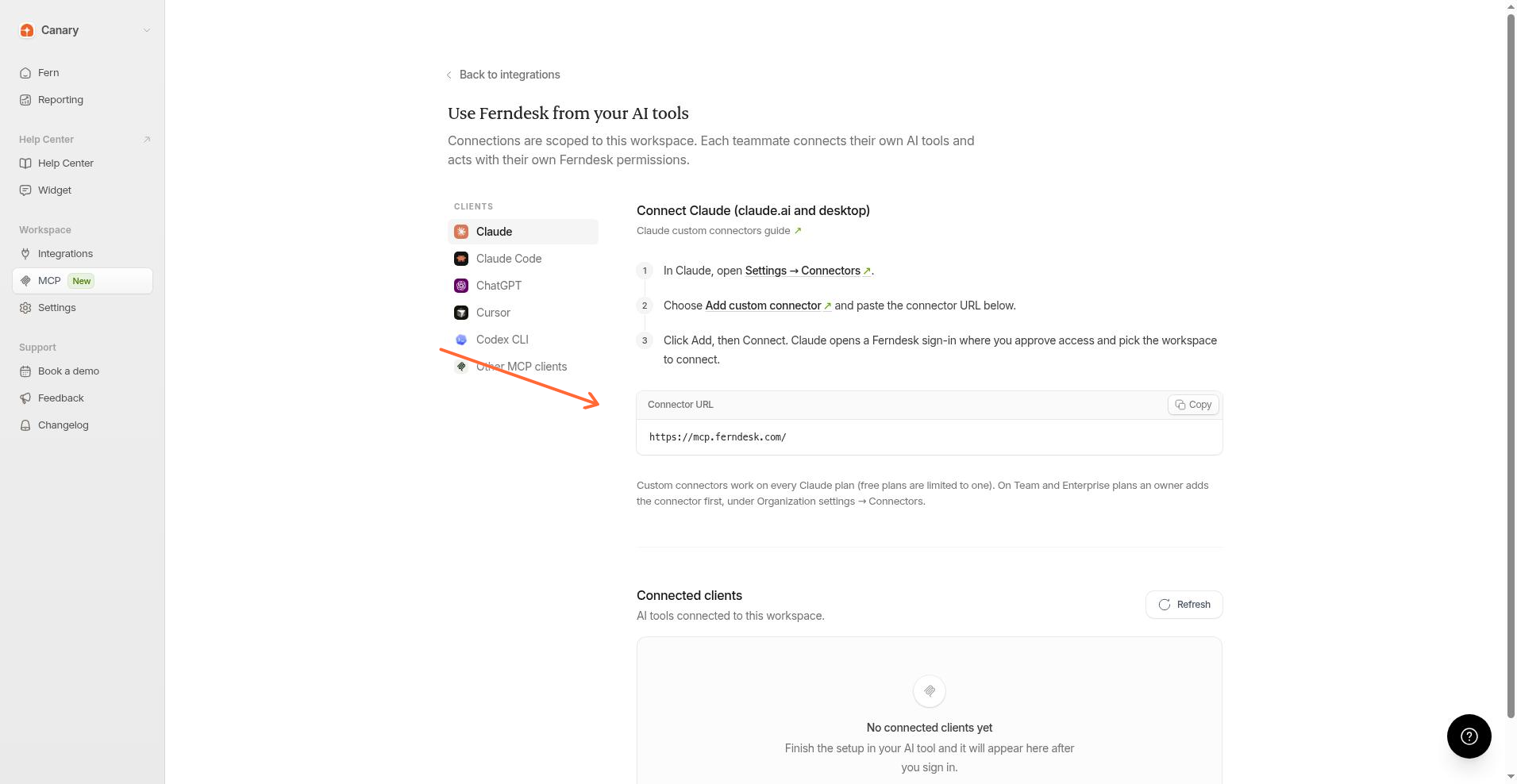
The page title is Connect Claude Code. The command under Run in your terminal already includes your workspace connector URL.
Add Ferndesk in Claude Code
Run the command from Ferndesk in your terminal, then approve access inside Claude Code.
Copy the command under Run in your terminal.
Paste it into your terminal and run it. It looks like this, with your connector URL filled in:
claude mcp add --transport http ferndesk <connector-url>Start a Claude Code session and run
/mcp.Select ferndesk, choose Authenticate, and approve access in the browser window that opens.
For more detail on MCP in Claude Code, see the Claude Code MCP docs.
Confirm the connection
After you sign in, the connection appears under Connected clients on the AI clients page.
If you still see No connected clients yet, finish the sign-in steps in Claude Code first. The connection appears after you approve access.
Click Refresh to update the list.
Each teammate connects with their own Ferndesk permissions. Connections are scoped to the workspace.