
Let readers use your help center in AI tools
Turn on the help center MCP server so customers can search your docs, open articles, and ask the assistant from tools like Claude, ChatGPT, or Cursor.
Turn it on
In Ferndesk, go to Help Center → Customize.
Open the MCP section.
Turn on Enable MCP server. The setting saves right away.
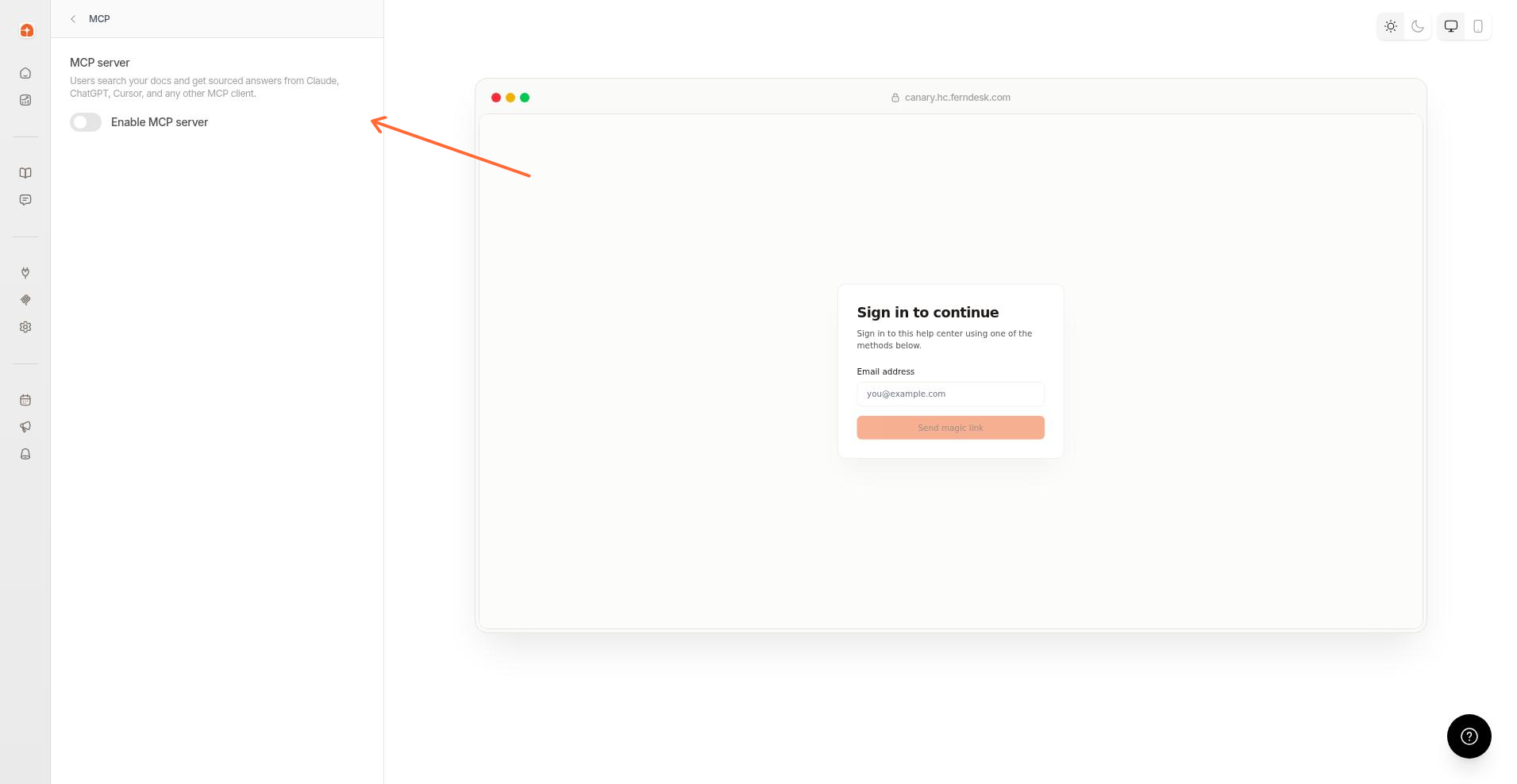
When the server is on, copy the Connector URL. Users add this URL to their AI tool.
The page may show a Custom domain URL and a Default domain URL. Share the one that matches how customers reach your help center.
If your help center is hosted under a subfolder, share the default domain URL. Subfolder domains do not serve MCP yet.
Who needs to sign in
Under Authentication:
If your help center is open, AI tools can read public content without a sign-in by default. Turn on Require sign-in for MCP when you want gated collections or signed-in identity.
If your help center is locked, users always sign in first with the same methods as the web help center. Set those methods in Access Control.
Open help centers start with MCP on. Locked help centers start with MCP off until you enable it.
Assistant behavior
The ask_assistant tool answers with the same AI Assistant configuration as your hosted help center and widget. Its tone, response length, screenshot use, standing instructions, and off-limits topics all carry over, so what AI-tool users get matches what help center and widget visitors get. You set all of these in Customize the AI assistant.
Share setup steps with your users
Open Share it with your users → Setup instructions, then copy a guide for Claude, Claude Code, ChatGPT, Cursor, Codex CLI, or other MCP clients, or use Copy all.
For your team writing docs from AI tools, use Use Ferndesk with AI tools.