
Connect Claude
Connect Claude (claude.ai and desktop) to Ferndesk from Integrations → AI clients. You copy a connector URL, add it in Claude, then sign in to approve access. No API key is required.
Custom connectors work on every Claude plan. On Team or Enterprise, an organization owner adds the connector first.
Get the connector URL in Ferndesk
Open the Claude setup panel and copy the connector URL before you switch to Claude.
In Ferndesk, go to Integrations.
Open AI clients.
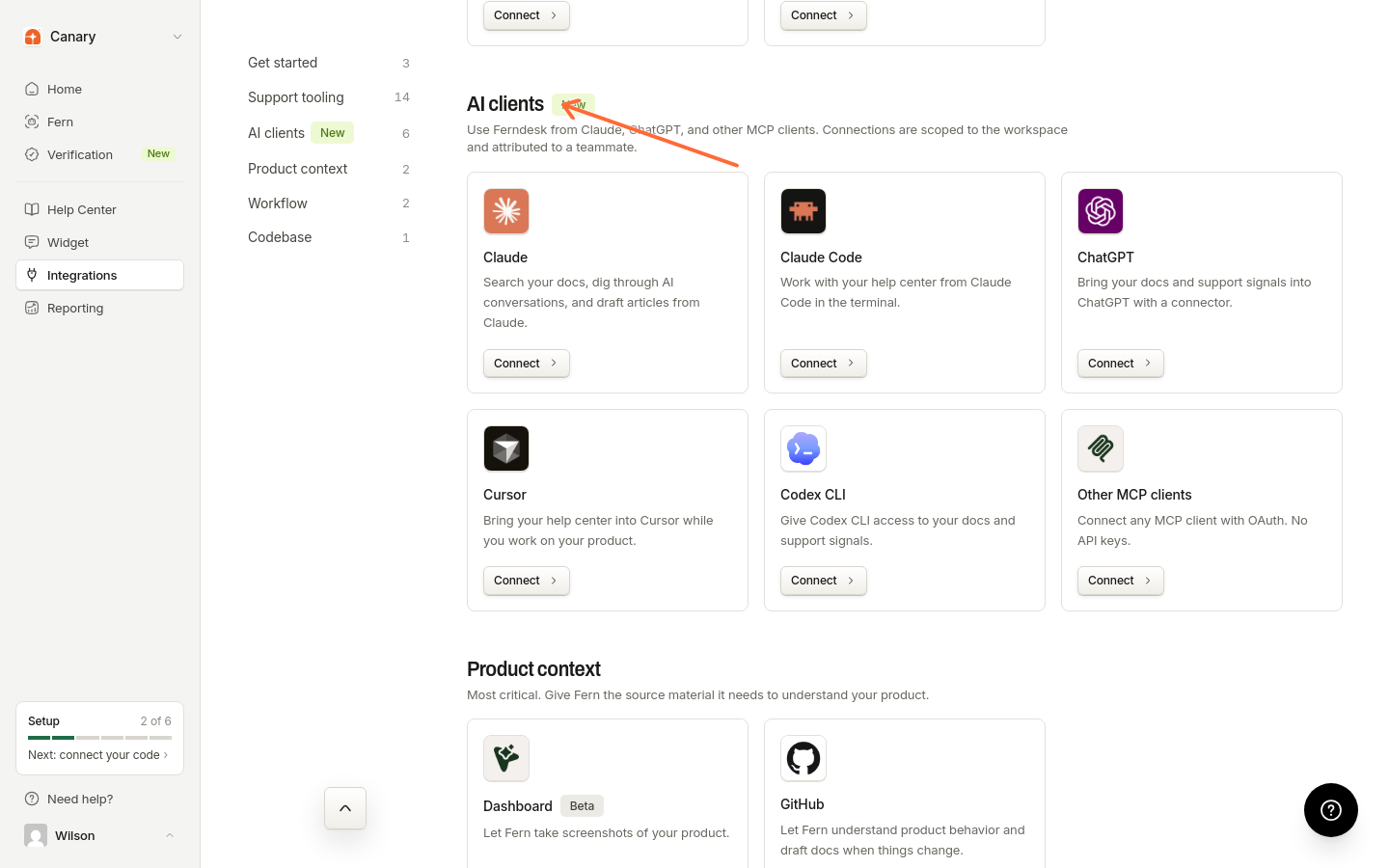
In the Clients list, select Claude.
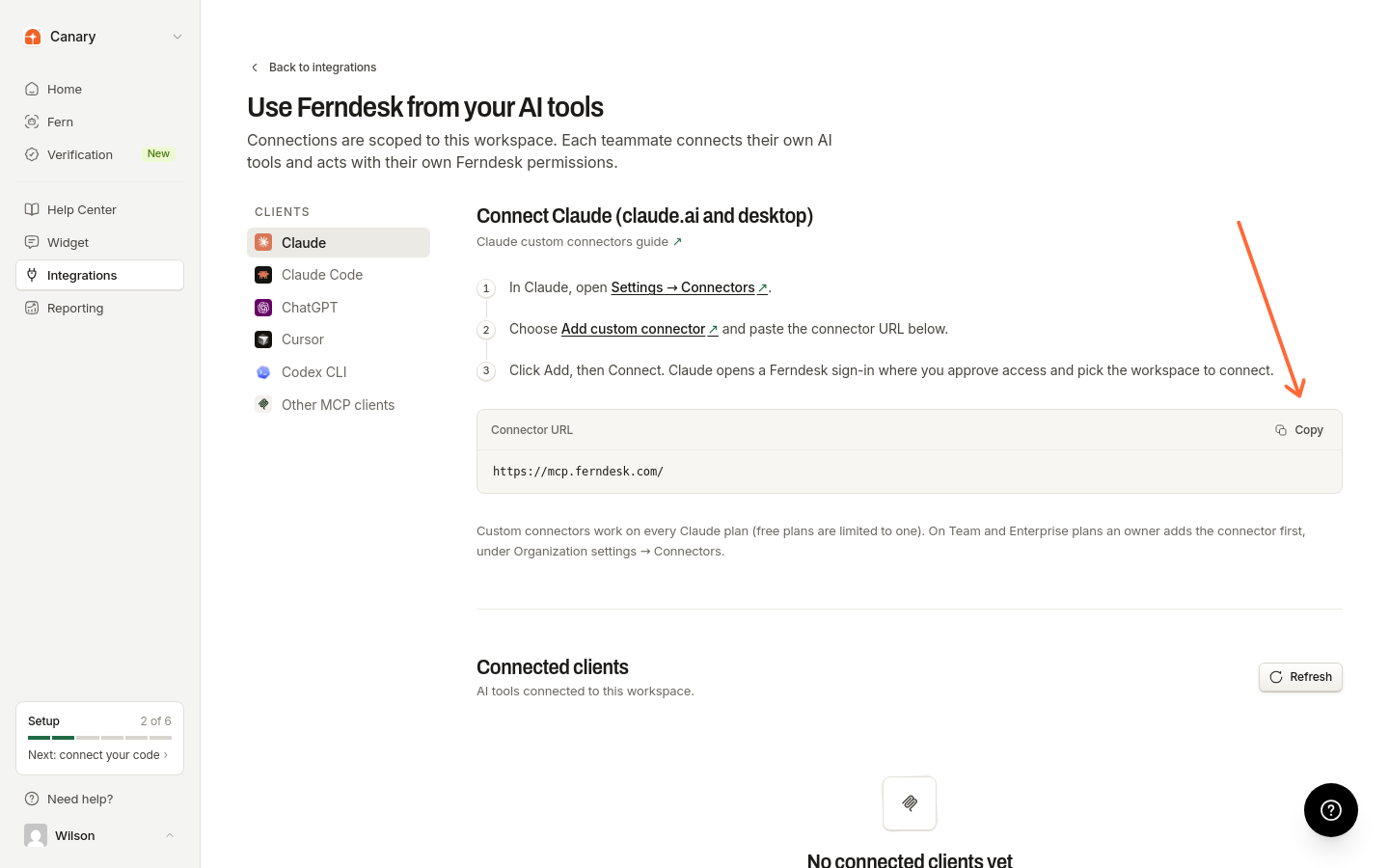
Copy the Connector URL.
Add the connector in Claude
Paste the connector URL into Claude’s custom connectors settings, then connect.
In Claude, open Customize → Connectors on individual plans. On Team or Enterprise, an organization owner opens Organization settings → Connectors first. You can also go to claude.ai settings for connectors.
Choose Add → Custom → Web and paste the connector URL.
Click Add, then Connect.
On Team or Enterprise, members then open Customize → Connectors and click Connect on the connector the owner added.
For more detail from Anthropic, see the Claude custom connectors guide.
Approve access
Claude opens a Ferndesk sign-in window. Sign in, approve access, and pick the workspace to connect.
Confirm the connection
After you finish sign-in, the connection appears under Connected clients on the AI clients page.
If you still see No connected clients yet, finish setup in Claude first. The connection appears after you sign in.
Click Refresh if the list has not updated yet.
For what you can do after connecting, and how to remove a connection, see Use Ferndesk with AI tools.