
We're live on Product Hunt today, and we're trying something stupid: you tell us what to build, and we ship as much as humanly possible before midnight. Pet peeves, missing features, tiny annoyances. Nothing is too small. An upvote supports the launch, and your request goes straight into our build queue.
Release notes
improved
improved
API references used to be REST-only, and browsing one meant paging through a plain list of endpoints. Now Ferndesk publishes full API references for REST and GraphQL, with real sidebar layouts and a playground you can actually test from.
📘 GraphQL support: Publish GraphQL APIs from an SDL file, an introspection JSON export, or a live endpoint
🗂️ New API sidebar layouts: Flat, Folders, and Collapsed, with custom group order and icons
🚀 A refreshed playground: Send real requests with Try it for REST and a full GraphQL playground
🔄 Sources that stay in sync: Upload a spec, pull from GitHub on every push, or point at a URL that refreshes itself
GraphQL support
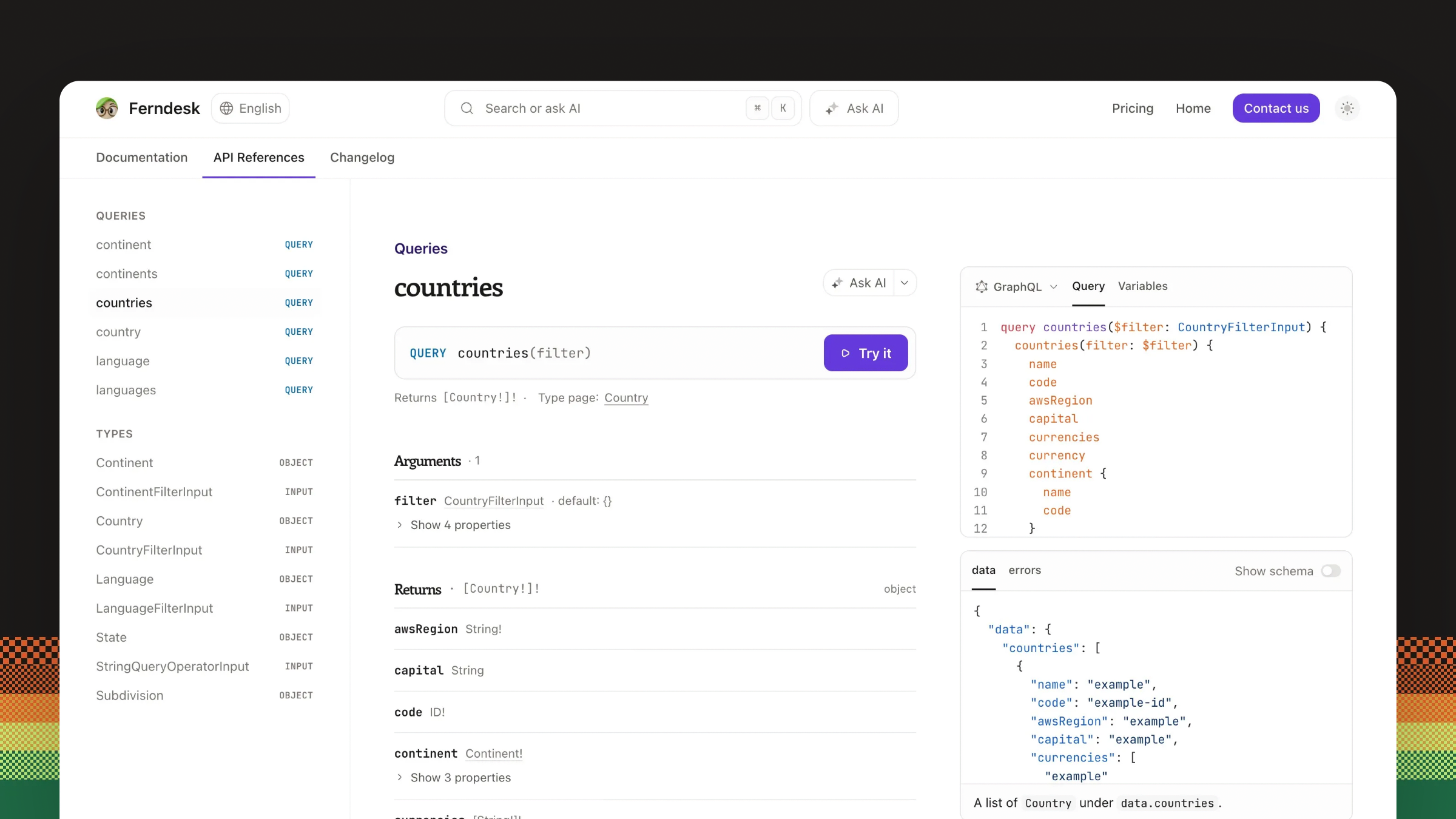
GraphQL APIs are now first-class. Point Ferndesk at a GraphQL SDL file, an introspection JSON export, or a live endpoint with introspection enabled, and you get generated type pages alongside your operations.
You decide how much of the schema readers see. A Show types setting adds a Types section to the sidebar, and you can hide individual types the same way you hide REST operations and schemas.
Readers explore your schema in the GraphQL playground, which is restricted to the endpoint you configure for the reference. See Customize an API reference.
New API reference sidebar layouts
Choose how your reference navigates: Flat for a single list, Folders for grouped endpoints, or Collapsed to keep long references tidy. Rearrange groups, add icons, and show or hide individual operations, schemas, and types.
Edits survive reprocessing. Replace or refresh the source and your summaries, Markdown notes, custom code samples, and layout choices stay put.
A refreshed playground
The Try it button opens Ferndesk's built-in playground right on the operation page. Edit parameters, headers, cookies, and the request body, pick a server, and send. Responses render next to the request, and your request history stays available while you explore. See Use the API reference playground.
Sources that stay in sync
Upload an OpenAPI, Swagger, or GraphQL spec file, pull the spec from a GitHub repository, or point at a URL.
GitHub sources re-sync automatically when a push changes the spec file, defaulting to your repository's production branch. URL sources refresh every six hours on their own, and you can refresh either one manually whenever you like. Setting up a source is covered in Create an API reference, and keeping one healthy in Fix API reference source errors.
Creating, replacing, and publishing API references require an active or trialing subscription.
newimproved
newimproved
Somewhere in your docs, there's an article telling customers to click a button you removed months ago. Verification finds it, and everything else that's drifted, so you can finally know your help center is up to date.
✅ Verify article accuracy: Know your docs are up to date, without reading every article by hand
🌗 Dark mode: Finally, you can use Ferndesk at night!
🔀 Choose GitHub repositories by workspace: Keep each product's docs in sync with only the repos that matter to it
🎨 Customize the widget launcher: Make the widget feel like part of your product
📅 Custom audit date ranges: Audit exactly the period you're worried about
🎨 A refreshed Ferndesk: We've completely redesigned our landing page and dashboard!
Verify article accuracy
Nobody wants to re-read the 200+ articles in their docs, so nobody knows what's broken in them.
An article can tell customers to click a removed button, show screenshots from multiple redesigns ago, or quote limits you've changed... things you won't find unless you verify every article yourself. You end up burning time that you'd rather spend growing your business.
Now, Fern reads every published article, pulls out each claim it makes, and checks it against your actual product: your code, your live app, your support replies, your links.
The verification page shows you everything about the health of your docs at a glance, what needs review, what's up to date, and what Fern couldn't verify because she doesn't have a source for it yet.
When an article needs attention, Fern shows you exactly what she found and drafts the fix for you to review, including retaken screenshots. If it looks right, you publish in one click. If she got it wrong, you mark it as not an issue and she won't flag it again. Fern re-checks every article on her own, periodically.
Article verification is part of the Pro plan. See Verify your help center articles for the full walkthrough.
A refreshed Ferndesk
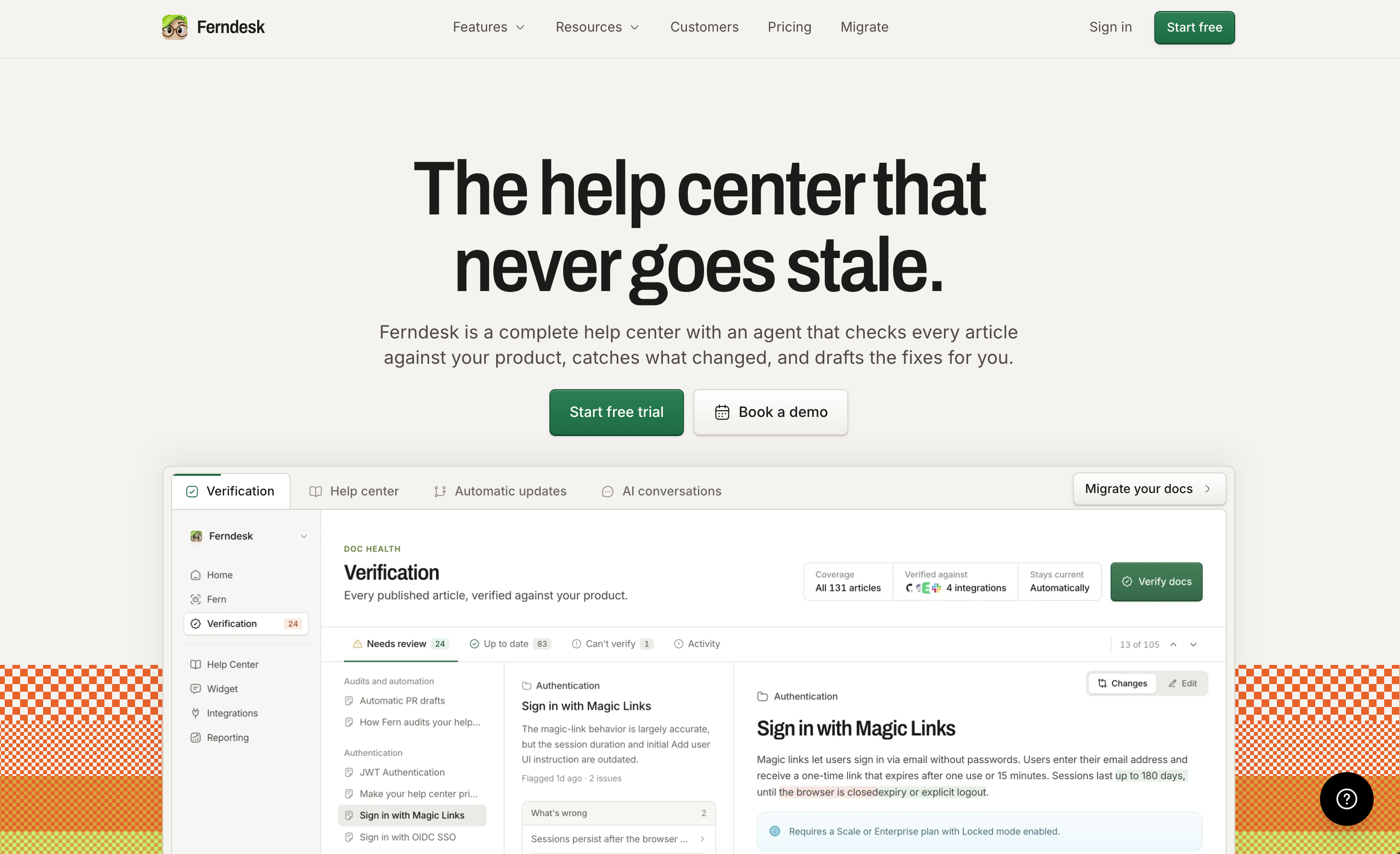
We've completely overhauled our product and branding.
Our landing page, pricing, blog, customer stories, feature pages, and dashboard now share a cleaner and more consistent design language.
Dark mode
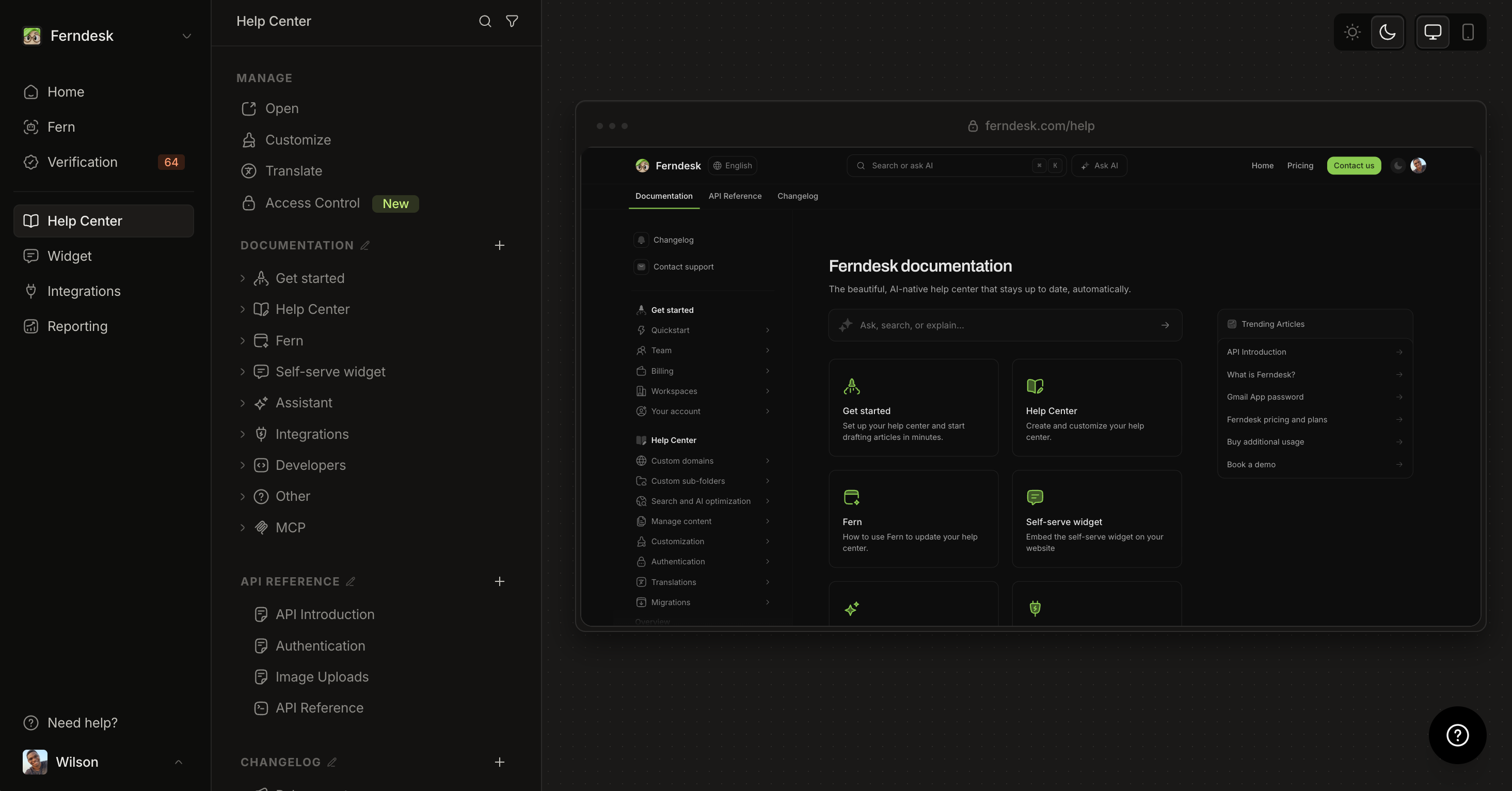
For the night owls, we've finally shipped dark mode!
Work in the appearance that's easiest on your eyes. Choose Light, Dark, or System from the dashboard sidebar, and Ferndesk applies it consistently across the entire dashboard.
Choose GitHub repositories by workspace
Keep each product's docs in sync with only the repositories that matter to it. Each workspace can now choose which GitHub repositories Fern uses, even when several workspaces share one connection, and set the production branch for each one. These choices are saved separately, so changing one workspace never affects another.
Customize the widget launcher
Make the Self-Service Widget feel like part of your product. The launcher now supports optional text, adjustable icon size, and corner rounding. Launcher text can be translated from the widget's Text panel, and the label smoothly collapses to the icon when the widget opens.
Run audits for a custom date range
Audit exactly the period you're worried about. When creating a content audit, you can choose a specific start and end date instead of relying only on preset periods. Custom ranges support up to 366 days and dates from the last two years, and Ferndesk checks that the dates are valid before you continue.
Other improvements
More reliable automatic screenshots: Fern's automatic screenshot workflow is more dependable for help center steps, including sign-in flows that use a magic link or one-time code, and every annotated image keeps a clean original.
Dismiss irrelevant code changes: Mark a suggested code change as Not relevant so it leaves the Fern feed, with an optional reason.
Better savings estimates: The dashboard's estimated time saved now includes research, planning, drafts, screenshots, review, and verification.
Clearer article settings and a cleaner editor: Visibility and SEO choices explain their outcomes, and editor menus, fields, and previews are more consistent across themes.
Workspace names in notification emails: Members of multiple workspaces can tell which workspace a notification is about.
newimproved
newimproved
Your changelog used to go stale because writing and publishing entries took time you don't have. Now Fern writes them for you, straight from your merged pull requests, and your users never have to go looking for them.
Fern drafts changelog entries from your merged PRs and code diffs
See what your users are excited about with reactions
Announce new entries to your users with an in-app full-screen update
Changelogs, drafted by Fern
Fern reads your merged pull requests and code diffs, browses your codebase, and works out what changed. Then she writes a changelog entry for you to review, and checks whether any of your help center articles are now stale and drafts those updates too. See how entries work in Changelogs.
Publish in one click
When an entry looks good, publish it in a single click. The result is a scannable changelog with new, improved, fixed, and breaking tags out of the box.
Reactions on every entry
Every entry carries reactions, so you can tell which updates your users are actually excited about.
Announce updates to your users
Published entries can be announced in a full-screen modal you add to your app. Your users catch up on everything they missed the next time they log in, with no need to visit your changelog page. Turn this on in Announce changelog updates in the widget.
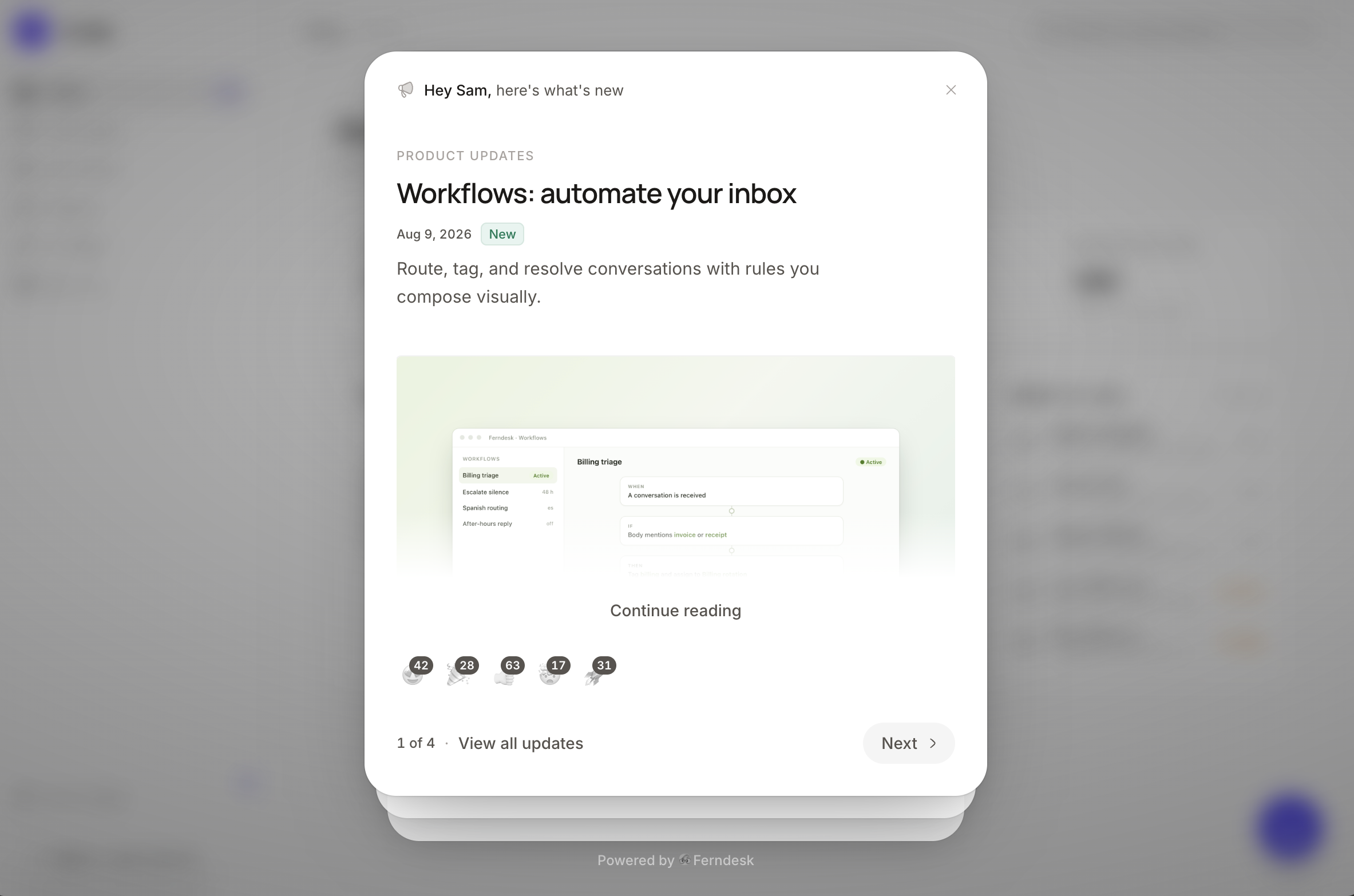
Changelogs are live for all Ferndesk users today!
newimproved
newimproved
Customers are already asking ChatGPT how your product works. We'd rather they hear it from you. This month, we're making it easier for your help center can show up in the AI tools people already use, and connect to the rest of your stack. Here's what's new in Ferndesk!
🤖 MCP Support: Claude, ChatGPT, Cursor and more can search and read your docs and create article changes as drafts
🔌 Public API rework: Manage articles, drafts, publishing, revisions, translations, analytics, feedback, and conversations in HTML, Markdown, and JSON
📡 Webhook support: Subscribe to signed notifications for article updates, customer feedback, and other help center activity
🌿 Choose GitHub production branches: Let Fern review merged changes against the branch that actually ships for each repository
🚚 Migrate from Slite and Docusaurus: Preserves navigation, ordering, internal links, redirects, rich content and videos
MCP Support
Claude, ChatGPT, Cursor, Codex, and any other MCP client can connect to your help center in two ways: your team can connect AI tools to manage your workspace, and your users can connect AI tools to search your published docs. The second one is a toggle you turn on.
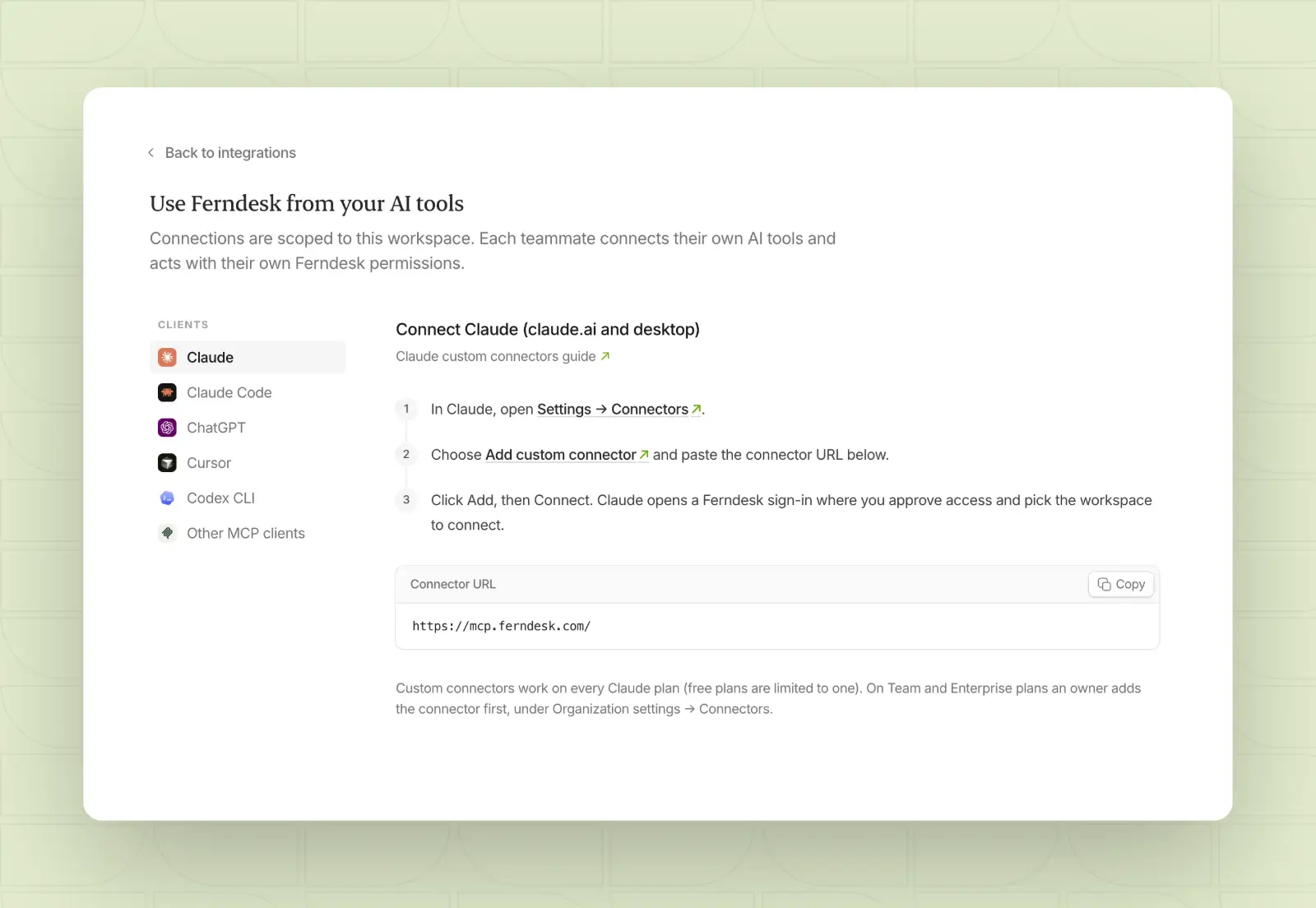
Manage your workspace with AI tools
From AI clients in Integrations, your team can connect tools like Claude, ChatGPT, Cursor, and Codex to your workspace. Connected tools can search and read your articles, review analytics and conversations, and make changes that arrive as drafts for you to approve. There is no separate switch for this; each teammate signs in and connects their own tools, and changes follow their own Ferndesk permissions.
Let your users search your docs with AI tools
You can also let your users connect your published help center to their AI tools, so they can search your docs and get sourced answers from Claude, ChatGPT, Cursor, and other MCP clients.
Sign-in depends on your access settings. Locked help centers always ask users to sign in with the same methods as your web help center.
Open help centers let AI tools read public content without a sign-in, and you can require sign-in from the same MCP section when you want AI tools to act as a signed-in user or reach gated collections. See let readers use your help center in AI tools to learn more.
Public API rework
The public API now covers the full article workflow, from writing to publishing to measuring results, with content in HTML, Markdown, or JSON.
Articles and drafts: Create and edit articles and drafts programmatically
Publishing: Publish and unpublish content, and manage revisions
Translations: Read and manage translated versions of your articles
Analytics and feedback: Pull help center analytics and customer feedback
Conversations: Work with customer conversation data
Browse every endpoint in the API Reference, or create API keys from your dashboard.
Webhook support
Webhooks tell your other tools when something changes in your help center, like when an article is updated or a customer sends feedback. Notifications are signed so you can verify they came from Ferndesk, and delivery is retried automatically if it fails.
Choose GitHub production branches
You can now pick which branch counts as production for each GitHub repository. Fern uses that branch when it reviews merged changes to decide what needs documenting. If the branch is deleted, Ferndesk falls back to the repository's default branch. Choose production branches from your GitHub integration settings.
Migrate from Slite and Docusaurus
You can now import from Slite and Docusaurus. Slite imports keep your navigation, article and collection order, internal links, redirects, rich text, sketches, and videos. Docusaurus imports bring over your site structure, articles, collections, sections, redirects, and images, including multi-product sites with versioned documentation.
See Migrate your help center to Ferndesk for the full list of supported sources.
Other improvements
Faster, more accurate search: Help center search now combines article and API reference results, understands natural-language questions and misspellings, and returns fewer unrelated results.
Widget answers stay in the customer's language: The widget assistant answers in the language of the latest message, even when the best matching article is in another language. Labels and steps are translated too.
More ways to hide image details: The image editor adds pixelation, soft blur, secure blur, and blackout effects, and redaction stays in place when you save or export an image. Cropping has a live preview with clearer cancel and revert.
Control article update dates: Articles can show a localized Updated date. The date is hidden by default, and you can turn it on from help center customization.
More reliable Fern drafts: Fern now researches your sources more thoroughly, which means more detailed and accurate drafts. Failed runs show a clear error so you know what happened.
Improved Fern task review: Tasks open with a clearer summary, a simple switch between changes and the editor, and arrows to move between changes. Your place in a task is kept after a refresh.
Smarter task notifications: Completion notifications now follow where you last worked on a task. Tasks started from Chrome, Linear, or Slack skip the unread badge, and Linear and Slack tasks skip the completion email unless you follow up.
More reliable imports: Imports handle provider addresses and document links more reliably, and imported help centers no longer load content from the previous provider's URL.
Breaking changes
Article subtitles removed from API and AI tool responses: Public API and AI tool responses no longer include article subtitles. Subtitles already on your articles stay in place, but anything that reads article data through the API or an AI tool needs to be updated.
newbreaking
newbreaking
Image editing inside Ferndesk, help center exports, seamless escalation to human support, and deeper AI analytics. Here's what shipped in the last two weeks.
Seamless escalation to human support: The widget and help center now hand off to your team with a prefilled draft, and authenticated users are identified in AI conversations
Image editor for screenshots: Edit and annotate images before adding them to your content
Export your help center content: Download a zip of your articles, collections, and translations
AI answers reporting improvements: See deflection rate, estimated time saved, and cost savings from resolved conversations
Seamless escalation to human support
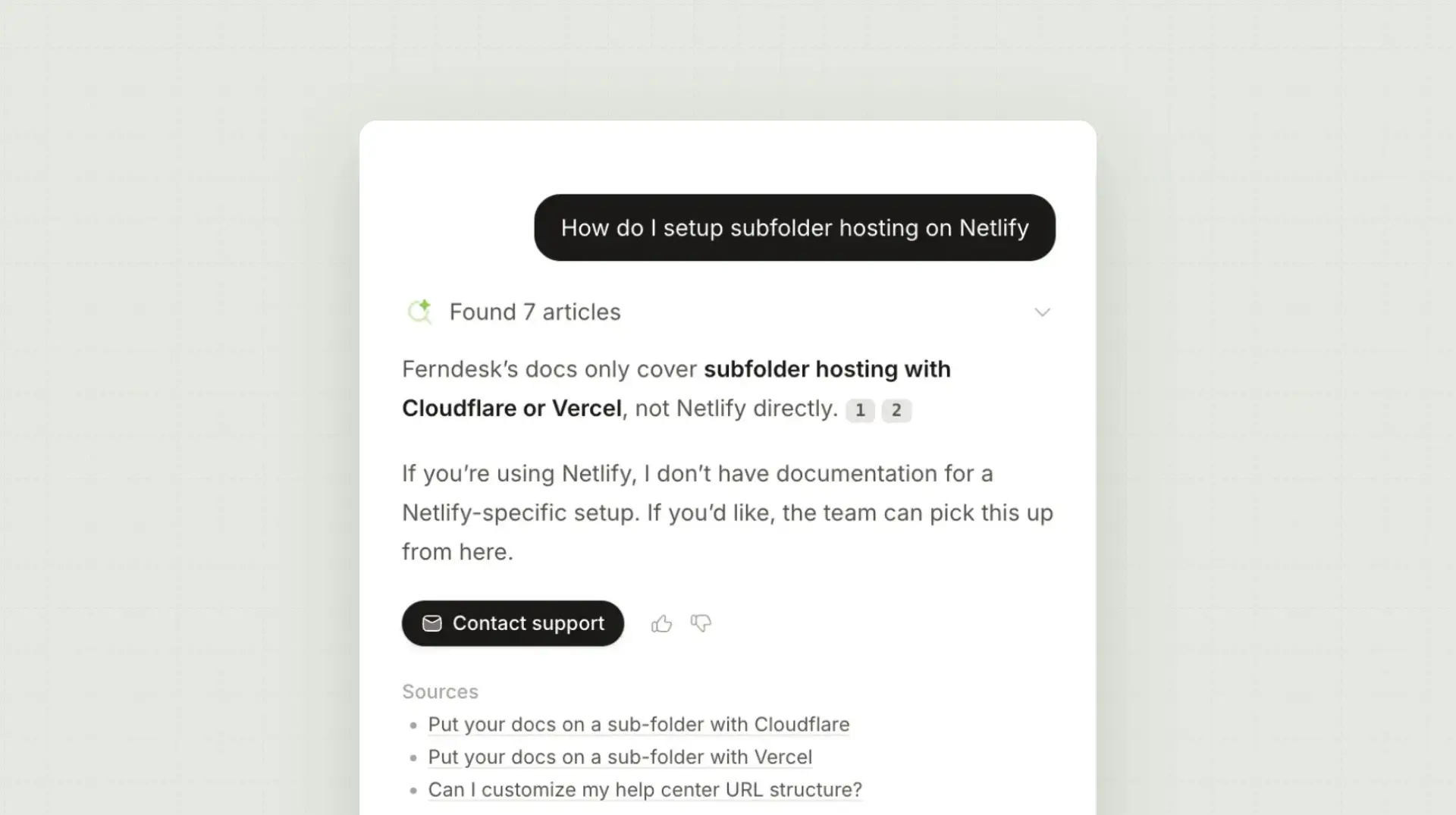
Seamless escalation is now available in both the help center and the widget. Admins can set up AI escalation and handoff behavior and configure widget settings to choose how visitors reach their team, set when the handoff appears, and let Fern draft a summary of the conversation so users do not have to retype their issue.
There are three escalation modes:
AI decides: The contact option appears when Fern cannot answer the question or when the user gives negative feedback.
Always visible: The contact option is always shown, regardless of whether the AI answered the question.
Off: The contact option is hidden and visitors cannot escalate to human support from the AI.
Authenticated help center users are identified in AI conversations, so their name and email can carry through to the contact form or chat handoff.
User identification via JWTs is available on all plans. Learn more.
Image editor for screenshots
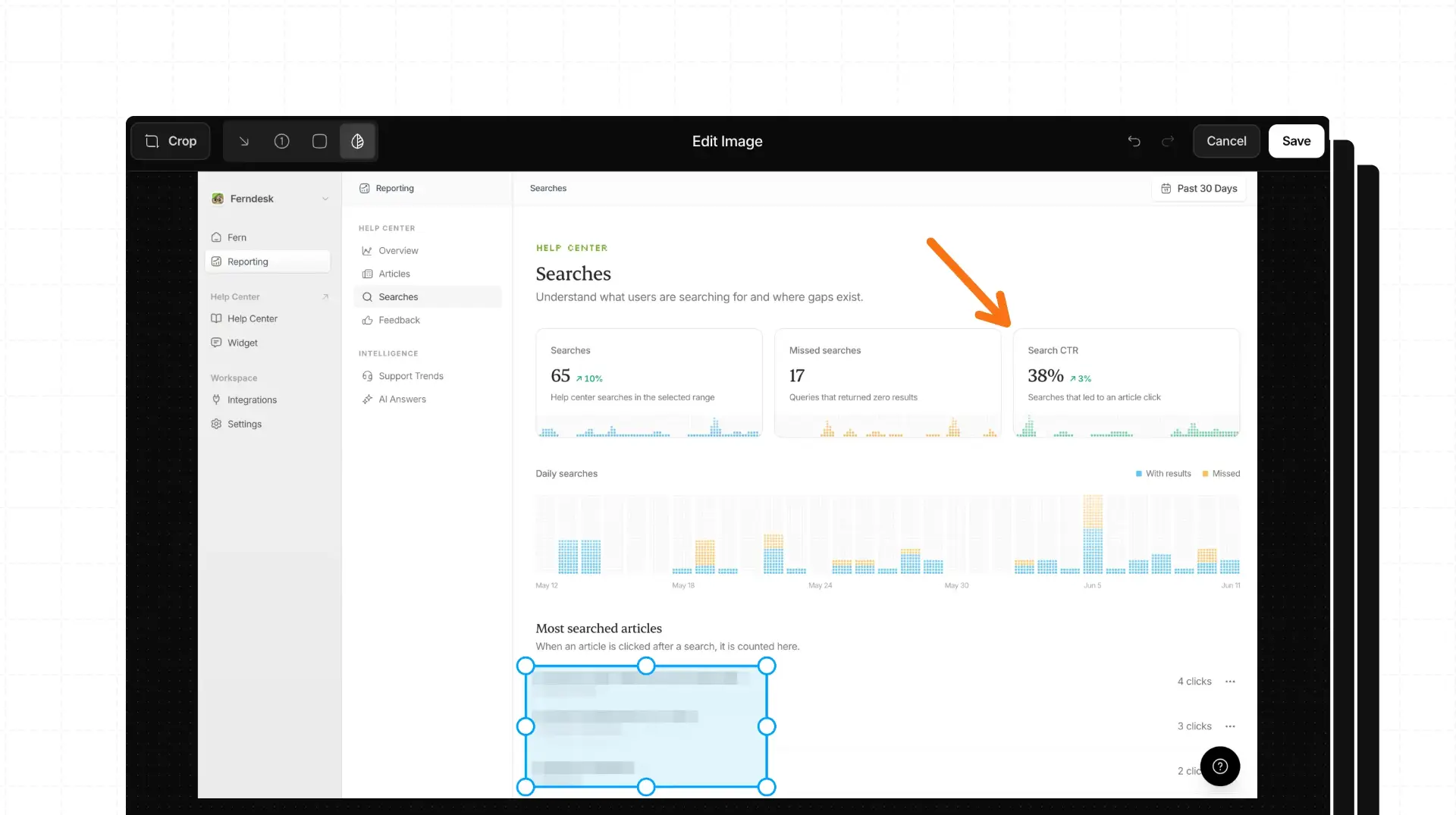
You can now edit images directly in the article editor. The editor supports arrows, numbered steps, highlights, blurring sensitive areas, and cropping.
Click an image in the editor to open the image editor, choose a tool, adjust the annotation, and save the edited image back into your article.
Export your help center content
Workspace admins can now download a zip of their help center content from Settings. The export includes sections, collections, articles, drafts, and translations.
Go to Settings, open Export Data, and download the archive. This makes it easier to back up or move content elsewhere.
AI answers reporting improvements
The AI answers report now shows how many conversations were resolved without a human, how much time that saved, and the estimated dollar value of that savings. A daily conversation chart and clearer trend cards make it easier to spot patterns at a glance.
Open Reporting, then AI answers, to review the new metrics.
Other improvements
Research can use a specific branch: Point Fern at a Git branch instead of the default when preparing docs for unreleased changes.
Fern can now view individual PRs: Fern can analyze code changes in PRs and summarize what needs documentation, including affected areas and recommended article updates.
Fern can now handle longer, more tedious tasks: Long task threads are compacted into summaries so that Fern can keep going.
Improved AI answer responses: Visitors see source references for answers.
Clearer publish results: Publishing shows a more helpful breakdown of what changed and which links were affected.
Easier article image uploads via API: You can now add external image URLs or base64 data and Ferndesk stores them automatically.
Cleaner reporting dashboards: Polished summary cards across reporting.
New error callout style: Insert an error callout from the formatting menu.
Fixes
Reconnecting Help Scout now updates your existing connection instead of creating a duplicate, and clears the failed status when credentials are replaced.
The built-in API playground now handles help centers hosted in a subfolder.
Link edits in the article editor save when you click away from the fields.
The HubSpot connection requests a smaller permission set and no longer accesses knowledge base content. You may need to reconnect HubSpot.
Larger contact files upload reliably: The widget contact form handles big attachments more directly.
Improved Intercom imports: Headings are normalized during import so articles keep a consistent structure.
Breaking changes
HubSpot import now uses fewer permissions: The HubSpot connection requests a smaller permission set and no longer accesses knowledge base content. You may need to reconnect HubSpot.
Seats now count every team member: Every workspace member counts as a billed seat, not just editors. Some workspaces may need to buy additional seats before adding more people.
new
new
Your help center speaks more languages than ever, and now it speaks them on your terms. Today we shipped tighter translation controls, a glossary to keep your brand voice intact, and broader coverage so nothing gets left behind in translation. Here's what's new in Ferndesk:
Translation guidance and glossary controls - Manage per-language guidance and glossary entries from the Translate page
Expanded translation coverage - Translation runs now include sections, widgets, collections, and API references in a single pass
Translation guidance and glossary controls
Admins can now set per-language translation instructions and manage glossary entries from Help Center > Translate. This helps keep technical terms, brand names, and tone consistent across every translated language.
Changes to guidance or glossary entries can trigger retranslation of affected content, so your help center stays in sync with your latest rules. Learn how to add a translation or manage your glossary.
Expanded translation coverage
Translation runs now cover more help center content in a single pass. Alongside articles, Fern translates sections, widgets, collections, and API references, with guidance applied more consistently across all content types.
If you already have translations enabled, the next run will include the expanded content types automatically. Learn more about AI translations
newimproved
newimproved
This month, we've gone all out on quality of life improvements. Custom embeds, a searchable workspace, clearer diffs, and a pile of fixes that remove the annoying bits from your documentation workflow.
🎬 Custom HTML embeds: Add embeds from Typeform, Cal, Supademo, Senja and more to your articles.
🔍 Search your workspace: Find conversations with Fern, audits, and code changes in seconds
🌗 Light and dark mode logos: Separate logos for every color scheme
👥 Help center user API: Create, update, and list users programmatically
📝 Clearer article diffs: See exactly what changed before you publish
🔎 Set article settings before publishing: Set SEO, access control and visibility settings before publishing.
🖼️ Unsplash image search: Find stock photos for your widget's header
Custom HTML embeds
Embed anything. Paste custom HTML from Typeform, Cal, Stripe, or any other provider directly into an article.
The editor warns you if the embed includes scripts, so you know exactly what runs on your published help center. Only paste code from sources you trust.
Search your workspace
Stop hunting through the conversation list. Press ⌘/ on Mac or Ctrl+/ on Windows and Linux to open the search dialog, or click the search icon in the Fern sidebar.
Search covers tasks, audits, and code changes, so you can pick up where you left off or review what Fern found in seconds.
Light and dark mode logos
Your help center can now show different logos depending on the visitor's color scheme. Upload a light logo and a dark variant in the branding settings.
If you only upload one, it serves as the fallback for both modes. If you upload both, the right one appears automatically based on the user's system preference.
Help center user API
You can now create, update, and list help center users through the API. Use GET /users to list users, POST /users to create one, and PATCH /users/:id to update an existing user.
Clearer article diffs
Fern now shows more accurate diffs when reviewing articles. When you open a draft, the comparison highlights added and removed content so you can review with confidence before publishing.
Content moves are detected as moves rather than deletions and additions, and the review panel gives you a clearer view of what changed.
Article settings before publishing with Fern
Every article now has a Settings panel where you can set a custom slug, meta description, and keywords before going live. Open the gear icon in the editor header to adjust SEO fields.
Visibility and Access control settings are also available in the same panel, so you can decide where an article appears before you hit publish.
Other improvements
You can now add a background from unsplash for your widget's header
Preview your plan access from the dashboard to see how your help center looks on a different plan
Link edits save as soon as you click away from the field
Content organization pickers and breadcrumbs are clearer when moving articles and collections
More reliable public help center URL generation
Language filtering is more consistent across search, trending content, and assistant responses
Fixes
Gmail imports now find the correct All Mail folder regardless of language settings
Draft titles show correctly in the content sidebar instead of the published title
Locked help centers now keep API reference details private
Imported help centers preserve article links and collection structure more reliably
Custom code is no longer cleared when you save settings
Contact form attachments work reliably for larger files
Numbered lists preserve their intended starting number
new
new
Not everyone should see the same docs.
Enterprise customers deserve configuration guides that free users don't. Partners need integration docs behind NDAs. Your support team sees different docs than HR or engineering.
Today we're shipping User Groups, Shared Passwords, and Article Visibility, so you can control who sees what.
User Groups: Restrict collections and articles to specific groups. Enterprise customers see advanced setup guides. Partners see integration docs. Internal teams see troubleshooting playbooks. You decide.
Shared Password: One password grants access to your locked help center. Simple for customer portals, partner KBs, and teams without an identity provider.
Article Visibility: Control where each article appears—sidebar, search, AI assistant, or direct link only.
User Groups
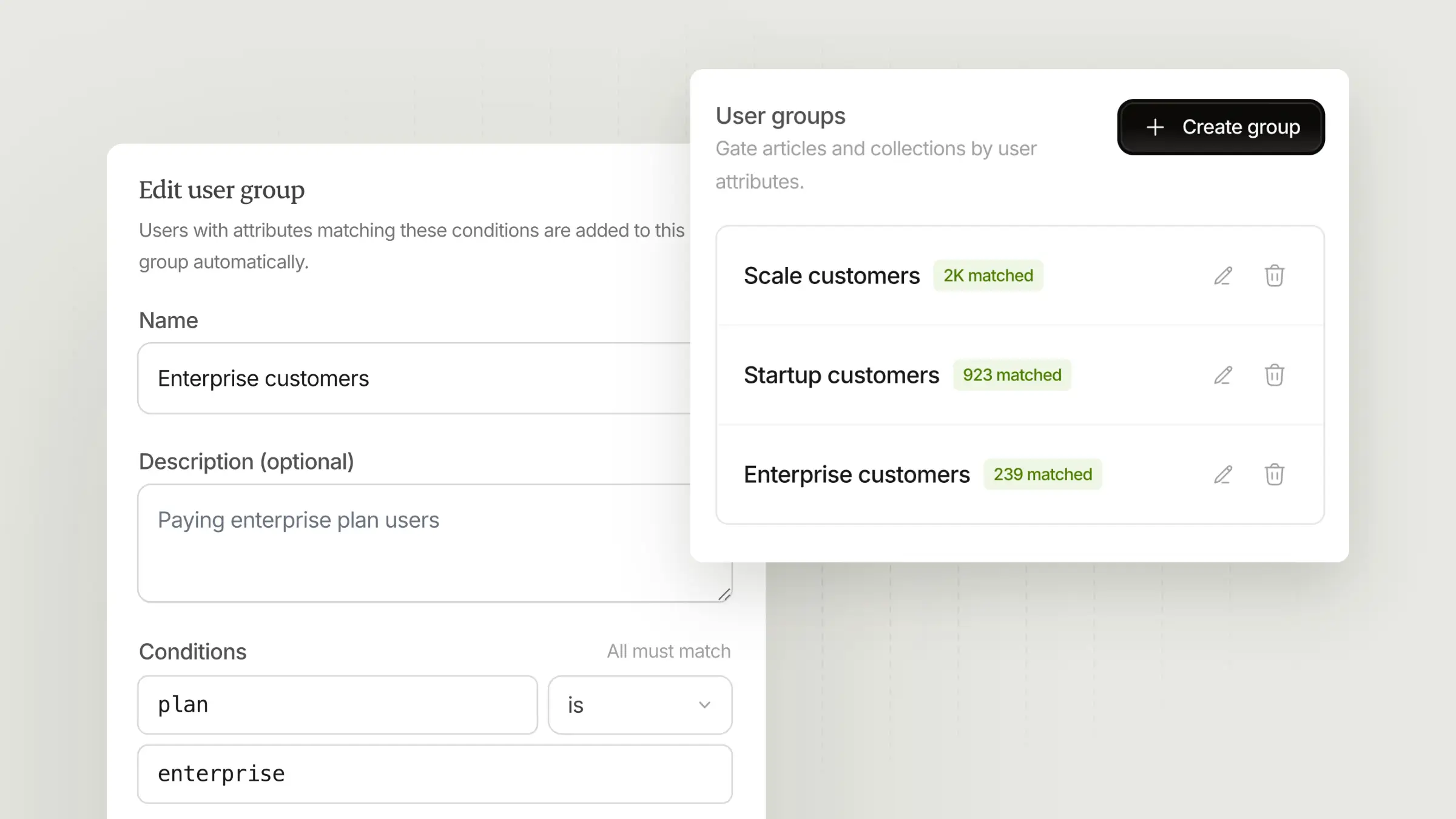
When we launched private help centers, the choice was binary: open to everyone, or locked for signed-in users. That works for simple customer-only knowledge bases, but it falls apart when you need nuance.
Enterprise customers need advanced configuration guides that self-serve users don't. Partners need integration docs locked behind NDAs. Different internal teams need different docs—Support, HR, and Engineering don't need access to the same content.
User Groups solve this.
Create groups like "Enterprise," "Partners," or "Support." Then restrict collections or individual articles to those groups. Access flows downward: lock the help center first, then narrow at the collection level, then narrow again at the article level. You can't widen permissions at a lower level.
This is especially useful for:
Tiered customer content: Enterprise and Pro customers see advanced guides, onboarding playbooks, and configuration docs that free or self-serve users don't.
Partner portals: Integration guides, API references, and co-branding assets available only to partners with NDAs.
Internal knowledge bases: Different teams see different docs. Support gets troubleshooting playbooks. HR gets policies. Engineering gets runbooks.
User groups require a Scale or Enterprise plan.
Article Visibility
Sometimes you want to control where an article shows up, not who can read it. A troubleshooting guide you want searchable but not in the sidebar. Documentation meant only for the AI assistant to reference. A deprecated article that should only load via direct link.
Article Visibility controls where each article appears:
Everywhere: Sidebar, search, and AI assistant. This is the default.
Unlisted: Hidden from the sidebar, but still in search and the AI assistant.
Hidden: Direct link only. Not in the sidebar, search, or AI assistant.
AI assistant only: Training material for the AI assistant. Not reachable by end-users, even with a direct link.
Visibility is separate from access control. Unlisting an article doesn't restrict who can read it—anyone with the link can still open it. Use user groups if you need to control who sees the content, not just where it appears.
Change visibility from the article editor: click the gear icon, then adjust the Listed in dropdown.
Shared Password
Not every team needs SSO. Sometimes you just want a simple way to gate access without configuring Okta or Auth0.
Shared Password is the simplest way to lock down a help center. Set one password. Share it with customers, partners, or your team. Anyone with the password can sign in and browse.
It's ideal for:
Customer-only knowledge bases: Give the password to paying customers via email or onboarding.
Partner portals: A single credential for all your integration partners.
Internal docs: Share one password with your team. No identity provider required.
You can mix and match auth methods, too. Enable Shared Password for simple access, and keep OIDC or Magic Links for users who prefer them.
Shared Password users have no individual identity, so user group restrictions don't apply. For group-based access, use OIDC or Magic Links instead.
newimproved
newimproved
Video uploads, a revamped editor, a refreshed integrations page, and a ton of quality-of-life improvements. The last few weeks have been all about smoothing out the rough edges in your documentation workflow.
🎬 Upload videos directly: Add video files straight into articles with instant validation on format, size, and duration.
📝 See changes before you publish: Review diffs side-by-side so you know exactly what you're changing before you commit.
🔌 New integrations page: Browse, connect, and manage all your tools inone place with a clearer layout.
🎛️ Widget improvements: Configurable position and spacing, smooth transitions, image lightbox, and new SDK methods to open the assistant or contact form on demand.
💳 Workspace billing: Multiple workspaces can now share one billing account. Contact support if you'd like to consolidate.
✨ Revamped editor: We fixed a pile of bugs that made the editor frustrating to use. Paste no longer crashes, slash commands match faster, and selection highlights actually work.
💬 Plain integration: Import your support tickets from Plain.
Upload videos directly
Add video files straight into articles. The editor validates format, file size, and duration upfront, so you know immediately if something won't work. No more uploading a file only to discover it's the wrong format or too large.
Supported formats include all the standard video file types. The editor guides you through size and duration limits during upload, so you get clear feedback before you start.
See changes before you publish
The editor now shows you exactly what changed. Click "View Changes" to see a side-by-side diff of your draft against the live article. No more guessing what you edited, no more accidental overwrites, no more publishing something you didn't mean to.
When you're ready, publish the changes or discard them and go back to editing. Your drafts stay safe until you decide.
New integrations page
The integrations page got a refresh. Browse available integrations by category, see what's connected at a glance, and manage each integration from one place. The new layout makes it easier to understand what Fern can do with each tool and how to set it up.
Widget improvements
Position and spacing are now configurable from the customize area. Set the launcher exactly where you want it.
We also smoothed out transitions, added a built-in image lightbox for better media handling, and added SDK methods that let you open the assistant or contact form directly from your own code.
Workspace billing
Multiple workspaces can now share one billing account. Usage and translation add-ons stay tied to each workspace, but you manage everything from one place.
Contact support if you'd like to consolidate existing workspaces onto a single billing account.
Other improvements
Help center imports with replace mode: Replace existing content during a migration instead of creating duplicates. Set a default language for imported articles and let the import handle the rest.
Custom translated slugs: Translated articles now support custom slugs and load faster
Markdown paste no longer crashes the editor
Slash commands are more accurate
Improved help center performance
newimproved
newimproved
Your customers ask questions in Slack every day. Your support team answers them. And then those answers disappear into the scroll history, never to be seen again.
Meanwhile, your help center stays stale because documenting those answers takes time you don't have.
That ends today.
Slack integration
Ferndesk now connects directly to your Slack workspace. With the Slack integration, you can:
@mention Fern in Slack to draft documentation without leaving the conversation. Just tag Fern in any thread and it will turn the discussion into a draft article.
Analyze support threads to spot recurring questions and documentation gaps. Fern reads your Slack channels and surfaces the topics your customers ask about most.
Send messages to Fern using Slack shortcuts and message actions. Turn any conversation into an article with two clicks.
Connect once, choose the channels Fern should join, and let it work. No more answers trapped in Slack history. No more stale docs. Just connect and let Fern turn your Slack conversations into documentation your customers can actually find.
To get started, connect your Slack workspace to Ferndesk, or read the docs.
Other improvements
General performance improvements across the app
Fixed an issue with integration reconnection flows
newimproved
newimproved
The gap between 'merged' and 'documented' just disappeared. Fern now watches your PRs and drafts updates automatically. Here's what's new in Ferndesk.
🚀 Auto-draft from merged PRs: Fern now automatically creates draft articles when you merge pull requests.
💡 Improved recommendations: Fern now makes recommendations based on missed searches and assistant conversations.
🎯 Smarter, more accurate Fern: Fewer hallucinations, better grounding, and more natural writing.
🖥️ Refreshed widget: Now supports API docs and sections, so customers can browse your entire help center without leaving your dashboard.
Auto-draft from merged PRs
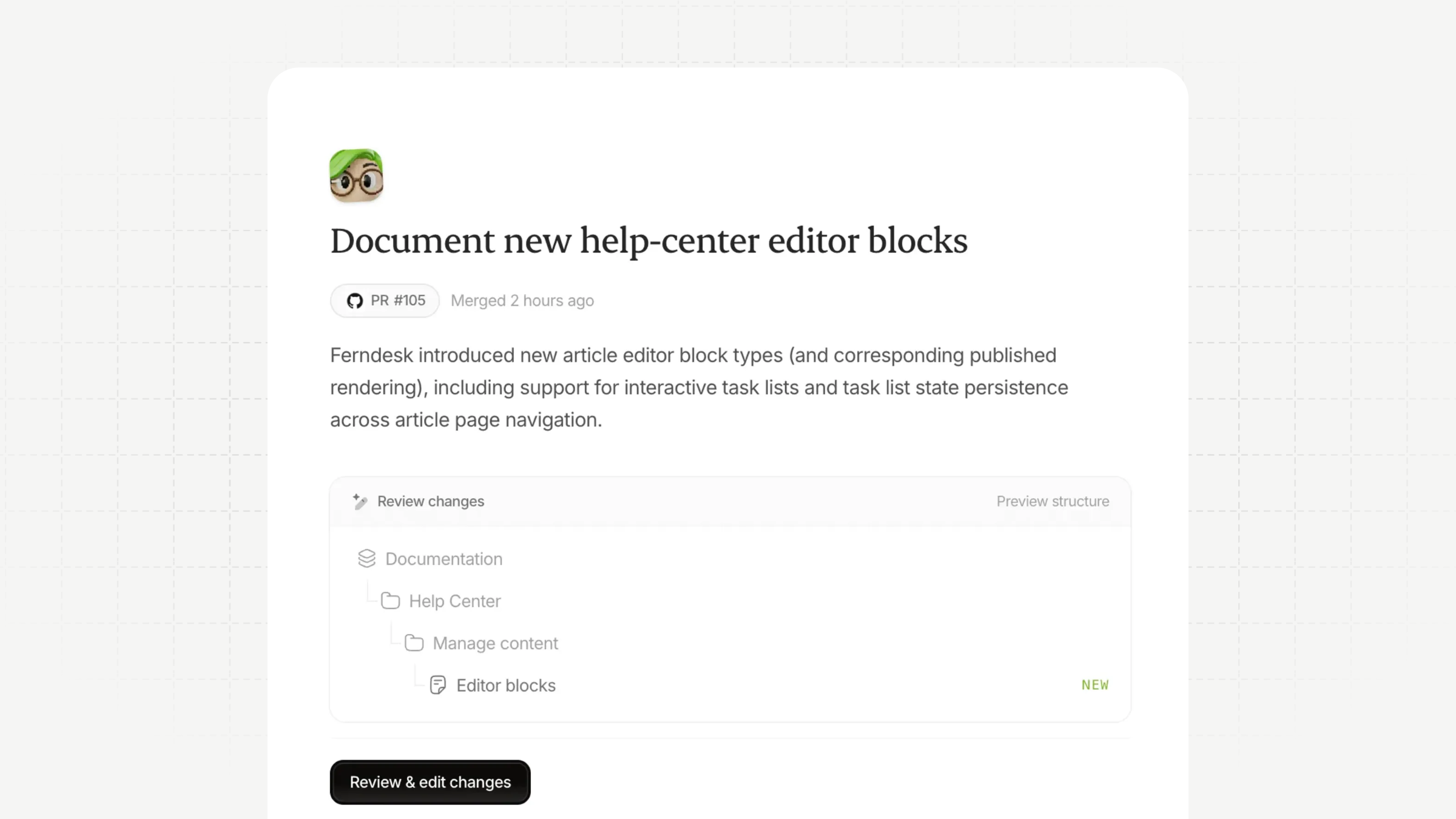
The biggest friction in documentation is knowing what changed. You ship features, move fast, and docs fall behind.
Now Fern watches your merged pull requests and automatically drafts updates. When code lands, documentation follows. No waiting for the next recommendation, no manual tracking, no stale docs.
Fern reads the code changes, then drafts an update to your help center. You review, edit, and publish.
To get started, enable auto-drafting in your workspace settings, or read the docs.
Automatic PR drafts default to off for new workspaces. You can enable them in your automation settings.
Smarter Fern
We've made Fern more accurate and more helpful across the board.
Fewer hallucinations. AI agents sometimes sound confident about things they don't actually know. We've invested heavily in grounding Fern in real evidence from your codebase, tickets, and existing docs. When Fern cannot verify a claim, she says so instead of making something up.
New recommendation engine. Fern now looks at more than your support tickets and code changes. When users search your help center and don't find what they need, Fern notices. When customers ask the assistant questions that reveal content gaps, Fern flags them. No more flying blind on what your users actually need.
More natural articles. Fern's writing style has improved. Articles are less robotic, more direct, and easier for readers to follow. Less editing for you, better experience for them.
Refreshed widget
The widget got an upgrade. Customers can now browse API references and sections directly inside it. Navigation is clearer, and links can open specific pages. No more bouncing between your help center and separate docs.
Improvements
Zendesk messenger integration: Customers can now contact you using Zendesk's messenger from your widget.
Redesigned Fern inbox: Clearer filters, better thread organization, and a more guided audit flow.
10x faster codebase browsing: Fern scans your codebase in seconds, not minutes.
More reliable help center and widget navigation
Improved translation processing for articles, sections, and collections
Smoother publishing progress and clearer error messages
Fixes
Long search queries handled gracefully with friendly error messages
Fixed editor and task overflow issues
Added dark mode styling for steps and videos
Improved help center editor stability
Improved API article creation error reporting
Fixed issues with task and assistant conversation scrolling