
You need to be signed into your Ferndesk workspace before connecting an integration. Make sure you are logged in and that you are in the correct organization. If you have access to multiple Ferndesk workspaces, switch to the one where you want to add the Discord connection.
Discord integration
Connect your Discord account to Ferndesk so Fern can read conversations from your server's forums.
You need a Discord account and a server with forums enabled to complete this integration. If you do not have one, create one on the Discord website.
Connect Discord
From your Ferndesk dashboard, click Integrations in the sidebar.
Locate the Discord integration card under Support tooling and click Connect.
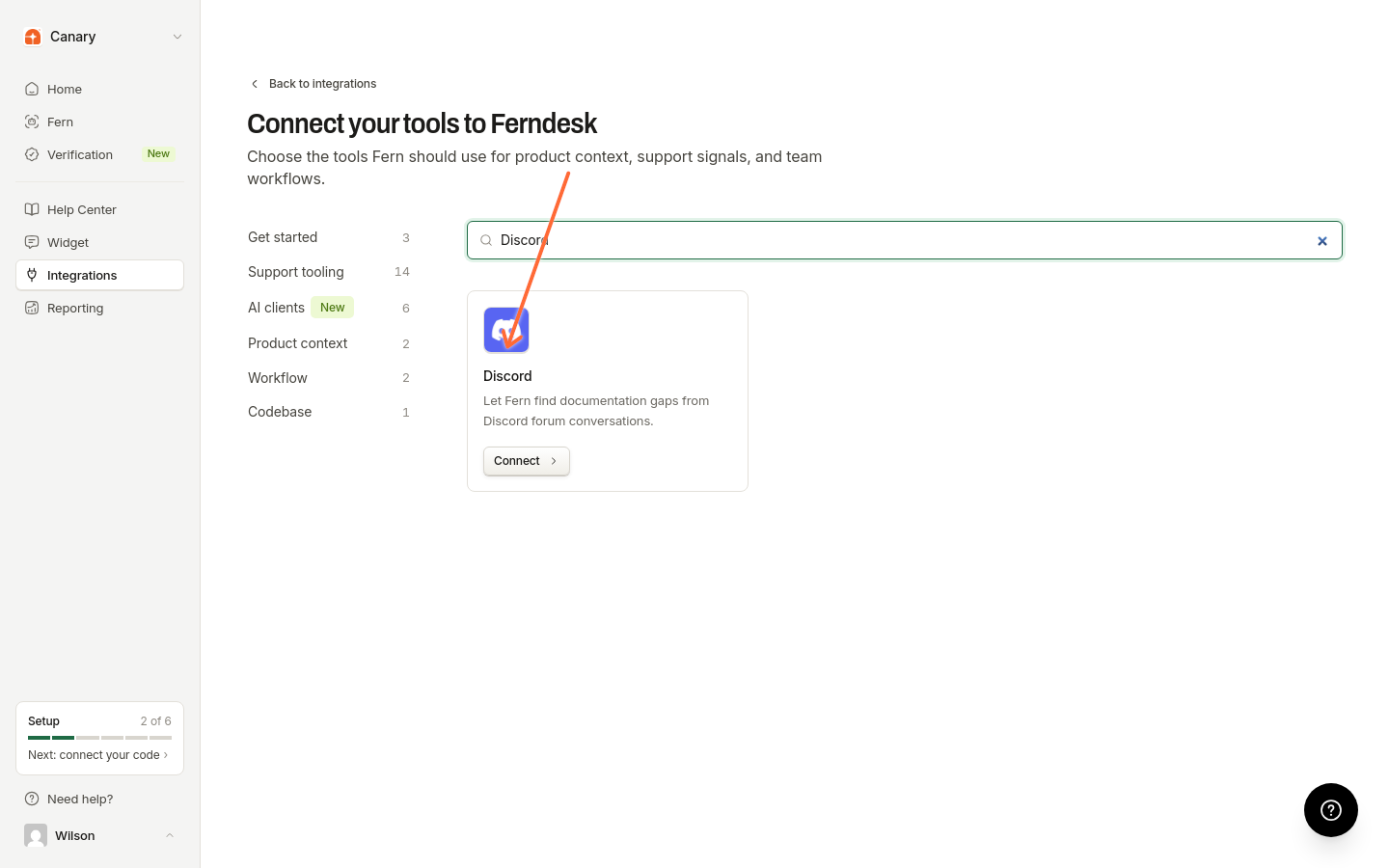
Review the connection details in the dialog, then click Connect Discord in the modal.
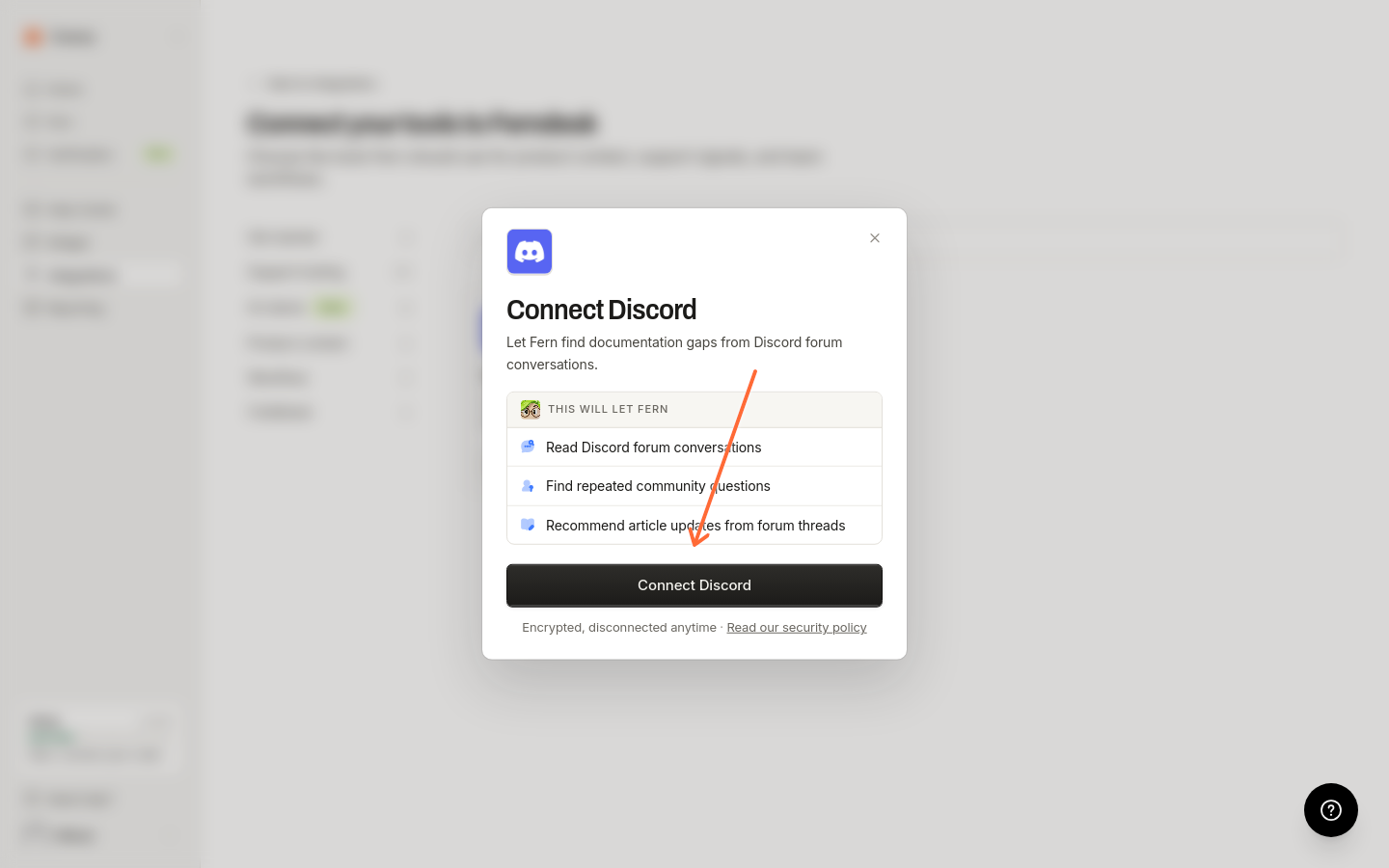
You will be redirected to Discord to authorize the connection. Log in to your Discord account if you are not already logged in, select the server you want to connect to Ferndesk, and grant the necessary permissions.
Ferndesk requests permissions to view channels, read message history, and access forum conversations. These permissions allow Fern to sync content from your Discord server's forums.
After authorizing, you will be redirected back to Ferndesk to the Discord connection-detail page, where the connection is shown as Connected.
Once connected, Fern will automatically sync conversations from your selected Discord server's forums.
Limitations for announcement channels and public threads
Fern can only read Discord forum channels. It does not currently crawl announcement channels or other non-forum servers.
If you linked a public announcement thread directly, Fern will not be able to ingest it yet. Use the workaround below to generate articles from those announcements.
Workaround: Export the thread and attach it to a Fern task
Export the announcement thread to a PDF file using your preferred Discord export method.
Create a Fern task and attach the exported file.
Ask Fern to create articles from the attached file.
For detailed steps on creating tasks and attaching files, see Using Fern to create and edit articles.
Manage connections
You can connect multiple Discord servers to Ferndesk. In Integrations, select the Discord connection to view, add, or remove connections. Use Connect integration or Browse all to add another server.
Troubleshooting
I see "Authentication required to connect Discord"
I see "Discord OAuth organization does not match the active session"
The OAuth request and the active Ferndesk organization must match. Make sure you are:
Signed into the correct Ferndesk workspace
Starting the connection from the Ferndesk organization you intend to use
If you need to connect a different Discord server to a different Ferndesk organization, switch to that organization in Ferndesk first, then connect Discord.
The Discord authorization page shows an error
This can happen if:
The authorization page did not load. Retry the full-page authorization flow by clicking Connect Discord again in Ferndesk.
Your session expired. Try signing out of Ferndesk and signing back in.
The OAuth state became invalid. Close the authorization window and click Connect again in Ferndesk.
Additional resources
For more information on Discord features, visit the Discord Help Center.
Was this helpful?
Was this helpful?