
Connect Codex CLI
Connect Codex CLI to Ferndesk by adding the remote MCP server to ~/.codex/config.toml, then signing in with codex mcp login ferndesk.
For the full AI clients overview, see Use Ferndesk with AI tools. OpenAI also documents MCP setup in the Codex MCP docs.
Get your connector URL
Copy the connector URL from the Codex CLI setup panel in Ferndesk.
In Ferndesk, go to Integrations.
Open AI clients.
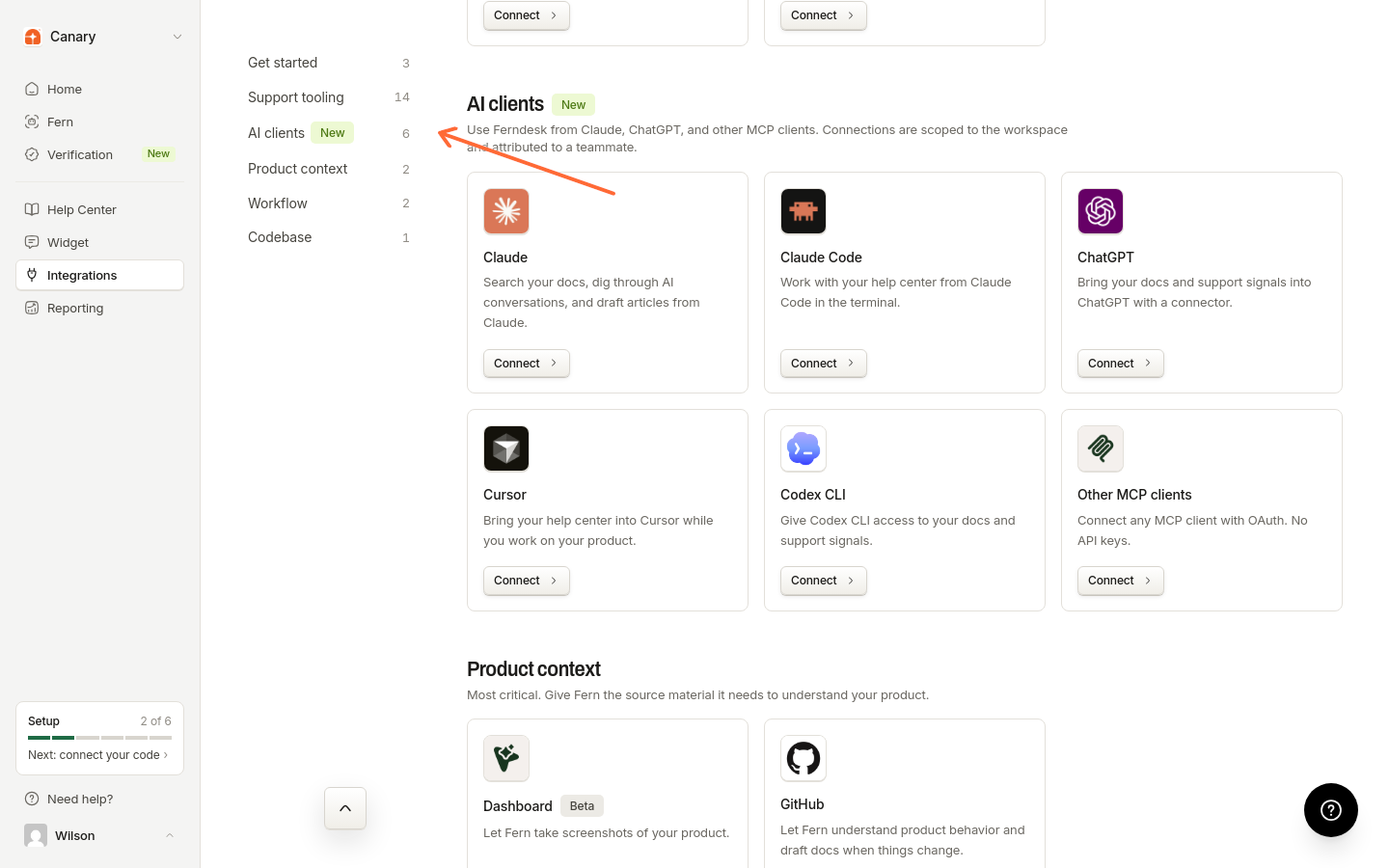
In the Clients list, select Codex CLI.
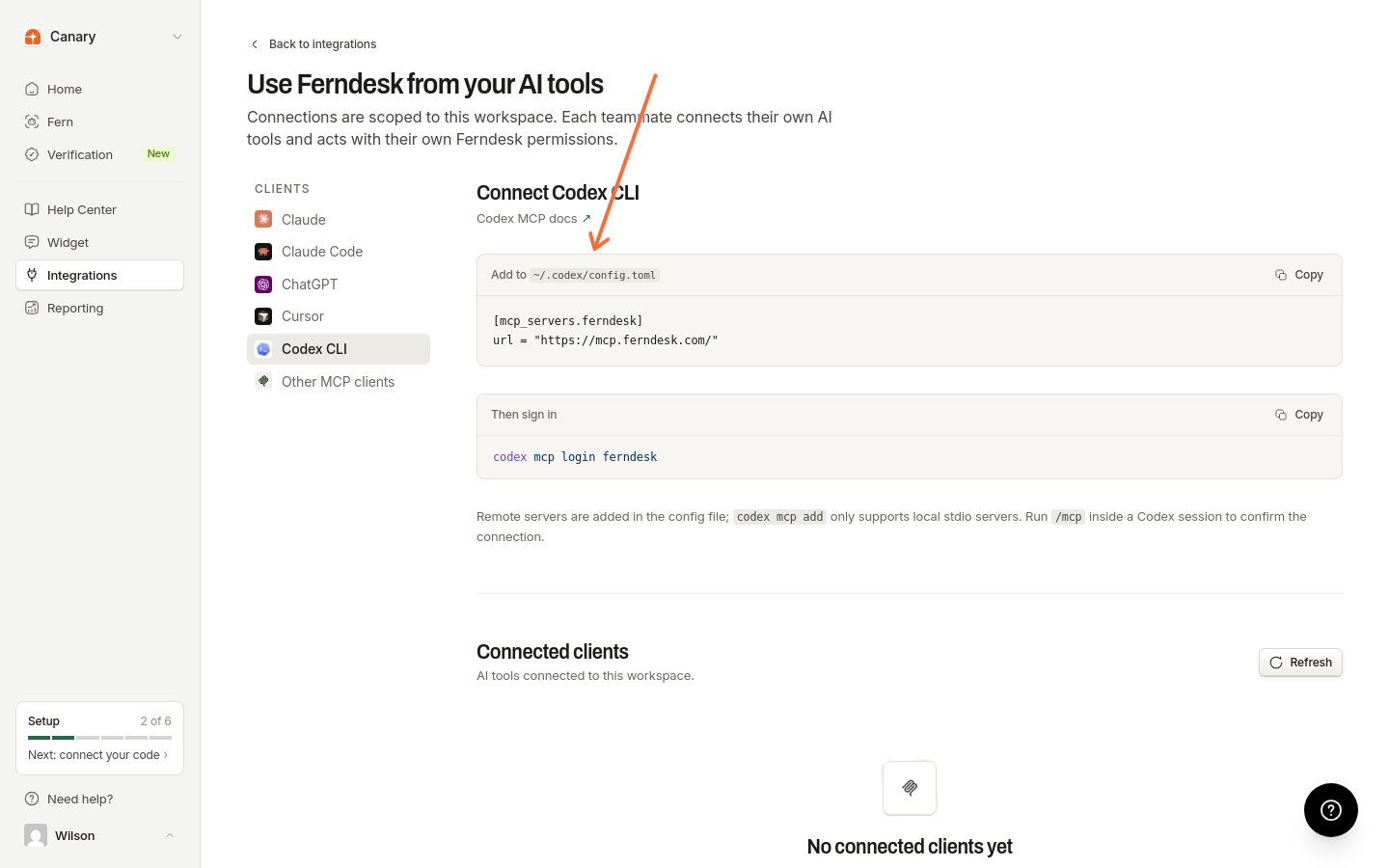
Copy the URL from the Add to ~/.codex/config.toml block on the setup panel.
Add Ferndesk to config.toml
Remote MCP servers are configured in the Codex config file, not with codex mcp add.
Open
~/.codex/config.tomlin a text editor.Add this block to the file (setup panel label: Add to ~/.codex/config.toml). Paste your connector URL as the
urlvalue:[mcp_servers.ferndesk] url = "<connectorUrl>"Save the file.
This article uses config.toml for the remote server. codex mcp add supports stdio servers and can also add remote HTTP servers with --url.
Sign in to Ferndesk
Run the login command from your terminal to approve access. The setup panel labels this step Then sign in.
In your terminal, run:
codex mcp login ferndeskComplete the Ferndesk sign-in that opens, and pick the workspace to connect.
Confirm the connection
Run /mcp inside a Codex session to confirm the connection.
In Ferndesk, open Integrations → AI clients and scroll to Connected clients. Click Refresh if the new connection is not listed yet.