
Try refreshing the page. If that doesn't work, try messaging Fern in the task thread to resume progress. Say something like "continue" or "keep going."
Create and edit articles with Fern
Tasks are how you tell Fern what to create or update in your help center. Fern handles the research and writing, you provide the instructions and review the results.
Tasks appear on the Fern page at ferndesk.com/app/fern. Use thread search to quickly find past tasks, audits, and code changes.
Creating a task
1
Open the task prompt
Go to the Fern page in your dashboard sidebar, or press ⌘N (Mac) or Ctrl+N (Windows/Linux) from anywhere in Ferndesk.
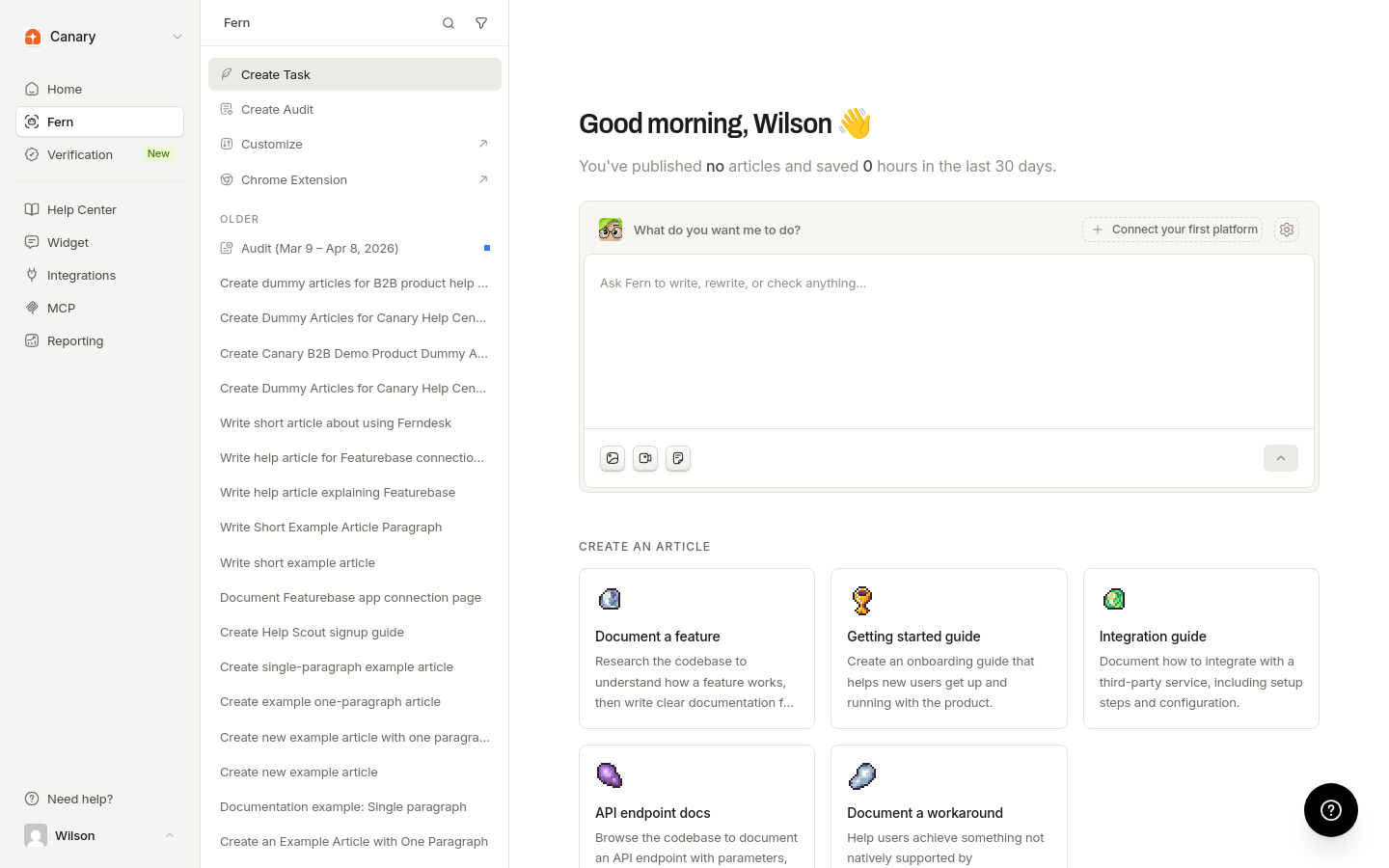
2
Type your instructions
Describe what you need in plain language. Be specific for best results:
"Write a getting started guide for new users"
"Update the API authentication article with the new OAuth flow"
"Create troubleshooting docs for login errors"
Click any template card below the prompt box to pre-fill common requests.
3
Add context and attachments
The more context you provide, the better Fern's output. You can attach:
Files: Images (PNG, JPEG, GIF, WebP), videos (MP4, WebM, QuickTime), or documents (PDF, TXT, DOC, XLS, CSV)
Links: Paste external URLs or YouTube videos for Fern to reference
References: Select existing articles, collections, or support threads to give Fern background information
Drag and drop files, paste screenshots, or use the attachment buttons in the task creation dialog.
Videos have size limits when Fern analyzes them. Non-YouTube videos over 100 MB are compressed automatically before analysis, so most large files work as-is. If a video is still too large or too long after compression (roughly one hour is the practical maximum), Fern stops and asks you to attach a shorter clip or link the same video on YouTube instead of retrying.
4
Submit and track progress
Submit your task and Fern begins researching and drafting. The task appears in your Fern feed where you can monitor progress. Tasks with unpublished drafts show an article icon indicating pending review.
There are three ways to create tasks:
From the Fern page: Use the methods above to create tasks directly
From audit recommendations: When Fern identifies content gaps or outdated articles in audits, click "Draft with Fern" to generate a task with context already attached
From integrations: If you've connected Linear, create documentation tasks directly from issues. See How to use Fern in Linear issues.
What tasks can do
Fern can handle multiple types of documentation work:
Create new articles from scratch based on your description
Update existing content to reflect product changes or fix errors
Research and write from support trends, recommendations, or audits
Edit for clarity by rewriting sections or improving structure
Create and delete collections to reorganize your help center structure
Create sections for top-level navigation tabs
Move articles and collections between different locations
Delete articles and collections that are outdated or no longer needed
What tasks can't do
Answer questions about using Ferndesk: Find answers in the help center instead.
Edit translations or manage non-primary language content: Fern only edits the primary language in your help center.
Reviewing and publishing
When Fern finishes drafting an article, it appears at the bottom of your task thread. You can edit the draft directly in the task thread before publishing.
If the output looks good: Click "Publish changes" to make them live in your help center. Publishing waits for any active draft save to complete first
If it needs changes: Message Fern with additional instructions (e.g., "add more code examples" or "make the tone less technical"), or edit the draft directly in the task thread
If you don't want it: Close or discard the task
Nothing is published until you explicitly approve it. Fern never auto-publishes drafts.
After a task is published
Once you publish a task, it becomes read-only.
This is intentional. Published tasks are locked so you can review what was changed without accidentally editing it again.
How to make more changes
If you need to update content that was already published through a task:
Go to the Fern page to start a new task
Describe what you want to change
Attach the same articles or collections as references so Fern has the right context
The new task will pick up where the previous one left off, with full access to the current state of your help center.
What happens with translations
Fern only publishes primary language content. If you have auto-managed translation languages enabled, the translation suite queues translations for newly published articles automatically. Translations appear shortly after publish, not instantly. If you need to update an existing translation, use the language selector in the article editor or go to Help Center > Translate to retranslate all content for that language.
Tips for better results
@mention articles or collections to tell Fern to focus on them
Provide examples: If you want a specific format or style, include an example or reference a similar article
Attach supporting materials: Screenshots, spec docs, API response examples—anything that helps Fern understand the feature
Link related content: Reference existing articles so Fern maintains consistency with your current documentation
Be direct about tone and audience: Specify if you're writing for developers, end users, admins, etc.
Be specific in your prompts. Instead of "write about webhooks," try "write a setup guide for webhooks with code examples showing the payload structure."
Common issues
Task appears stuck
Unsupported file types
Convert files to supported formats before attaching: PDF for documents, PNG/JPEG/WEBP for images, MP4/WebM for videos.
Output doesn't match expectations
Try again with a more detailed prompt, additional context, or a reference example of what you want.
Related resources
How Fern creates articles — How the research and drafting process works
Search threads in the Fern workspace — Find past tasks, audits, and code changes
How Fern audits your help center — How Fern identifies documentation gaps
Help center structure overview — Understand sections and collections
Was this helpful?
Was this helpful?