
You need to be signed into your Ferndesk workspace before connecting an integration. Make sure you are logged in and that you are in the correct organization. If you have access to multiple Ferndesk workspaces, switch to the one where you want to add the HubSpot connection.
HubSpot integration
Connect your HubSpot account to Ferndesk to migrate your help center or import your support tickets. Fern uses this data to generate and update your help center content automatically.
Before you begin
You need access to your HubSpot knowledge base and support inbox to complete this connection.
Connect HubSpot
Go to the Integrations page in your Ferndesk dashboard.
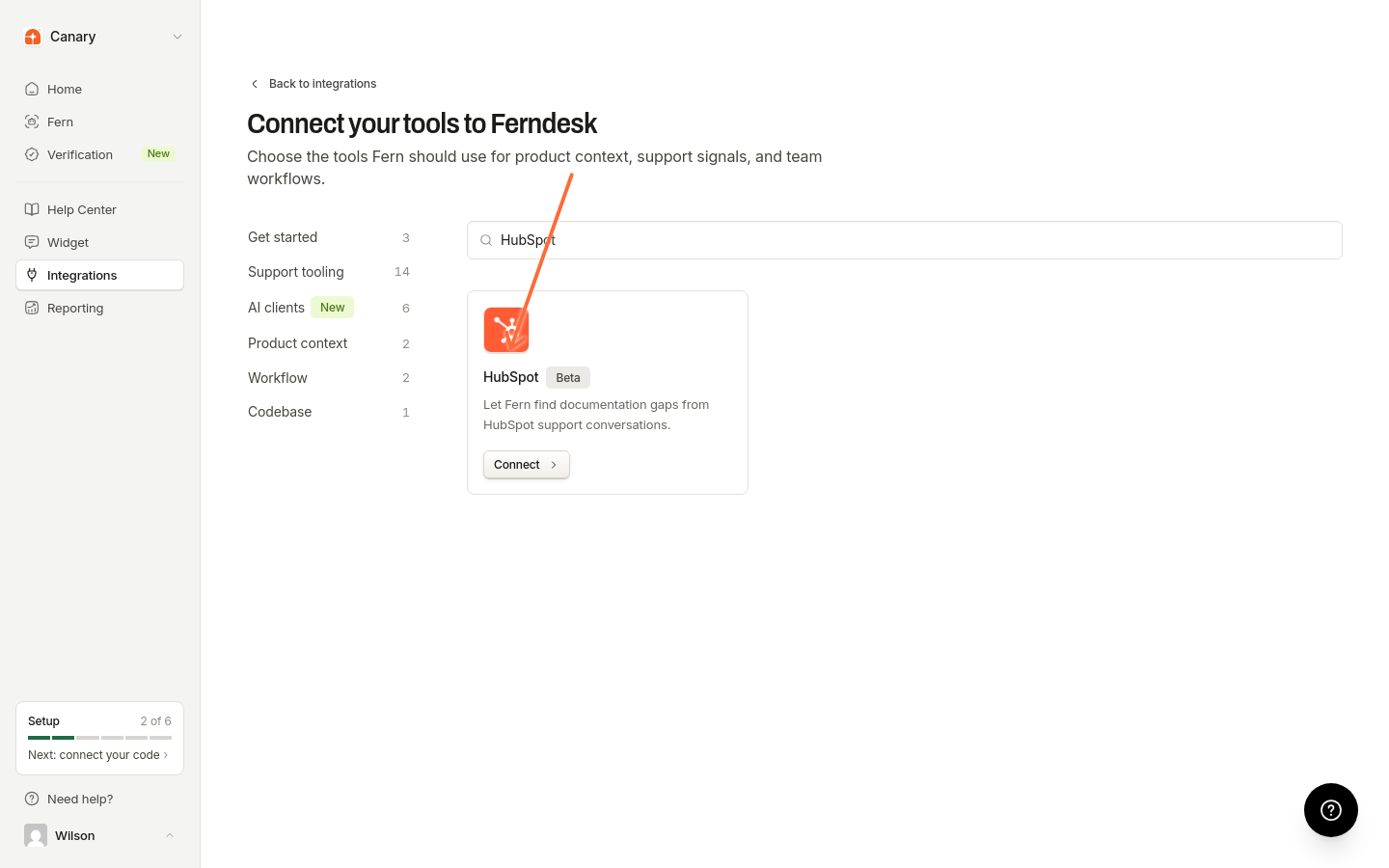
Find the HubSpot card and click Connect.
In the connection dialog, click Connect HubSpot to authorize the integration.
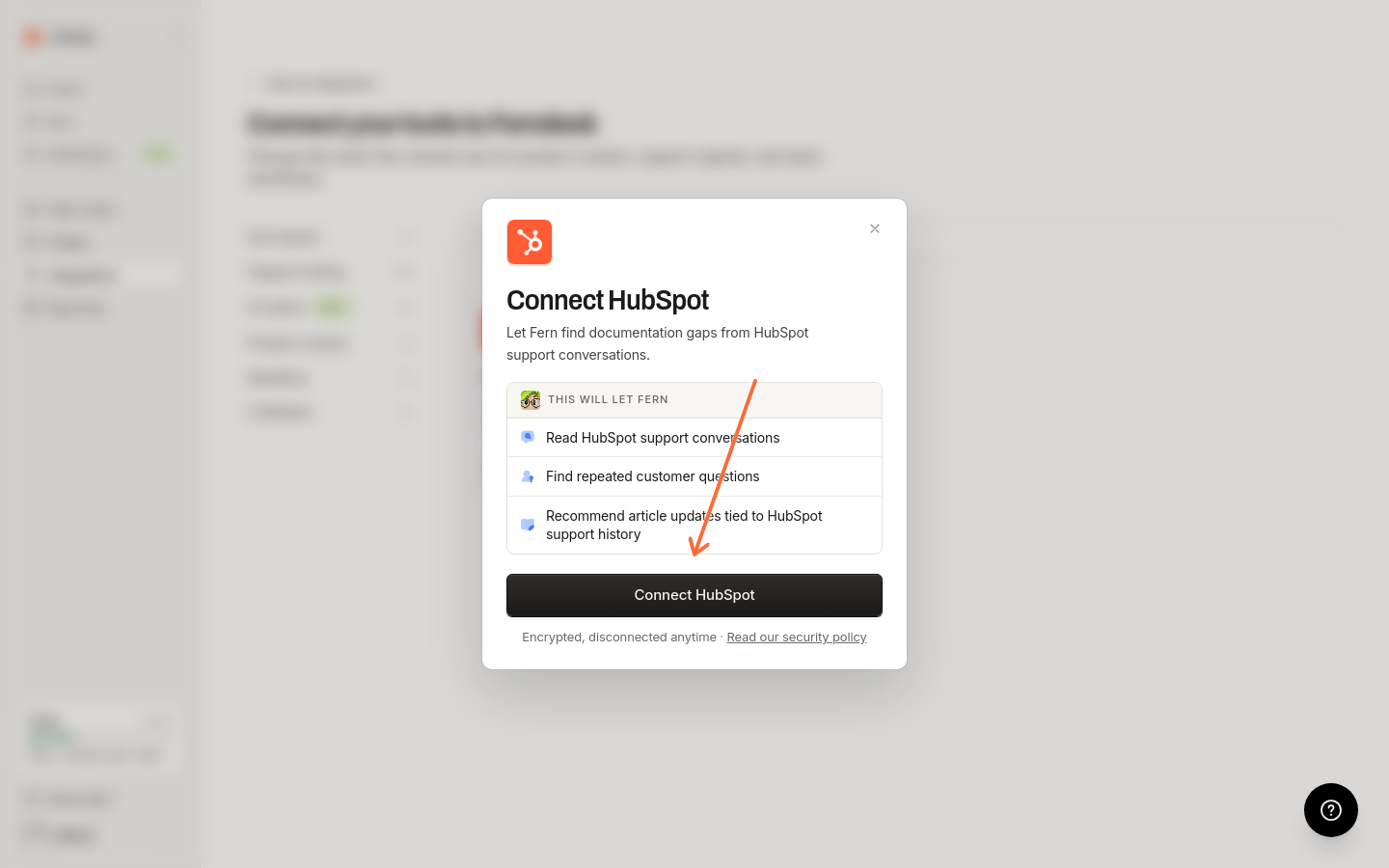
You will be redirected to HubSpot to grant permissions. After authorizing, you will return to Ferndesk and your HubSpot connection will be active.
Once connected, the HubSpot card shows a Manage connections button.
What happens after connecting
Fern automatically syncs your HubSpot knowledge base articles and support conversations to keep your help center current. Support trends from HubSpot appear in Reporting under Intelligence. To automatically receive documentation gap recommendations, enable scheduled audits in Settings > Automations.
Manage connections
After connecting, your connected HubSpot accounts appear in the connections list. To add another account, use Connect integration on the Integrations page. To reconnect when authorization expires, use Reconnect on the connection detail page.
Troubleshooting
I see "Authentication required to connect HubSpot"
I see "HubSpot OAuth organization does not match the active session"
The HubSpot account you are authorizing belongs to a different organization than the one you are signed into in Ferndesk. Make sure you are:
Signed into the correct Ferndesk workspace
Authorizing the HubSpot account that corresponds to that Ferndesk organization
The HubSpot authorization page shows an error
This can happen if:
Your session expired. Try signing out of Ferndesk and signing back in.
The OAuth state became invalid. Close the authorization window and click Connect again in Ferndesk.
HubSpot authorization opens in the same browser window, not a popup. If it fails, retry Connect.
Was this helpful?
Was this helpful?