
Restore a previous article version
Open Version history in the article editor to review past publishes and restore an earlier version as a new live version. History is not overwritten.
Open version history
Open the article in the editor.
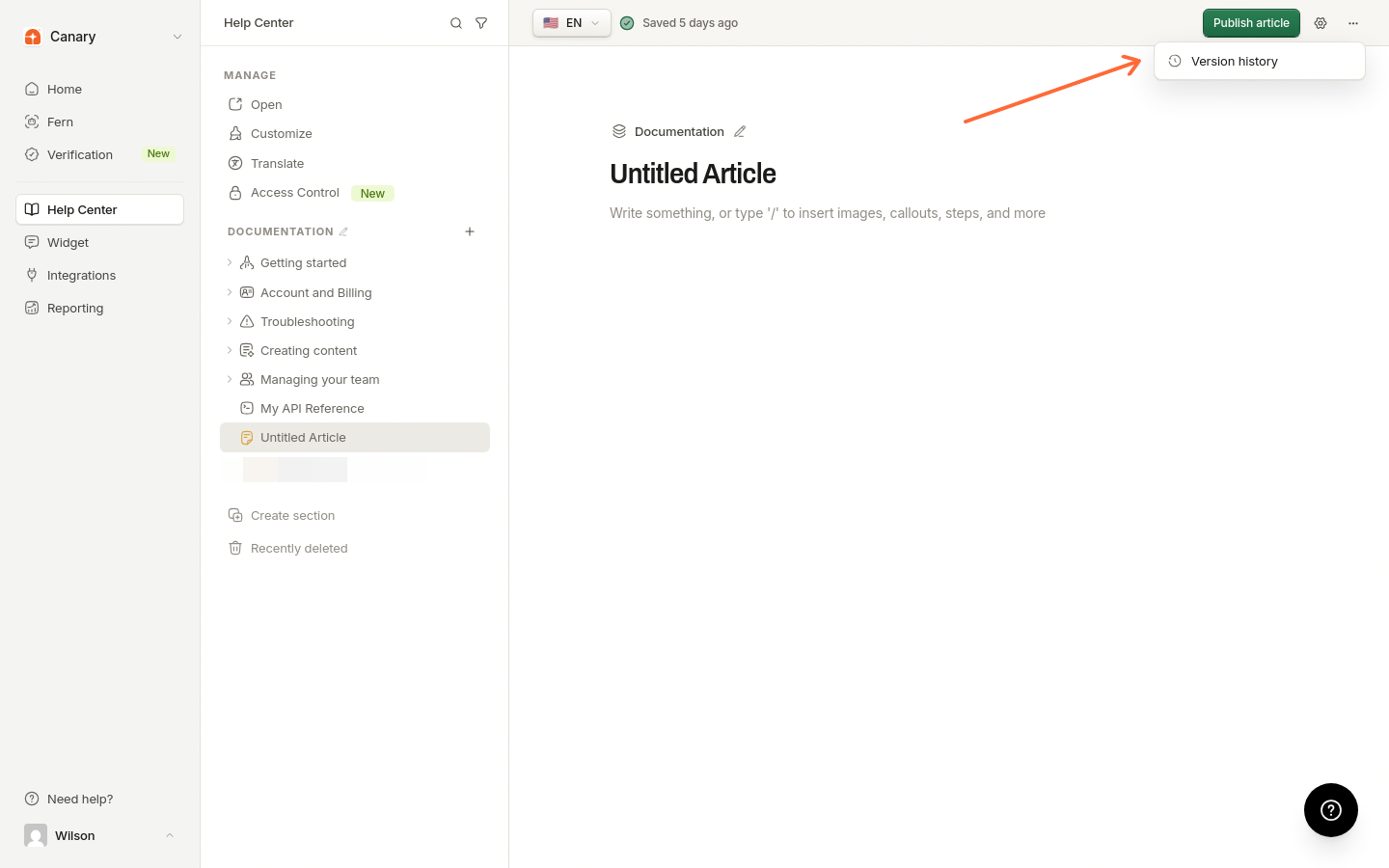
Open More article actions, then select Version history.
The drawer can show Current draft, published revisions and a Live badge on the current version.
Select Current draft to compare unpublished edits with the live version.
Restore a version
Select a non-live revision.
Click Restore version N, where N is the revision number.
Confirm in the dialog, then click Restore.
To recover a deleted article, see Restore a deleted article.
Was this helpful?
Was this helpful?