
Make your help center private
Switch your help center to Private so visitors must sign in before they can read anything. Private mode and the visitor sign-in methods require a Pro plan or above.
Add yourself (optional)
In the dashboard, go to Help Center, then under Manage, click Access Control. Open the Users tab and click Add user to create your own account. Adding a user is not required to make the help center private, but it lets you test the sign-in flow before you switch.
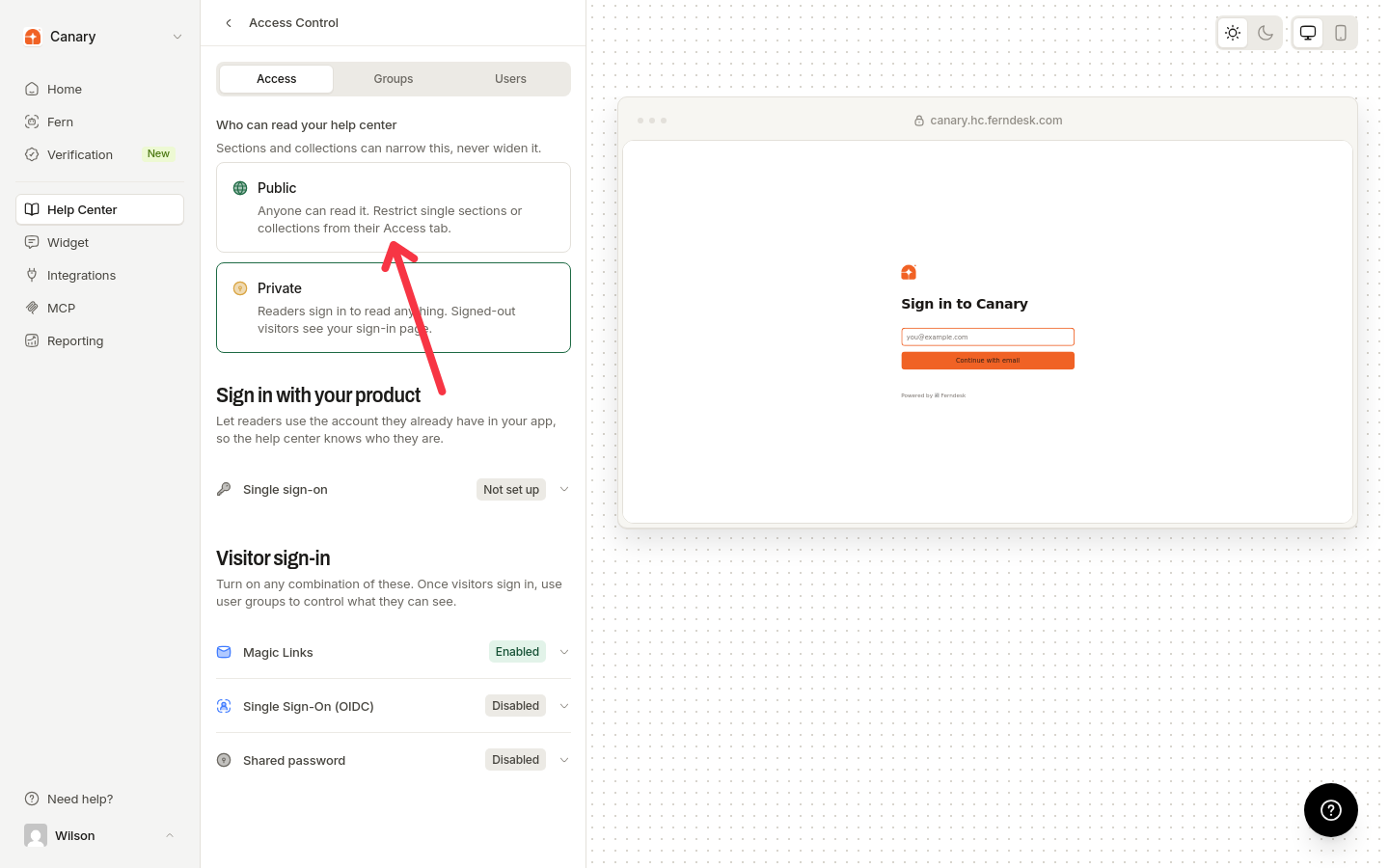
Choose Private
On the Access tab, under Who can read your help center, select Private. Signed-out visitors then see your sign-in page before they can read anything. Sections and collections can narrow this, never widen it. If your plan does not include help-center authentication, selecting Private is blocked with the message Private help centers are only available on the Pro plan.
Enable a sign-in method
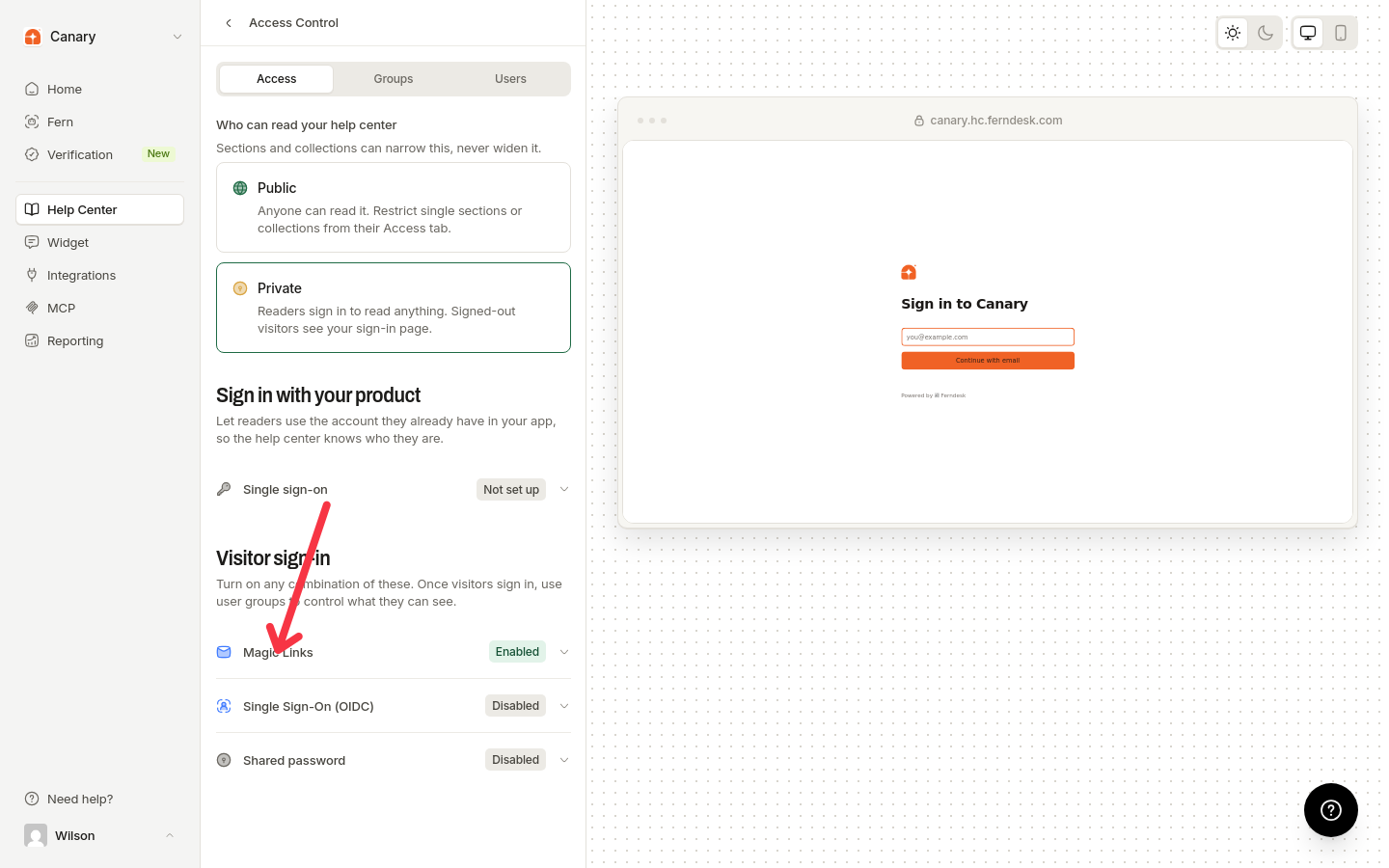
The help center cannot be saved as Private until at least one visitor sign-in method is on. Until then, Save changes stays unavailable and the page shows Turn on at least one sign-in method before making your help center private.
Under Visitor sign-in, enable any combination of Magic Links, Single Sign-On (OIDC), and Shared password. Readers see every enabled option on the sign-in page.
Above the visitor methods, Sign in with your product lets readers sign in with the account they already have in your app: your app signs a short-lived JWT and redirects the reader back to the help center. To sign readers in without them landing on the sign-in page, use the silent sign-in setup inside Sign in with your product.
Once at least one method is on, click Save changes.
Test the sign-in flow
Open your help center URL in an incognito or private browser window. Confirm you are redirected to the sign-in page, then sign in and verify you can access articles.
A Public help center can also enable these visitor sign-in methods. That way everything stays open except the sections and collections you restrict to signed-in readers; see Collection access.