
The URL must return valid JSON with issuer, authorization_endpoint, and token_endpoint fields. Test it in your browser before configuring.
Sign in with OIDC SSO
Connect your existing identity provider to let users sign in to your help center using their corporate credentials.
OIDC SSO requires the Pro plan or above. Compare plans if needed.
What You'll Need
Gather these values from your identity provider before you begin:
Discovery URL: Your provider's OIDC discovery document URL. Standard providers commonly use
/.well-known/openid-configuration, but Ferndesk accepts any valid URL that serves the required discovery document.Client ID: OAuth client identifier from your provider's application settings
Client Secret: Confidential key for token exchange
Setup
1
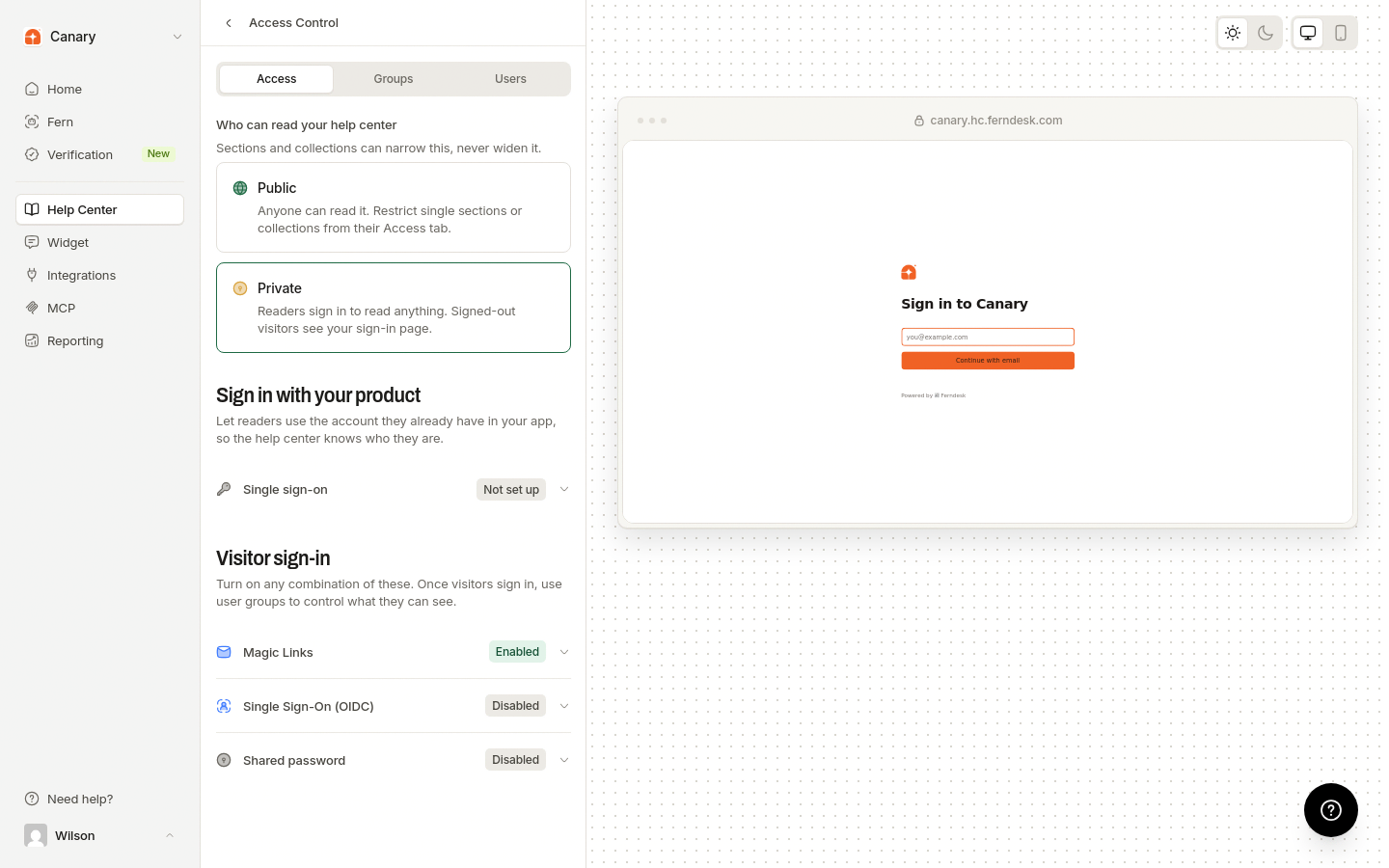
Open Access Control
In the dashboard, go to Help Center, then Access Control.
2
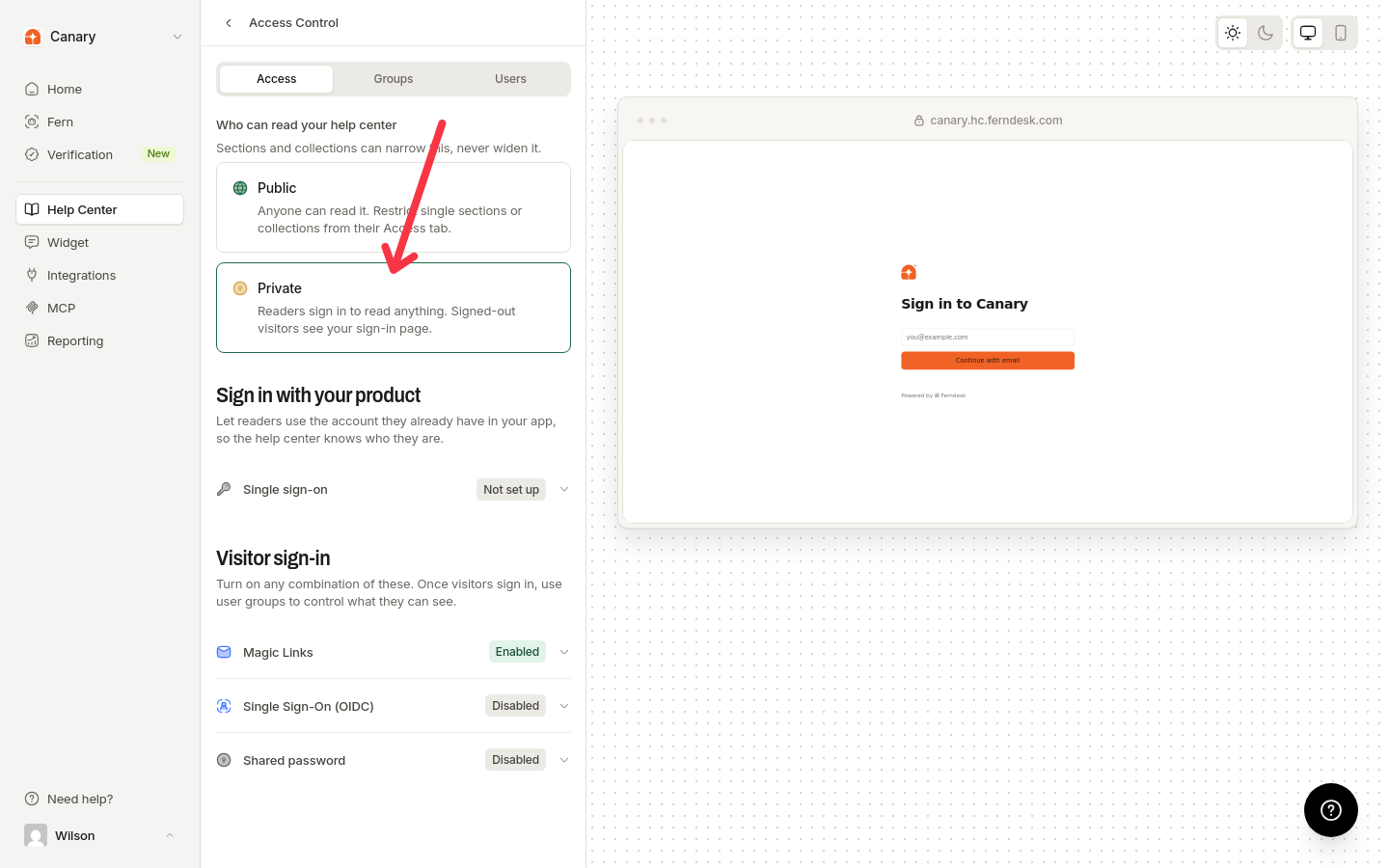
Choose your access mode
OIDC is used when your help center is Private, or on a Public help center to gate restricted sections and collections. A Private help center requires at least one sign-in method, and OIDC can be that method.
3
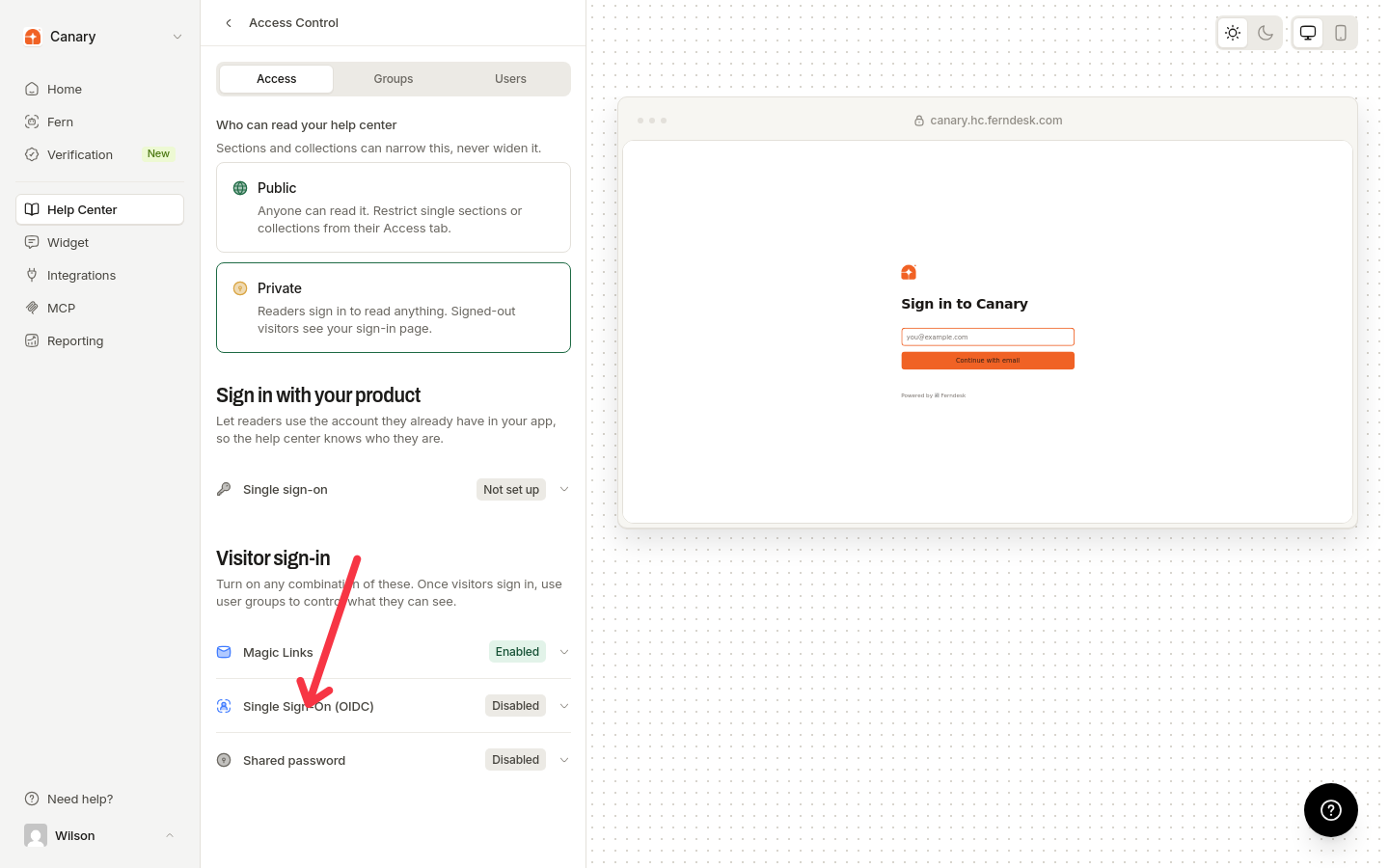
Open the OIDC settings
Under Visitor sign-in, expand Single Sign-On (OIDC).
4
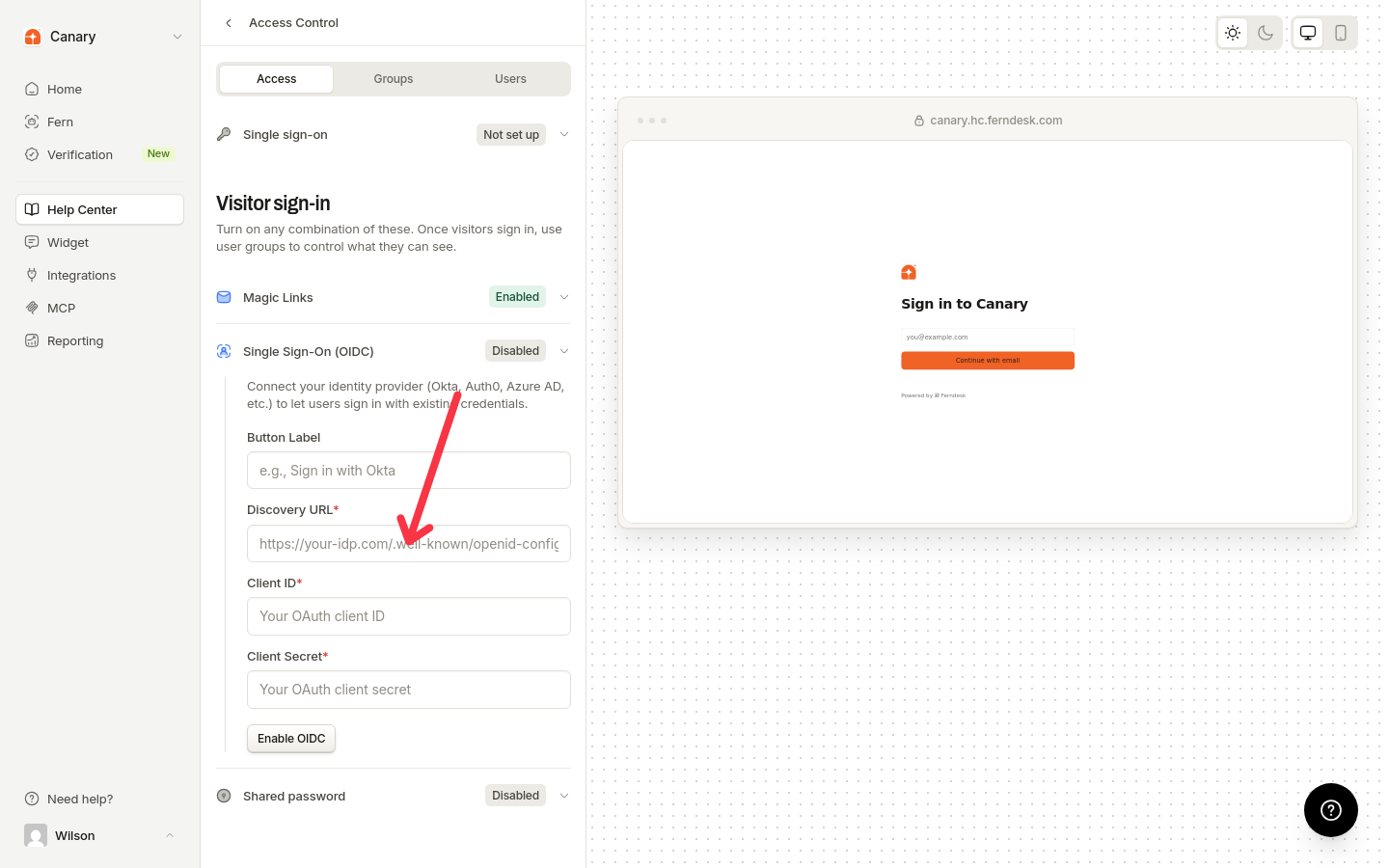
Enter your provider details
Enter a Button Label such as “Sign in with Okta”, then enter your Discovery URL, Client ID, and Client Secret.
5
Enable OIDC
Click Enable OIDC.
Ferndesk automatically requests the openid, profile, and email scopes. To disable OIDC later, return to this section and click Disable OIDC.
Callback URL
Add this URL to your identity provider's allowed redirect URIs:
https://<your-help-domain><base-path>/api/auth/oidc/callbackProvider Examples
Okta: Discovery URL is https://your-domain.okta.com/.well-known/openid-configuration. Create a Web App Integration with Authorization Code flow.
Auth0: Discovery URL is https://your-domain.auth0.com/.well-known/openid-configuration. Create a Regular Web Application.
Google Workspace: Discovery URL is https://accounts.google.com/.well-known/openid-configuration. Create OAuth 2.0 credentials with application type set to Web application.
Troubleshooting
Invalid discovery URL
Client authentication failed
Verify your Client ID and Client Secret are correct. Check for extra spaces or line breaks when copying.
Redirect URI mismatch
Add the exact callback URL to your provider's allowed redirect URIs, including https:// and your correct domain.
Access denied after sign-in
Ferndesk requests the openid, profile, and email scopes. If sign-in fails, verify that your provider returns a valid ID token containing sub and email claims.
Was this helpful?
Was this helpful?