
Customize the AI assistant
Customize how the customer-facing AI assistant sounds and answers from Settings → AI Assistant. Set the tone, emoji use, answer length, and screenshot behavior, add standing instructions, and list topics the assistant hands to your team instead of answering. One configuration drives the assistant everywhere customers meet it: your help center, your widget, and the public MCP ask_assistant tool.
Before you begin
Workspace admins configure the assistant. Turn on AI answers for the help center or widget first, or these settings have nothing to shape.
Open AI Assistant settings
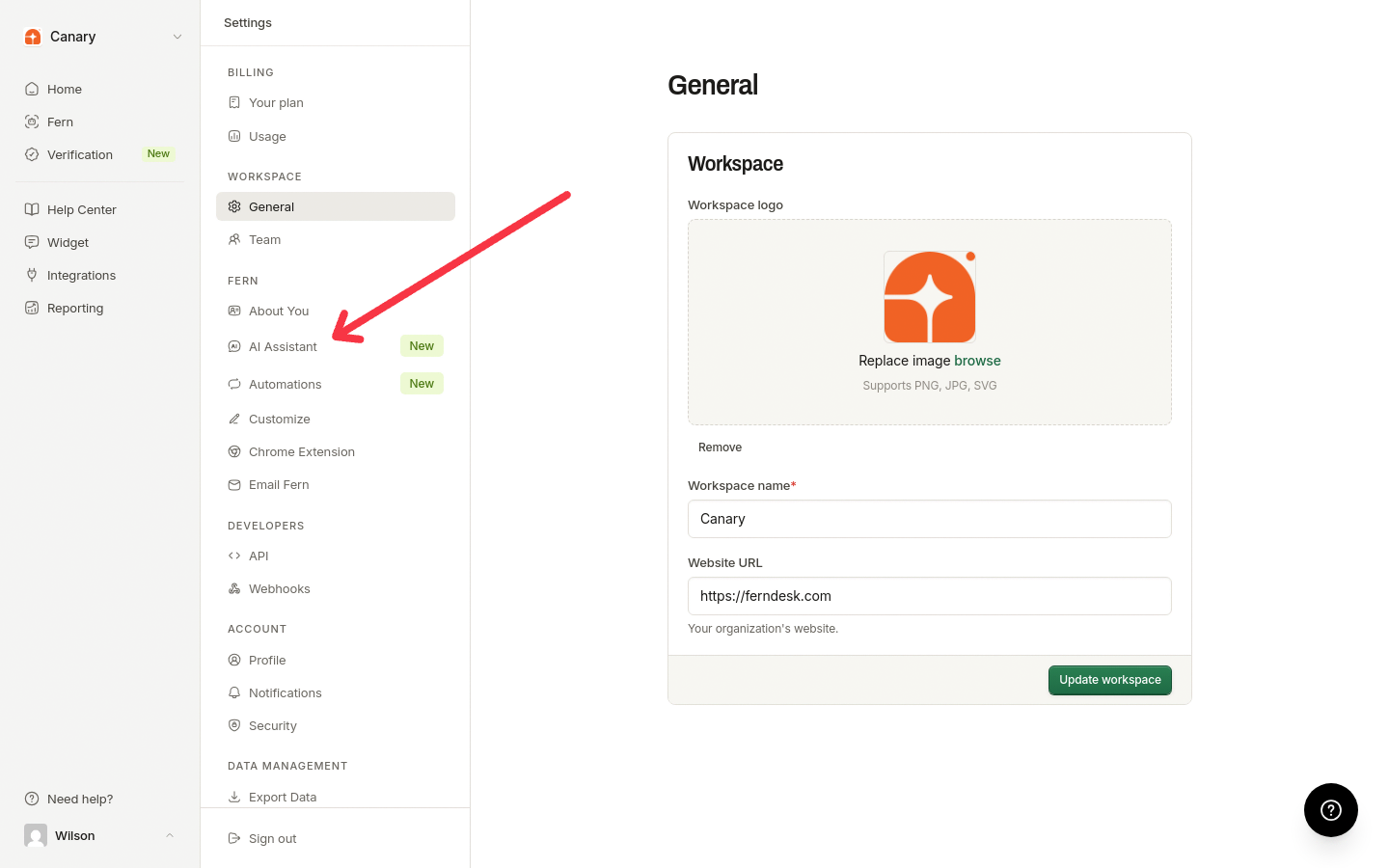
Assistant settings live in the Fern section of workspace settings.
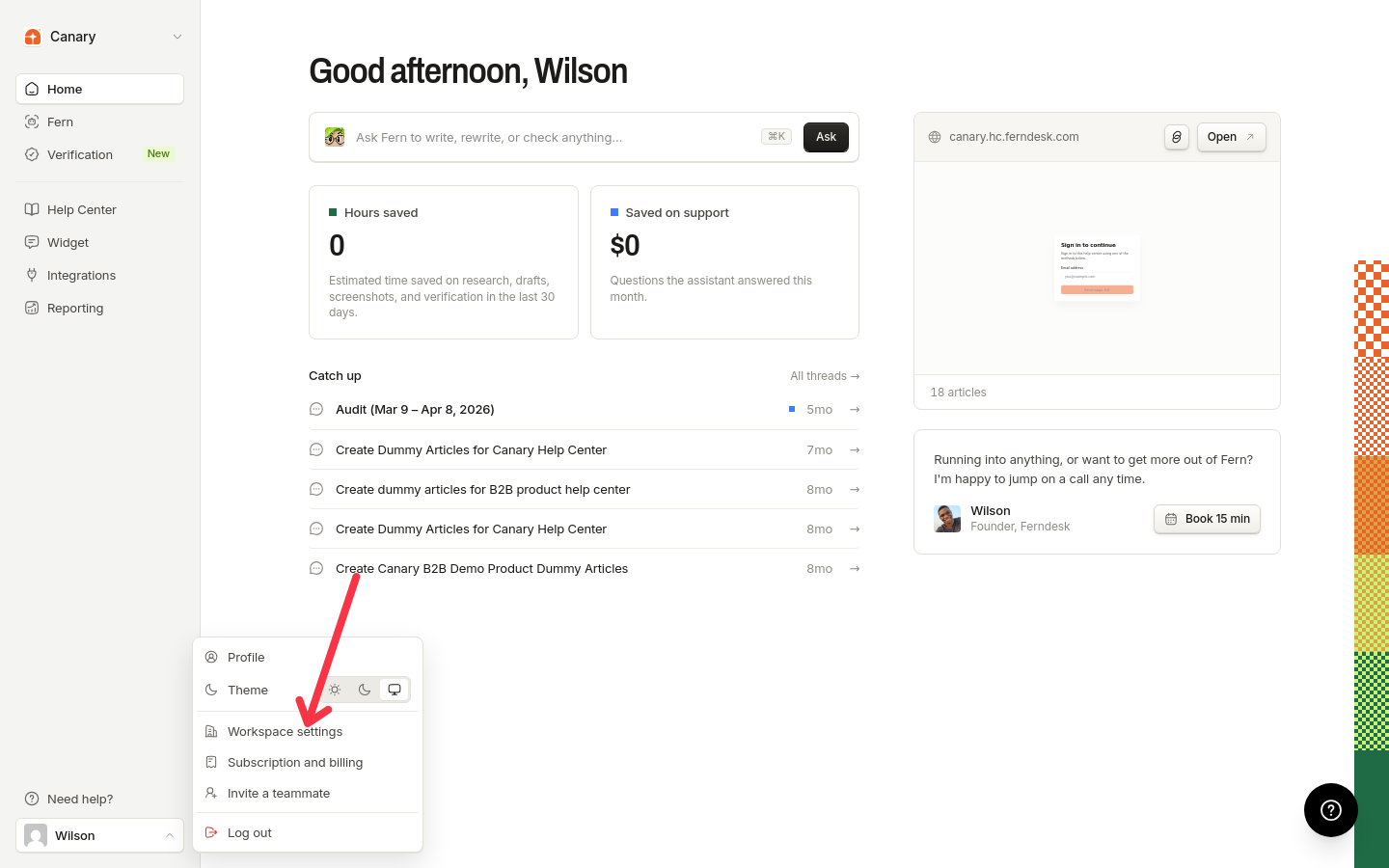
Open your Ferndesk dashboard and click your account menu at the bottom left.
Click Workspace settings.
In the settings navigation, find the Fern section and click AI Assistant.
Voice
The Voice section controls how the assistant speaks.
Tone: choose Friendly, Professional, Plainspoken, or Playful.
Emoji: turn emoji in answers on or off.
In your own words: add custom voice guidance in up to 500 characters.
Answers
The Answers section controls what responses contain.
Answer length: choose Concise, Standard, or Thorough.
Screenshots: when on, the assistant can include article images that match the question, up to two per answer. When off, answers contain no embedded images. Walkthrough video links are not affected by this switch.
Instructions: give the assistant standing instructions in up to 4,000 characters. Instructions shape response style and terminology, but they cannot add facts beyond your published articles or override the assistant's citation and grounding rules.
Off-limits topics
List topics the assistant should not answer directly. Add up to 20 topics, one per line, each up to 120 characters. When a question is directly about an off-limits topic, the assistant skips the documentation answer and hands the question to your team instead. Whether visitors then see a contact option depends on the AI handoff behavior for that channel.
Save your settings
Each Save submits the complete configuration, so check every section before saving, not just the one you changed.
Defaults
Help centers without customized assistant settings keep the existing behavior:
Tone: Friendly
Answer length: Standard
Emoji: on
Screenshots: on
No custom instructions
No off-limits topics
Where the settings apply
The same configuration reaches the hosted help center assistant, the widget assistant, and the public MCP ask_assistant tool. Your instructions and off-limits topics stay private: visitors never see them. For how the assistant picks media and builds answers, see How AI answers work.