
Section and collection access
Use the Access tab to set who can read a section or collection, and what readers without access see. Open it from the content tree, choose the audience, and optionally add a lock message with a live preview. For the overall access model, see Access Control.
Access restrictions require a Pro plan or above.
Open the Access tab
From your help center content tree, click the three-dot menu on the section or collection and choose Edit, then open the Access tab. Both sections and collections have this tab.
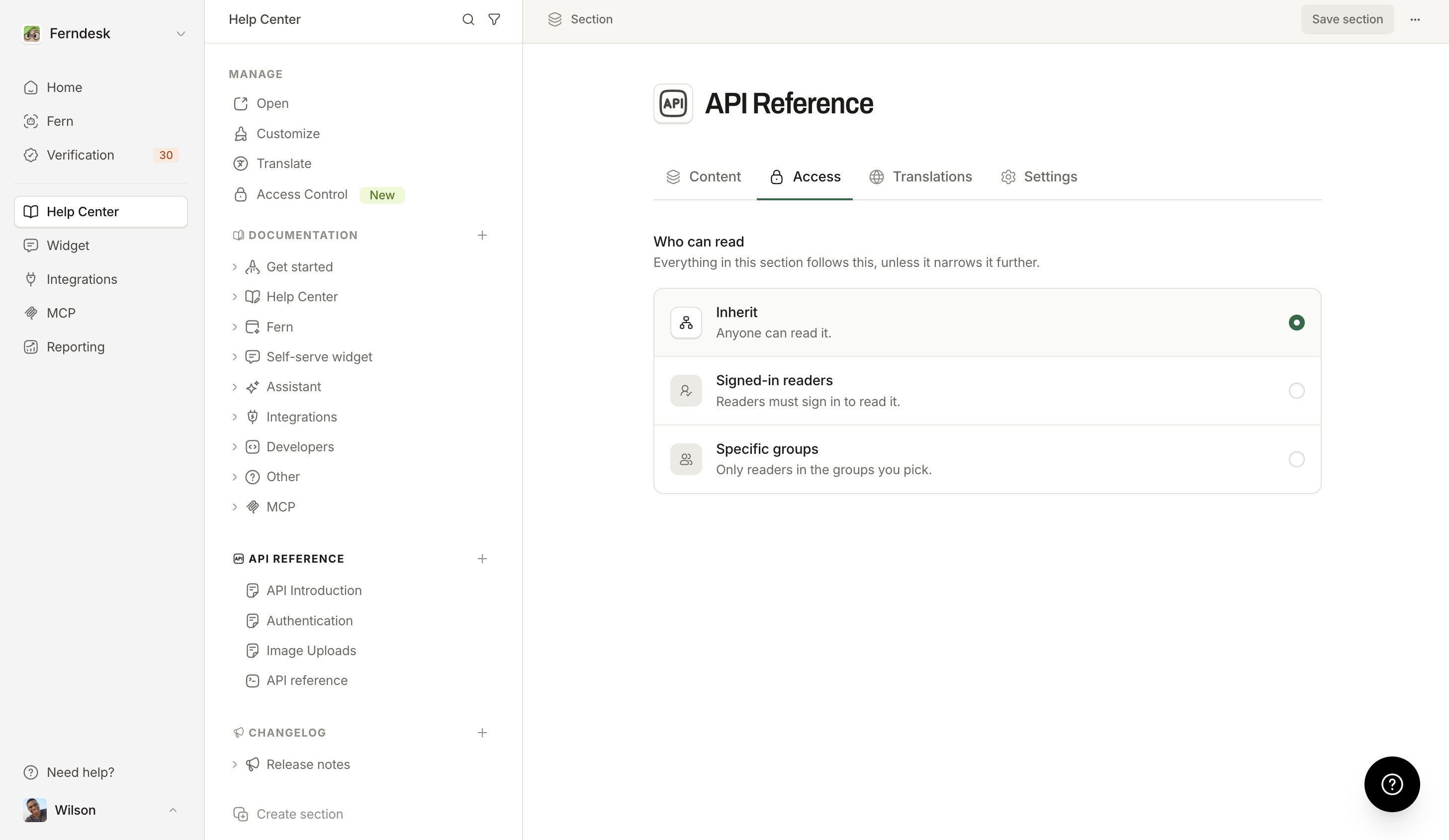
Choose who can read it
Under Who can read, pick one of three choices. Each shows a description of what it resolves to:
Inherit: keeps the audience the item gets from above. The description spells it out, for example "Only the Enterprise customers group, from the Developers section" under a group-restricted section.
Signed-in readers: "Readers must sign in to read it." If an ancestor already requires sign-in, the description says so instead.
Specific groups: "Only readers in the groups you pick." If you have no user groups yet, you'll see "You don't have any user groups yet." with a Create one link that opens the Groups tab of Access Control. For creating and managing groups, see User groups.
Choose what readers without access see
The Readers without access choice appears only when your audience rule excludes readers who can otherwise reach the help center. Pick one:
Inherit (the default): the nearest ancestor's rule applies. At the top of the hierarchy there is nothing to inherit, so this choice is hidden.
Show with a lock: "Its title is listed with a lock. Opening it shows your message, never the content."
Hide: "It isn't listed, and its link says they don't have access."
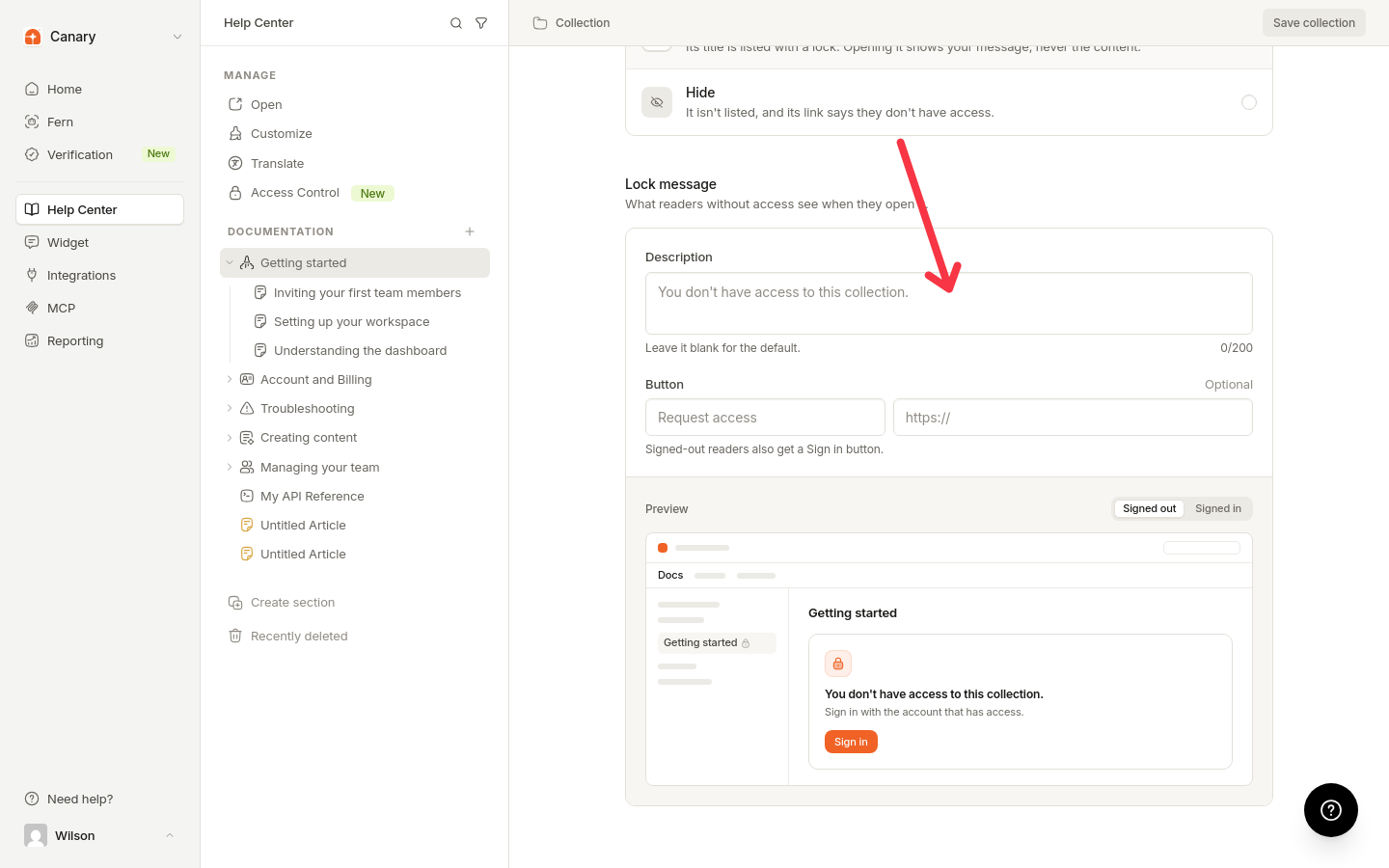
Set the lock message
The message fields appear when this section or collection owns its own lock message:
Description: up to 200 characters. Leave it blank for the default: "You don't have access to this section." for a section, or "You don't have access to this collection." for a collection.
Button (optional): button text up to 40 characters, and a full link starting with http:// or https://. The two fields go together: filling one and leaving the other blank shows "Add the button text, or clear the link." or "Add a link for the button, or clear its text.", and a link that is not a full URL shows "Use a full link starting with https://". Leaving both blank keeps the message without a button. Signed-out readers always also get a Sign in button.
A Preview below the fields shows the locked listing and the no-access card live as you type. The Preview as toggle switches between Signed out and Signed in: the signed-in preview shows the reader's email address with a Use another account option, and the Sign in button appears only in the signed-out preview.
Save your changes
Save the editor.
Preview the live page
When the audience is restricted, the Who can read heading also offers a Preview as visitor link. It opens the item's live page in a new tab so you can see exactly what a reader sees.
How restrictions nest
Requirements flow down through sections and collections and can only become narrower: a child can never make content more accessible than a restricted parent. Group restrictions stack. If you pick Specific groups under an ancestor that already requires groups, readers need to be in both sets of groups.
Lock messages follow the same rule. If a higher level owns the message, the Access tab says which section or collection it comes from and offers an Edit there link instead of showing the fields.
Direct links to hidden content
A direct link to hidden content under a restricted parent returns a 401 error for signed-out readers and a 403 error for signed-in readers without access, with a no-access card and never the title. Unknown URLs still return a 404. Hidden content is also excluded from navigation and search.
The home section
The home section of a help center has no independent Access tab settings. It follows the help center's Public/Private setting.
Article-level audience
Articles have their own audience choices under Visibility in article settings (Inherit from the collection, Anyone signed in, Specific user groups), but no Readers-without-access or lock-message settings of their own. A reader who fails only an article-level requirement sees the article hidden, never shown with a lock. For that workflow, see Article visibility.