
Sign in with your product
Sign in with your product is redirect-based single sign-on: readers click a button on your help center's sign-in page, sign in on your product's own login page, and return with a short-lived JWT that establishes their help-center session. It is available on every plan and works on both Public and Private help centers.
What you need
A login page on your product. You enter its URL in Ferndesk, and it must be a full
http://orhttps://URL.Server-side JWT signing with HS256. Your backend signs the token after readers sign in on your side.
An owner or admin role in your Ferndesk workspace. Only active workspace owners and admins can generate, reveal, and rotate the signing secret.
Set up Sign in with your product
Everything is configured in one place: the dashboard, under Help Center, then Access Control, on the Access tab.
Open the Single sign-on settings
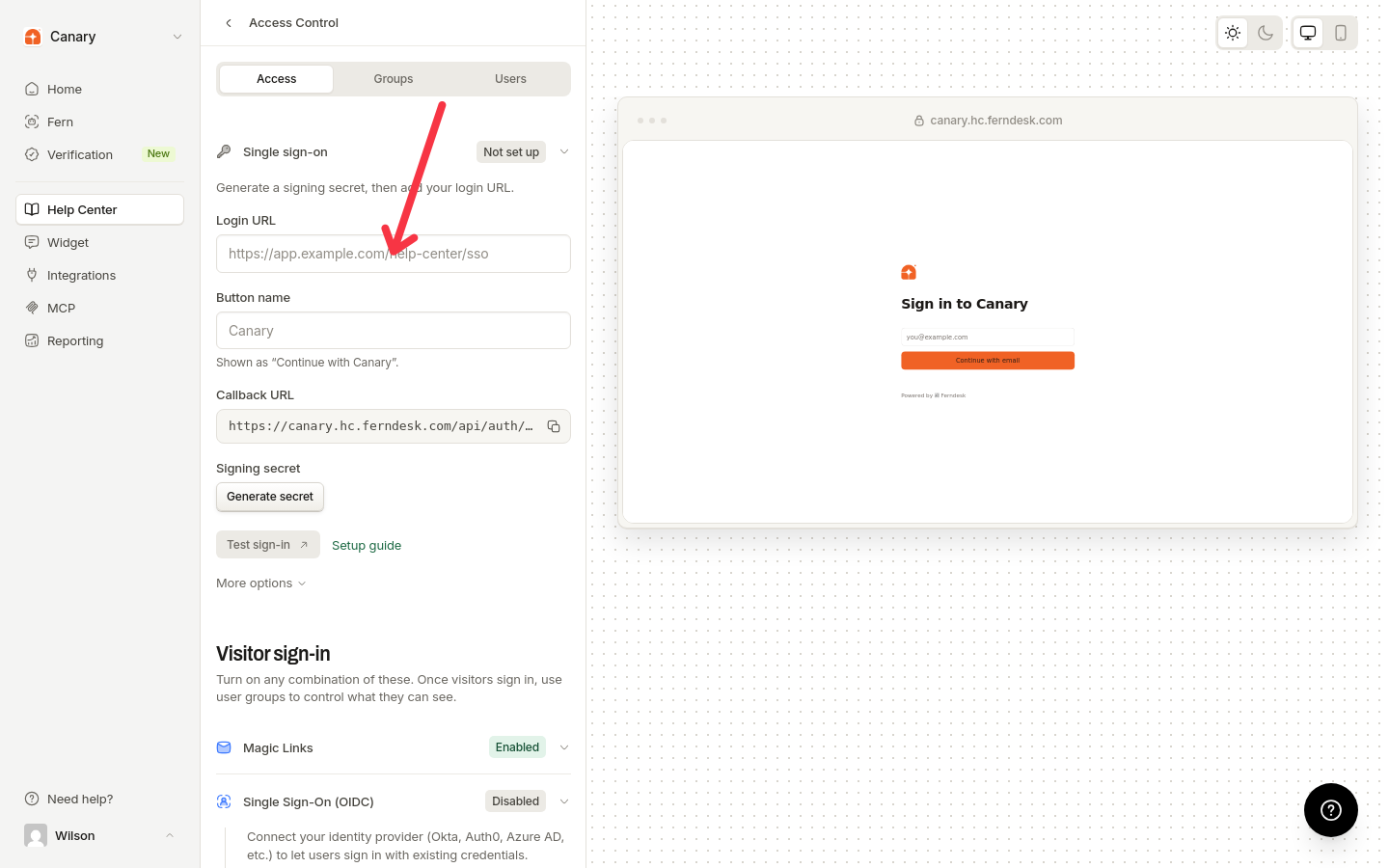
In the dashboard, go to Help Center, then Access Control, and open the Access tab. Expand Sign in with your product, then Single sign-on.
Enter your Login URL
The Login URL is the login page on your product that readers are redirected to. It must start with http:// or https://.
Name the sign-in button
The Button name is shown to readers as Continue with <product name>. It defaults to your help center name.
Copy the Callback URL
A read-only Callback URL is shown in the section. Copy it: your product redirects readers back to this URL after sign-in.
Generate the signing secret
In the Signing secret section, generate the secret your backend uses to sign JWTs.
Set the optional extras
Under More options you can add a Button logo URL and a Logout URL. The Logout URL is where readers are sent when they sign out of the help center through product SSO.
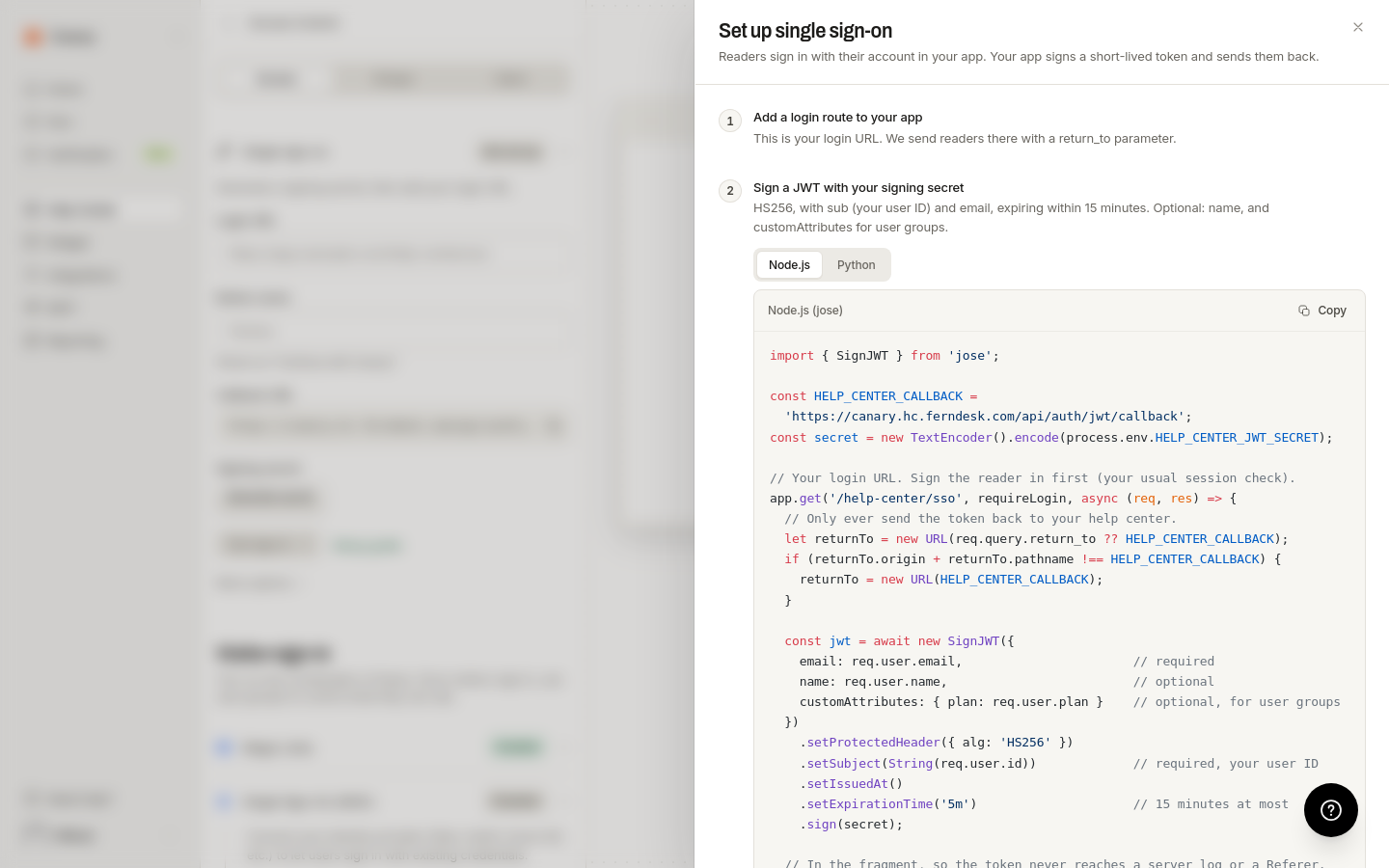
Open the Setup guide in the section for ready-to-use Node.js and Python code examples.
The method's status reflects what is configured: Not set up until a signing secret exists, Identify only when a secret exists but no valid Login URL is configured, and Enabled once both the secret and a valid Login URL are in place.
How the sign-in flow works
The redirect goes through your product, and the signed token comes back to Ferndesk in the URL fragment.
A reader clicks the sign-in button on your help center. Ferndesk sends them to your Login URL with a
return_toquery parameter.Your product signs the reader in, signs a JWT, and redirects the browser back to the
return_tovalue with the token appended as#jwt=<token>.Ferndesk validates the token and creates the reader's help-center session.
Send the token in the URL fragment. Fragments are not sent to server logs or the Referer header, so the token stays out of them. The callback also accepts the token as a form POST or as a ?jwt= query parameter.
Tokens returned through the redirect callback are single-use. Each token establishes one session.
Sign the JWT
Sign with HS256. Required claims:
Claim | Value |
|---|---|
| Stable, unique user ID from your system |
| The reader's email address |
| Token issuance timestamp |
| Token expiration timestamp. The token may live at most 15 minutes. |
Optional claims:
name: the reader's display namecustomAttributesormetadata: user-group attributes
The sub claim must stay stable for each user. It is what Ferndesk uses to identify the reader across sessions.
Never expose the signing secret in client-side code. Store it in backend environment variables only.
Node.js example:
const jwt = require('jsonwebtoken');

app.get('/sso/ferndesk', (req, res) => {
  if (!req.user) return res.redirect('/login');

  const returnTo = req.query.return_to;
  const now = Math.floor(Date.now() / 1000);
  const token = jwt.sign({
    sub: req.user.id,
    email: req.user.email,
    name: req.user.name,
    iat: now,
    exp: now + 900 // 15 minutes (maximum token age)
  }, process.env.FERNDESK_JWT_SECRET, { algorithm: 'HS256' });

  res.redirect(returnTo + '#jwt=' + token);
});
Test sign-in
Once your login page signs and redirects the token, click Test sign-in in the Single sign-on section to run the flow before readers hit it.
Sign readers in silently (optional)
You can skip the redirect entirely for readers who are already signed in to your product. Send a JWT signed with the same signing secret to the identify endpoint, /api/auth/identify, or use the widget identify flow. See JWT Authentication for the silent identify details.
Rotate the signing secret
Rotation is limited to active workspace owners and admins, the same roles that can generate and reveal the secret. Rotating the secret replaces it immediately, and tokens signed with the old secret stop working. Copy the new secret into your backend environment variables in place of the old one.
Other ways readers can sign in
Sign in with Magic Links: one-time email sign-in links
Sign in with OIDC SSO: sign-in through an external identity provider
Shared password: a single password for the whole help center