
ClearFeed integration
Connect ClearFeed so Fern can read your solved requests and turn the questions your customers keep asking into documentation. Only workspace owners and admins can manage integrations.
Create a ClearFeed API token
Fern only needs read access. Generate the token from a ClearFeed user with an active Slack profile and the Agent or Responder role.
In ClearFeed, open Developer Settings.
Choose Generate Token and select Read-only. Fern never writes to ClearFeed.
Copy the token.
Connect ClearFeed
Go to the Integrations page in your Ferndesk dashboard.
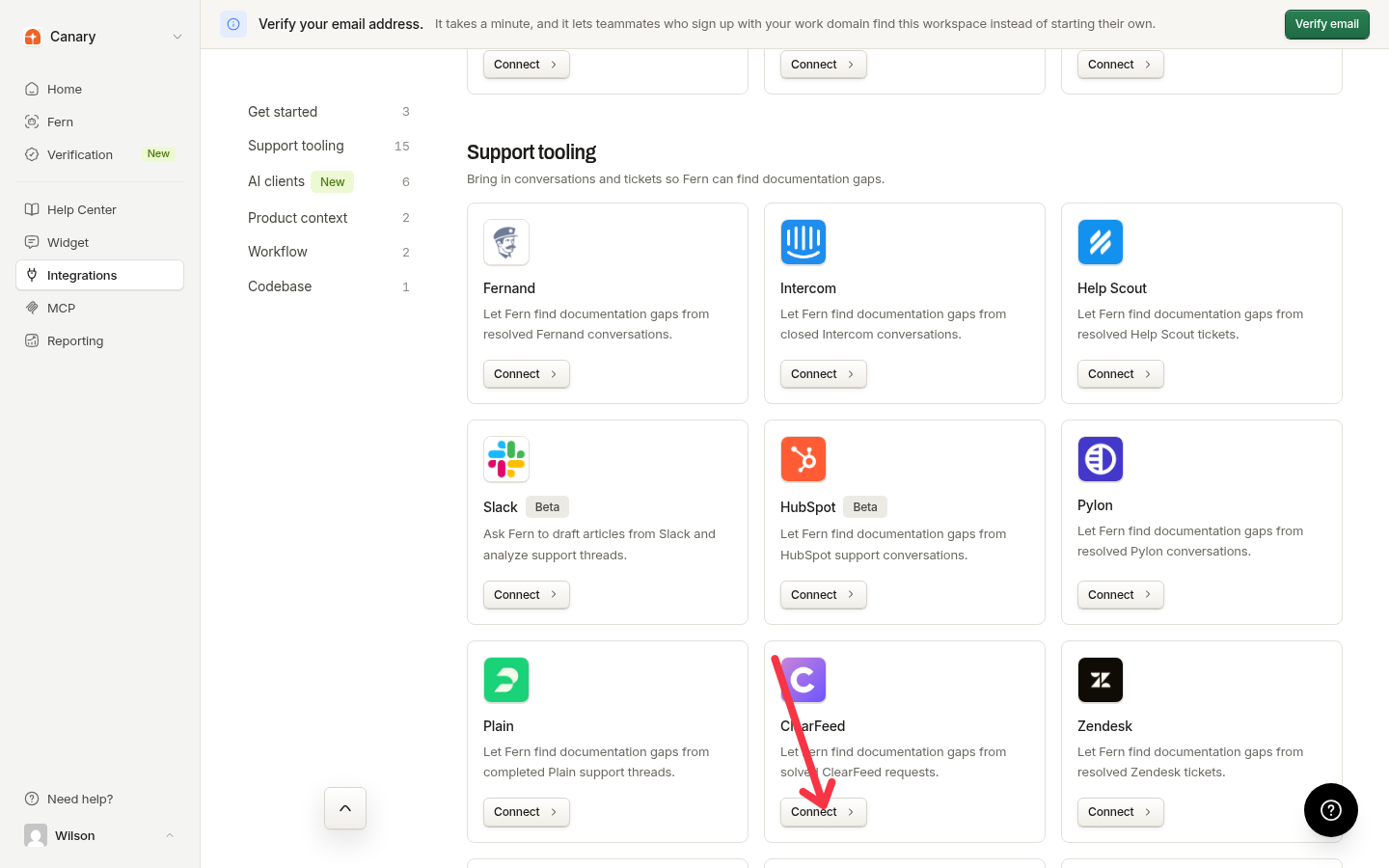
In the Support tooling section, find ClearFeed and click Connect.
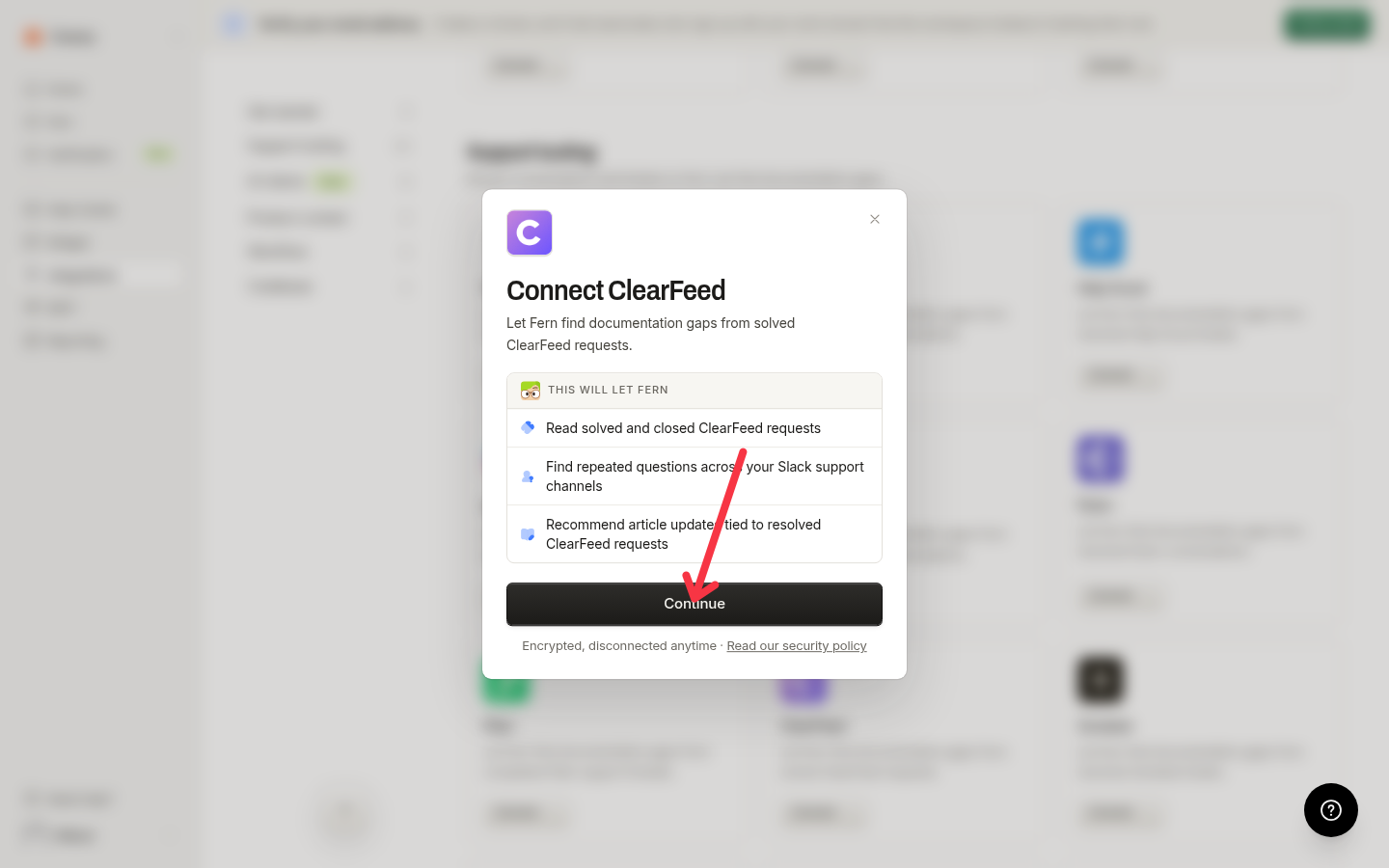
Click Continue to open the token form.
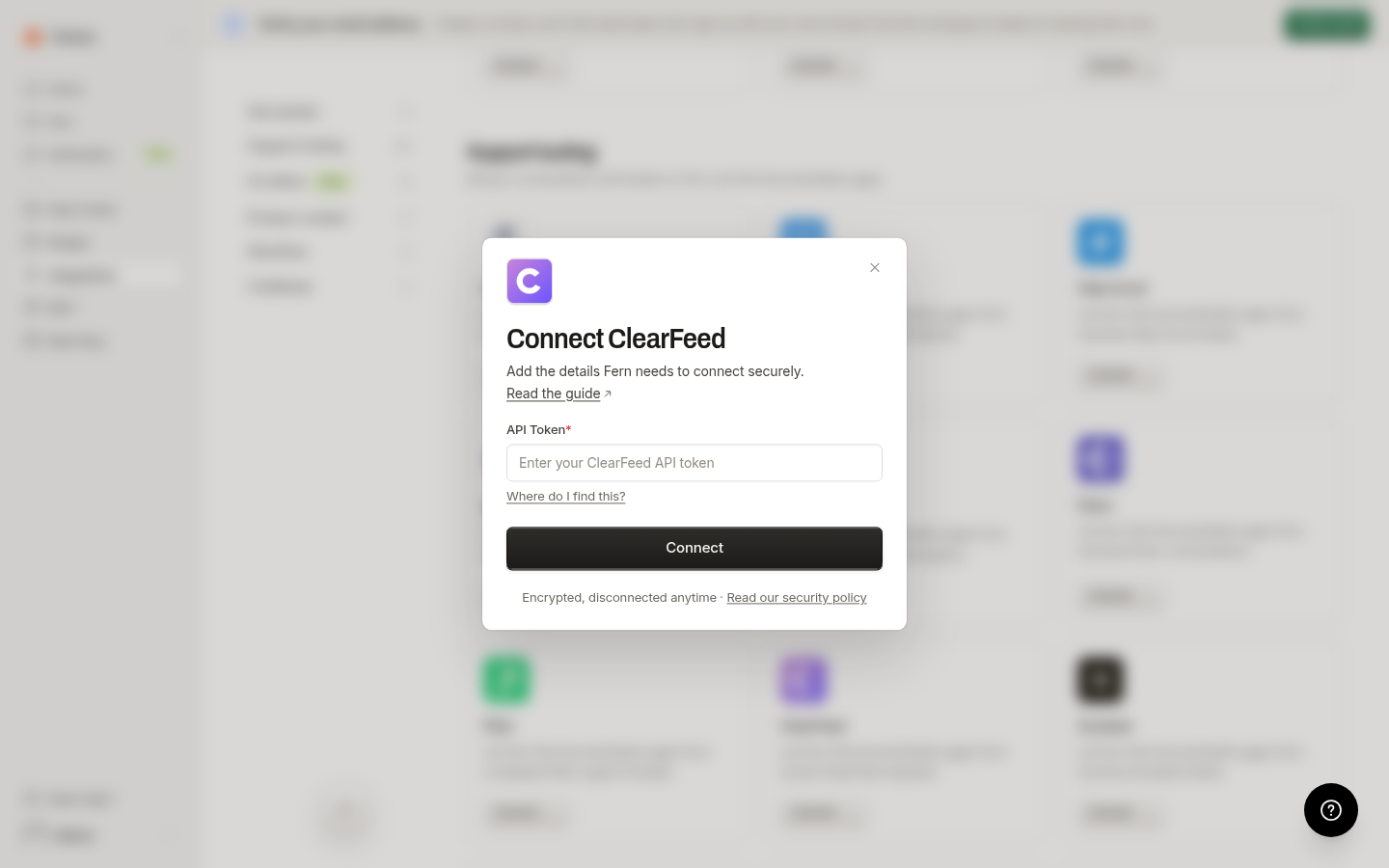
Paste your token into API Token and click Connect to complete the setup.
What Fern imports
Fern reads the requests ClearFeed has already resolved:
Requests marked Solved or Closed, along with the Slack or Teams conversation attached to each one
Fern leaves these alone:
Open requests
Requests marked as not a request
Requests with no messages
The first import reads the last 90 days of activity. After that, Fern checks for newly solved requests about once a day and reads what changed since the previous import.
What happens after connecting
Support trends from ClearFeed appear in Reporting under Intelligence. To automatically receive documentation gap recommendations on a schedule, enable scheduled audits in Settings > Automations.
Manage or disconnect
To replace the token or disconnect, go back to the Integrations page, open your ClearFeed connection, and choose Manage. You can paste a new API Token there.
Disconnecting stops future imports and deletes the ClearFeed data Fern has already imported. Articles Fern has already written stay in place