
Scheduled audits
Scheduled audits automatically review your help center on a recurring schedule. Fern analyzes support data, search gaps, article feedback, and recent product changes to identify documentation gaps and outdated content.
What scheduled audits do
When you enable scheduled audits, Fern runs a comprehensive review of your help center at the interval you choose. Each audit checks:
Support trends — Patterns from your connected support tools, such as recurring questions or high-friction support threads
Search gaps — Queries where customers searched your help center but didn't find relevant results
Article feedback — Reader feedback indicating content that needs improvement
Recent product changes — Commits, pull requests, and releases from your connected codebase that may require documentation updates
After each audit, Fern creates one audit thread containing the grouped findings. You can review the findings and ask Fern to draft updates for any gaps she identifies, or dismiss individual findings.
Scheduled audits complement the automatic PR drafts feature. Use both together to keep your documentation in sync with product changes. Scheduled audits surface coverage gaps and recommendations for new or missing content, while Continuous verification re-checks the claims in your published articles against your connected product sources.
Enable scheduled audits
Configure scheduled audits from the Automations settings page.
Navigate to Settings > Automations
Open Settings from the dashboard sidebar, then select Automations.
You'll see three automation options: Automatic PR drafts, Scheduled audits, and Continuous verification.
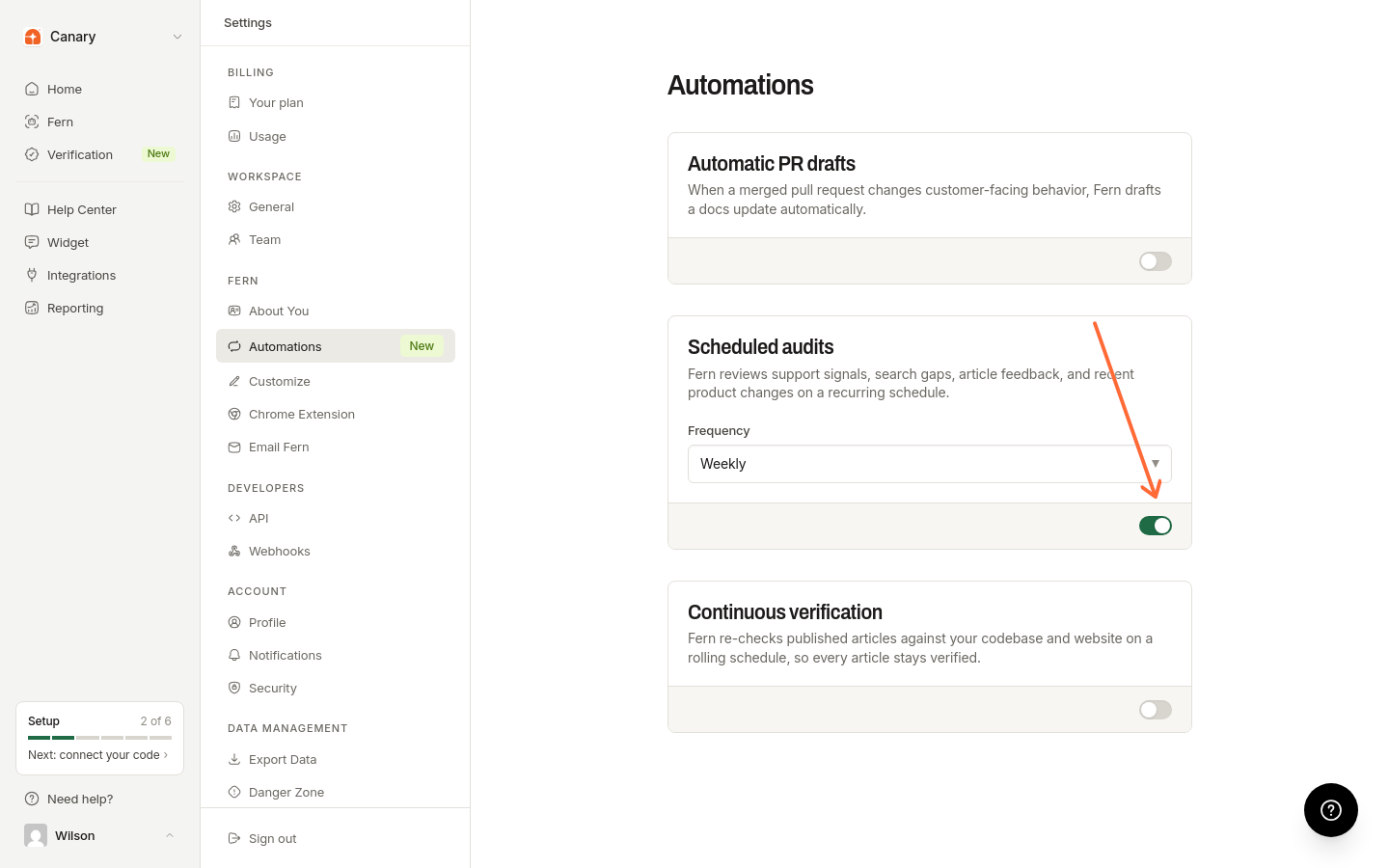
Toggle on Scheduled audits
Click the Scheduled audits toggle to enable recurring audits.
Fern will display a confirmation toast: Scheduled audits enabled.
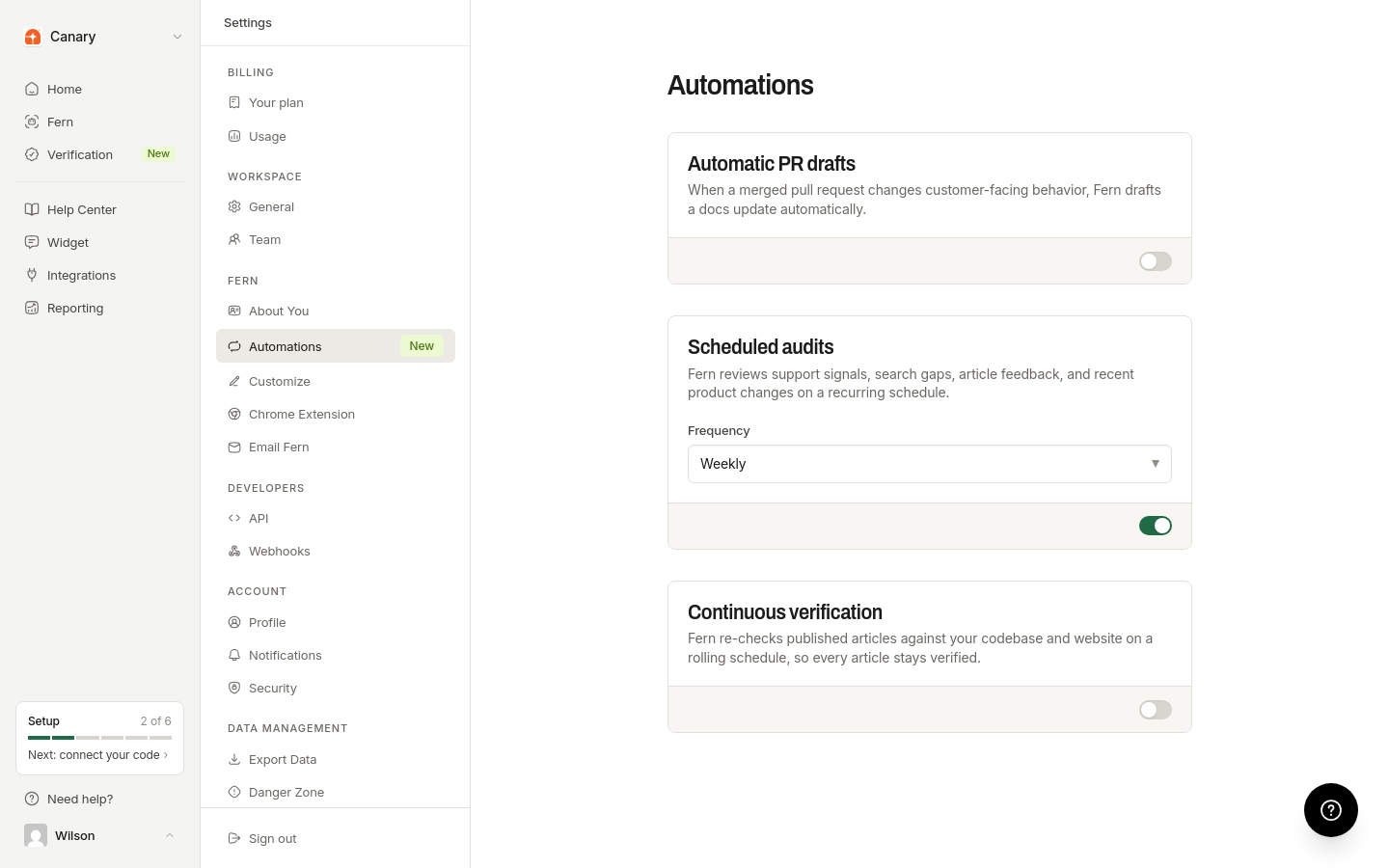
Choose your audit frequency
After enabling scheduled audits, a Frequency selector appears below the toggle. Choose how often Fern should run audits:
Weekly — Fern audits your help center every week
Every 2 weeks — Fern audits every two weeks
Monthly — Fern audits once per month
Fern will confirm your selection with a toast: Audit frequency updated.
Review audit results
When a scheduled audit completes, the results appear in your Fern thread list. Navigate to the Fern page to see audit tasks alongside your other documentation work.
Each audit finding includes:
A description of the documentation gap or outdated content
Evidence from support tickets, search data, feedback, or codebase changes
Actions you can take, such as drafting an update with Fern or dismissing the finding
Click any audit task to see the full details and evidence behind Fern's recommendation. From there, you can ask Fern to draft the necessary updates.
Disable scheduled audits
To stop recurring audits, return to Settings > Automations and toggle off Scheduled audits. Fern stops running future scheduled reviews, but existing audit threads remain in your thread list. You can address or dismiss their findings, and the thread is removed only when you explicitly delete it.
Next steps
Configure Automatic PR drafts to update documentation when pull requests merge, including sensitivity and PR draft guidance