
Update your profile
Update your display name and profile photo from the Profile settings in your Ferndesk account. Your profile information appears across the dashboard and in team views.
1
Open Profile settings
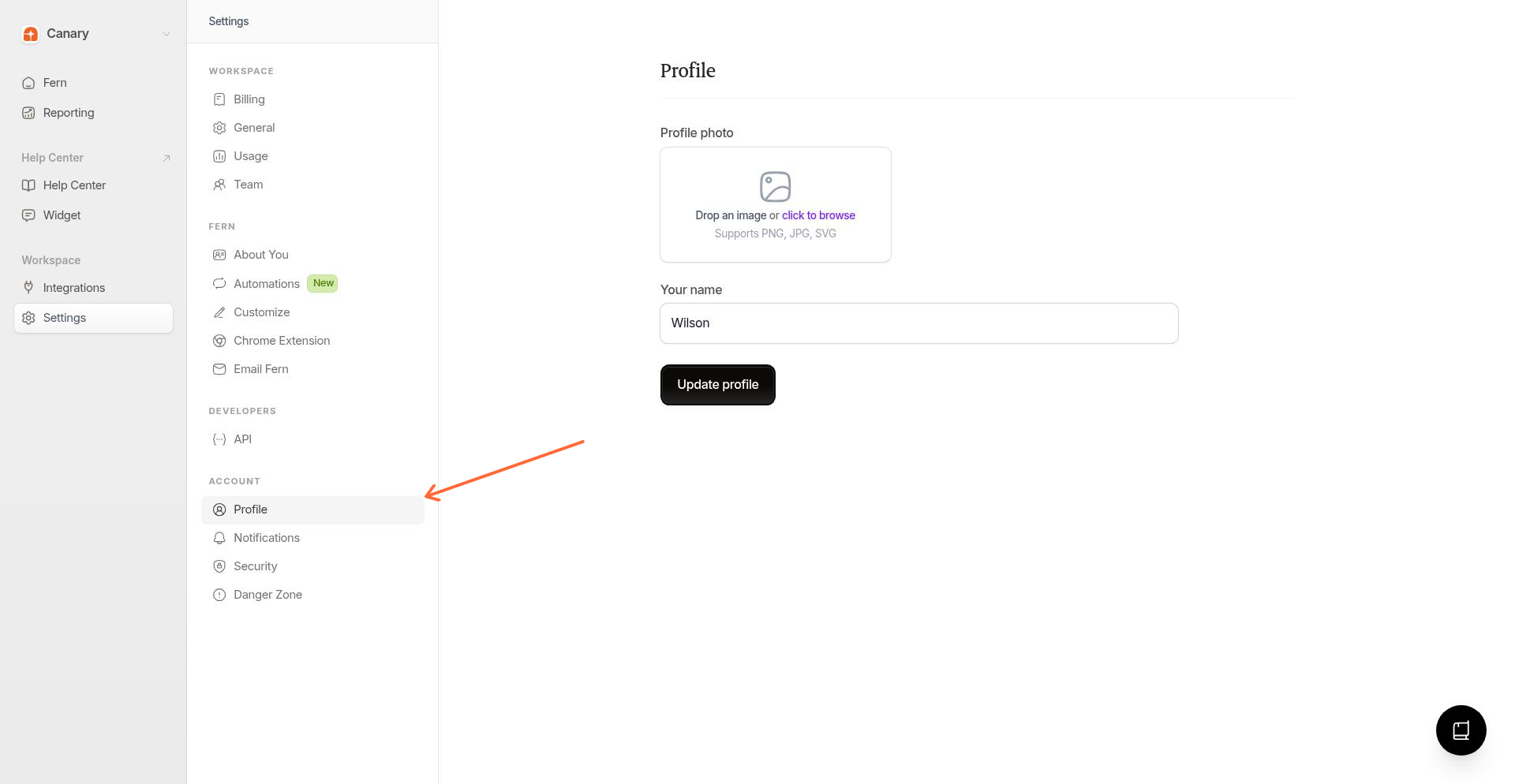
From the left sidebar, select Settings, then click Profile under the Account section.
2
Update your profile photo
Click the Profile photo area to upload a new image. Ferndesk supports common image formats including JPG, PNG, and GIF.
3
Enter your name
In the Your name field, enter the display name you want to appear in the dashboard and team views.
4
Save your changes
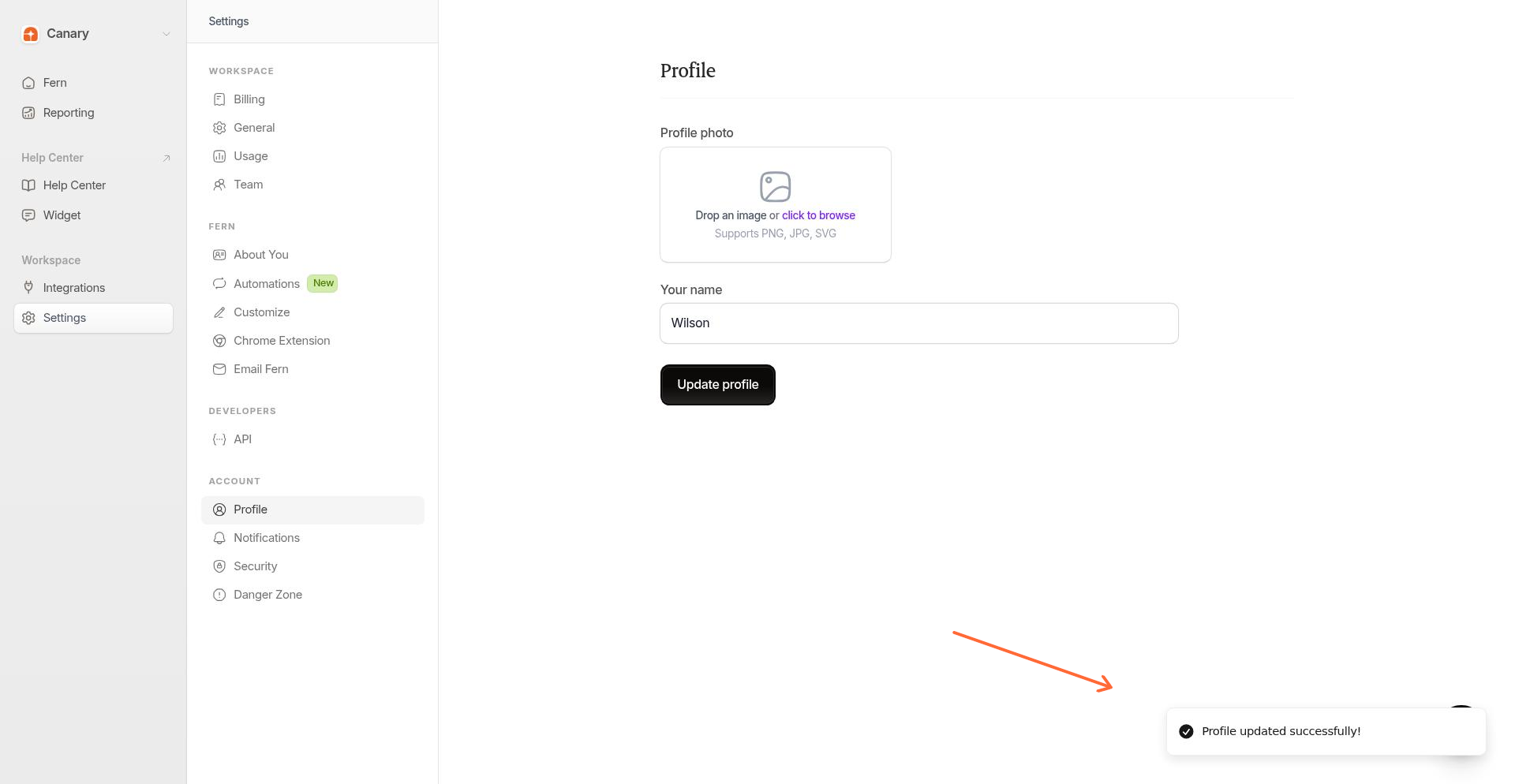
Click Update profile to save your changes. You will see a confirmation message once the update succeeds.
Related articles
Was this helpful?
Was this helpful?