
Manage notification preferences
Control how you receive alerts from Ferndesk, including email notifications for task completion and browser push notifications for real-time updates.
Before you begin: You need access to your Ferndesk account at ferndesk.com/app.
Open Notification settings
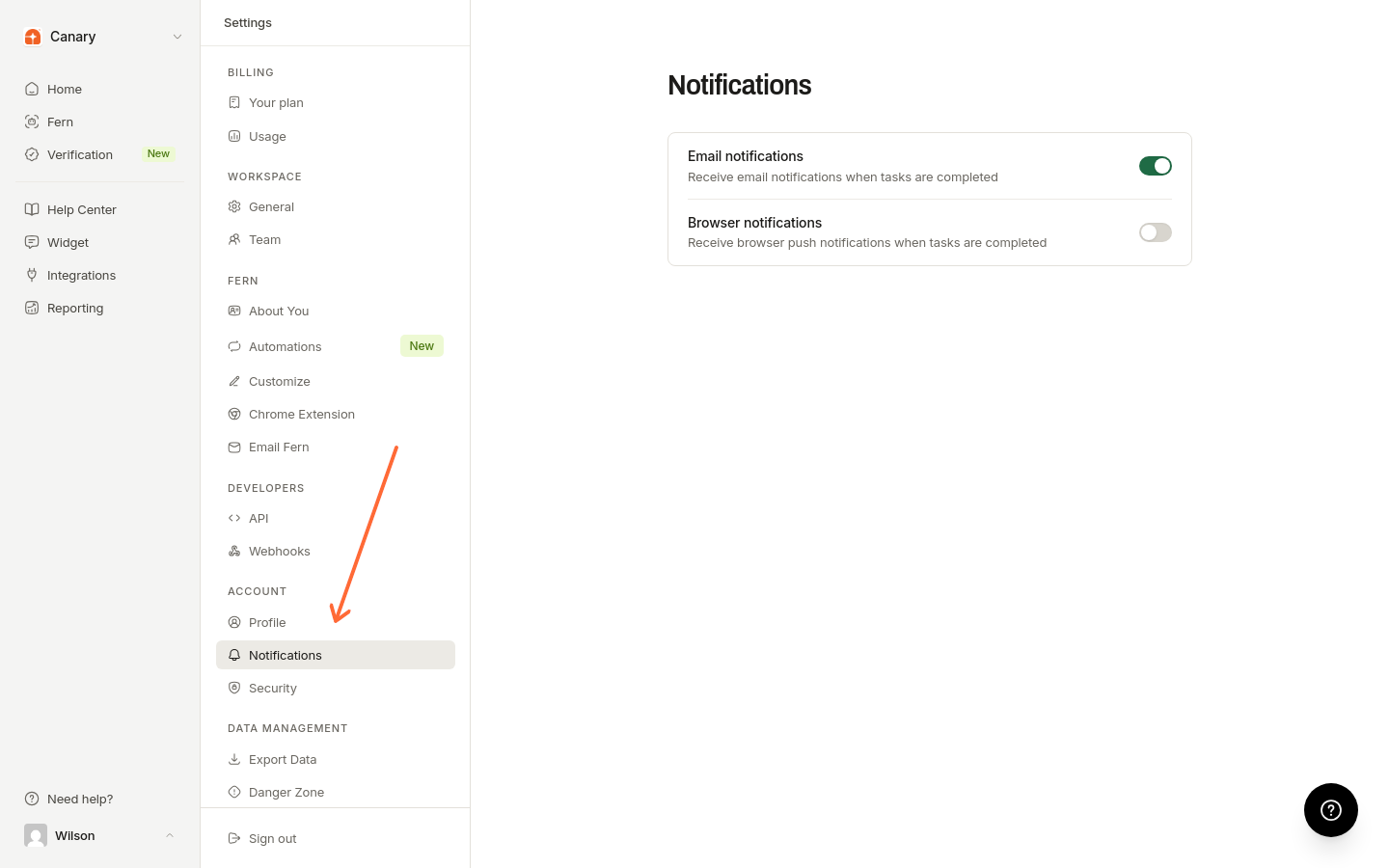
From the left sidebar, select Settings, then click Notifications under the Account section.
Configure email notifications
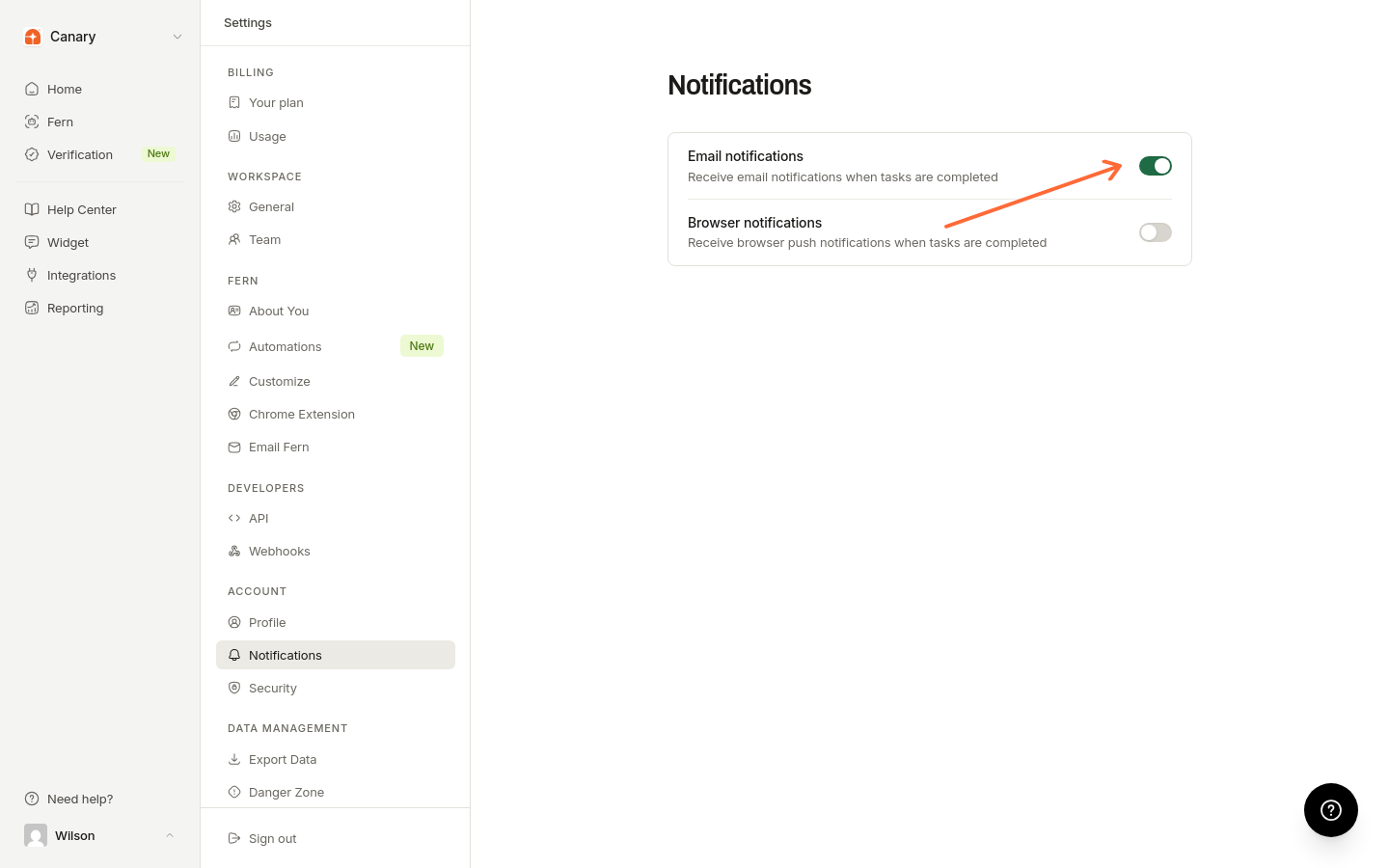
Toggle Email notifications on or off. When enabled, Ferndesk sends you alerts when tasks complete successfully.
For automatic PR draft tasks, the initial completion notification goes to all workspace members. Later completion notifications go to people who replied and, when applicable, the task creator. Your email and browser notification preferences still control whether you receive these notifications.
Verification run summaries are different: every active workspace member gets one when a run finishes, and your Email notifications preference doesn't apply to them.
Configure browser notifications
Toggle Browser notifications on or off. These appear as desktop notifications even when you're not actively viewing the Ferndesk dashboard.
Push notifications require browser support. If your browser doesn't support them, you'll see: "Push notifications are not supported in this browser."
Manage subscribed devices
The Subscribed devices section shows all browsers where you've enabled push notifications. Click Remove device next to any device you no longer use to stop notifications from being sent there.