
Customize an API reference
Control how an API reference looks and reads from its detail pane in the dashboard's Help Center: choose the sidebar layout, reorder groups, add group icons, hide operations or schemas, and set a GraphQL endpoint. Publishing is covered in Publish or unpublish an API reference; only published references are visible to help center readers.
Open an API reference
The detail pane holds every customization control, organized into three tabs: Operations, Navigation, and Source.
Go to Help Center in the dashboard.
Select the API reference in the content tree.
Choose the sidebar layout
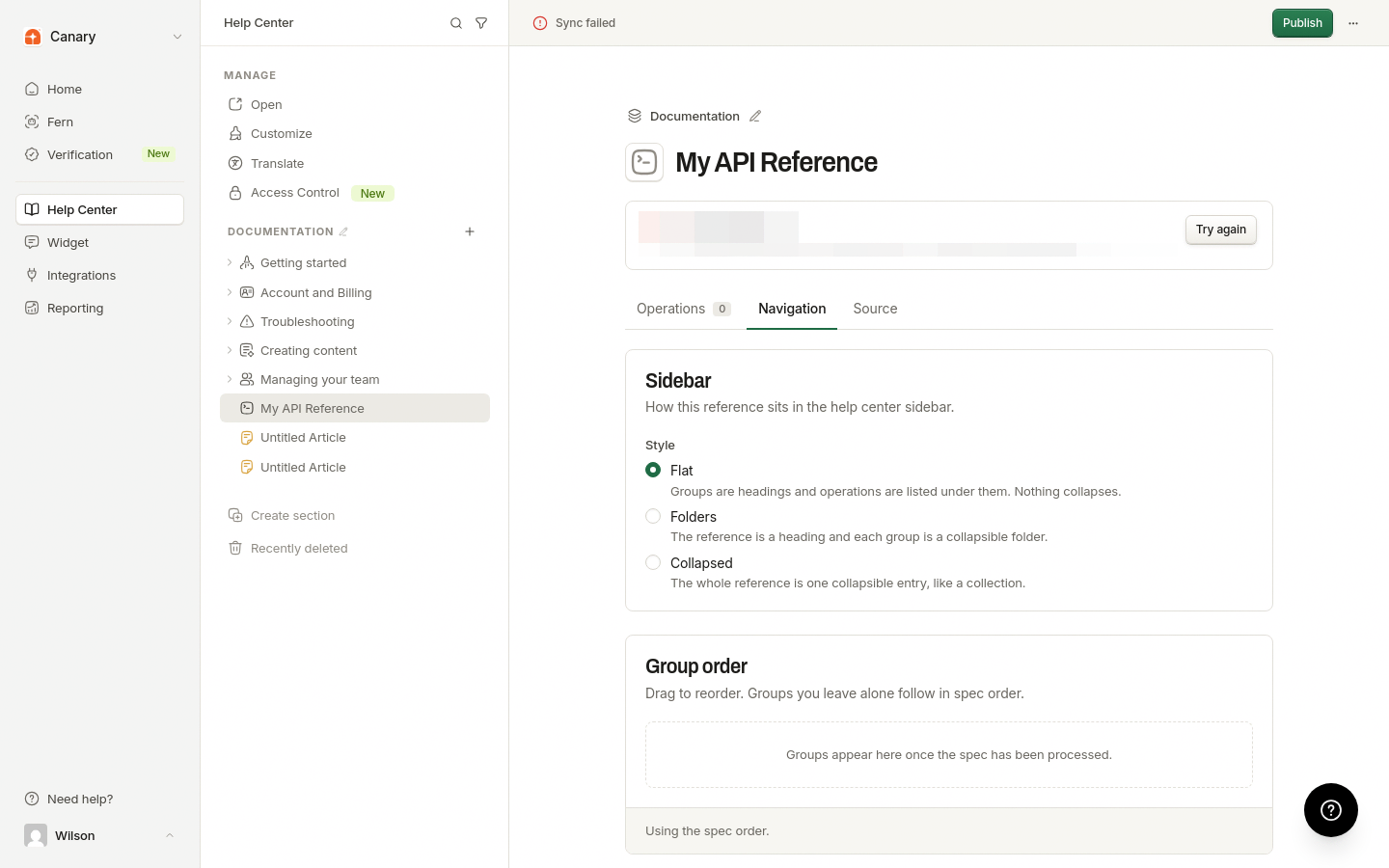
The Navigation tab controls how the reference sits in the help center sidebar.
Open the Navigation tab.
Under Style, choose one:
Flat: groups are headings and operations are listed under them. Nothing collapses.
Folders: the reference is a heading and each group is a collapsible folder.
Collapsed: the whole reference is one collapsible entry, like a collection.
For GraphQL references, the tab also has a Show types switch that adds a Types section at the end of the sidebar. Hiding individual types works like hiding schemas, below.
Reorder groups
The Group order section on the Navigation tab sets the order of groups in the sidebar. Groups you leave alone follow in spec order.
Open the Navigation tab and find Group order.
Drag a group to a new position, or use the up and down arrow controls on its row. Each row shows the group name and operation count.
Once a custom order exists, a Reset to spec order button appears. A note under the list tells you whether you are using a custom order or the spec order. Groups appear here once the spec has been processed.
Add icons to groups
Group icons sit beside each group in the Operations list.
Open the Operations tab.
Click the folder placeholder next to a group and pick an icon in the icon picker.
Groups without an icon show the folder placeholder. To remove a set icon, use the clear option in the picker.
Show or hide operations, schemas, and types
Each item on the Operations tab has its own visibility switch. Use these switches to trim the published reference down to what readers need; there is no single switch for an entire section.
Groups and individual operations each have a visibility switch.
REST references list schemas under Schemas, and GraphQL references list types under Types. Each schema or type has its own switch.
A count of hidden items appears next to the section heading when at least one is hidden.
Set the GraphQL endpoint
For GraphQL references, the Source tab has a GraphQL endpoint setting: the address used by code examples and Try it, since a schema file does not carry it. The published GraphQL playground is restricted to this endpoint.
Open the Source tab.
Under GraphQL endpoint, enter the endpoint URL, for example
https://api.example.com/graphql.Click Save endpoint.
The endpoint is saved on this reference only. Saving an empty value clears it.
What's next
Adjust how individual operations read in Override operation details, manage the spec itself in Refresh API reference sources, and see what readers get in Use the API reference playground.