
Create an API reference
Create an API reference in your help center from an OpenAPI, Swagger 2.0, GraphQL SDL, or GraphQL introspection JSON specification. You can upload a file, read the spec from a GitHub repository, or fetch it from a URL. Creating and publishing an API reference require an active or trialing subscription, and spec files must be under 15 MB.
Add an API reference
Go to the Help Center page in the dashboard.
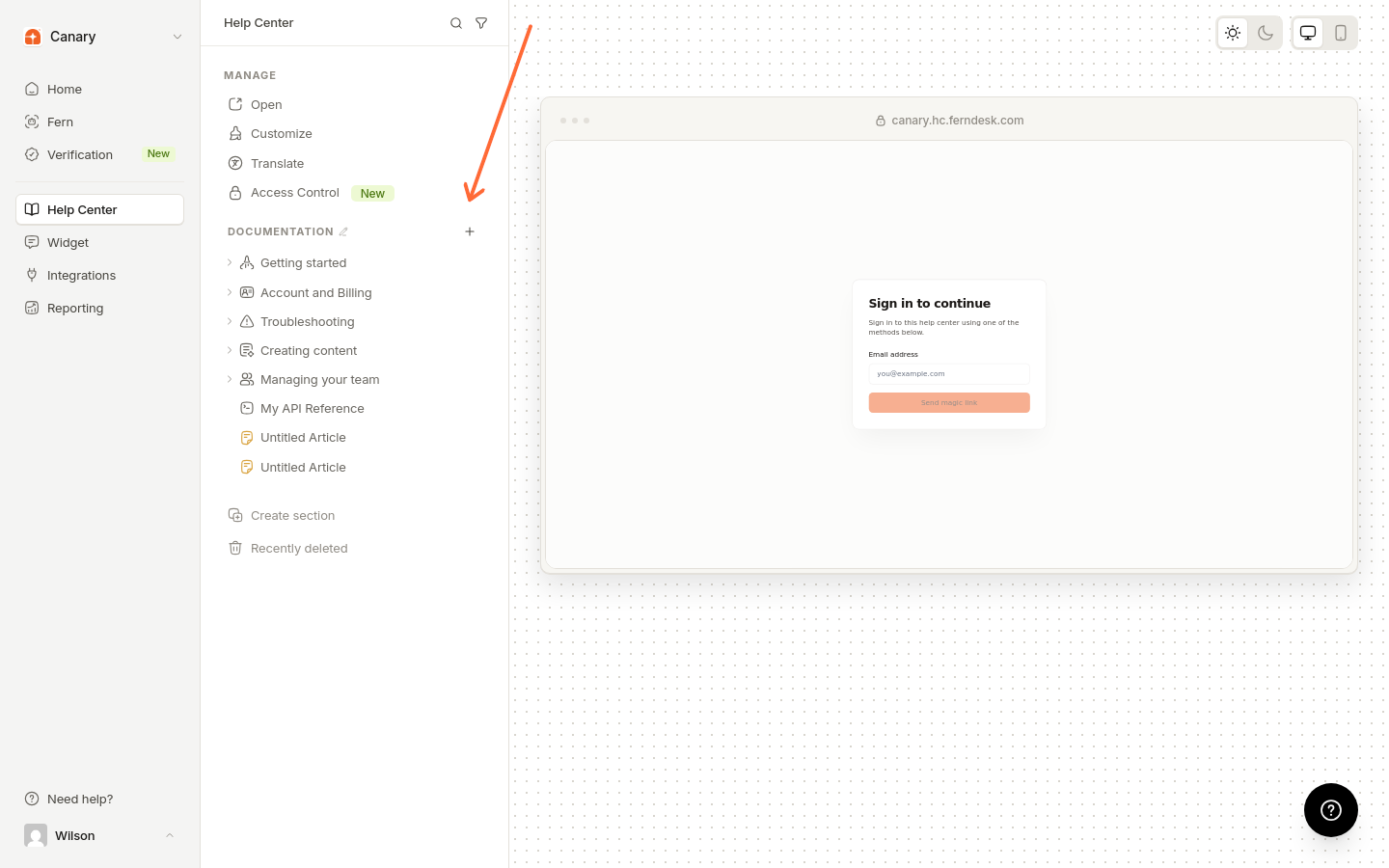
In a section header, click the add-content button and choose Create API reference.
In the Add API reference dialog, choose a source: Upload a file, From GitHub, or From a URL.
Upload a spec file
Uploads accept OpenAPI JSON or YAML files and GraphQL schema files with the .graphql, .gql, or .graphqls extension. Choose Upload a file and select your spec file.
Add a spec from a URL
Use this when your specification is already hosted online. The URL can point to an OpenAPI document, a GraphQL SDL file, or a GraphQL endpoint.
Choose From a URL.
Enter the URL of your spec or GraphQL endpoint.
GraphQL endpoints need introspection enabled. URL sources refresh automatically every six hours.
If your spec URL comes from Stainless, the generated pages can show SDK snippets.
Add a spec from GitHub
Read the specification file directly from a repository on every sync. The GitHub connection must belong to the same workspace and have access to the repository.
Choose From GitHub.
Select a GitHub connection. If you have not connected GitHub yet, set that up first in GitHub integration.
Select the repository.
Optionally choose a branch or commit. The configured production branch is used when available; otherwise, the repository's GitHub default branch is used.
Enter the repository-relative path to the spec file.
Click Check specification and wait for the check to pass.
The specification check must succeed before you can create the API reference from GitHub.
Configure and create
Enter a URL slug for the reference.
Choose whether to use Publish immediately.
Click Add API reference.
Processing usually takes a few seconds. When the spec is ready you see Your API reference is ready; click Done to finish. If processing fails, you see Processing failed; click Close to dismiss the dialog.
SDK and code samples on operation pages
Generated operation pages show code samples from three sources, in this order: samples the spec declares with the x-codeSamples extension, SDK snippets carried in the x-stainless-snippets extension (which specs generated by Stainless include, in languages such as TypeScript, Python, Go, Java, and Ruby), and generated samples in common languages such as cURL, JavaScript, Python, Go, and Ruby.
Ferndesk does not maintain a mapping between REST endpoints and SDK methods: the SDK samples readers see are the ones your spec carries. To add hand-written samples per operation, use Custom code samples in Override operation details.
API versions
Each API reference tracks one spec version, shown on the reference overview. To document several API versions, create a separate reference per version, each with its own source; references are not grouped as versions of the same API.
What's next
Keep the source fresh in Replace an API reference spec and Refresh API reference sources, and tune the sidebar and operation pages in Customize an API reference.