
User groups
User groups let you restrict articles and collections to specific sets of signed-in visitors based on attributes like plan, role, or account status.
User groups are available on Pro and Enterprise plans.
Steps
Create a group
Go to Help Center, then under Manage, click Access Control. Open the Groups tab, click Create group, enter a name and optional description, add conditions, then click Create group.
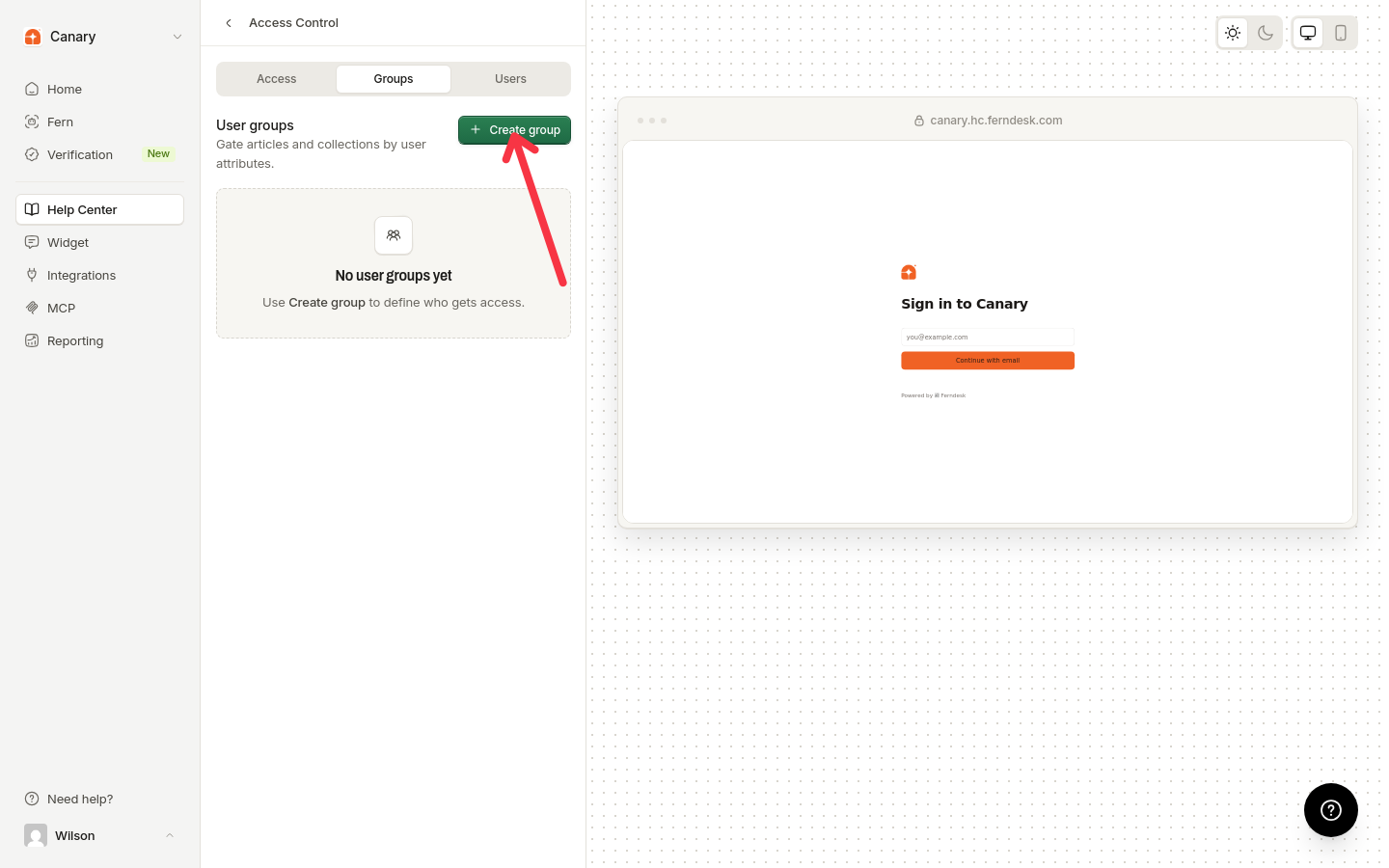
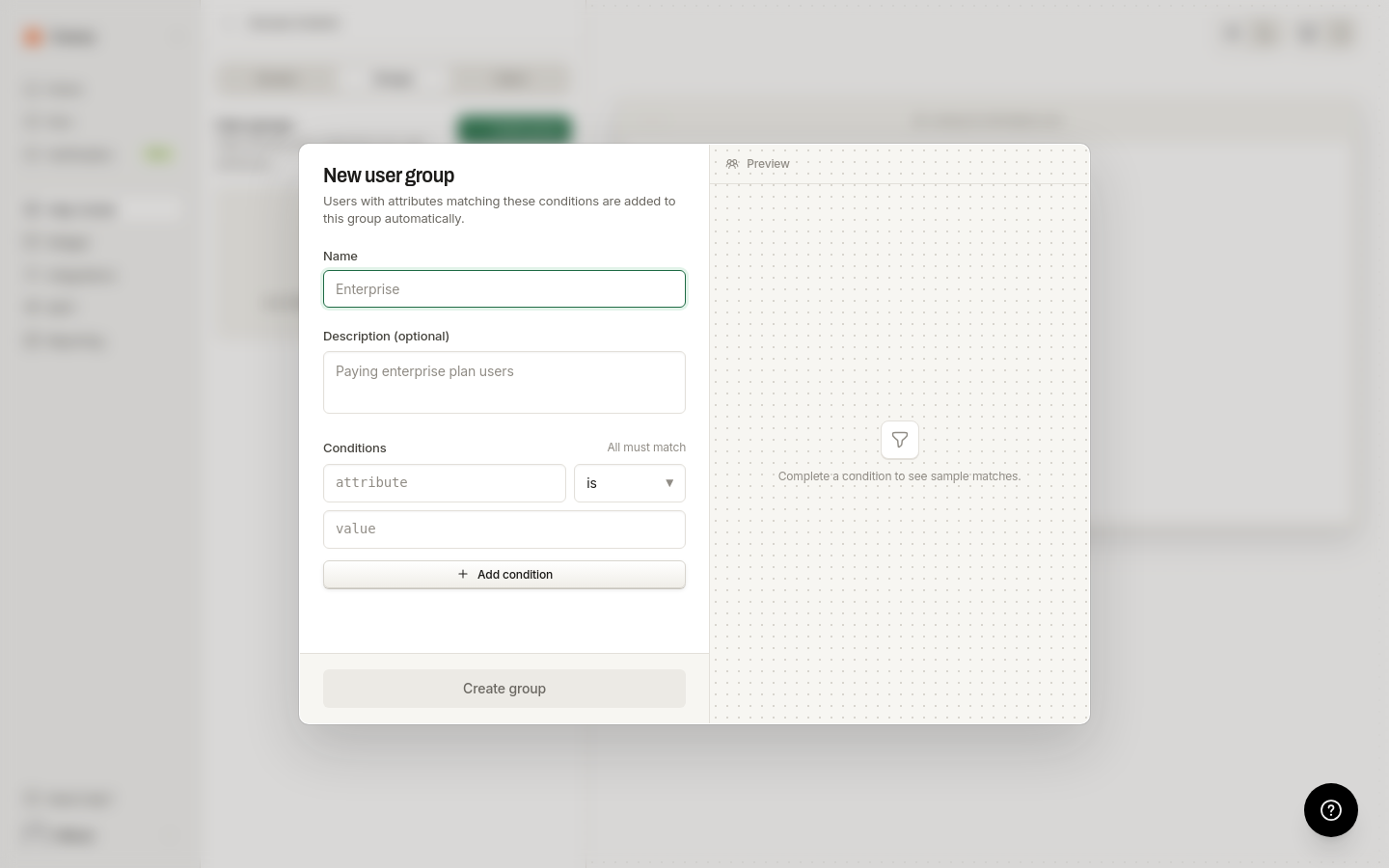
Users with matching attributes are added automatically, and the preview panel shows sample users as you build the rule.
Restrict content
Open the collection editor or article settings, find the audience or visibility section, choose Specific user groups, then select one or more groups.
Add users who can sign in
Open the Users tab, click the plus button, enter the email address and optional name, then click Add user.
Shared-password users do not have individual identities, so user group restrictions don't apply to them. Use OIDC SSO or JWT authentication to supply group attributes if you need group-based access control. Magic Links work only for users whose attributes were provisioned separately, such as through JWT or the public API.