
Manage your glossary
The glossary controls how the AI translates specific terms across your help center. Use it to prevent brand names, product names, and technical terms from being translated, or to map them to a preferred word in each target language.
What the glossary does
When Ferndesk translates your content, it checks the glossary for matching terms. You can choose one of two behaviors for each term:
Keep unchanged prevents the term from being translated. The original source term appears in every target language.
Translate replaces the term with a custom word you define for each target language. For languages you leave blank, the term is not translated and stays in the source language.
Glossary terms apply to all content types that use AI translation: articles, collections, help center settings, API reference content, and widget labels.
Updating a glossary term or its language mappings can trigger retranslation of affected content.
How glossary matching works
Ferndesk uses boundary-aware matching to find glossary terms in your content. This means it matches whole words or phrases, not partial substrings. Enable Match case on a term if you only want to match the exact capitalization you entered.
Add a glossary term
Open the glossary
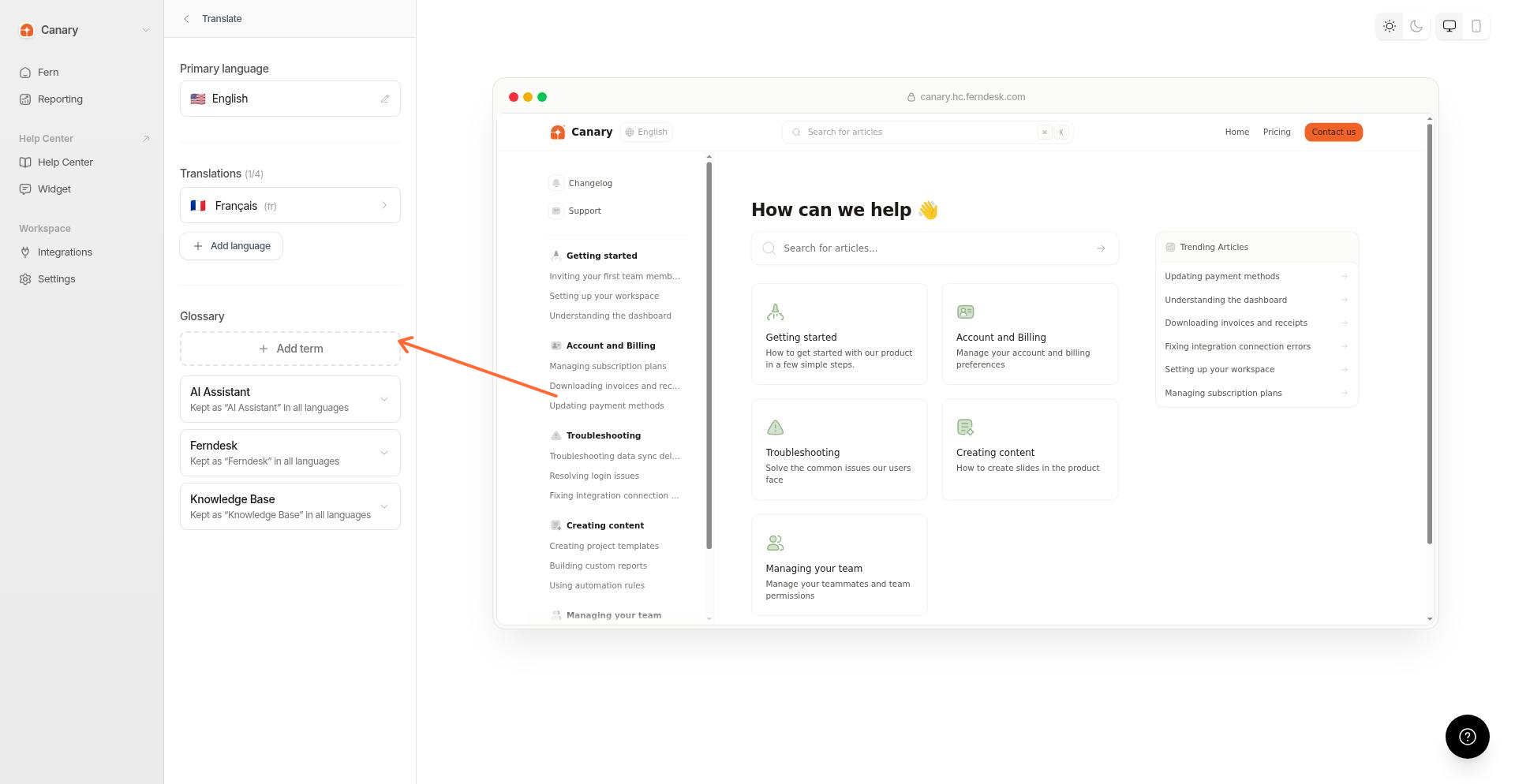
Go to Help Center > Translate and scroll to the Glossary section.
Start adding a term
Click Add term.
Enter the term and choose behavior
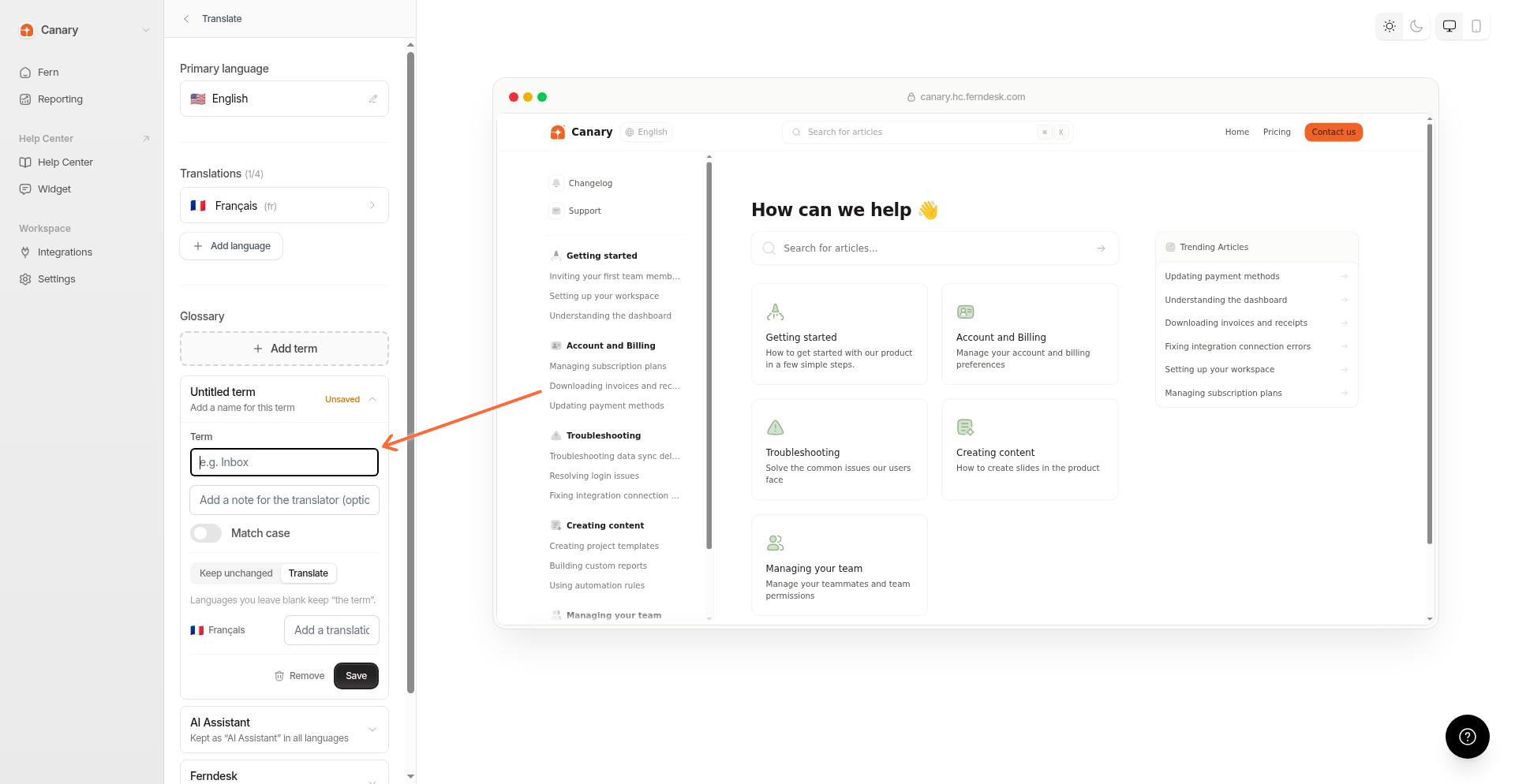
Type the term in the Term field. Choose Keep unchanged to prevent translation, or Translate to provide custom mappings.
Map translations (if translating)
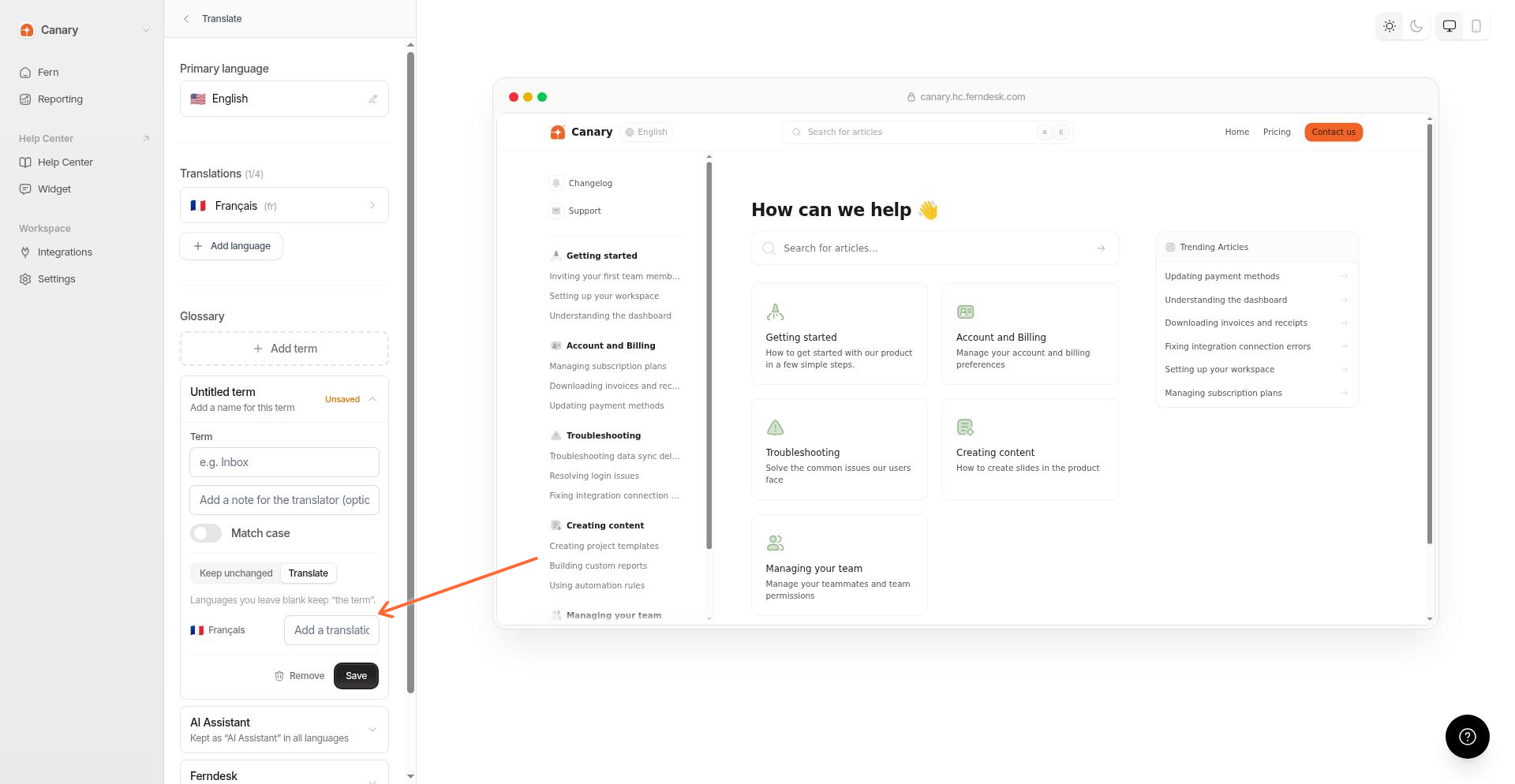
If you chose Translate, enter the mapped word for each language. For languages you leave blank, the term is not translated and stays in the source language.
Save the term
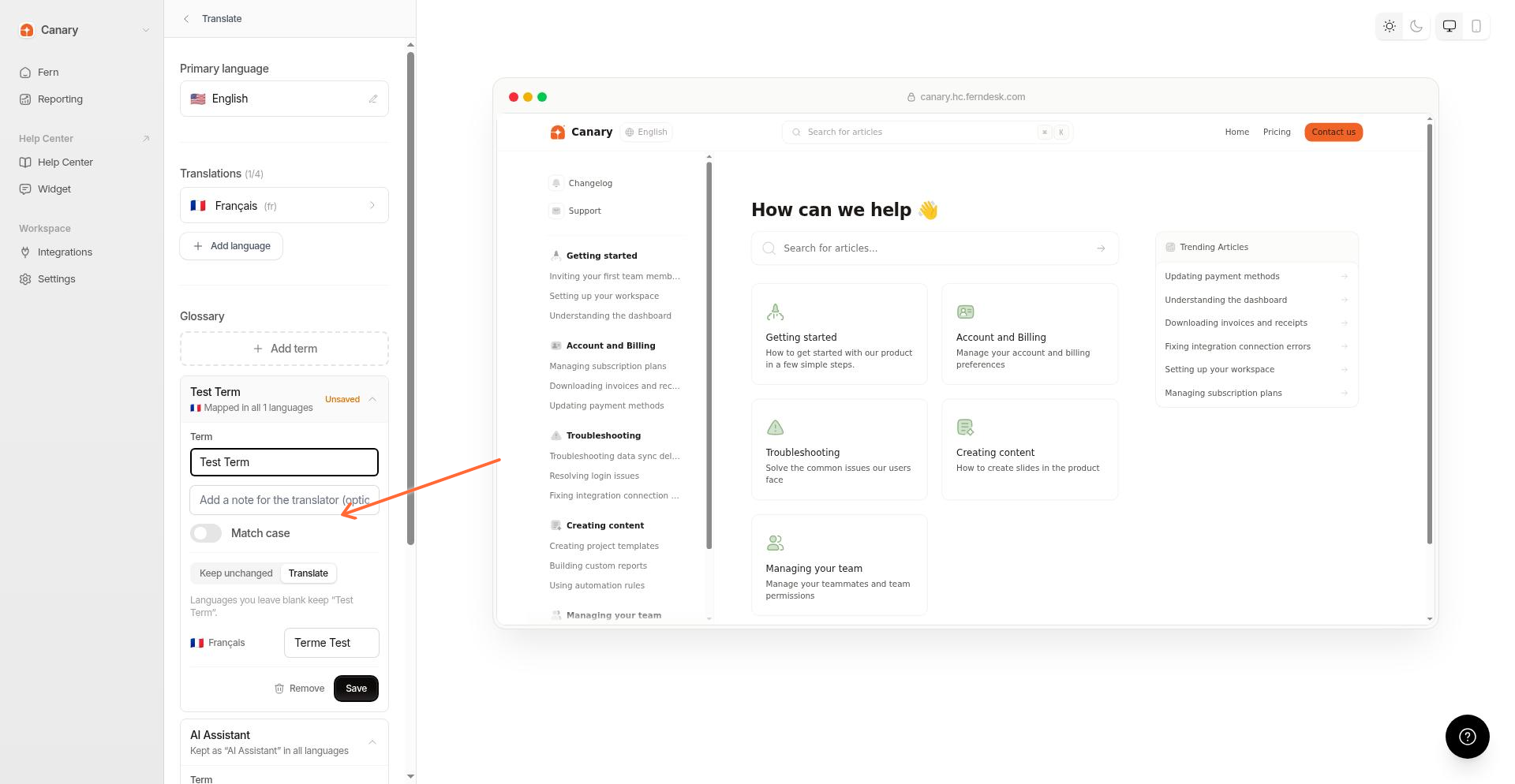
Click Save. The term appears in your glossary list.
Edit or remove a glossary term
Find the term in the glossary list and click it to expand. Edit the term text, toggle Match case, or update language mappings. Click Save to apply changes, or Remove to delete the term.
When to add glossary terms
Add glossary terms before you start translating for the best results. Good candidates for glossary entries include:
Brand and product names that should stay in the source language
Technical terms with specific translations in your industry
Internal code names or feature names that change meaning if translated literally
Related topics
See How to add a translation for the full language setup workflow, including how to set translation guidance for each language.