
Setting up Pylon with Ferndesk
This guide shows you how to configure Ferndesk to open Pylon when visitors click the contact button in your widget.
Before you begin: You must have the Pylon chat widget installed on your site with the chat bubble hidden by default. If you haven't done this yet, follow the steps below before configuring Ferndesk.
Step 1: Install and hide the Pylon chat bubble
First, make sure Pylon is installed on your site. You'll need to hide the default Pylon chat bubble so it doesn't show alongside your Ferndesk widget.
In Pylon, go to Settings → Chat Widget → Chat bubble and turn off Show Chat Bubble.
Turning off Show Chat Bubble keeps the Pylon bubble hidden by default. When the integration is active, Ferndesk manages the bubble's visibility and shows it when visitors click your contact button.
Need help installing Pylon? See Pylon's chat widget setup guide and Pylon's guide to hiding the chat widget by default.
Step 2: Open widget settings
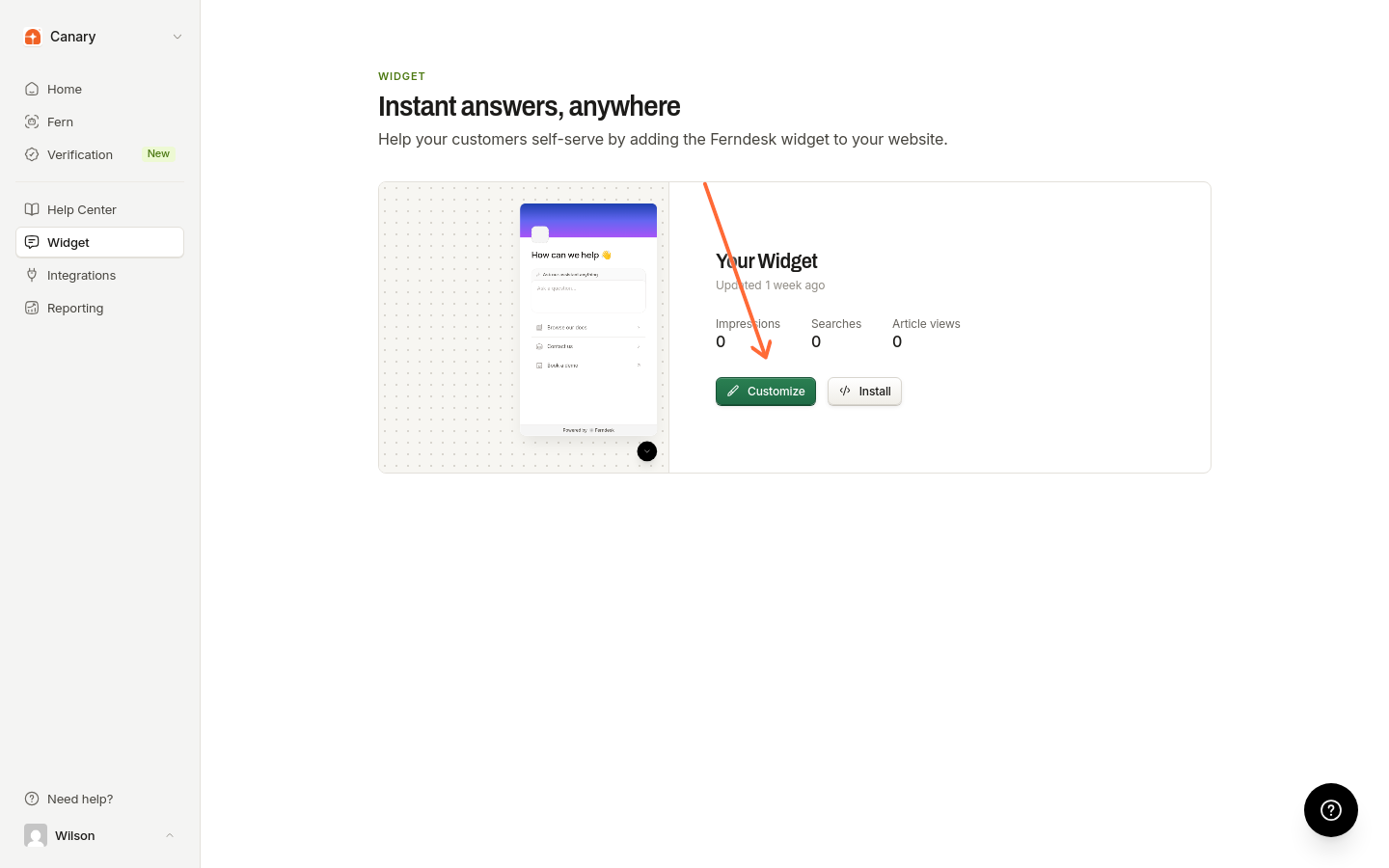
In your Ferndesk dashboard, go to the Widget page and click the Customize button on your widget.
Step 3: Navigate to Contact settings
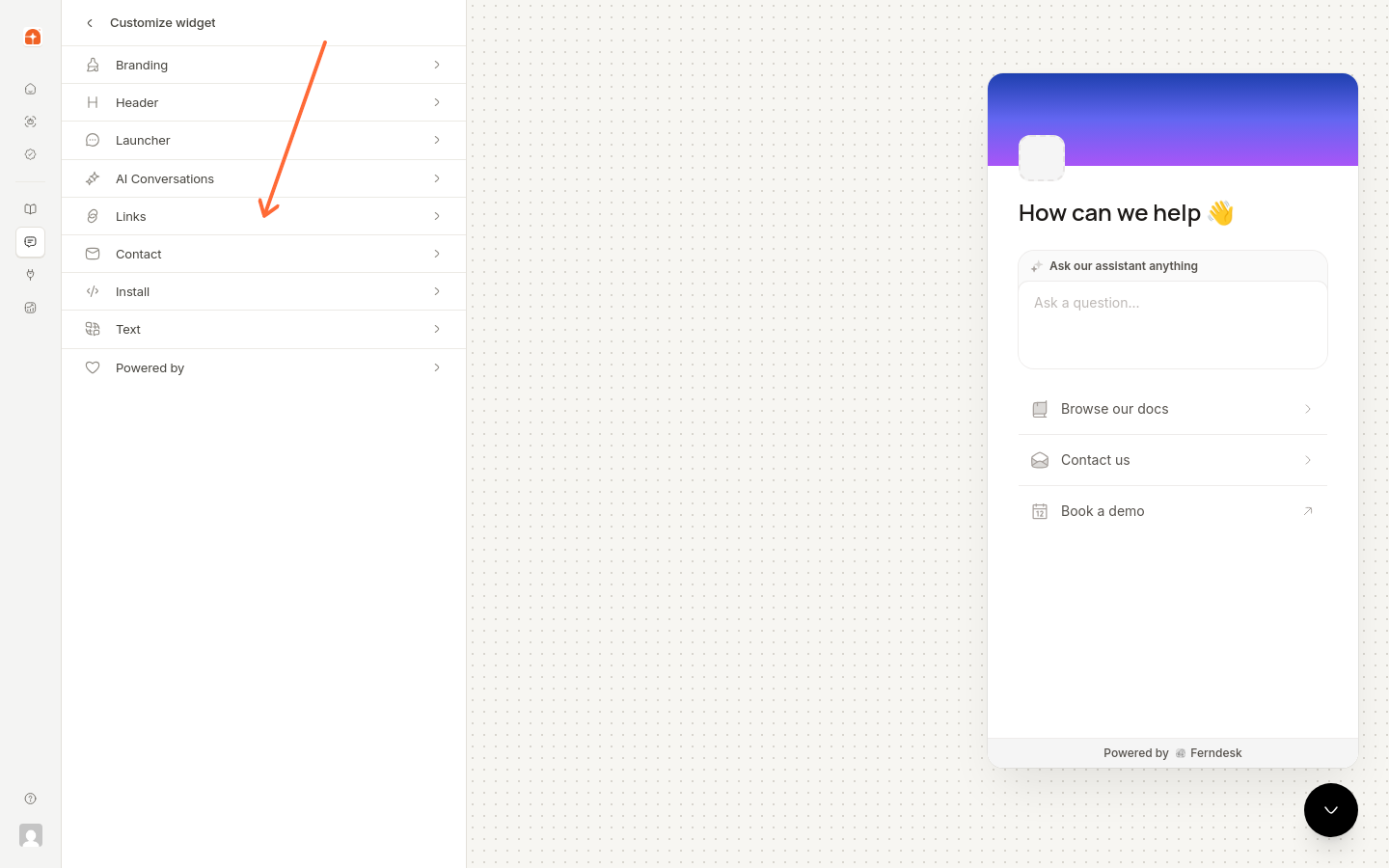
In the sidebar, click Contact to open the contact configuration options.
Step 4: Select the Chat tab
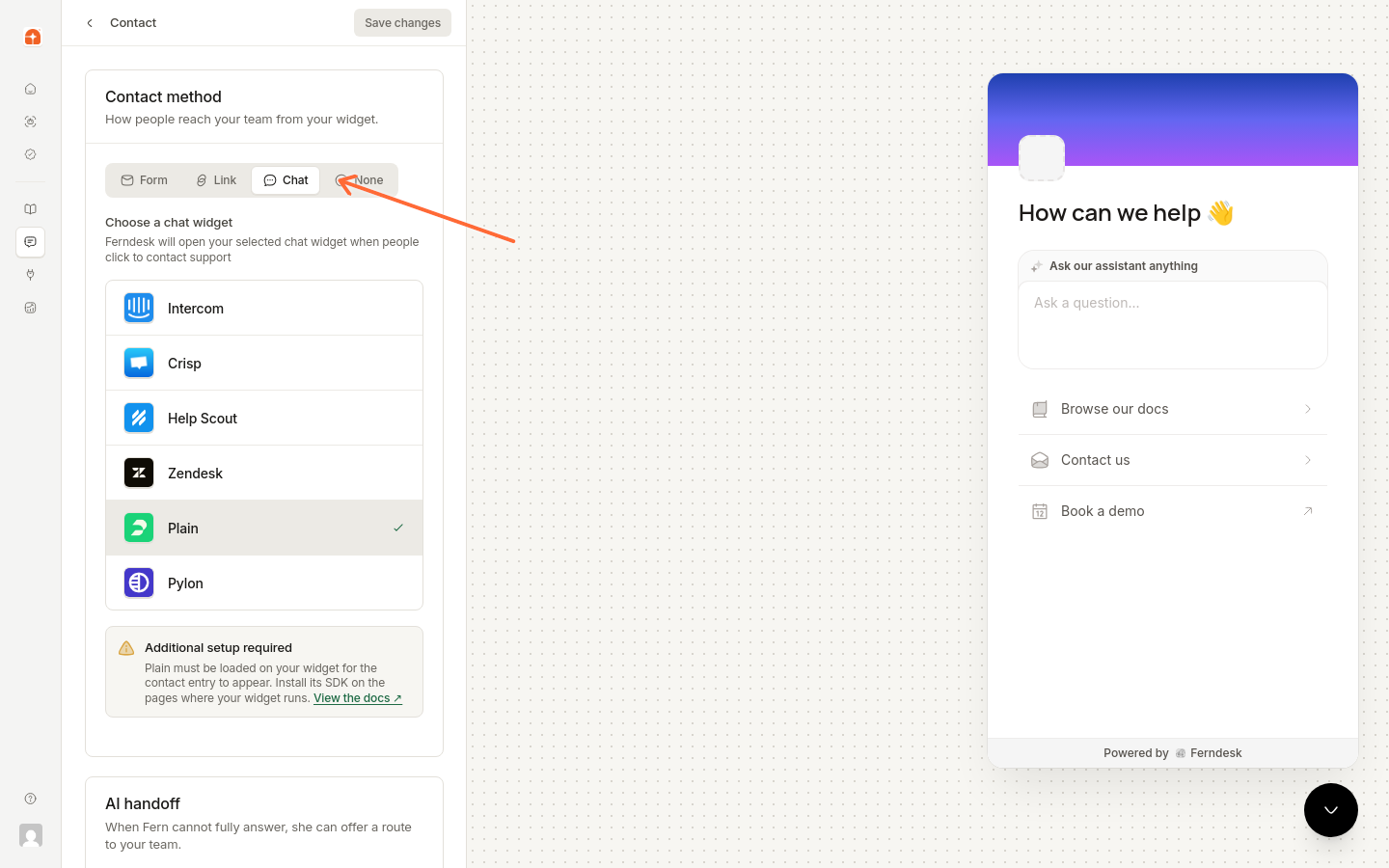
Click the Chat tab, then choose Pylon under Choose a chat widget.
Step 5: Choose Pylon
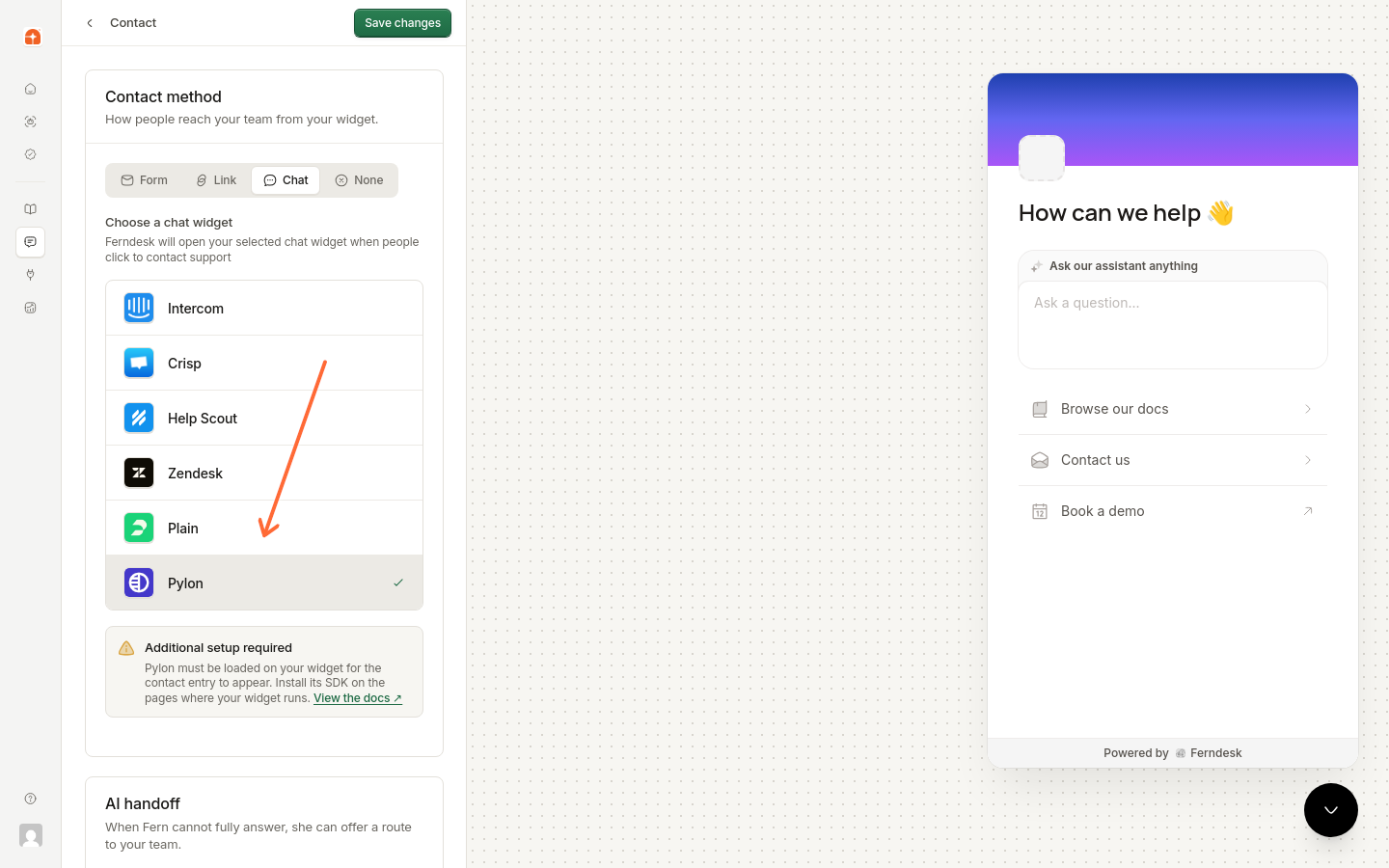
Select the Pylon option, then click Save changes to apply the selection to your live widget.
Step 6: Test the integration
Visit your site where the Ferndesk widget and Pylon are installed, then click the contact button in the widget. The Pylon chat should open, letting visitors start a conversation with your team.
If Pylon doesn't open, verify that the Pylon chat widget is installed on the same page as your Ferndesk widget and that Show Chat Bubble is turned off.