
Make drafted replies match your tone
When Fern drafts a reply for you with "Draft a reply with Fern", the draft should sound like your team wrote it. Response drafting instructions tell Fern how to write those replies: tone, length, structure, and what to include or exclude. Instructions are optional and apply to your whole workspace; without them, Fern uses its default drafting behavior.
Write your instructions
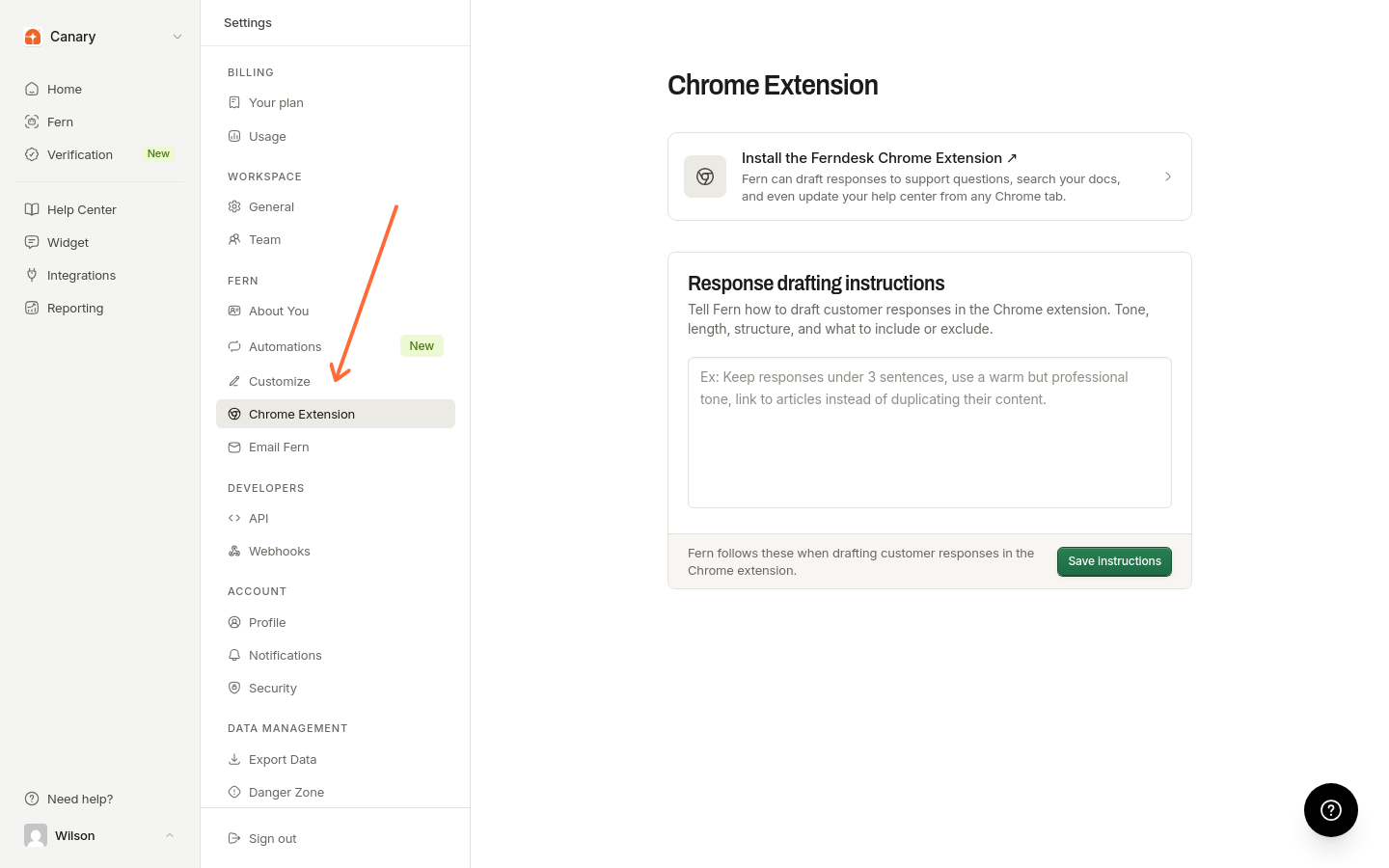
Open Settings > Chrome Extension in the Ferndesk app, under Fern in the settings sidebar.
Type your instructions in the Response drafting instructions box. For example: Keep responses under 3 sentences, use a warm but professional tone, link to articles instead of duplicating their content.
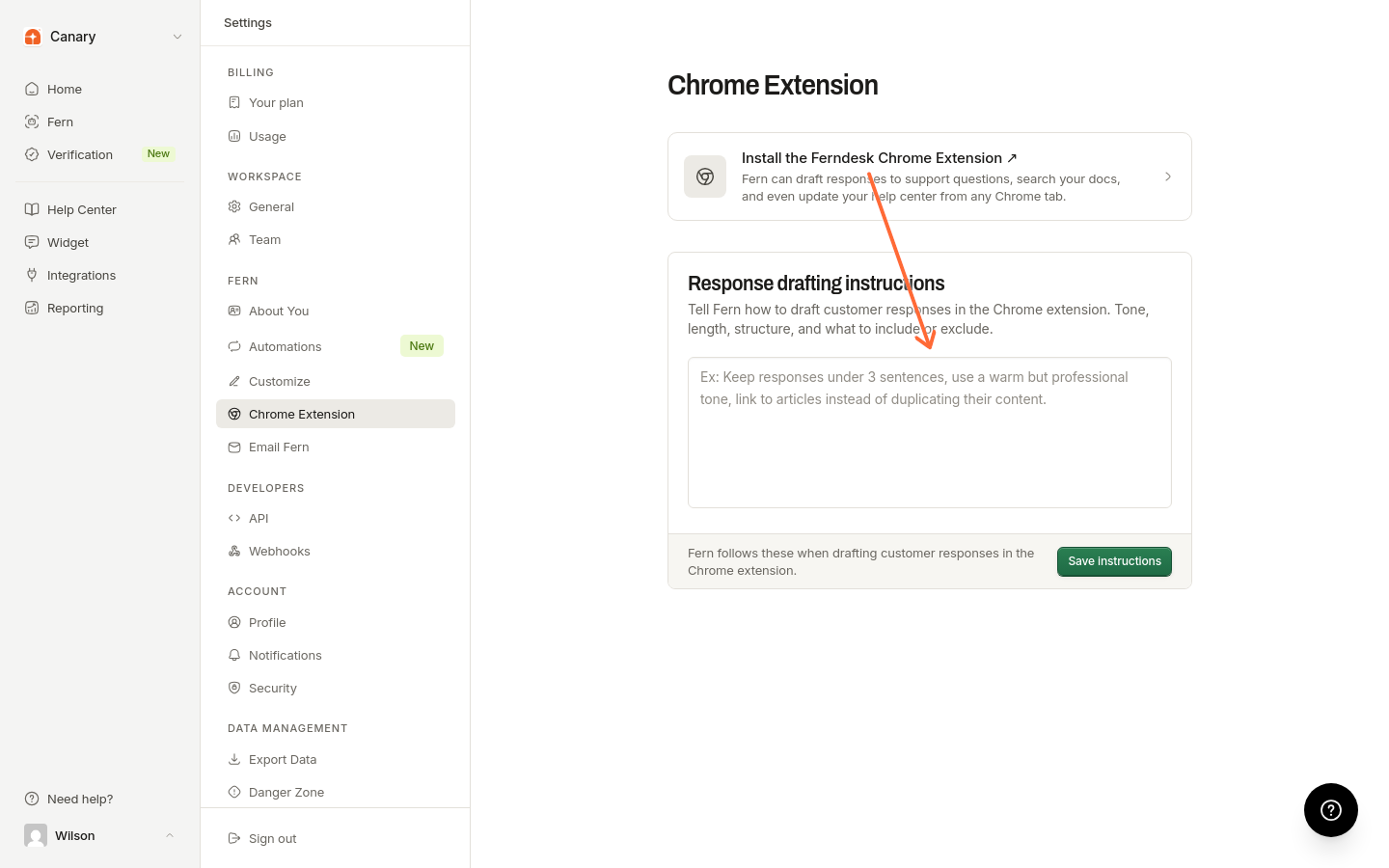
Click Save instructions. A confirmation appears once the instructions are saved.
Fern follows these instructions every time it drafts a customer response in the Chrome extension, including drafts created from the !! popover.
One set of instructions per workspace
Instructions apply to your whole workspace, so every teammate's drafted replies follow the same rules. To change the tone for a single reply, edit the draft Fern wrote before sending it.