
Put your docs on a sub-folder with Vercel
Follow this guide to host your Ferndesk help center at a custom subfolder (like yourdomain.com/help) using Vercel's external-origin proxying.
This takes approximately 10 minutes and requires a Vercel project where you can add a vercel.json configuration file.
Getting stuck? Contact [email protected] and we'll help you complete your setup.
Prerequisites
A Ferndesk workspace with admin access
A Vercel project serving your main website
Access to add a
vercel.jsonfile to your project root
Configuring a custom sub-folder requires an active payment method on file.
Step 1: Configure the sub-folder in Ferndesk
First, configure your Ferndesk help center to use a custom subfolder path.
Open Help Center settings
Log in to your Ferndesk workspace, expand Help Center in the left sidebar, then click Customize.
Select Custom sub-folder
Click Custom domain.
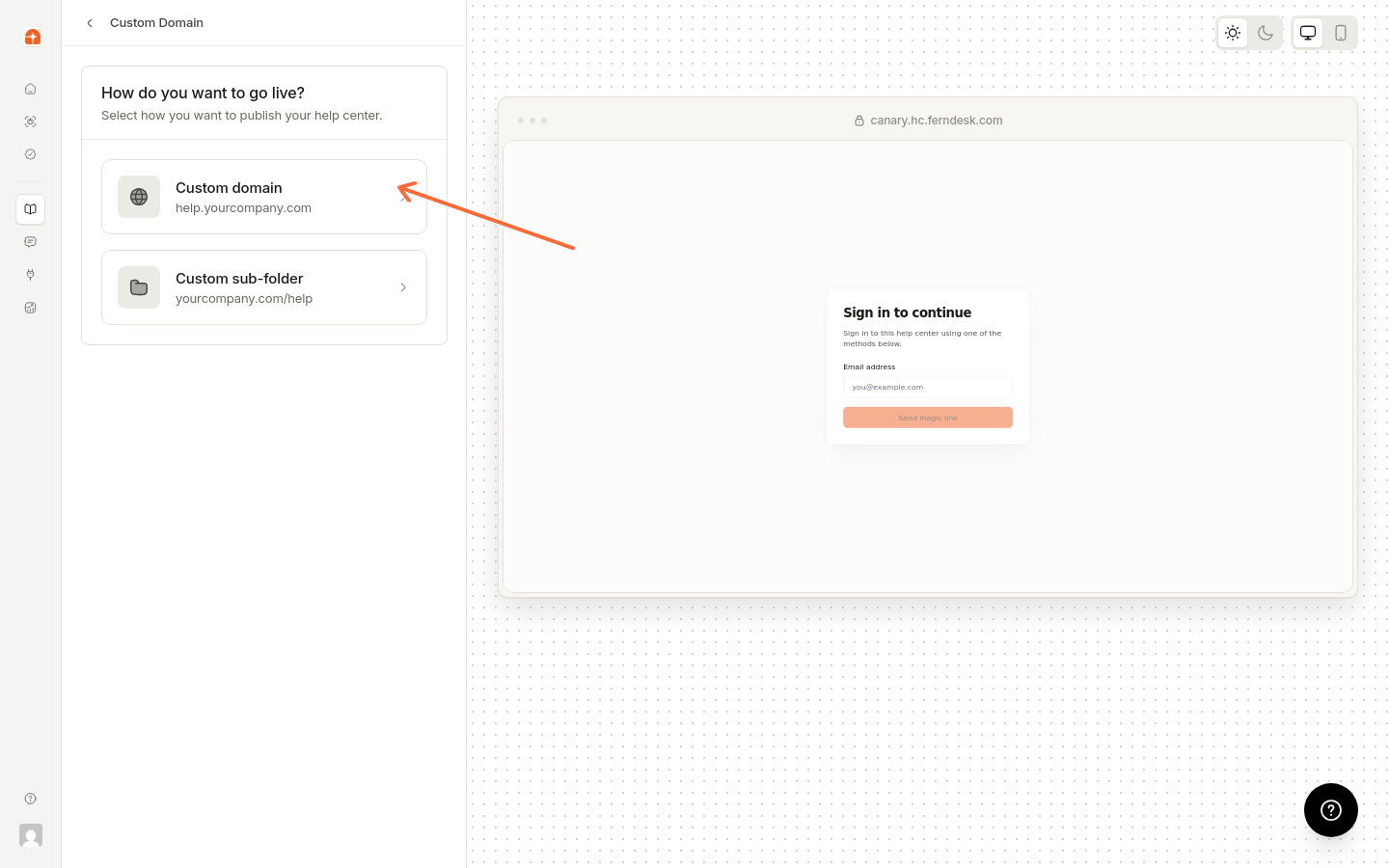
Select the Custom sub-folder option.
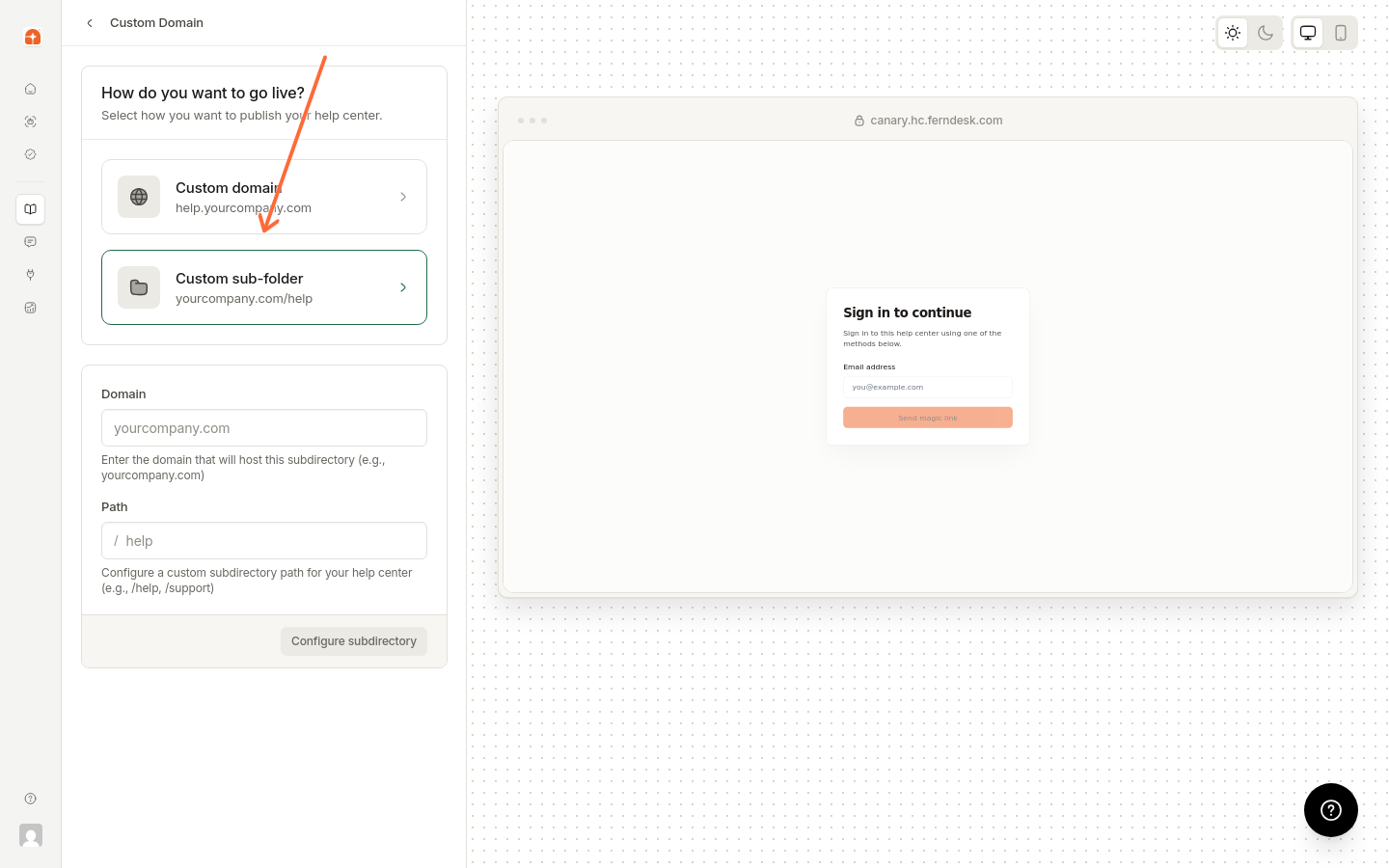
Enter your domain and subfolder
Enter your domain in the Domain field (e.g., www.example.com), then enter your desired subfolder path in the Path field (e.g., /help or /docs).
Save and copy the Ferndesk host
Click Configure subdirectory. Once configured, copy the Ferndesk proxy host (e.g., acme.hc.ferndesk.com)—you'll need it for the Vercel configuration.
Use your exact Vercel production hostname (e.g., www.example.com), not a preview deployment hostname. If the hostname changes after the first deploy, stale cache entries may persist.
Step 2: Add Vercel routing configuration
Create or update vercel.json in your project root to proxy requests to Ferndesk. This configuration uses Vercel's routes with request-header transforms to send Ferndesk the required base path and host information.
Create or open vercel.json
If you don't already have a vercel.json file in your project root, create one. If you do, open it for editing.
Add the configuration
Paste the configuration below into your vercel.json file. Replace the placeholders with your actual values:
__PUBLIC_HOST__ — your Vercel production hostname (e.g.,
www.example.com)__FERNDESK_HOST__ — the Ferndesk host you copied from the Ferndesk dashboard (e.g.,
acme.hc.ferndesk.com)__BASE_PATH__ — your subfolder path including the leading slash (e.g.,
/help)
{
  "$schema": "https://openapi.vercel.sh/vercel.json",
  "headers": [
    {
      "source": "/_ferndesk",
      "headers": [
        { "key": "x-vercel-enable-rewrite-caching", "value": "0" }
      ]
    },
    {
      "source": "/_ferndesk/:match*",
      "headers": [
        { "key": "x-vercel-enable-rewrite-caching", "value": "0" }
      ]
    },
    {
      "source": "__BASE_PATH__",
      "headers": [
        { "key": "x-vercel-enable-rewrite-caching", "value": "0" }
      ]
    },
    {
      "source": "__BASE_PATH__/:match*",
      "headers": [
        { "key": "x-vercel-enable-rewrite-caching", "value": "0" }
      ]
    }
  ],
  "routes": [
    {
      "src": "/_ferndesk",
      "dest": "https://__FERNDESK_HOST____BASE_PATH__/_ferndesk?__bp=__BASE_PATH__",
      "transforms": [
        { "type": "request.headers", "op": "set", "target": { "key": "x-ferndesk-base-path" }, "args": "__BASE_PATH__" },
        { "type": "request.headers", "op": "set", "target": { "key": "x-forwarded-host" }, "args": "__PUBLIC_HOST__" },
        { "type": "request.headers", "op": "set", "target": { "key": "x-ferndesk-original-host" }, "args": "__PUBLIC_HOST__" }
      ]
    },
    {
      "src": "/_ferndesk/(.*)",
      "dest": "https://__FERNDESK_HOST____BASE_PATH__/_ferndesk/$1?__bp=__BASE_PATH__",
      "transforms": [
        { "type": "request.headers", "op": "set", "target": { "key": "x-ferndesk-base-path" }, "args": "__BASE_PATH__" },
        { "type": "request.headers", "op": "set", "target": { "key": "x-forwarded-host" }, "args": "__PUBLIC_HOST__" },
        { "type": "request.headers", "op": "set", "target": { "key": "x-ferndesk-original-host" }, "args": "__PUBLIC_HOST__" }
      ]
    },
    {
      "src": "__BASE_PATH__/_ferndesk",
      "dest": "https://__FERNDESK_HOST____BASE_PATH__/_ferndesk?__bp=__BASE_PATH__",
      "transforms": [
        { "type": "request.headers", "op": "set", "target": { "key": "x-ferndesk-base-path" }, "args": "__BASE_PATH__" },
        { "type": "request.headers", "op": "set", "target": { "key": "x-forwarded-host" }, "args": "__PUBLIC_HOST__" },
        { "type": "request.headers", "op": "set", "target": { "key": "x-ferndesk-original-host" }, "args": "__PUBLIC_HOST__" }
      ]
    },
    {
      "src": "__BASE_PATH__/_ferndesk/(.*)",
      "dest": "https://__FERNDESK_HOST__/_ferndesk/$1?__bp=__BASE_PATH__",
      "transforms": [
        { "type": "request.headers", "op": "set", "target": { "key": "x-ferndesk-base-path" }, "args": "__BASE_PATH__" },
        { "type": "request.headers", "op": "set", "target": { "key": "x-forwarded-host" }, "args": "__PUBLIC_HOST__" },
        { "type": "request.headers", "op": "set", "target": { "key": "x-ferndesk-original-host" }, "args": "__PUBLIC_HOST__" }
      ]
    },
    {
      "src": "__BASE_PATH__",
      "dest": "https://__FERNDESK_HOST__/?__bp=__BASE_PATH__",
      "transforms": [
        { "type": "request.headers", "op": "set", "target": { "key": "x-ferndesk-base-path" }, "args": "__BASE_PATH__" },
        { "type": "request.headers", "op": "set", "target": { "key": "x-forwarded-host" }, "args": "__PUBLIC_HOST__" },
        { "type": "request.headers", "op": "set", "target": { "key": "x-ferndesk-original-host" }, "args": "__PUBLIC_HOST__" }
      ]
    },
    {
      "src": "__BASE_PATH__/(.*)",
      "dest": "https://__FERNDESK_HOST__/$1?__bp=__BASE_PATH__",
      "transforms": [
        { "type": "request.headers", "op": "set", "target": { "key": "x-ferndesk-base-path" }, "args": "__BASE_PATH__" },
        { "type": "request.headers", "op": "set", "target": { "key": "x-forwarded-host" }, "args": "__PUBLIC_HOST__" },
        { "type": "request.headers", "op": "set", "target": { "key": "x-ferndesk-original-host" }, "args": "__PUBLIC_HOST__" }
      ]
    }
  ]
}
The __bp parameter lets Ferndesk serve your help pages from its edge cache, so they load in well under a second worldwide.
Deploy your project
Commit and push your changes to trigger a new Vercel deployment. The new routing configuration will take effect once the deployment completes.
The headers section disables Vercel's rewrite caching on Ferndesk paths. This prevents stale Not found responses from being cached when Ferndesk assets or pages are requested before the proxy is fully configured.
Step 3: Verify the setup
Test that your help center is now accessible at your custom subfolder path.
Open your subfolder URL
Navigate to https://yourdomain.com/help (or your chosen subfolder path) in your browser.
Check that the help center loads
You should see your Ferndesk help center with your branding and content.
Test navigation and assets
Click through a few articles to confirm navigation works. Check that styling, images, and JavaScript load correctly.
If your help center loads with working navigation and styling, the reverse proxy is correctly configured. Your customers can now access your help center at your custom subfolder path.
Troubleshooting
Issue | Cause | Solution |
|---|---|---|
404 Not Found error | Routes not configured or deployment not complete | Verify |
Blank page or broken styling | Ferndesk host or base path is incorrect | Double-check |
Assets or CSS not loading after initial setup | Vercel cached a stale response | Redeploy your Vercel project to clear cached responses. The |
Help center works but hostname doesn't match | Wrong public host in routes | Ensure |
Something went wrong? Contact us at [email protected] and we'll help you complete your setup.
Removing the sub-folder
To stop using the custom sub-folder and return to your default Ferndesk URL:
Remove the domain in Ferndesk
In Ferndesk, go to Help Center → Customize → Custom domain and click Remove Subdirectory.
Remove the Vercel routes
Delete or comment out the Ferndesk-related headers and routes entries from your vercel.json file, then redeploy.