

Most user manual software is judged on day one: how fast you can write, how nice the editor looks. This comparison judges it on year two, because a user manual showing last quarter’s UI creates the very support tickets it was meant to deflect. The right user manual creation software does not just help you publish documentation faster. It keeps that documentation accurate after the product changes. The tools below are ranked on that standard.
What is user manual software?
User manual software is a platform for creating, hosting, and maintaining documentation that helps customers use your product. It differs from a knowledge base in that manuals are structured around tasks and workflows, while knowledge bases are organized around topics. Process tools like Scribe capture steps; user manual platforms publish and maintain the full reference.
How do you keep a user manual up to date automatically?
You stop maintaining it by hand. A self-updating help center connects to your codebase, pull requests, and support tickets, then drafts the edits the moment a feature or screenshot goes stale, so a person just reviews and publishes. That is the line between software that stores user manuals and software that keeps them accurate.
Types of User Manuals and the Best Software for Each
Not all user manuals serve the same purpose. The type of manual you need shapes which tool fits best.
- Instruction manuals walk users through completing a specific task or workflow from start to finish. These are the most common type for SaaS products. Ferndesk and Document360 handle these well because both support structured articles with search and analytics built in.
- Training manuals onboard new users or employees to a product or process. They tend to be longer, more sequential, and screenshot-heavy. Scribe and Tango are purpose-built for this: record a workflow once and get a step-by-step guide with screenshots automatically.
- Service manuals cover maintenance, troubleshooting, and repair procedures. They are common in hardware and regulated industries where offline access matters. MadCap Flare is the standard choice here because it publishes to PDF and HTML from a single source and supports audit trails.
- Operation manuals document how a system or product works at a technical level, often for administrators or power users. GitBook works well for this because its block editor is approachable for mixed technical and non-technical contributors, and it supports Git sync for teams that want docs-as-code.
- Internal process manuals capture how your team does things rather than how customers use your product. Notion is adequate here for small teams. For anything customer-facing, it falls short on search quality, SEO, and analytics.
If you are building more than one type, look for a tool that handles your primary format well rather than one that claims to do everything adequately.
What to Look for in User Manual Software
Before evaluating specific tools, check each option against these eight criteria:
- Search: Can customers find answers in plain language, or does search require exact keyword matches?
- Versioning: Does the tool track content history and let you roll back changes when needed?
- Permissions: Can you control who edits, who reviews, and who publishes without giving everyone full access?
- Analytics: Does it show which articles get read, which searches fail, and which content drives support tickets?
- Exports: Can you publish to PDF, HTML, and web from a single source, or are you locked into one format?
- Collaboration: Can multiple contributors work simultaneously without overwriting each other?
- AI maintenance: Does the tool detect stale content and draft updates, or does it only help you write faster?
- Multilingual support: Can you translate and maintain documentation in multiple languages without duplicating your workflow?
- Security and compliance: Does the tool support SSO, role-based access, audit logs, and data backups? Enterprise evaluations almost always require this.
If maintenance is your primary concern, prioritize AI maintenance and analytics. If output format matters, check exports first. Use the checklist below when you get to a shortlist.
Software Evaluation Checklist
Run each candidate through these questions before committing to a trial or a contract.
- Does it detect stale content automatically, or do you have to find it yourself?
- Can it connect to your codebase, changelog, or support tickets to trigger updates?
- Does AI help you write faster, or does it also help you stay current?
- Is search semantic and plain-language, or keyword-dependent?
- Can you control publish permissions separately from edit permissions?
- Does it show failed searches and low-performing articles in analytics?
- Can you export to PDF and web from the same source file?
- Does it support multiple languages without duplicating your entire workflow?
- Is pricing flat, or does it scale per seat in ways that become expensive at team size?
- Does it offer SSO, audit logs, and role-based access for enterprise requirements?
The sections below map each tool to the criteria it handles best.
How We Evaluated These User Manual Software Tools
Rankings here reflect long-term upkeep, not just day-one writing speed. A tool that makes it easy to publish documentation on day one but leaves you manually chasing stale content six months later is not a good user manual tool. It is a liability.
We weighted each tool against five criteria:
- Maintenance (highest weight): Does the tool detect stale content, flag outdated screenshots, or draft updates automatically? Or does it wait for you to notice?
- Search quality: Can customers find answers in plain language, or does the tool require exact keyword matches to surface results?
- Analytics: Does it show which articles fail, which searches return nothing, and which content generates support tickets?
- Exports and format flexibility: Can you publish to web, PDF, and other formats from a single source, or does the tool lock you into one output?
- Collaboration and permissions: Can multiple contributors work without overwriting each other, and can you control who publishes versus who drafts?
We also note learning curve and starting price because both affect whether documentation actually gets maintained. A tool nobody uses because it is too complex is worse than a simpler tool used consistently.
One disclosure worth stating directly: Ferndesk is our own product. We ranked it first because it is the only tool on this list built around the maintenance problem. If your primary concern is something other than keeping docs current, the decision guide at the bottom of this page will point you to a better fit.
User Manual Software at a Glance
| Tool | Best For | Starting Price | Learning Curve |
|---|---|---|---|
| Ferndesk | SaaS user manuals | $149/month | Low |
| MadCap Flare | Enterprise technical docs | $3,150/author/year (Desktop); Online: quote | High |
| Document360 | Mid-size companies | Pricing on request | Medium |
| GitBook | Cross-functional teams | Free / $65/site/month + $12/user | Low |
| Notion | Internal wikis | $10/user/month | Low |
| Scribe | Process documentation | Free / Personal: $35/month ($25/month annually); Team: $17/seat/month ($13/seat/month annually) | Very low |
| Whatfix | Enterprise in-app guidance | Custom | High |
| Helpjuice | Customization-focused | $249/month | Medium |
| Tango | Quick how-to capture | Free / $20/user | Very low |
| ReadMe | API documentation | Free / $250/month | Medium |
Best User Manual Software in 2026
1. Ferndesk
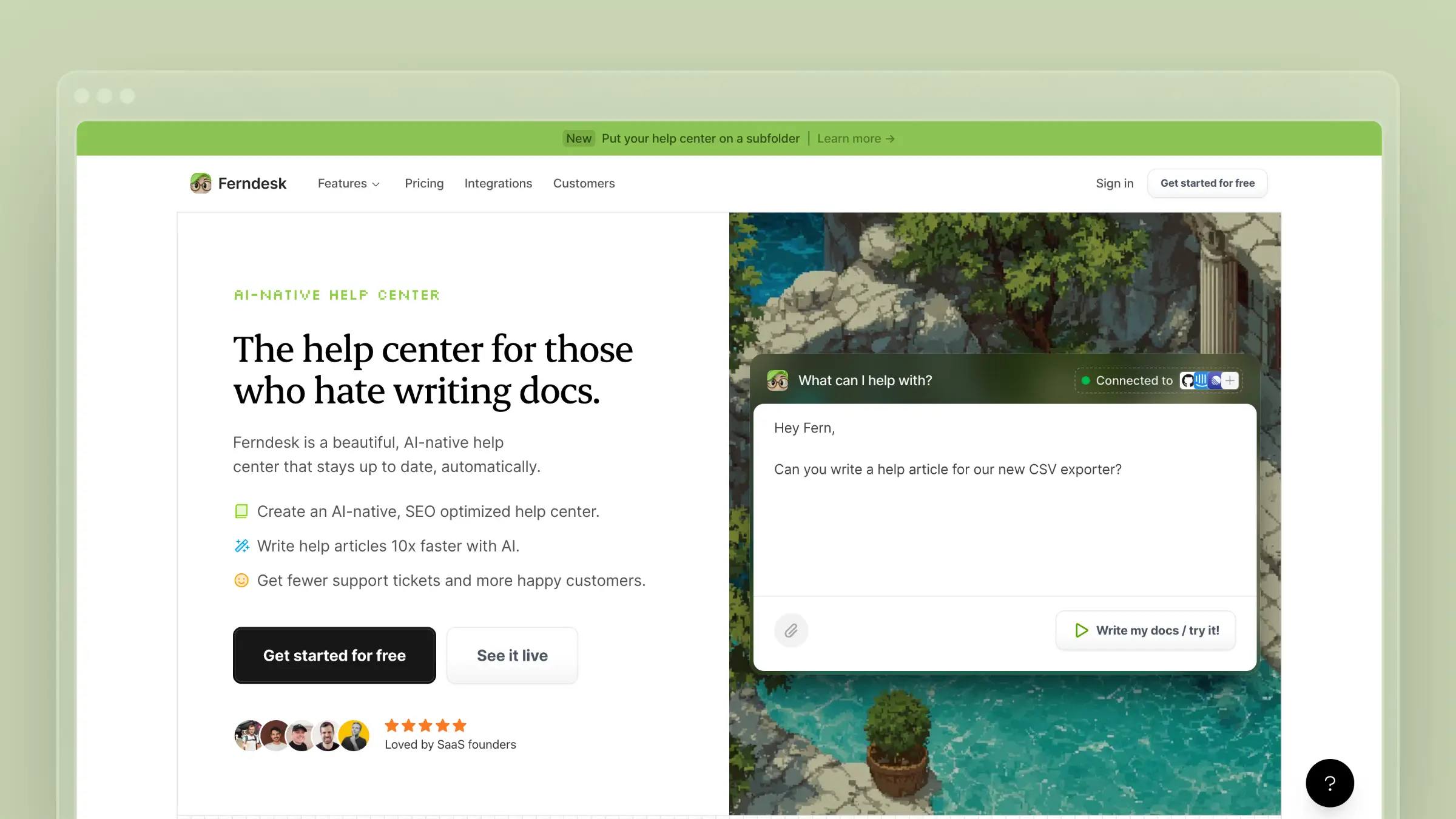
Ferndesk takes a fundamentally different approach to user manuals. Instead of giving you better tools to write documentation manually, it gives you an AI agent that keeps your entire knowledge base current.
The agent, called Fern, connects to your sources of truth:
- Your codebase (GitHub) to detect product changes
- Support tickets (Intercom, Zendesk, Help Scout, Crisp) to identify documentation gaps
- Internal docs (Notion, Linear) to extract tribal knowledge
- Changelogs to trigger documentation updates when features ship
Every week, Fern audits your support inbox and product updates. When it finds outdated content or missing topics, it drafts updates for your review. You approve, tweak if needed, and publish.
Pricing: Pro costs $149/month or $1,490/year (1,000 AI conversations, 5 editors), while enterprise contracts start at $399/month.
Ideal for: Teams that ship frequently, companies without dedicated technical writers, and anyone who’s inherited outdated documentation and wants to fix it.
For a deeper dive, see our complete guide to automated knowledge bases.
2. MadCap Flare
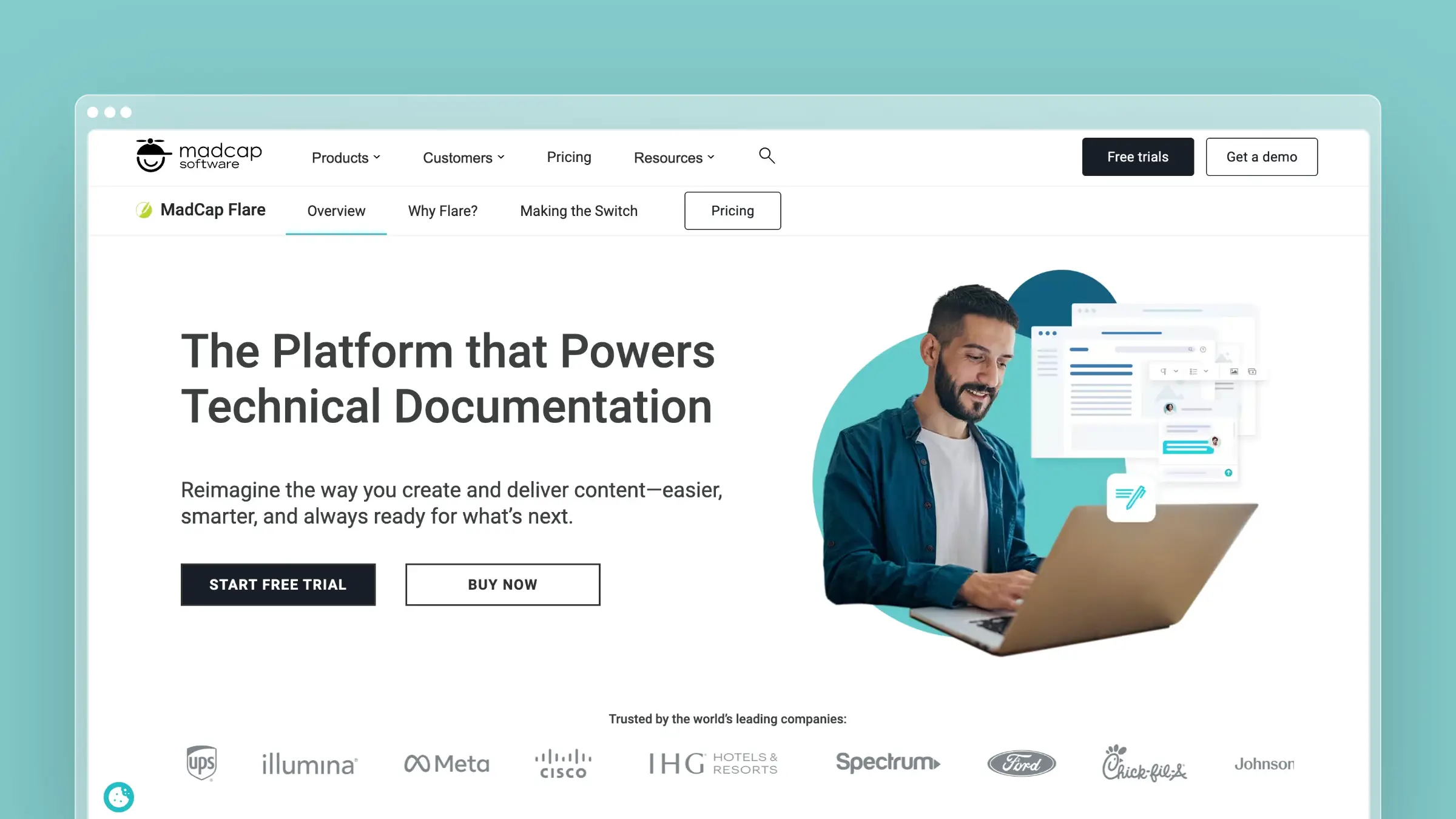
MadCap Flare is the enterprise standard for technical documentation, used by companies like Microsoft, Amazon, and Boeing. The core strength is single-sourcing: write content once, publish to multiple formats (HTML5, PDF, Word, EPUB) with conditional logic.
What it does well:
- Structured authoring with DITA/XML support
- Multi-channel publishing from a single source
- Enterprise-grade version control and workflows
- Extensive import options (Word, FrameMaker, RoboHelp)
The catch: Flare is complex. The learning curve is measured in weeks, not hours. You need dedicated technical writers who can invest in mastering the platform. Content still becomes stale unless humans actively update it.
Pricing: Flare Desktop costs $3,150 per author/year. Flare Online plans require a quote from MadCap.
Ideal for: Large enterprises with dedicated documentation teams, products requiring multi-format publishing, and regulated industries needing audit trails.
3. Document360
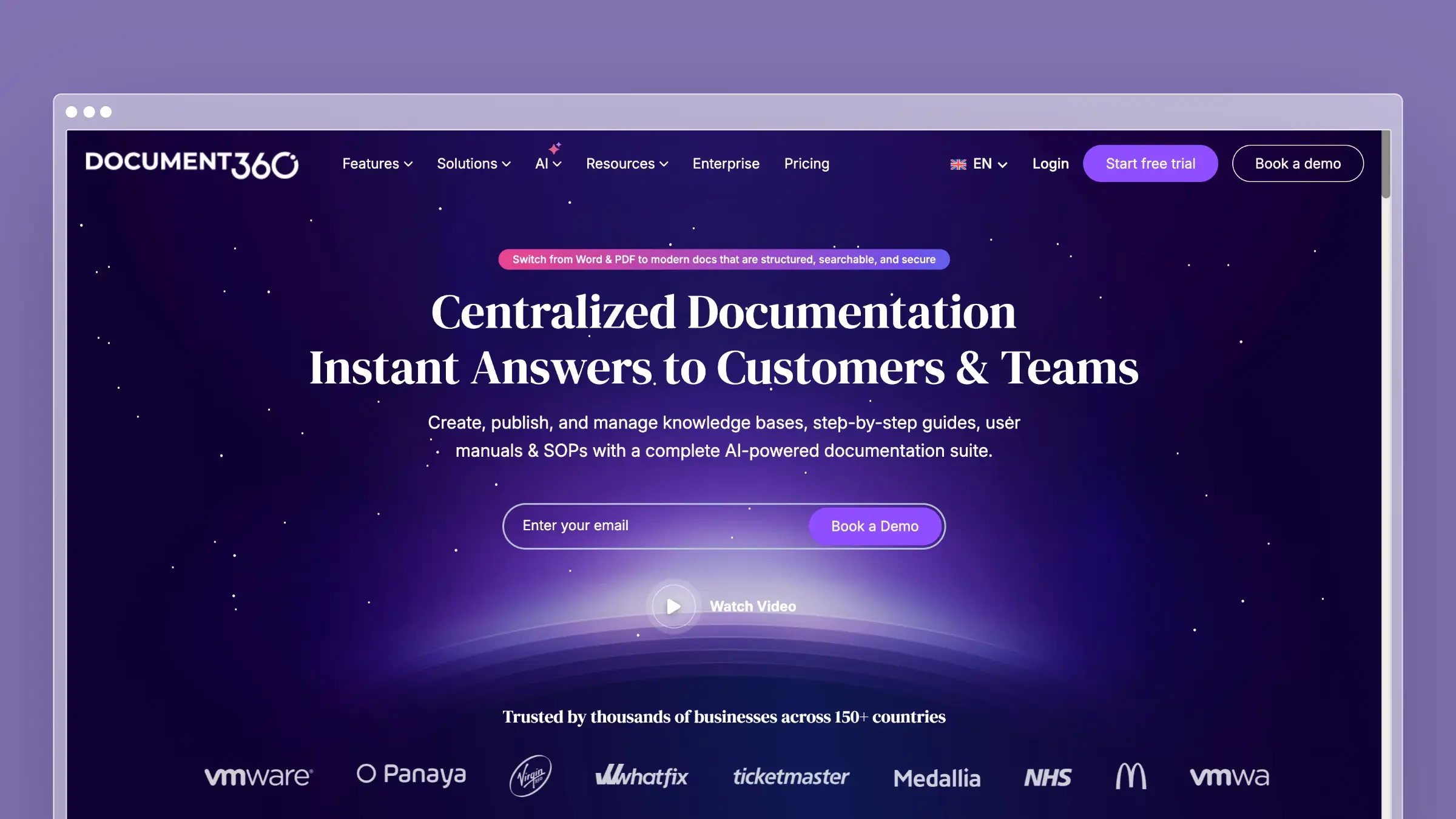
Document360 handles both customer-facing user manuals and internal knowledge bases. The editor is approachable, and enterprise teams value its governance features.
What it does well:
- Clean editor that non-technical users can manage
- Built-in AI search and analytics on article performance
- Workflow features for approval processes
The catch: Document360’s AI helps you write articles but won’t proactively identify outdated content or surface gaps from support tickets. The maintenance burden stays manual.
Ideal for: Mid-size companies needing both internal wikis and customer docs, and teams that prioritize governance over automation.
4. GitBook
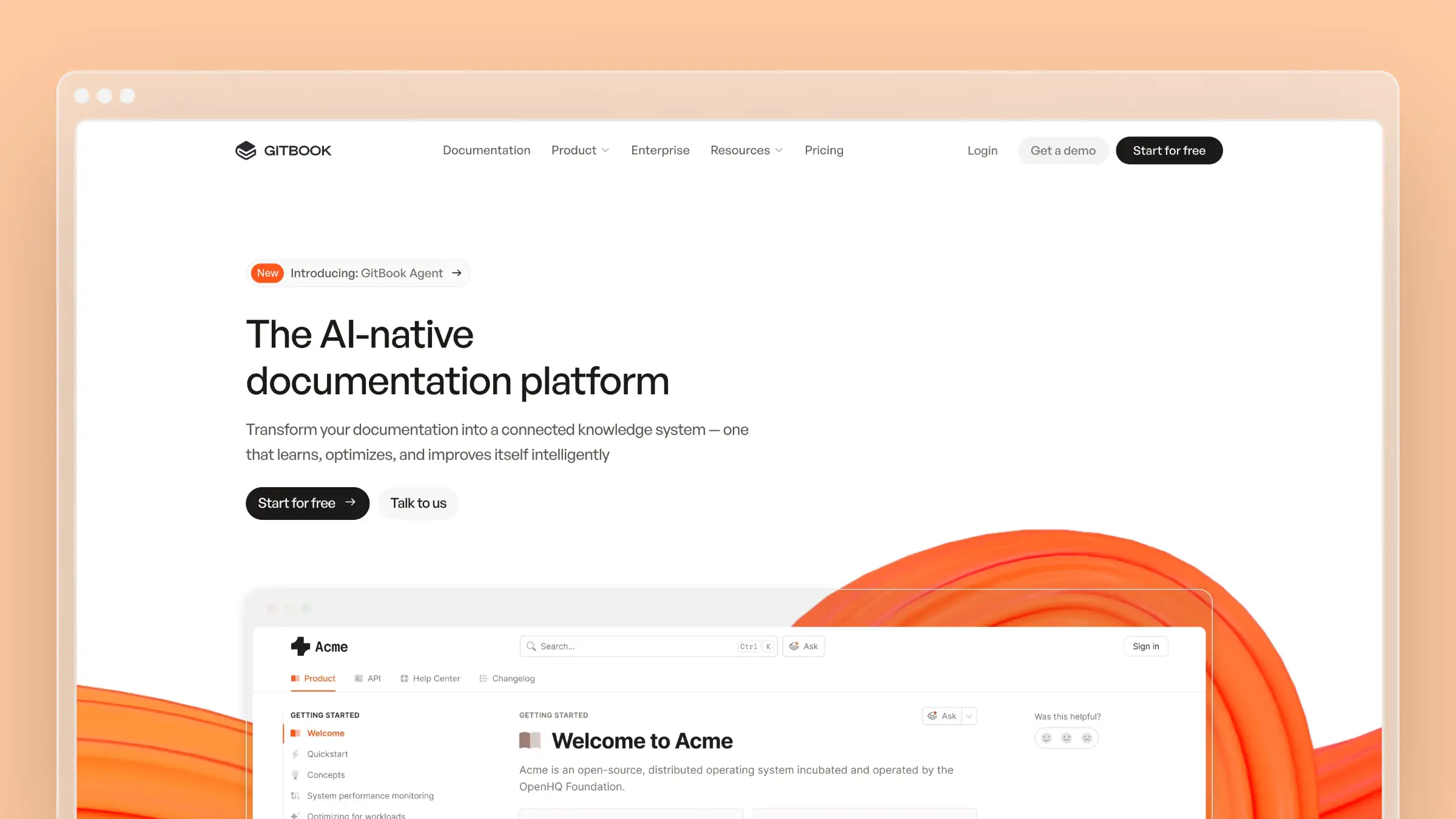
GitBook offers a Notion-like editing experience approachable enough that product managers, support agents, and marketers can all contribute without learning Git or Markdown.
What it does well:
- Drag-and-drop block editor anyone can use
- Real-time collaboration with inline comments
- Git sync for teams that want docs-as-code
- Integrations with Slack, Linear, and other tools
The catch: Per-user pricing adds up fast. A team of 10 costs $185/month at the Plus tier. AI features focus on search and content generation, not proactive maintenance.
For pricing details, see our GitBook pricing breakdown.
Pricing: Free; Premium $65/site/month + $12/user/month; Ultimate $249/site/month + $12/user/month (annual billing).
Ideal for: Teams with mixed technical and non-technical contributors who value simplicity over power features. See also: GitBook vs Mintlify.
5. Notion
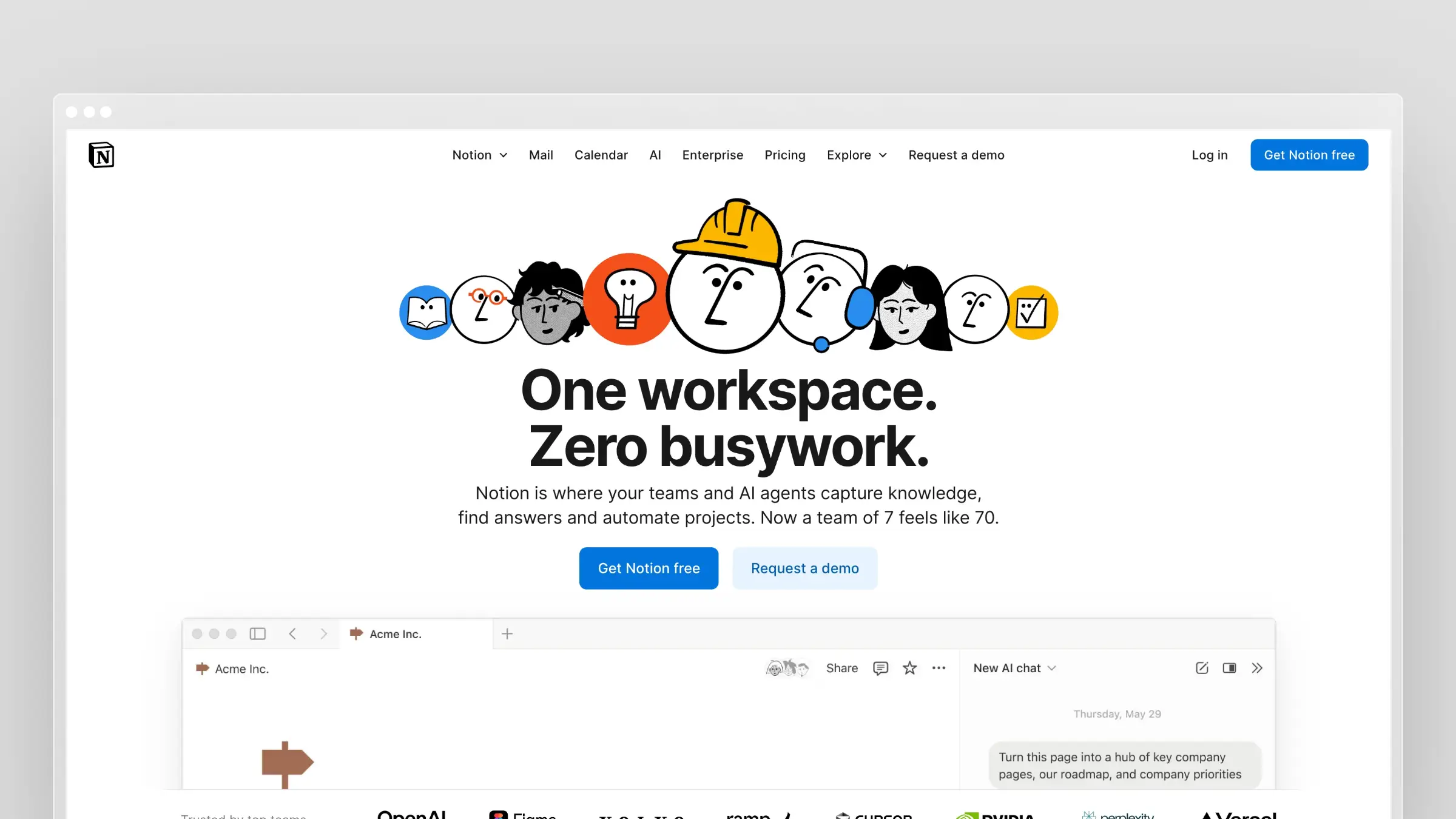 Notion isn’t really user manual software. It’s a flexible workspace that can be used for documentation. For internal knowledge bases at small teams, it works. But customer-facing user manuals need SEO optimization, professional customization, search that actually works, and analytics on what customers read. Notion provides none of those.
Use it for internal wikis. Use something else for customer docs.
Pricing: Free (personal), $10/user/month (Plus), $18/user/month (Business), custom (Enterprise).
Ideal for: Internal knowledge sharing, very early-stage startups, and teams already deep in Notion for other purposes.
6. Scribe
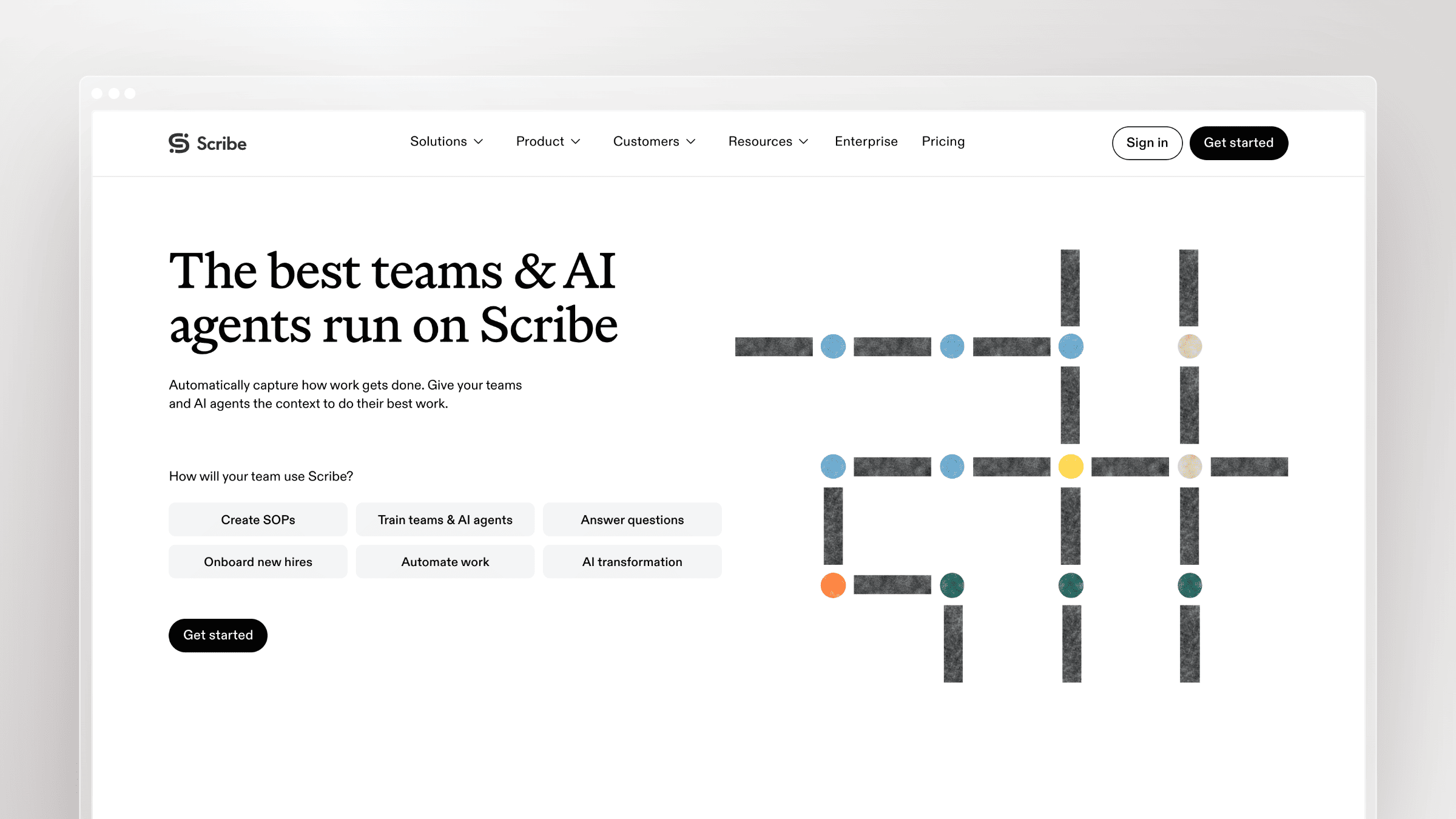
You click “record,” perform the process you want to document, and Scribe generates a step-by-step guide with screenshots automatically. What might take 30 minutes to document manually takes 2 minutes with Scribe.
What it does well:
- Automatic screenshot capture as you work
- AI-generated descriptions for each step
- Easy editing and embeddable guides
The catch: Scribe generates “how to do X” guides, not conceptual explanations or troubleshooting articles. When your UI changes, all those auto-captured screenshots become outdated and require re-recording.
Pricing: Basic free (unlimited guides); Pro Personal $35/month ($25/month billed annually); Pro Team $17/seat/month ($13/seat/month billed annually, minimum five seats); Enterprise custom (SSO, advanced permissions).
Ideal for: Documenting software processes, teams creating training materials quickly, and internal process documentation.
7. Whatfix
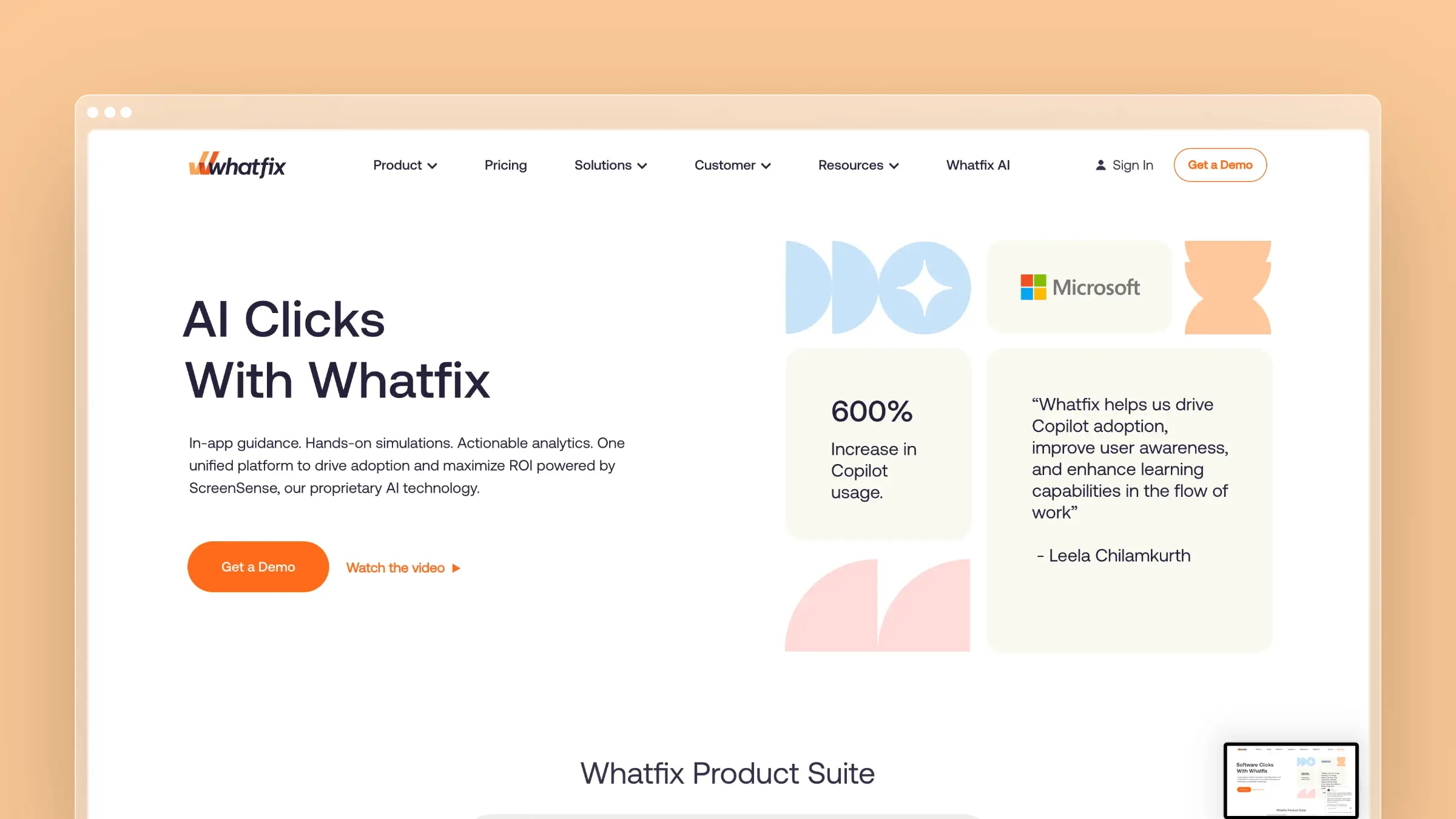
Whatfix overlays guidance directly onto your application. Instead of users reading a manual, they get contextual help where they need it.
What it does well:
- In-app walkthroughs that guide users through workflows
- Contextual tooltips and hotspots
- Analytics on feature adoption and user behavior
The catch: Enterprise-only with custom pricing (typically $1,000+/month). It requires technical implementation and complements rather than replaces traditional documentation.
Ideal for: Enterprise products with complex workflows and organizations with budget for dedicated adoption tools.
8. Helpjuice
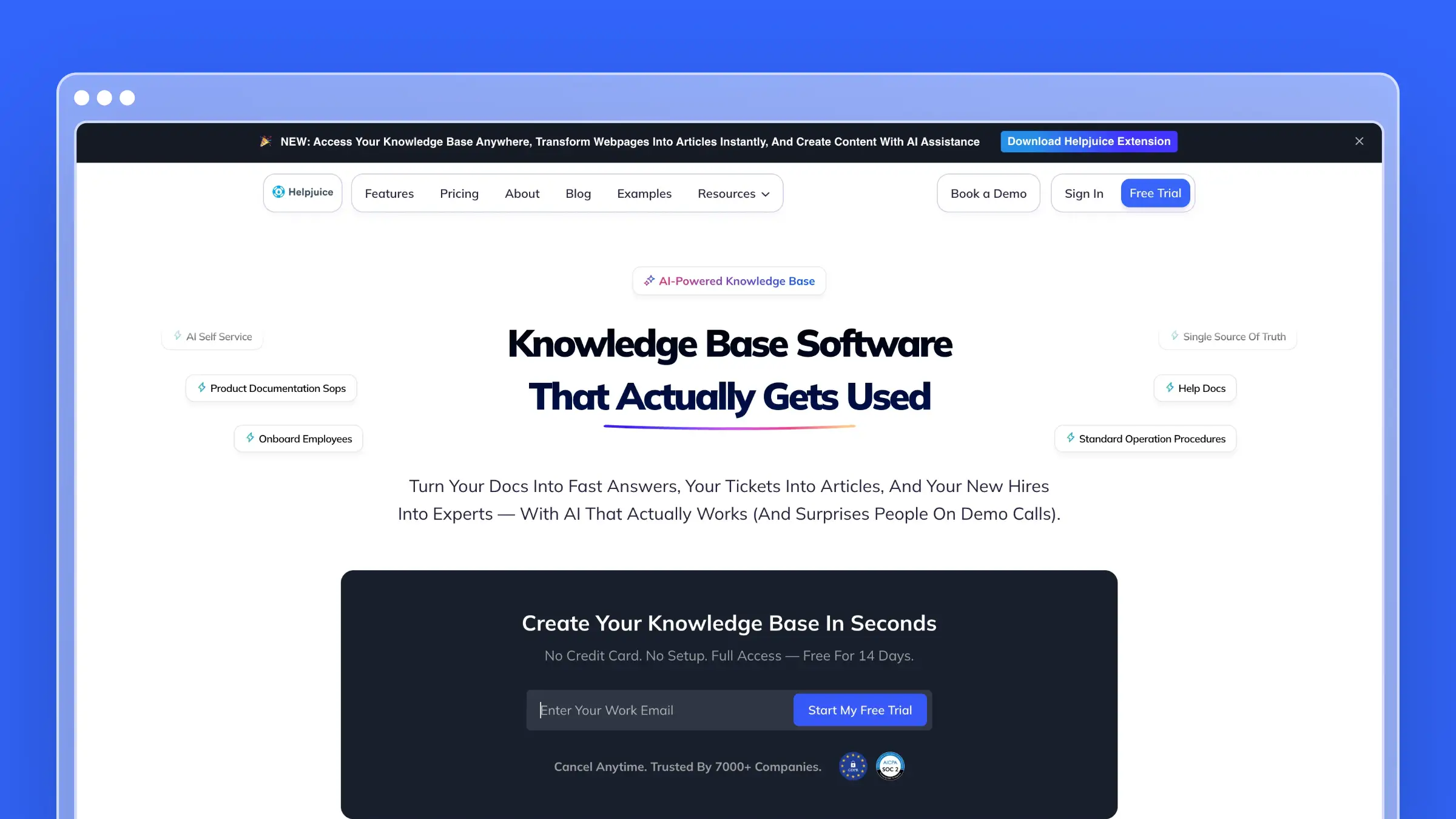
Helpjuice delivers deep customization, intelligent search, detailed analytics, and multi-language support. If you want complete control over how your documentation looks and functions, it delivers.
The catch: Starts at $120/month for 4 users, making it one of the pricier options for small teams. Despite good features, content becomes stale at the same rate as any other passive tool.
For more on pricing, see our Helpjuice pricing breakdown.
Pricing: Knowledge Base $249/month (30 users); AI Knowledge Base $449/month (100 users); Unlimited AI Knowledge Base $799/month.
Ideal for: Teams wanting extensive design customization and detailed analytics with 4+ documentation contributors.
9. Tango
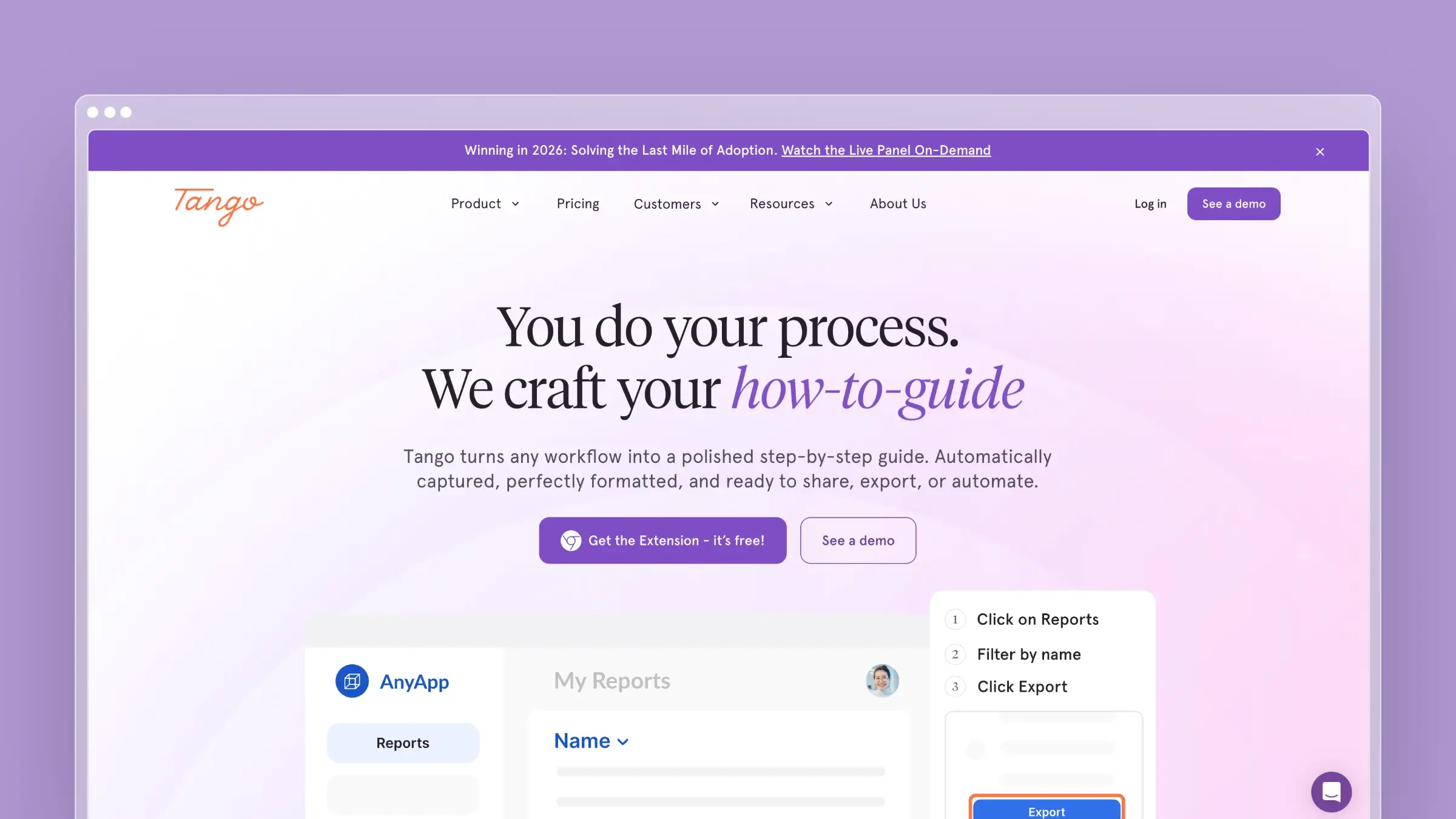
Tango is similar to Scribe: a Chrome extension that captures your clicks and generates step-by-step guides automatically, with slightly more polished AI descriptions.
What it does well:
- One-click capture of any browser workflow
- AI-written step descriptions
- Easy redaction of sensitive information
The catch: Same limitations as Scribe. Great for process documentation, limited for everything else. Every UI change means re-recording affected guides.
Pricing: Free (limited captures), $20/user/month (Pro), custom (Enterprise).
Ideal for: Teams creating lots of how-to guides and training material.
10. ReadMe
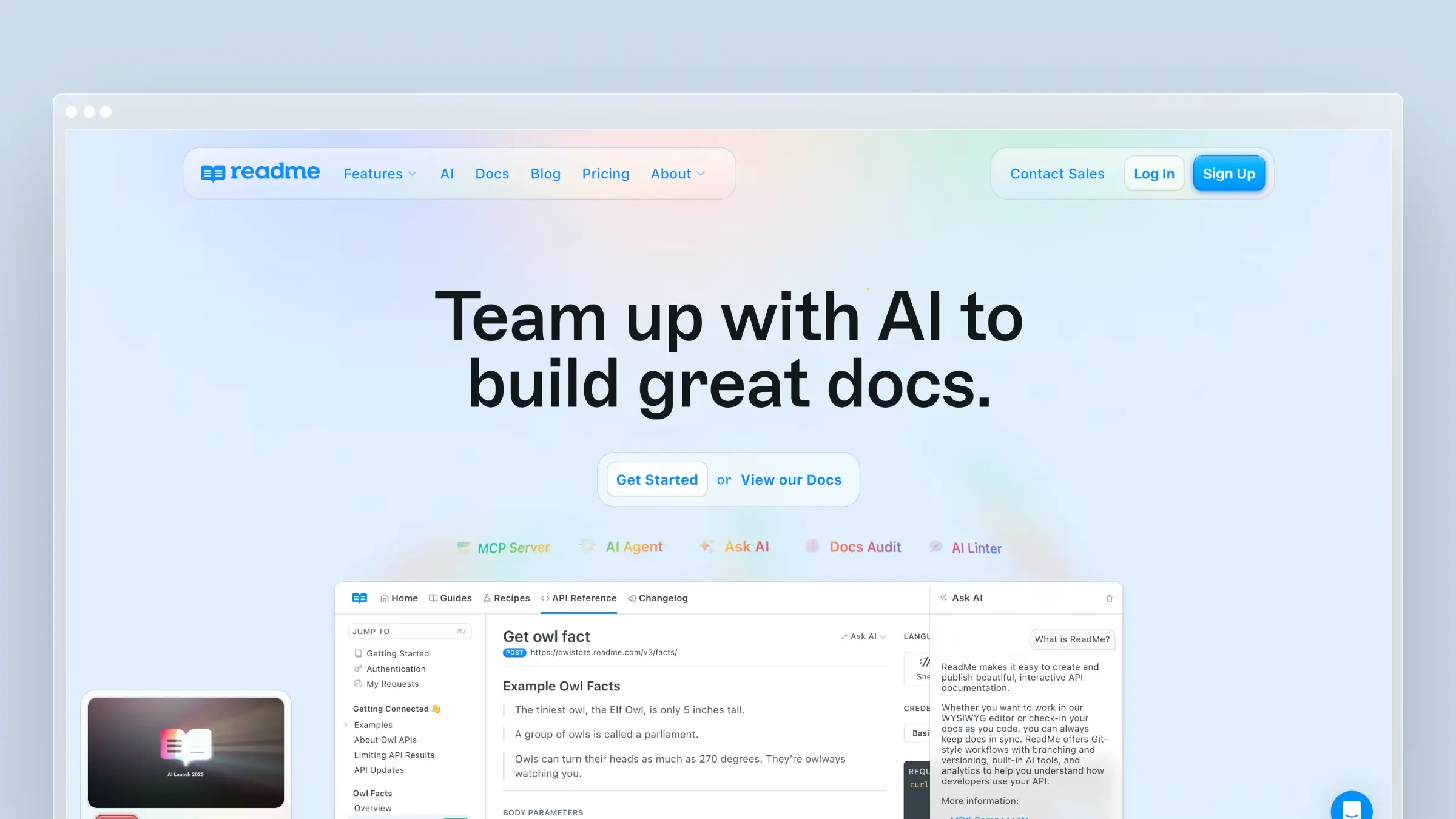
ReadMe is specifically designed for API documentation, offering interactive “Try It” functionality where developers can make API calls directly from your docs.
What it does well:
- Auto-generated docs from OpenAPI/Swagger specs
- Interactive API explorer
- Personalized docs showing the user’s API key
- Usage analytics per endpoint
The catch: Narrowly focused on API documentation. Not suitable for general user manuals. Pricing scales quickly once you move beyond the free tier.
Pricing: Starter free; Pro $250/month (billed annually); Enterprise $3,000+/month (billed annually). Full Ask AI is an additional $150/month.
Ideal for: API-first products and developer-focused documentation needing interactive API explorers.
How to Choose User Manual Software
If your main problem is keeping documentation current…
Choose Ferndesk. It’s the only tool on this list that actively solves the maintenance problem. The AI agent monitors your product and support tickets, then drafts updates for your review. For most SaaS companies, outdated documentation is the actual problem, not creating documentation.
If you’re building API documentation for developers…
Choose ReadMe for interactive API features, or Mintlify if you prefer docs-as-code. See our guide to API documentation tools.
If non-technical team members need to contribute…
Choose GitBook for its collaborative editor, or Document360 if you need approval workflows.
If you need to document processes quickly…
Choose Scribe or Tango for automatic capture of step-by-step workflows. Just know you’ll need to re-record when your UI changes.
If you’re an enterprise with complex requirements…
Choose MadCap Flare for single-source publishing to multiple formats, or Whatfix for in-app guidance.
PDF vs Web User Manuals: Which Format Should You Choose?
Output format is a buying decision most teams make too late. The tool you choose often locks you into one format by default.
| PDF manuals | Web manuals |
|---|---|
| Offline access for field or regulated environments | Always reflects the latest version |
| Printable and signable for compliance workflows | Searchable and linkable from support tickets |
| Fixed layout, no SEO benefit | Indexed by search engines, drives organic traffic |
| Every update requires a new file distribution | Updates publish instantly without redistribution |
For regulated industries or hardware products, PDF is often required. For SaaS, web is almost always the better choice because it stays current without redistribution and supports AI-powered search. MadCap Flare handles both formats from a single source. Ferndesk, GitBook, and Document360 are web-first but can export to PDF when needed.
Why User Manuals Fail (And How to Prevent It)
Companies choose excellent user manual software and still fail at documentation. The tool isn’t the problem. The system is.
The Documentation Debt Spiral
- Launch: You write comprehensive documentation. Everything is accurate.
- Month 3: Product ships updates faster than docs. Small inconsistencies appear.
- Month 6: Customers notice outdated content. Support tickets mention “your docs say X but the product does Y.”
- Month 12: Documentation is so far behind that updating feels overwhelming.
- Month 18: You’re planning a “documentation rewrite project” that keeps getting deprioritized.
Breaking the Cycle
1. Connect documentation to product development. When engineering ships a feature, documentation updates ship with it. This requires either process discipline (PRs include doc updates) or automation (tools like Ferndesk that detect product changes).
2. Analyze support tickets systematically. Every repeated question is a documentation gap. Categorize tickets. What are the top 10 questions? Are they documented? Is the documentation findable and accurate?
For more on this approach, see our guide on self-service strategies that actually work.
3. Measure documentation effectiveness. Track search queries with no results, articles with high bounce rates, support tickets that reference docs, and self-service resolution rates.
User Manual Template: 8 Sections Every Manual Should Include
Before you open any software, decide what your manual needs to contain. Most well-structured user manuals share the same eight sections. The order and depth vary by product, but skipping any of these creates gaps customers will notice.
| Section | What it covers | Maintenance risk |
|---|---|---|
| 1. Purpose | What the product does and who it is for | Low |
| 2. Prerequisites | What users need before they start: accounts, permissions, integrations | Medium |
| 3. Step-by-step instructions | Task-based walkthroughs organized around user goals | High |
| 4. Screenshots and visuals | Annotated UI captures that match the current product state | Very high |
| 5. Troubleshooting | Common errors, edge cases, and how to resolve them | High |
| 6. FAQs | Recurring questions pulled from support tickets and search data | Medium |
| 7. Version history | A log of what changed and when, so users know if they are reading current content | Low |
| 8. Contact and escalation paths | Where to go when the manual does not answer the question | Low |
The maintenance risk column matters more than most teams expect. Screenshots and step-by-step instructions go stale every time the product ships. If your manual is screenshot-heavy, your update burden is proportionally higher. That is the argument for choosing software that automates screenshot capture and flags stale content rather than waiting for you to notice. Ferndesk handles both: it detects UI changes from your codebase and regenerates affected screenshots automatically, so stale visuals get caught before customers do.
User Manual Best Practices
Structure for Scannability
Users don’t read user manuals cover to cover. They search for specific answers. Use clear headings, bullet points, short paragraphs, and visual breaks between sections.
Write for the Struggling User
The person reading your manual is stuck. Start with the outcome they want, acknowledge common points of confusion, provide context not just steps, and include troubleshooting for common issues.
Use Visuals Strategically
Annotate screenshots to highlight relevant areas, crop to show only what’s needed, and use consistent styling for callouts. Remember: every screenshot is a maintenance liability when UI changes.
Organize Around User Goals
Bad: “Settings Page” → “Notification Settings” → “Email Preferences”
Good: “How to stop getting email notifications” → Step-by-step guide
Plan for Maintenance from Day One
Before writing anything, ask: “How will we keep this current?” Decide who owns updates, what triggers a review, how you detect staleness, and what your update workflow looks like. Without answers, you’re setting up for documentation debt.
Conclusion
Creating documentation has never been the hard part. Any tool with a text editor lets you write content. The hard part is keeping that content accurate over months and years as your product evolves.
Most tools on this list are passive. They store your content and hope you remember to update it. Some have AI features that help you write faster, which just means you can create more content that becomes stale faster.
If you’re choosing user manual software in 2026, ask one question: How does this tool help me keep documentation current?
If the answer involves “you manually update it,” you’re signing up for documentation debt.
That’s why we built Ferndesk differently. The AI agent watches your product evolve and your support tickets pile up. When documentation needs updating, it drafts changes for your review. You still control what gets published, but you’re not responsible for monitoring everything yourself.
Ready to stop fighting documentation debt? Try Ferndesk free and see what our AI agent finds in your support tickets.
Frequently Asked Questions
What is user manual software?
User manual software is a platform for creating, publishing, and maintaining structured documentation that helps customers use a product. It differs from a general wiki in that it is organized around user tasks and goals rather than internal knowledge, and it is typically customer-facing rather than internal.
Can user manuals be PDFs?
Yes. PDF is the right format when users need offline access, printed copies, or compliance-ready documentation. For SaaS products, web-based manuals are usually better because they update instantly, support search, and get indexed by search engines. MadCap Flare publishes both from a single source.
What is the best user manual software for small teams?
Ferndesk Pro at $149/month or $1,490/year is the strongest option for small SaaS teams because it reduces the manual work of keeping docs current. Scribe or Tango work well if you only need step-by-step process guides. Notion is fine for internal wikis but is not built for customer-facing documentation.
How do I keep a user manual up to date?
Connect your documentation to a trigger: a GitHub PR, a changelog entry, or a spike in support tickets. Without a trigger, updates get skipped. Ferndesk automates this by monitoring your codebase and support queue and drafting updates for review when content goes stale.
What is the difference between a user manual and a knowledge base?
A user manual is structured around tasks and workflows, guiding users through specific actions from start to finish. A knowledge base is organized around topics and designed for search-driven self-service. In practice, most modern help centers combine both formats in a single platform.
How much does user manual software cost?
Prices range from free (Scribe Basic, Notion personal) to $149/month for Ferndesk’s Pro plan, $249/month for Helpjuice’s Knowledge Base plan, $250/month for ReadMe Pro, and $3,150 per author/year for MadCap Flare Desktop (Flare Online requires a quote). Enterprise tools like Whatfix use custom pricing that typically starts above $1,000/month.


 Book a demo