

A useful help article can’t prevent a ticket if nobody finds it. An outdated one is worse. It ranks, gets the click, and sends the customer back to support with a screenshot of a menu that no longer exists. I’ve watched both happen on teams shipping every week.
Knowledge base SEO is the work of making public help content discoverable and useful once someone lands on it. This guide covers both halves: search visibility and the quality of the answer people find.
To follow along, pick one public help article and gather recurring support questions or help-center searches, Search Console data, and access to your publishing settings. Leave internal or account-specific instructions out of scope, because private docs need access controls, not search visibility.
TL;DR
- Build articles from the exact questions customers type into tickets, help-center search, and Google.
- Give each task one clear article, a stable URL, and links to the next likely question.
- Lead with the answer, match current product labels, and skip keyword padding.
- Make sure public pages load without login, carry no stray noindex, and point duplicates to one canonical URL.
- Ranking is not the finish line. Keep instructions accurate as the product ships, and watch whether repeat questions drop.
Why knowledge base SEO pays off for SaaS teams
Help content is some of the most specific, question-shaped content a SaaS company publishes. That makes it a natural fit for long-tail search, and the payoff shows up in three places.
Tickets prevented, buyers informed, docs that keep pace
- Searchable answers prevent repeat tickets before customers contact support.
- Prospects evaluating the product find setup and integration answers before they buy.
- Docs that rank and stay accurate keep pace with release velocity instead of lagging behind it.
Only public, customer-safe articles belong in search, while private instructions stay behind access controls.
Step 1: Find the questions customers actually search
Most help centers are organized the way the product team thinks. Customers don’t search that way, so start with their words.
Turn support language into article topics
Look for repeated ticket questions, missed help-center searches, and Search Console queries instead of starting with broad product categories. Long-tail, question-based phrasing is the goal, because that’s how stuck people type.
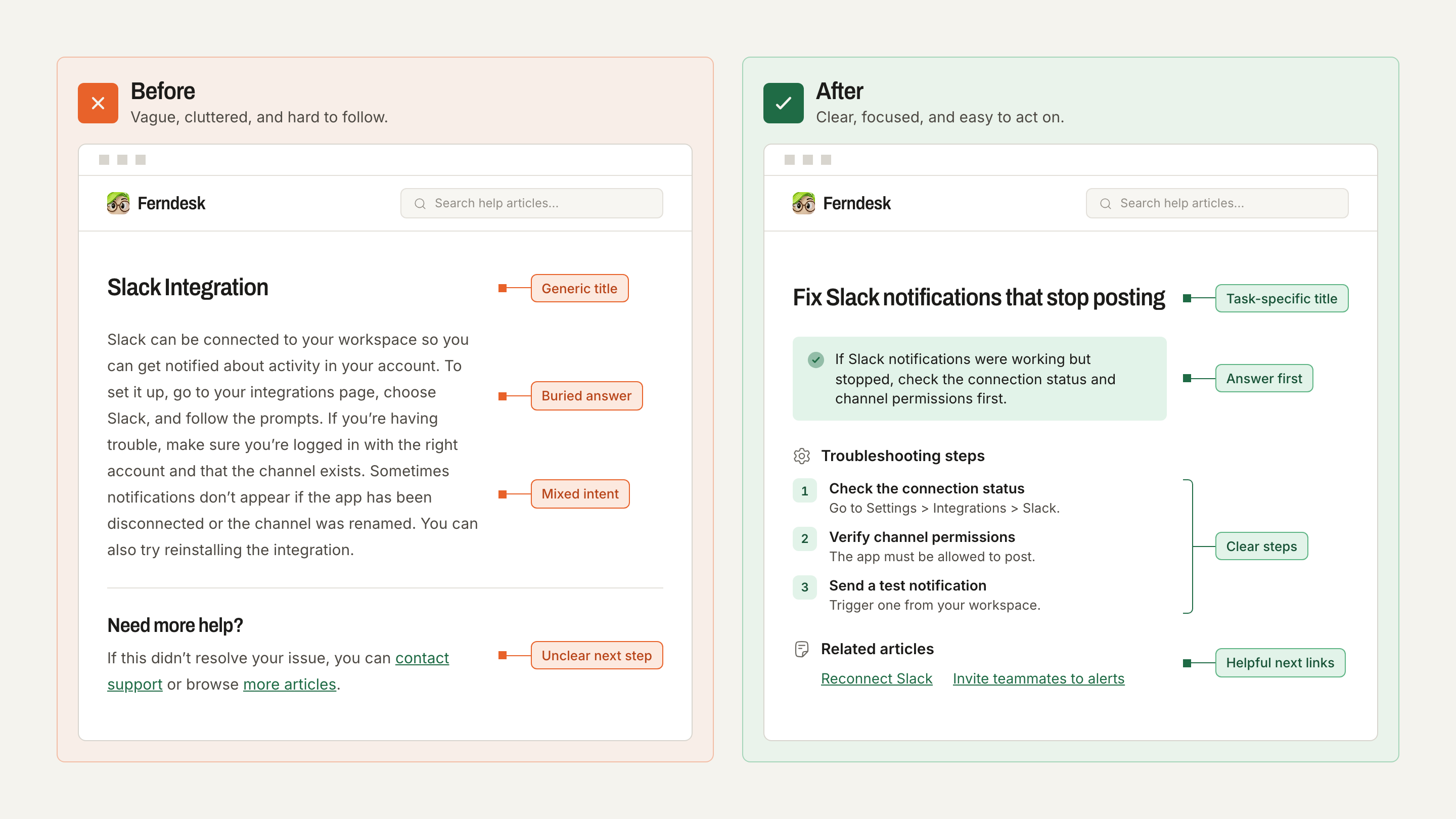
- Query: “how do I change the email on my invoices” → Title: Change your billing email (not “Billing settings”)
- Query: “slack integration not posting messages” → Title: Fix Slack notifications that stop posting
How to find knowledge base SEO opportunities in Google Search Console
Google Search Console shows which searches already bring your help articles into Google results. That makes it a good starting point for deciding what to improve and what to write next.
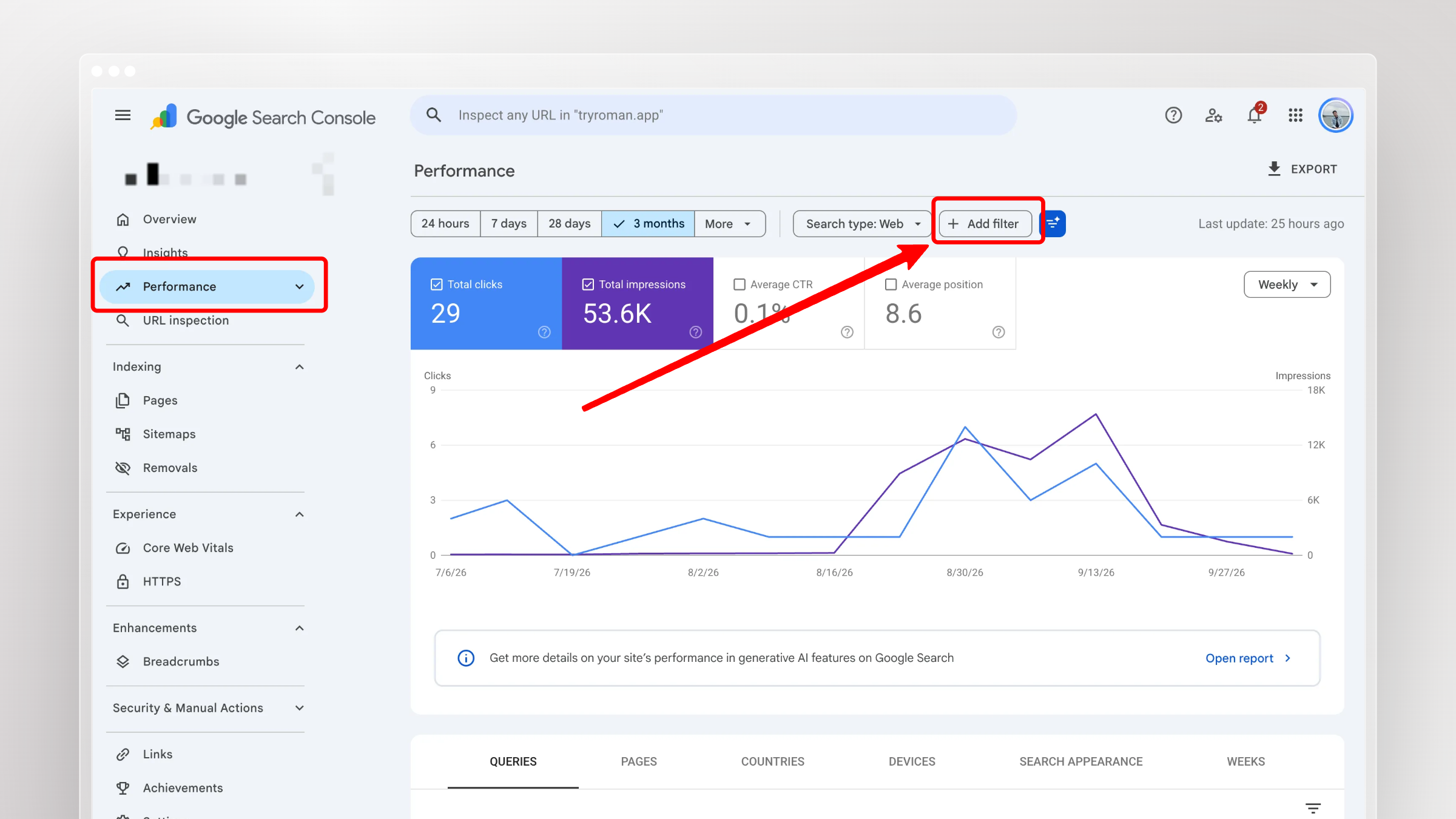
Open Search Console. Select your website property and go to Performance → Search results.
Filter for your knowledge base. Click + Add filter → Page → URLs containing. Enter your help path, such as /help/ or /docs/. If your help center lives on a subdomain, make sure the selected property includes it.
Look at search queries. Open the Queries tab and enable clicks, impressions, CTR, and average position. You now see the searches tied to your public help articles.
Find question-based queries. Add a Query filter, choose Custom (regex), and select Matches regex. Use this pattern:
\b(how|what|why|where|when|can|does|do)\bIt’s a starting filter, not a perfect way to identify questions.
Identify opportunities. Look for relevant queries with impressions but few clicks. Check the average position and the existing page before you change anything.
 Say customers reach your billing docs through “how to update invoice email.” If the page is titled “Billing Settings” and already explains it, a better title and introduction may be enough.
If the page doesn’t answer that question, update the instructions or create a dedicated article. The goal is to turn real search behavior into specific documentation improvements.
Match one search intent to one useful answer
Before writing, separate setup questions from error-resolution questions. “Connect Slack” and “Slack stopped posting” sound related, but one reader is starting fresh and the other is mid-failure. They usually need separate articles.
Closely related phrases are different. “Change billing email,” “update invoice email,” and “where do receipts go” can all land on one complete article. They don’t need three near-duplicate pages competing with each other.
How to verify: every article on your list maps to a real query, and no two articles answer the same task.
Step 2: Organize articles around tasks and stable URLs
Once topics are clear, structure decides whether readers and crawlers can move between them.
Group answers into categories people can navigate
Group help pages by recognizable tasks rather than internal team names. Nobody outside your company knows what “Growth Platform” contains. Category pages with descriptive links let readers move from an overview to a specific answer.
- Account access: sign-in, SSO, password resets, two-factor setup
- Billing: plans, invoices, payment methods, billing email
- Integrations: Slack, GitHub, Zapier, webhooks
Use clear slugs and links between related answers
A good URL describes the task and stays put. Google states it has no general indexing or ranking preference between a /help subfolder and a help subdomain, so choose what your platform supports and keep it stable.
- The article uses a descriptive, stable path such as /help/billing/change-email
- The billing overview links to it with meaningful anchor text, not “click here”
- The article links to the next likely question, such as permissions after an invitation guide
Optimize the help-center homepage and category pages
Articles get most of the attention, but the homepage and category pages are the hubs that connect them. Give each a descriptive title, a one- or two-sentence summary, and links to the tasks inside.
- Title: “Billing help: invoices, payment methods, and billing email” instead of just “Billing”.
- Summary: one sentence on what the category covers and who it’s for.
- Links: Download invoices, Update a payment method, and Change your billing email, each with its task name as anchor text.
The homepage works the same way. It names the help center’s purpose and links to every key category.
Step 3: Write an answer that resolves the question
Search gets someone to the page. The writing decides whether they leave with the task done or open a ticket anyway.
Put the answer and instructions first
Someone searching “change billing email” shouldn’t scroll past a product overview to find the setting. Use this reading order:
- Answer: one sentence naming where the setting lives and who can change it.
- Prerequisites and steps: required role, then numbered actions where order matters.
- Expected result: what the reader should see when it worked.
Match the product’s current labels and screens
Instructions fail quietly when the button they reference was renamed two sprints ago. Before publishing, check:
- Button names and navigation paths match the live product exactly.
- Screenshots show the current UI, including the role or permission the task requires.
- A brief recovery note covers the most common error, such as “Only workspace owners see this option.”
Make the page complete without padding it
Include details that help someone finish the task. Repeated keywords and a second article saying almost the same thing don’t count.
Google’s guidance favors useful, reliable content over arbitrary length. A 150-word article that resolves the task beats a 1,200-word one that buries it.
Step 4: Make each article clear in search results and on the page
A strong answer still needs a title and structure that signal what it solves before the click.
Name the task in the page title
Replace internal labels with a concise, distinct title that describes the answer.
- Before: Billing settings
- After: How to change your billing email
Check descriptions, headings, and images
| Page element | What to check | Why it helps |
|---|---|---|
| Meta description | Unique, one or two sentences summarizing the task | Can describe the page in results, though Google may build the snippet from page text instead |
| H2/H3 headings | Descriptive, task-based, in logical order | Helps readers scan and helps search engines understand structure |
| Steps | Numbered lists, one action per step | Readers can follow and resume without rereading |
| Screenshot alt text | Describes what the image shows, such as “Billing tab with email field” | Supports accessibility and gives images context |
Step 5: Make public pages crawlable and avoid duplicate URLs
This is where good articles silently disappear. Most issues trace back to access settings, duplicate paths, or migrations that broke old links.
Check what search engines can access
- The article loads without login
- The answer text renders in the page, not only after a script or widget loads
- No accidental noindex tag sits on public articles
- robots.txt doesn’t block the help path
For genuinely private content, use authentication. A noindex instruction inside a page blocked by robots.txt never gets seen, so robots.txt can’t enforce it.
How to check whether Google can index a help article
Before rewriting an article that isn’t getting search traffic, check whether Google can access and index it. Use Search Console’s URL Inspection tool.
Open Google Search Console and paste the article’s full URL into the inspection bar.
Check whether Google reports that the URL is indexed.
Expand Page indexing to review crawl status, indexing permissions, and Google’s selected canonical URL.
After a recent fix, click Test live URL to check the current page.
Once the issue is fixed, request indexing.
A public article can carry an accidental noindex directive. It looks normal to visitors but stays out of Google’s index. Fix that before rewriting.
A successful live test means Google can potentially index the page. It doesn’t guarantee inclusion in search results.
Align sitemaps, canonicals, and old links
Help platforms often generate several URLs for one article, such as category paths and tracking parameters. Pick one preferred version and make every signal agree. Translations are different. A genuine translation is its own page and generally needs its own canonical URL, so don’t point it at the English article. If you localize, add hreflang to connect the language versions.
- The sitemap lists only preferred public URLs
- Duplicate versions point to the intended canonical page
- Changed URLs redirect to the matching new answer, and internal links are updated
A sitemap helps discovery but doesn’t guarantee indexing. Redirects and canonical tags send stronger canonical signals than sitemap inclusion.
Use structured data only when it fits
Consider breadcrumb markup when the page shows a real breadcrumb trail, then validate it. Valid markup doesn’t promise a rich result.
I don’t recommend FAQ markup as a shortcut to Google FAQ rich results. That search feature was retired in 2026.
Check load speed and mobile rendering
Help articles are often read on a phone while someone stares at the app on a laptop, so check:
- Heavy screenshots are compressed or resized
- Embedded videos and widgets don’t delay the answer from loading
- Numbered steps, tables, and screenshots stay readable on a phone
Step 6: Keep answers accurate as the product changes
This is the step most teams skip, and where I’ve felt the most pain. An article that ranks for six months while describing a deprecated flow trains customers to distrust your help center.
Check instructions against shipped changes
Publication isn’t the end of the work. When a release touches a feature, check:
- Affected steps and navigation paths still match the product
- Links point to live pages, not redirects or 404s
- Screenshots reflect the current UI
Accuracy is the reason to update. Changing dates or text solely to look fresh isn’t an SEO tactic, and Google’s guidance says as much.
Draft changes from product and support signals
Ferndesk is one example of how teams automate the detection side of this work:
- Signal: Fern, Ferndesk’s agent, monitors GitHub changes and support questions for features your docs reference.
- Draft: It drafts the affected documentation changes and updated screenshots.
- Review: A person approves the draft before it goes live.
The point is helping a searcher reach instructions that still match the product. Automation itself doesn’t improve rankings.
Step 7: Check whether people find and use the answers
Measure visibility and usefulness separately, because they fail for different reasons.
Read search visibility and indexing signals
| Signal | What to check | What it tells you |
|---|---|---|
| Page indexing | URL Inspection status in Search Console | Whether Google can index the page at all |
| Queries | Search terms that trigger the article | Whether it matches what people actually ask |
| Impressions and clicks | Volume over time | Whether the page appears and gets chosen |
| Click-through rate | High impressions with low clicks | Whether the title or snippet is unclear |
A page Google can’t index needs a technical fix. A page that appears but rarely gets clicked needs a closer look first. Check the triggering query, the average position, and the snippet Google displays. Only then decide whether the title needs work or the article doesn’t answer that query.
Compare visits with unresolved questions
Traffic reports can’t show whether people succeeded. Check:
- Repeated tickets on topics that already have an article.
- Help-center searches that return no useful result.
- Article feedback, especially “not helpful” votes with comments.
Fewer repeated questions is a useful signal, but don’t assume every organic visit prevented a ticket.
Get help articles discovered beyond search
Search is one entry point. Customers also arrive from places you already control.
Link to answers where customers already are
- Link the help center from the main site navigation and footer so visitors and crawlers find it.
- Add contextual help links inside the app UI next to the related feature.
- Link specific articles in support replies and onboarding emails.
- Make sure the help center homepage links to key categories.
Troubleshoot two common failures
When something goes wrong, diagnose before rewriting.
A helpful article does not appear in search
- Check: Inspect the URL for access, noindex, canonical, and redirect problems.
- Fix: Resolve the technical block before touching the copy.
The article gets visits but support questions continue
- Check: Compare the searcher’s task with the page’s first answer.
- Fix: Lead with the right answer, then verify steps and screenshots match the current product.
Conclusion
Knowledge base SEO works when public articles address real searches, are easy to crawl and navigate, and stay accurate enough to solve the task. Search visibility and successful self-service are related, but they’re distinct outcomes worth measuring separately.
- Relevance: build each article from a real customer question.
- Accessibility: keep public pages crawlable, canonical, and linked.
- Accuracy: update instructions every time the product changes.
FAQs: Knowledge base SEO
Should my help center live on a subfolder or a subdomain?
Either can work. Google states no general indexing or ranking preference between them. Stability matters more: pick one structure and avoid moving URLs without redirects.
How long should a help article be?
Long enough to complete the task, and no longer. Lead with the answer, include prerequisites and steps, and cut repeated keywords.
Should private or internal docs be indexed?
No. Put them behind authentication. Robots.txt hides pages from crawlers but doesn’t secure them.
Does FAQ schema still help help-center articles?
Not as a route to Google FAQ rich results, since that feature was retired in 2026. Breadcrumb markup can still fit when the page shows a real breadcrumb trail.
How often should I update help articles for SEO?
Update when the product changes, not on a calendar. Tie reviews to releases so steps, links, and screenshots match what customers see.
How do I know knowledge base SEO is reducing tickets?
Watch for fewer repeated questions on topics with articles, fewer failed help-center searches, and better article feedback alongside Search Console clicks.


 Book a demo