

Your help center screenshots look blurry on some screens and fine on others. Or they’re crisp but your pages load slowly. The fix isn’t complicated, but it requires understanding how screen resolution actually works.
Here’s the short version: most help center containers are 600-800 pixels wide. For retina displays (which most of your users have), you need images twice that width. So 1200-1600 pixels wide is the target for full-width screenshots.
Now the longer explanation.
Quick Reference
| Use Case | Recommended Width | File Format |
|---|---|---|
| Full-width screenshot | 1200-1600px | PNG or WebP |
| Cropped UI element | 800-1200px | PNG or WebP |
| Small inline image | 400-600px | PNG or WebP |
| Annotated screenshot | 1200-1600px | PNG |
Why Double Width?
Most modern displays have a Device Pixel Ratio (DPR) of 2 or higher. A “retina” display packs twice as many physical pixels into the same space. When you display a 600px-wide image in a 600px container on a retina screen, the browser stretches each image pixel across two physical pixels. Result: blur.
The fix is simple. If your help center’s content container is 700 pixels wide, your full-width screenshots should be at least 1400 pixels wide. The browser scales them down, and they look sharp on both retina and standard displays.
Check your actual container width. Open your help center, right-click on an article, and inspect the content area. Look for the computed width. That number, doubled, is your minimum.
Common Help Center Container Widths
Most knowledge base platforms use content containers between 600-800 pixels:
| Platform | Typical Container Width | Screenshot Target |
|---|---|---|
| Ferndesk | 720px | 1440px |
| Zendesk Guide | 700-750px | 1400-1500px |
| Intercom Articles | 680px | 1360px |
| Help Scout Docs | 720px | 1440px |
| Notion (published) | 700px | 1400px |
| GitBook | 750px | 1500px |
| Custom builds | 600-800px | 1200-1600px |
Ferndesk’s container is optimized for readability at 720px, so 1440px screenshots display perfectly. But more importantly, Ferndesk can capture these screenshots for you automatically (more on that below).
Taking Screenshots at the Right Size
Browser Screenshots
Set your browser window to 1536 pixels wide before taking screenshots. On a retina display (DPR=2), this captures 3072 actual pixels, which is more than enough for any help center.
On Mac: Window > Zoom to 1536px (or resize manually) On Windows: Use browser DevTools to set a specific viewport width
Full-Page Captures
Tools like GoFullPage or browser DevTools can capture entire scrollable pages. These typically capture at the current viewport width, so set your window size first.
OS Screenshots
macOS and Windows screenshots capture at native resolution. On a retina Mac, a screenshot of a 700px-wide window produces a 1400px image automatically. This usually means you don’t need to do anything special.
File Format: PNG vs WebP vs JPEG
PNG for screenshots with UI elements, text, or sharp edges. The lossless compression preserves every detail. File sizes run larger (typically 100-500KB for a documentation screenshot), but the quality is worth it.
WebP offers similar quality to PNG at 25-35% smaller file sizes. Most browsers support it now. If your help center platform supports WebP, use it.
JPEG works for photographs but creates artifacts around text and UI edges. Avoid it for product screenshots.
How Big is Too Big?
A 200KB screenshot loads in about 20 milliseconds on a typical connection. A 500KB screenshot takes about 50ms. For most help centers, the difference is imperceptible.
The real performance hit comes from loading many images on one page, not from individual file sizes. If your article has 15 screenshots at 300KB each, that’s 4.5MB total. Consider:
- Using lazy loading (most platforms do this automatically)
- Cropping screenshots to show only relevant portions
- Collapsing detailed sections behind expandable elements
Don’t sacrifice image quality to save 50KB. Your users will notice blur before they notice a 30ms load time difference.
Cropping and Annotation
Full-window screenshots rarely help readers. They show too much, and the relevant UI element gets lost in the noise.
Crop aggressively. If you’re explaining how to click a specific button, show just that section of the interface with enough context to locate it. A 400px-wide cropped screenshot often communicates better than a 1400px full-window capture.
Keep annotation simple. Red boxes and arrows work. Numbered callouts work. What doesn’t work: annotating every element on screen, using multiple colors without meaning, or adding text that duplicates the article content.
Be consistent. If your first screenshot shows the full window, and your second shows a tight crop, and your third shows a different zoom level, readers struggle to orient themselves. Pick an approach and stick with it within each article.
The Consistency Problem
Inconsistent screenshot sizes create visual chaos. One image is full-width, the next is tiny, the third is somewhere in between. Readers spend mental energy figuring out what they’re looking at instead of learning the content.
Two approaches that work:
Fixed width for all screenshots. Every image displays at the same width (say, 100% of the container). Some screenshots will have more whitespace or show more context, but the visual rhythm stays consistent.
Two standard sizes. Full-width for context screenshots, half-width for detail crops. Readers quickly learn what to expect.
What doesn’t work: letting each screenshot be whatever size felt right at the time.
Retina Verification
To check if your screenshots look sharp on retina displays:
- Open your help center on a retina device (most modern MacBooks, iPhones, many Windows laptops)
- Look at text in your screenshots, particularly small UI labels
- If it looks fuzzy or pixelated, your source images are too small
You can also check in browser DevTools by setting device pixel ratio to 2 and seeing how your images render.
The Maintenance Problem
Screenshots go stale. Your UI changes, and suddenly every article shows the old design. This isn’t a size issue, but it’s related: the more screenshots you have, the more maintenance burden you create.
Some strategies:
- Use screenshots sparingly. Can you explain with text alone?
- Capture stable UI elements, not features that change frequently
- Use a documentation tool that flags outdated content
- Consider GIFs or short videos for flows that would require many static screenshots
For teams shipping frequently, manual screenshot maintenance doesn’t scale. After every UI update, someone has to open the product, navigate to each screen, take new screenshots, crop them, add annotations, and upload them to every affected article. It’s hours of tedious work that nobody wants to do.
Automating Screenshot Capture
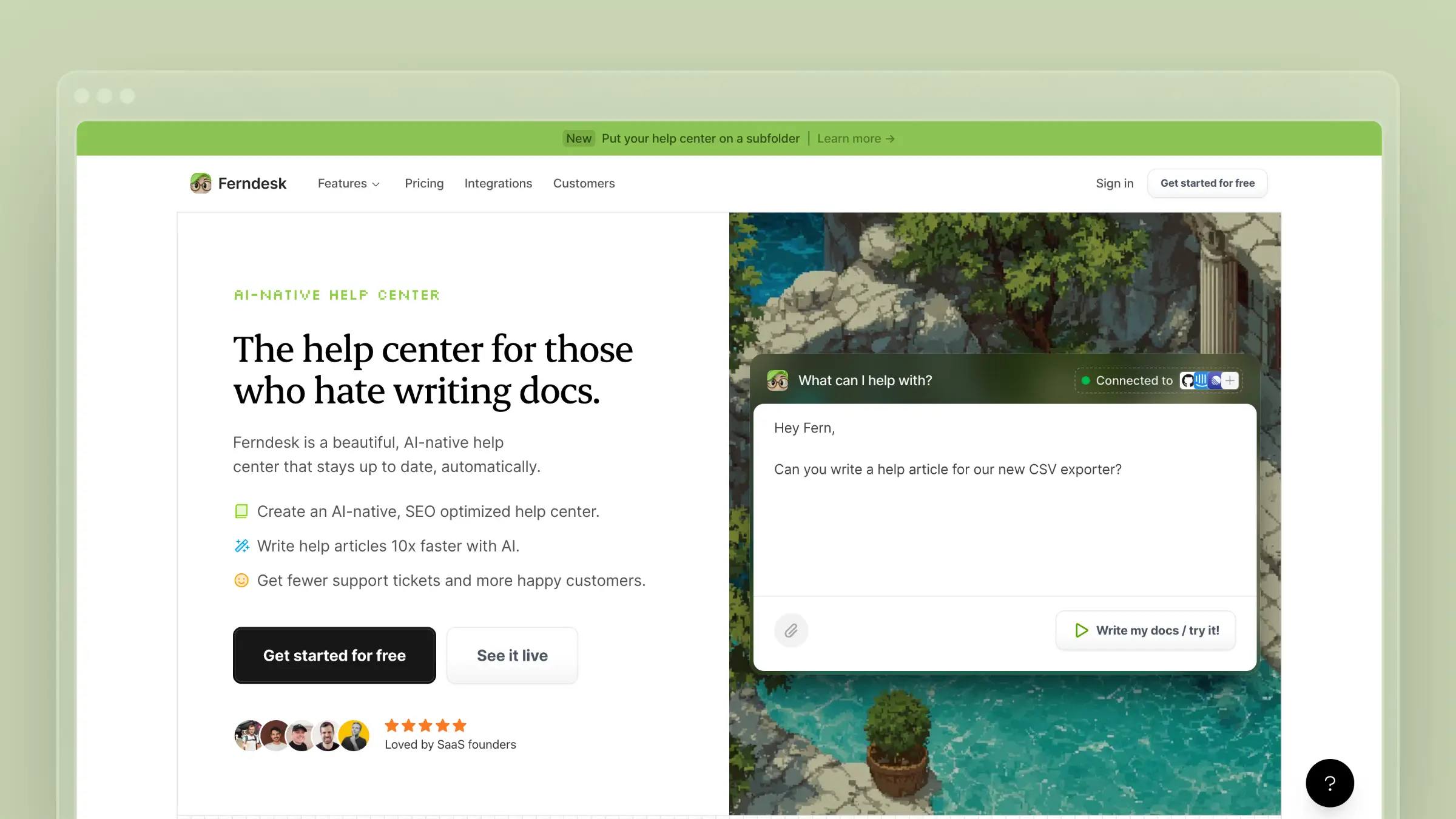
Ferndesk solves this with an AI browser agent that captures and annotates screenshots automatically.
Here’s how it works: you specify what screens need capturing and which elements to highlight. The agent navigates your product, waits for pages to load, scrolls to make elements visible, takes screenshots at the correct dimensions, and adds annotation arrows pointing to the relevant UI elements.
When your product changes, Ferndesk detects it and recaptures the affected screenshots. No more manually clicking through your app after every release.
The agent handles the details covered in this guide automatically:
- Correct sizing: Screenshots are captured at retina-ready resolutions
- Consistent cropping: Elements are positioned consistently across captures
- Smart annotation: Arrows point to the exact UI elements readers need to find
- Format optimization: Images are saved in the right format and size
For teams that ship weekly or faster, this eliminates one of the most annoying documentation maintenance tasks. See our automated knowledge base guide for more on keeping docs in sync with your product.
If you’re evaluating help center platforms, our comparison of help center software covers which tools handle screenshot management well. For alternatives to specific platforms, see our guides on Zendesk alternatives, Intercom alternatives, and GitBook alternatives.
Summary
For most help centers: 1200-1600px wide, PNG or WebP format, cropped to show only what matters.
If your screenshots look blurry, they’re probably not wide enough for retina displays. If your pages load slowly, check how many images you’re loading per page rather than obsessing over individual file sizes.
The technical details matter less than consistency. Pick a standard, apply it everywhere, and your documentation will look professional regardless of the exact pixel counts.



 Book a demo