
Design section home pages
Every section of your help center has its own home page, the first thing readers see when they open that tab. Give each one a hero, search and cards that suit who reads it, or open the section on a welcome article instead.
Needs Docs. Owners and admins can change this.
Design a home page
In Help Center > Customize, pick the section under Sections. Its home page has a hero with a title, a subtitle and a background color, gradient or image, then search, Popular articles and a card for each collection. The preview shows each change before you save.
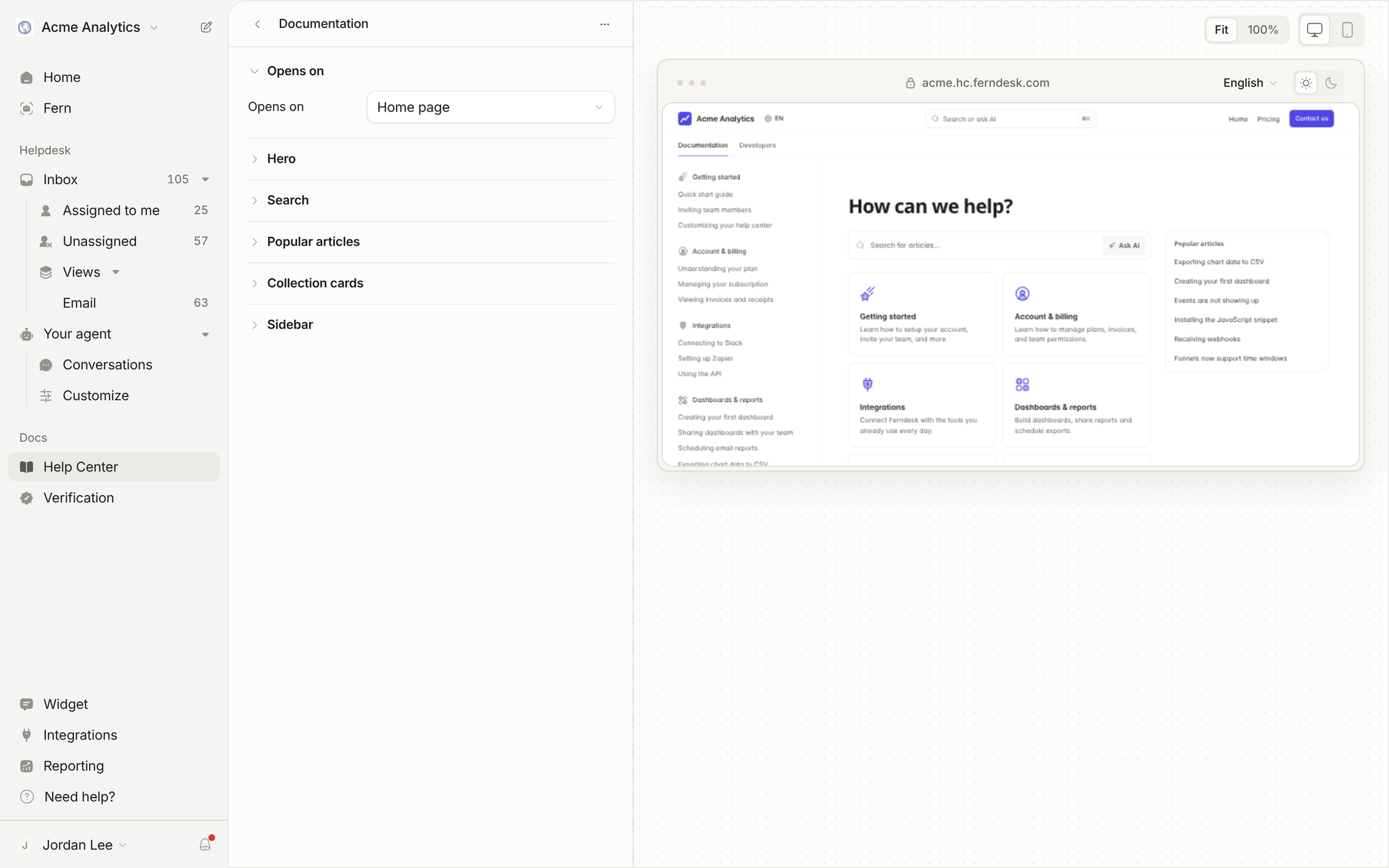
The hero title and subtitle are translated with the rest of your help center. To give every section the same look, choose Copy look to other sections from the section's menu. Each section then keeps its own copy, so later changes apply to one section at a time.
Choose the sidebar
Each section also chooses what its sidebar shows. No sidebar removes it from that section's pages, but API reference and changelog pages always keep theirs.
Open on a welcome article
To open a section on a welcome article instead of its home page, set Opens on to the first page in the section or a page you choose. It's the same setting as Landing page in Edit section. If the chosen page is unpublished or a reader can't see it, that reader gets the home page instead.
For logo, colors, fonts and links across the whole help center, see Customize your help center.