
Set up the widget
The widget is a help panel that opens from a button on your site or app. It holds your articles, your AI agent and a way to reach your team, and the changes you save in Ferndesk reach it without new code.
Owners and admins can change this. Creating a widget or saving changes needs a paid plan or a trial.
Install it once
A developer copies the snippet from the widget's Install section and adds it to the pages that should show the widget. To show signed-in customers their own content and keep their chats under their account, the developer also passes a signed token. The snippet, sign-in and every command are in the Widget SDK reference.
If your site sends a Content Security Policy, the addresses to allow are in the Widget SDK.
Choose what it shows
Each widget has its own tabs, set under Content:
Home is always on. It holds your welcome message, the box for asking your AI agent, up to five links and suggested articles.
Help lets customers search and read your articles.
Updates shows your changelog.
Messages is live chat with your AI agent and your team. It needs handoffs going to your Ferndesk inbox. See Connect email and live chat.
Help centers that still have a separate Contact page also get a Contact tab.
Limit a widget to one area of your help center
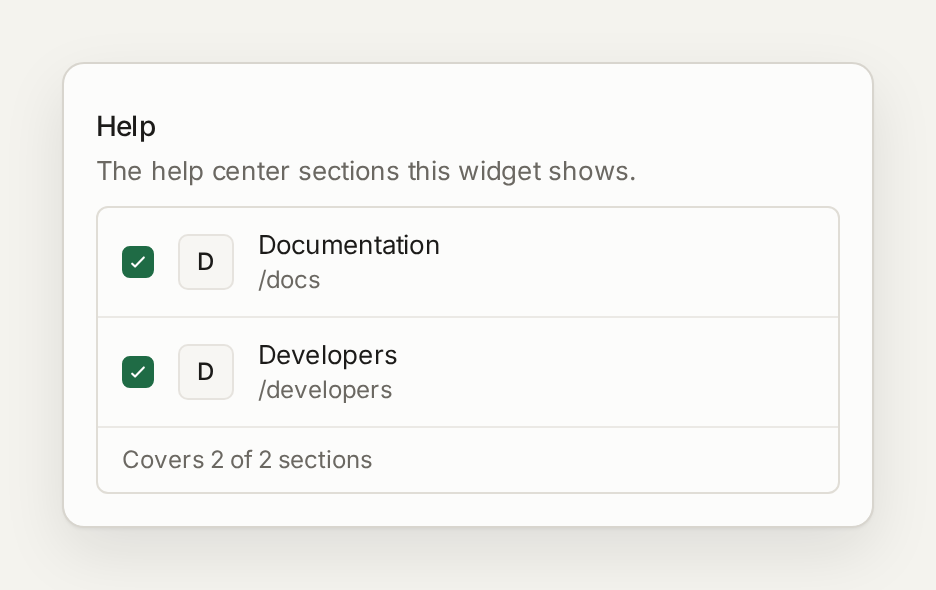
Under Content, in Help, tick the help center sections this widget covers. A section you leave out disappears from that widget's Help tab, search and suggested articles, and your AI agent doesn't answer from it there. Your help center still shows it. You choose whole sections, not single collections or articles.
Run several widgets
Use a separate widget for each site or product that needs its own look, links, sections or handoff, such as your marketing site and your app. Each widget has its own snippet. Before you delete one, check the Impressions, Searches and Article views on its card: deleting can't be undone, and every site with its snippet stops showing it.
The contact form
When handoffs go to a form, the widget's form asks for a name, an email, a subject and a message, and customers can attach files. You can't add or remove fields, but you can rename them in Text and languages, and a developer can fill in or lock the name and email from code. Where the form sends is set once for every widget, in Hand conversations off to your team.
Look and text
Appearance, Launcher and Text and languages set the colours, fonts, the launcher's position and every line of text, including the text in the Messages tab and the rating questions and labels, with a live preview. Text you change here applies only to this widget.