
Set up your AI agent
Decide where your AI agent answers, who it is, how it sounds and what it must leave to your team. Its settings are in Your agent > Customize and apply everywhere it answers.
Owners and admins can change this. Contributors can see the settings, but not the Voice tab.
Turn it on where customers ask
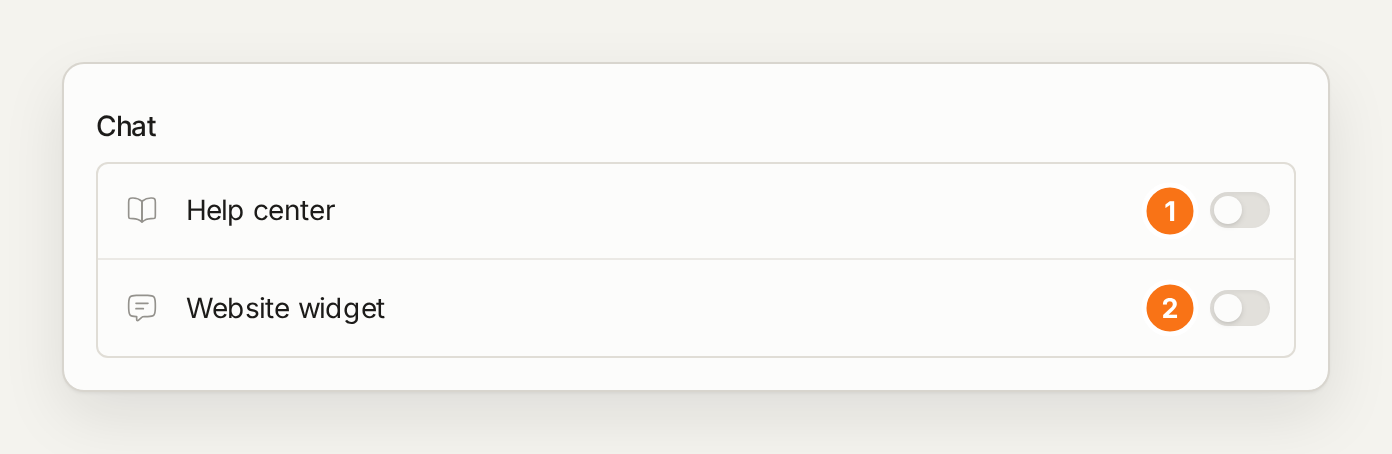
On the General tab, Chat has a switch for your help center and one for each widget. An Email switch covers emails to your support address. Where your AI agent is off, customers can still read your articles and reach your team.
Give it a name and a job
Give it a Name and an Avatar. In Role and goal, describe what it is for in a sentence or two, for example "You answer questions about setup, billing and accounts, and bring the team anything that needs a person."
Set how it sounds
The Voice tab sets the tone (Friendly, Professional, Direct or Playful), the answer length (Concise, Standard or Thorough), emoji, and whether answers can include images from your articles. Custom instructions hold standing rules, such as "Never say ticket. Use British spelling."
Set its rules
Put each kind of rule where your AI agent reads it:
You want it to | Use |
|---|---|
Write in a certain tone or length | The Voice tab |
Never answer a topic, such as refunds or legal questions | Handoff topics, in Hand conversations off to your team |
Follow steps for one kind of request | A playbook, in Teach your AI agent with playbooks and knowledge |
Give a different answer | The article it answers from |
Instructions change how your AI agent writes, not what it knows.
Why the help center and a widget can behave differently
Each place has its own on and off switch.
A widget can leave out help center sections, and your AI agent doesn't answer from them there.
A widget can keep its own handoff settings, listed under Widget overrides on the Handoff tab.
Text you change in a widget's Text and languages applies only to that widget.