
Hand conversations off to your team
Your AI agent hands a conversation to a person when it can't help, when the customer asks, or when the topic is one you said it must never handle. You decide when it offers a person and where those conversations go.
Owners and admins can change this.
These settings are in Your agent > Customize > Handoff. One set covers your help center and every widget.
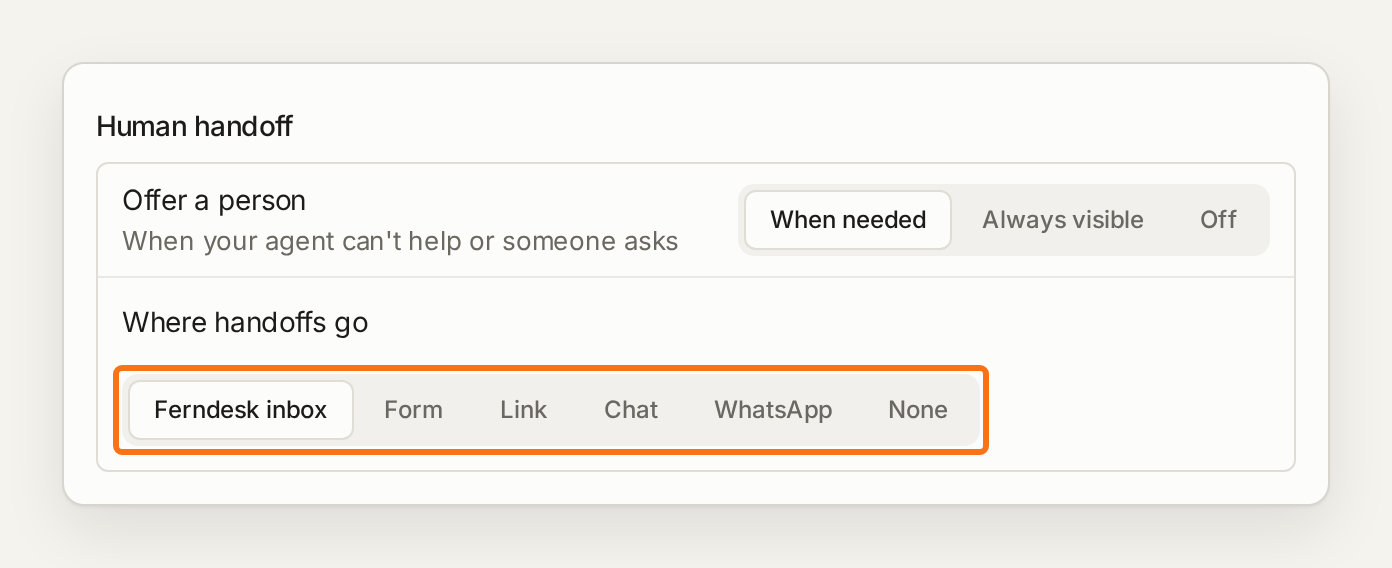
Choose where handoffs go
Choice | What the customer gets |
|---|---|
Ferndesk inbox | The conversation moves to your Support inbox and the customer keeps chatting in the same thread. |
Form | A contact form that sends to your support email address. |
Link | A page you choose, such as your contact page. |
Chat | Your own chat tool opens: Intercom, Help Scout, Zendesk, Crisp, Pylon, Plain or Chatwoot. See Use the widget with another chat tool. |
A chat with your WhatsApp number. | |
None | No way to reach your team. The Contact tab and Talk to a person are hidden. |
New help centers start with the address [email protected]. Replace it with your team's address, or handoffs reach nobody.
To keep Support but send customers to another helpdesk, choose Form, Link or Chat and point it at that tool. Your help center and widgets then send people there, and no new chats reach the Ferndesk inbox. This choice stays as you set it if Support is turned off and on again. To stop using Support altogether, turn Support off instead.
Choose when it offers a person
Offer a person is When needed (when it can't help or the customer asks), Always visible (a Talk to a person option stays in the chat), or Off. Off applies to chat only: emails still hand off.
Tell it what it must never handle alone
Handoff instructions: plain words, such as "Hand off refunds over $500 and anything about a data breach."
Handoff topics: topics it never answers and hands straight to a person, such as legal threats. A question that only mentions a topic in passing is answered as usual.
Handoff triggers: moments when it offers your team, each with a key your developer can act on in the widget's escalationRequested event. See the Widget SDK.
What the customer sees
In the Ferndesk inbox, the chat shows that it's waiting for a teammate, then who joined. If you set business hours, customers who write while you're away hear when you'll be back. For a form, chat tool or WhatsApp, turn on Draft a handoff summary to type a short summary of the chat in for the customer. They still send it.
Give one widget its own rules
Widgets that already had their own handoff settings are listed under Widget overrides. Edit one to change it, or choose Use default settings to make it follow the main settings again.