Manage workspaces
A workspace holds one help center with its own team, settings and integrations. You can belong to several workspaces and switch between them from the workspace name at the top of the sidebar.
What each workspace keeps separate
Help center content: sections, collections and articles
Team members and their roles
Integrations such as GitHub and Linear
The custom domain
The workspace name, logo and website
How billing accounts work
Billing is the one thing workspaces share. A billing account holds the plan, card, trial and invoices for one or more workspaces.
Conversations and PR reviews are pooled across every workspace on the billing account. Seats and languages are counted per workspace.
The Billing and Usage pages show the billing account of the workspace you are in. Switch workspace first to see another one.
If a trial ends or a plan lapses, editing pauses and your AI agent stops answering in every workspace on the billing account. Nothing is deleted.
Create a workspace
Owners and admins can create a workspace on their billing account, from the workspace menu or the Workspaces row in Settings > Workspace > Usage. You become its owner, and we use its website to style the new help center.
An extra workspace is a paid add-on (see Pricing and plans). With a card on file it is charged when you create the workspace. Without one, a checkout page opens first. During a trial with no card, add a card before you create it.
Change workspace settings
Owners and admins change the workspace name, website and logo in Settings > Workspace > General. Your help center has its own logo settings; see Customize your help center.
Export your help center
Click Export ZIP in the Data section of Settings > Workspace > General to download the workspace you are in. Use it as a backup or to move your content elsewhere.
Sections, collections and articles, in folders that follow your help center's structure
Each article as Markdown, HTML and JSON files
Translations, and open drafts of published articles
Files from File blocks as links that keep the file name, type and size
The export holds help center content only. It does not include your team, reports or Support conversations.
Delete a workspace
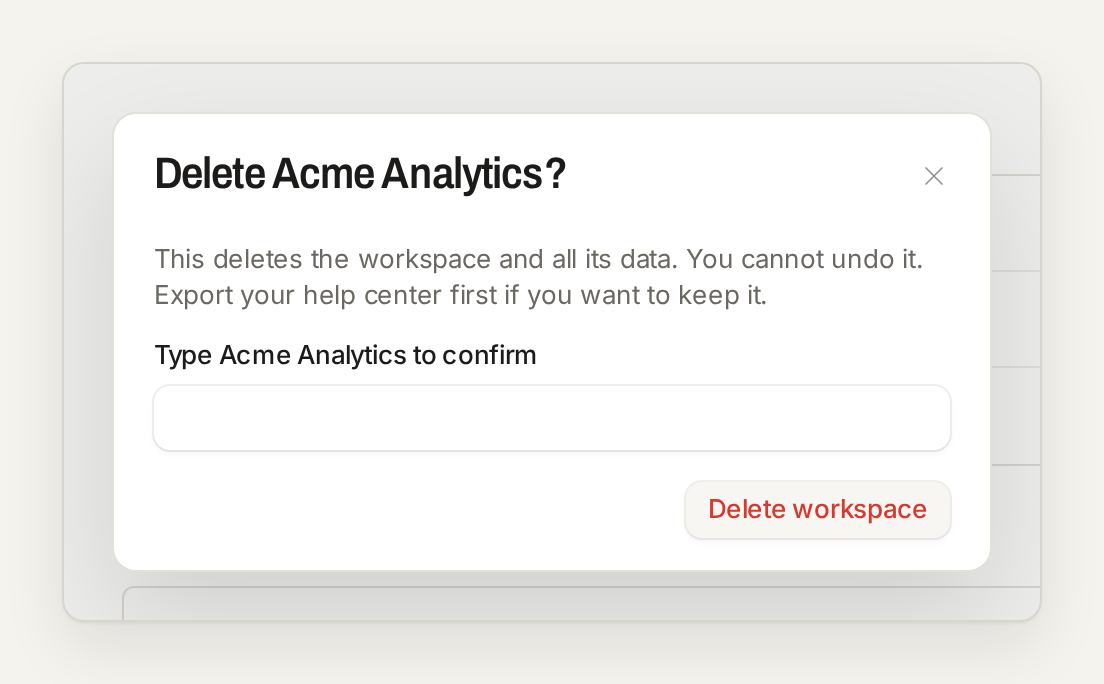
Only the owner can delete a workspace, from the Data section of the same page, by typing the workspace name to confirm. Export your articles first if you want to keep them.
You cannot undo this. We delete the workspace and all its data, including inbox conversations and help center articles, and nobody can recover it.
Every member loses access at once. We cancel billing for this workspace, and other workspaces on the same billing account keep theirs. Contact support about refunds.