
Sign in with the address the invite was sent to.
Invite your team
Invite teammates by email from Settings > Company > Team, and choose what each of them can do.
Owners and admins can change this.
Invite teammates
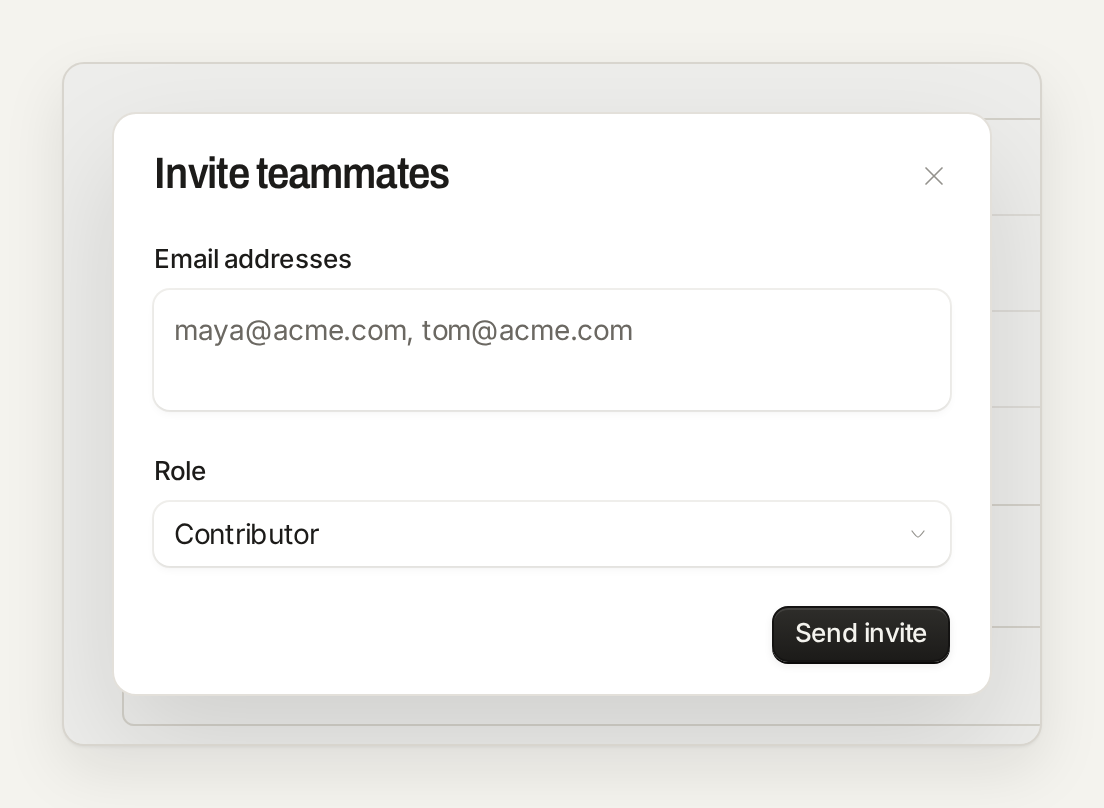
Enter one or more email addresses and choose Admin or Contributor. Everyone in one invite gets the same role, and Roles and permissions lists what each role can do.
Each teammate and each pending invite uses a seat. If you invite more people than you have open seats, you add seats first and your invite carries on. See Buy additional usage.
The invite email says when it expires. Your teammate must sign in with the address you invited.
Resend, copy the link or cancel an invite from its row. An expired invite doesn't use a seat.
Change a role or remove a teammate
Change a teammate's role with the role menu on their row, and remove them from the menu at the end of the row. A removed teammate loses access at once, their API keys and MCP connections for this workspace stop working, and their seat is free again. You can't remove the owner or yourself.
Transfer ownership
The owner can hand the workspace to an admin: choose Transfer ownership on the admin's row and type the workspace name to confirm. The admin becomes the owner and you become an admin. Only the owner can delete the workspace or transfer it again. To transfer to a contributor, make them an admin first.
Let people on your domain ask to join
With Team discovery on, people who sign up with a confirmed address on your company's email domain can find this workspace and ask to join. Personal domains such as gmail.com never match. It is on by default. Approve or decline requests on the Team page.
If an invite does not work
This invitation belongs to a different email
Invitation has expired
Ask an owner or admin to resend it.
Invitation is no longer pending
The invite was already used or canceled.
Invitation not found
The link is wrong, or the invite no longer exists.
Was this helpful?
Was this helpful?