
A rule stays off until its destination address is verified. Open Cloudflare's verification email in your Ferndesk Inbox and click its link.
Forward email with Cloudflare Email Routing
Use this guide when yourcompany.com uses Cloudflare Email Routing and has no mailbox. You verify the Ferndesk forwarding address with Cloudflare, then add a routing rule for help. Email Routing has no mailbox, so Ferndesk gets the only copy.
Email Routing adds its own MX records to your domain, so it only fits a domain with no other email host.
1
Open your address in Ferndesk
In Ferndesk, open Settings > Channels > Email and click [email protected]. If it isn't listed yet, click Add address and add it first.
2
Pick your email platform
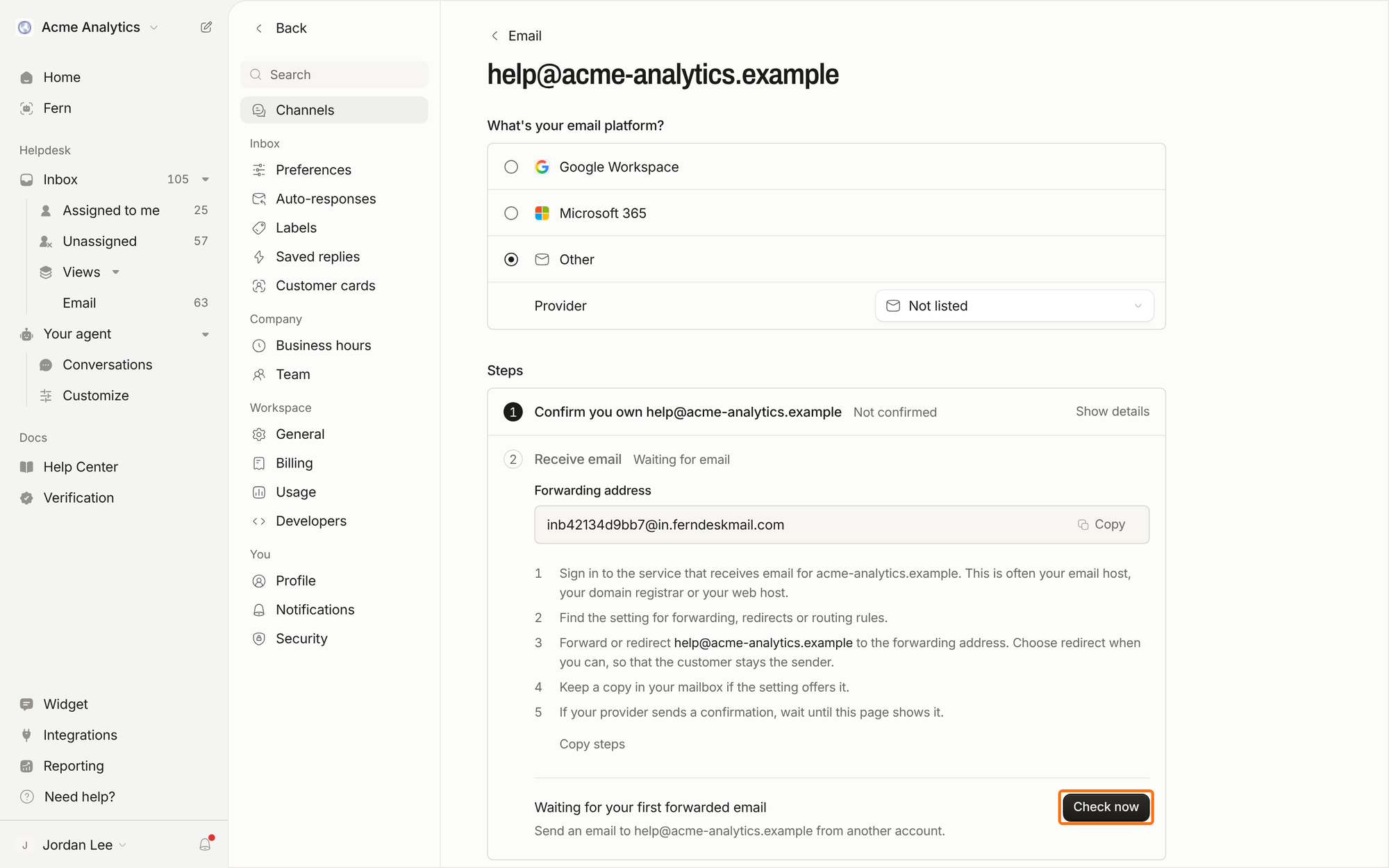
Under What's your email platform?, pick Other, then Cloudflare Email Routing under Provider.
3
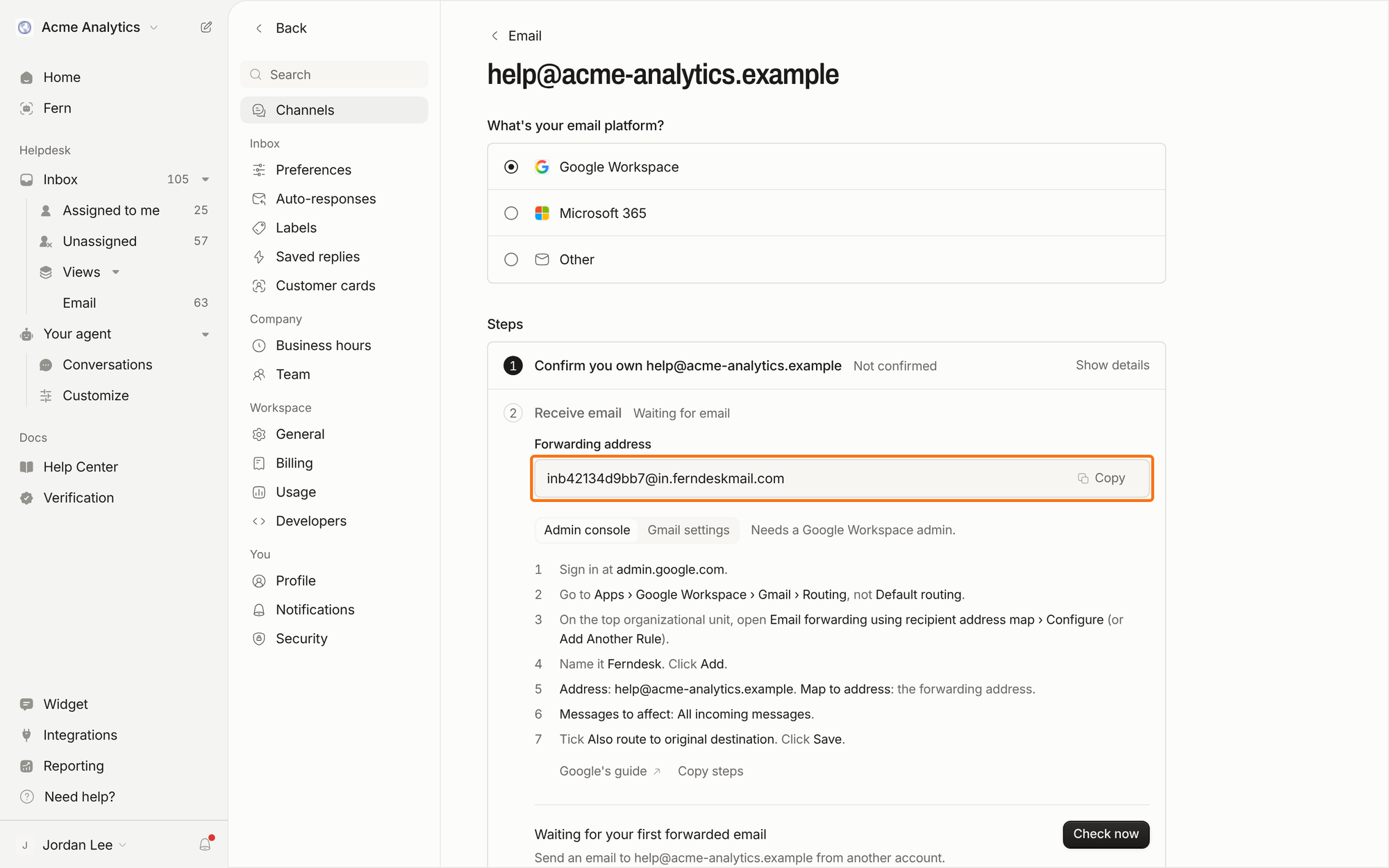
Copy the forwarding address
Click Show setup next to Receive email, then click Copy next to Forwarding address.
4
Open Email Routing
Sign in to the Cloudflare dashboard, select your account and go to Compute > Email Service > Email Routing. If it is not set up yet, select Onboard Domain, choose yourcompany.com and select Done.
5
Add the destination address
Go to Destination Addresses, enter the forwarding address from Ferndesk and submit it. Cloudflare emails a verification link to it.
6
Find Cloudflare's email in Ferndesk
Cloudflare's email usually arrives in Ferndesk as a new conversation in your Inbox. If it isn't there, check Ignored. Open it and open its Verify email address link.
7
Open your domain
Back in Cloudflare, go to Email Routing and select yourcompany.com.
8
Create a routing rule
Open the Routing Rules tab and select Create routing rule.
9
Enter the address
In Email pattern, enter help and select yourcompany.com.
10
Choose the action
In Action, select Send to an email.
11
Choose the destination
In Destination, choose the forwarding address. Select Save.
12
Send a test email
From another account, such as a personal address, send an email to [email protected]. On the address page in Ferndesk, Waiting for your first forwarded email changes to Forwarding verified when it arrives, and the email shows up in your Inbox. Click Check now to look again.
13
Confirm you own the address
On the address page, under Confirm you own [email protected], an owner or admin clicks Send confirmation email. Because forwarding now works, the email comes back through it to Ferndesk and confirms the address by itself. You need this before you can send from your own address.
If something doesn't work
The rule shows as disabled
Cloudflare's own guide: Email Routing addresses.
Back to Set up email in Ferndesk.
Was this helpful?
Was this helpful?