
Google can take up to 24 hours to apply a routing change. Send another test email later. Check that the rule is on the top-level organizational unit and that Map to address holds the exact address from Ferndesk.
Forward email from Google Workspace
Use this guide when [email protected] is a Google Workspace address and you have admin access. You add a routing rule in the Google Admin console. It sends each email to Ferndesk and keeps the original in the help@ mailbox. Customers stay the sender, and Google sends no confirmation.
You need a Google Workspace admin account. Google can take up to 24 hours to apply the rule, but it is usually faster.
1
Copy your forwarding address
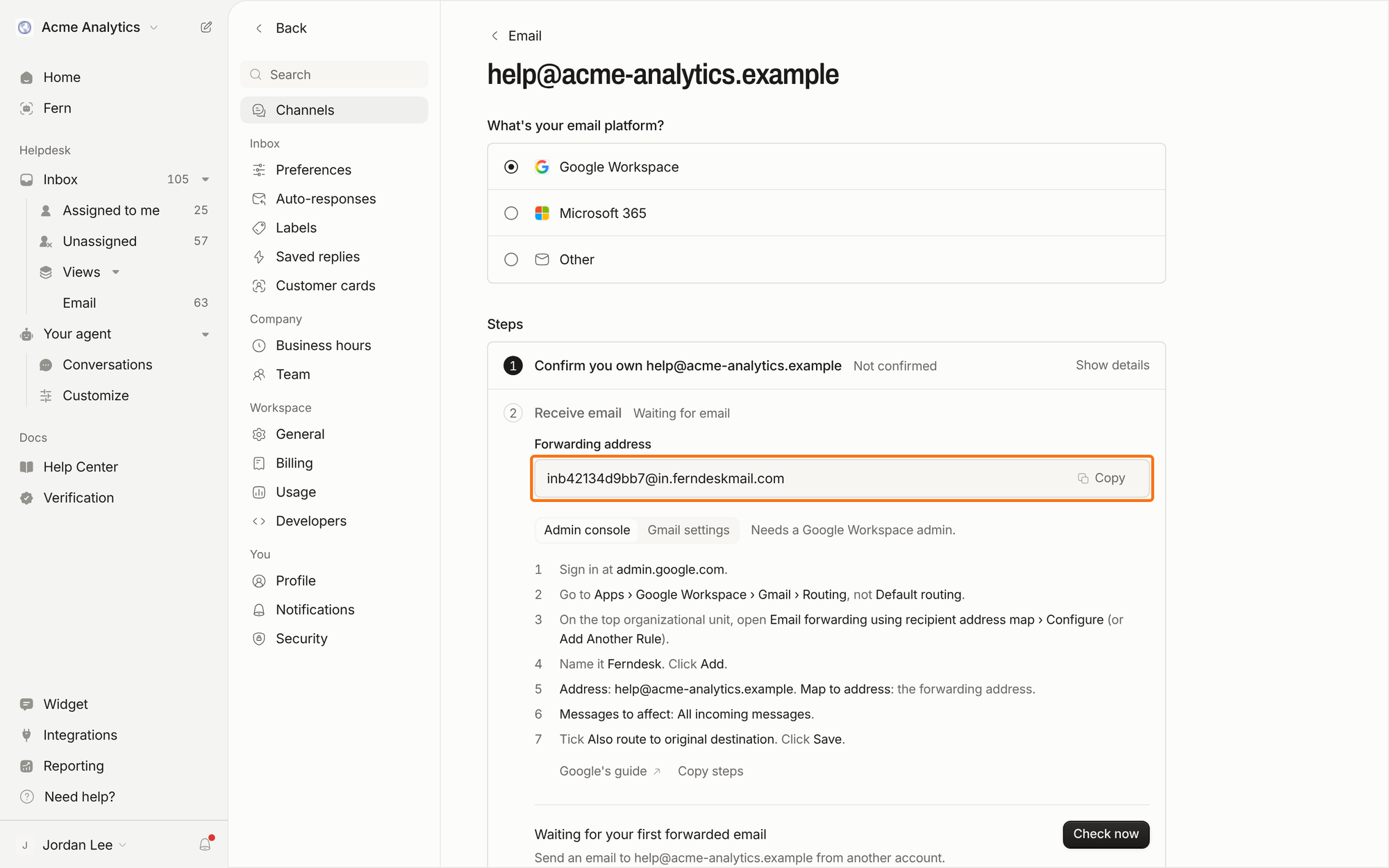
In Ferndesk, open Settings > Channels > Email and click [email protected]. If it isn't listed yet, click Add address and add it first. Under What's your email platform?, pick Google Workspace, and keep Admin console selected. Click Show setup next to Receive email, then click Copy next to Forwarding address.
2
Open the Admin console
Sign in to the Google Admin console at admin.google.com with your admin account.
3
Go to Routing
In the menu, go to Apps > Google Workspace > Gmail > Routing. Use Routing, not Default routing.
4
Pick the top organizational unit
On the left, select your top-level organizational unit.
5
Open the address map setting
Scroll to Email forwarding using recipient address map and click Configure. If a rule is already there, click Add Another Rule.
6
Name the rule
At the top of the Add setting box, enter Ferndesk.
7
Add a mapping
Under step 1 of the box, click Add.
8
Enter your support address
In Address, enter [email protected].
9
Paste the forwarding address
In Map to address, paste the forwarding address you copied from Ferndesk.
10
Choose which messages
Under Messages to affect, select All incoming messages.
11
Keep a copy
Tick Also route to original destination. Without it, [email protected] stops getting its own copy.
12
Save
At the bottom of the box, click Save. The rule shows as a row on the Routing page.
13
Send a test email
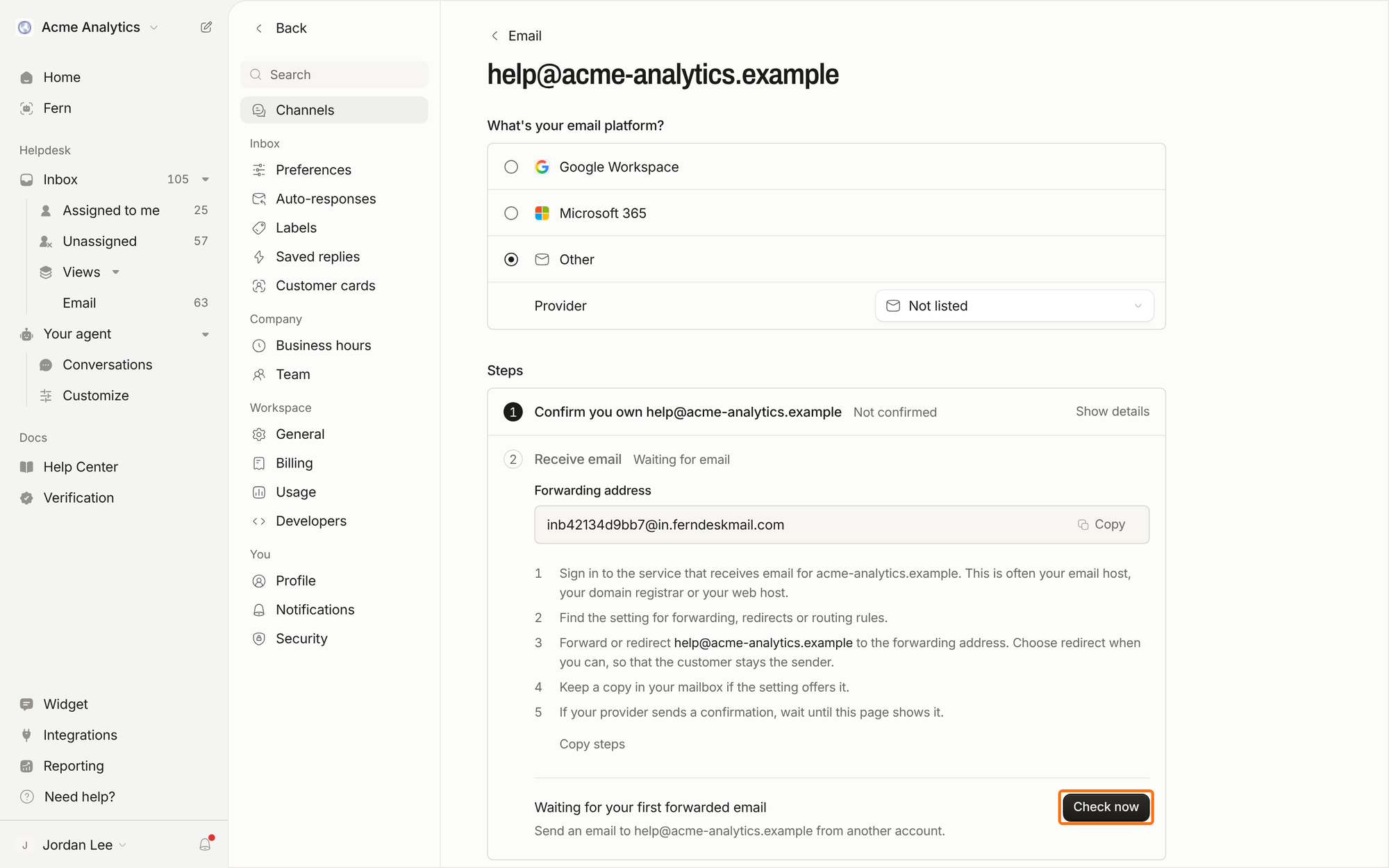
From another account, such as a personal address, send an email to [email protected]. On the address page in Ferndesk, Waiting for your first forwarded email changes to Forwarding verified when it arrives, and the email shows up in your Inbox. Click Check now to look again.
14
Confirm you own the address
On the address page, under Confirm you own [email protected], click Send confirmation email. Because forwarding now works, the email comes back through it to Ferndesk and confirms the address by itself. You need this before you can send from your own address.
If the test email doesn't arrive
It has been a few minutes and nothing came
I'm not a Google Workspace admin
Ask your admin to follow this guide, or forward from the inbox itself with Forward email from Gmail.
Google's own guide: Redirect or forward Gmail messages to another user.
Back to Set up email in Ferndesk.
Was this helpful?
Was this helpful?