
Older Professional Email accounts that are not on Titan yet use a different webmail. Follow GoDaddy's guide for your webmail, and forward to the address from Ferndesk with a copy kept.
Forward email from GoDaddy Professional Email
Use this guide when [email protected] is a GoDaddy Professional Email mailbox. Professional Email runs on Titan, so the same steps work for Titan Email from Hostinger. You add Ferndesk as a forwarding address in webmail. Titan sends a 6-digit code to confirm it and keeps a copy in the mailbox.
On GoDaddy, forwarding needs Professional Email Pro Plus, Premium or Ultra. You need the mailbox password for [email protected], not your GoDaddy login.
1
Open your address in Ferndesk
In Ferndesk, open Settings > Channels > Email and click [email protected]. If it isn't listed yet, click Add address and add it first.
2
Pick your email platform
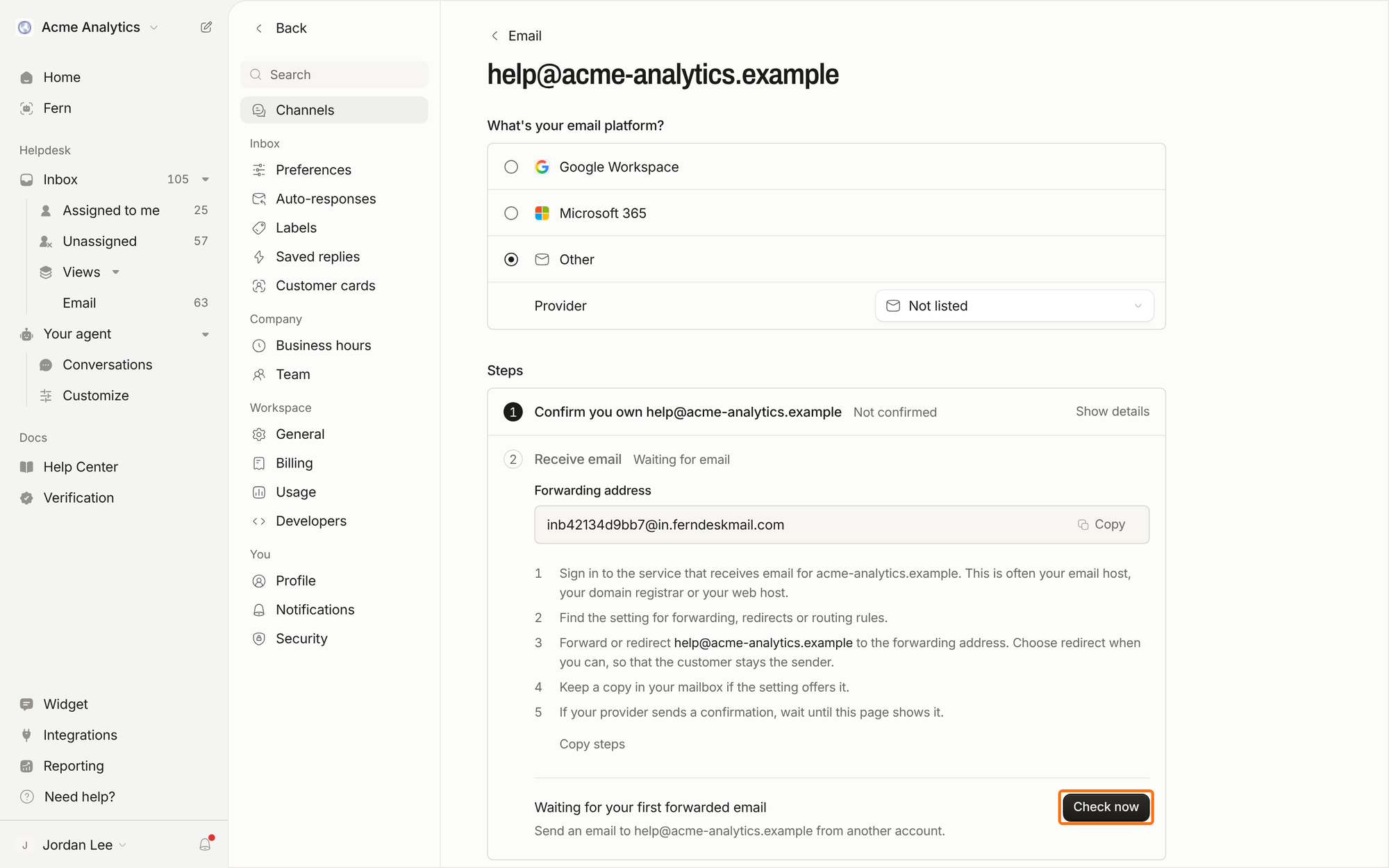
Under What's your email platform?, pick Other, then GoDaddy Professional Email under Provider.
3
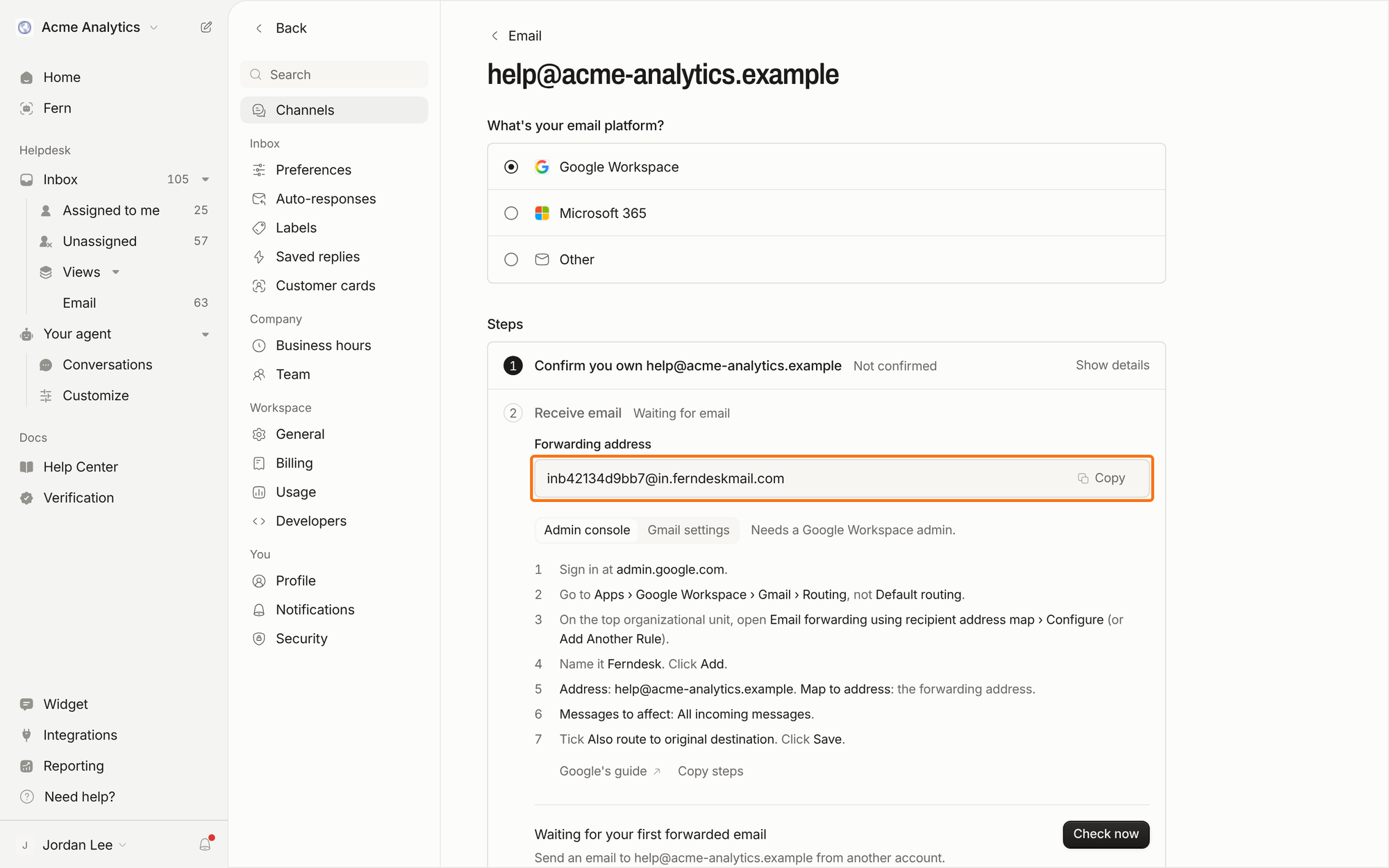
Copy the forwarding address
Click Show setup next to Receive email, then click Copy next to Forwarding address.
4
Sign in to webmail
Go to email.godaddy.com and sign in as [email protected]. For Titan Email from Hostinger, go to hostinger.titan.email instead.
5
Open Preferences
In the top right, select Settings (the gear icon), then Preferences.
6
Open Forwarding
On the left, select Forwarding.
7
Add a forward
Next to Forward emails out, select Add.
8
Enter the forwarding address
Under Forward emails to, enter the forwarding address from Ferndesk.
9
Keep a copy
Under Keep a copy of the incoming email in your Titan Inbox?, leave Yes selected. Select Next.
10
Find Titan's email in Ferndesk
Titan's email usually arrives in Ferndesk as a new conversation in your Inbox. If it isn't there, check Ignored. Open it and copy the 6-digit code.
11
Start forwarding
Back in webmail, enter the code and select Start forwarding.
12
Send a test email
From another account, such as a personal address, send an email to [email protected]. On the address page in Ferndesk, Waiting for your first forwarded email changes to Forwarding verified when it arrives, and the email shows up in your Inbox. Click Check now to look again.
13
Confirm you own the address
On the address page, under Confirm you own [email protected], an owner or admin clicks Send confirmation email. Because forwarding now works, the email comes back through it to Ferndesk and confirms the address by itself. You need this before you can send from your own address.
If something doesn't work
There is no Forwarding option
GoDaddy's own guide: Forward Professional Email powered by Titan messages.
Back to Set up email in Ferndesk.
Was this helpful?
Was this helpful?