
Migrate your help center to Ferndesk
Ferndesk's one-click migration imports your existing help center content from platforms like Help Scout, Zendesk, Intercom, and Crisp. The process preserves your articles, collections, and structure while automatically setting up redirects to maintain SEO.
Supported platforms
You can currently import from:
Help Scout
Zendesk
Intercom
Crisp
If your platform isn't listed, contact support and we may be able to migrate you over manually.
How migration works
During onboarding, you'll choose whether to import an existing help center or start fresh.
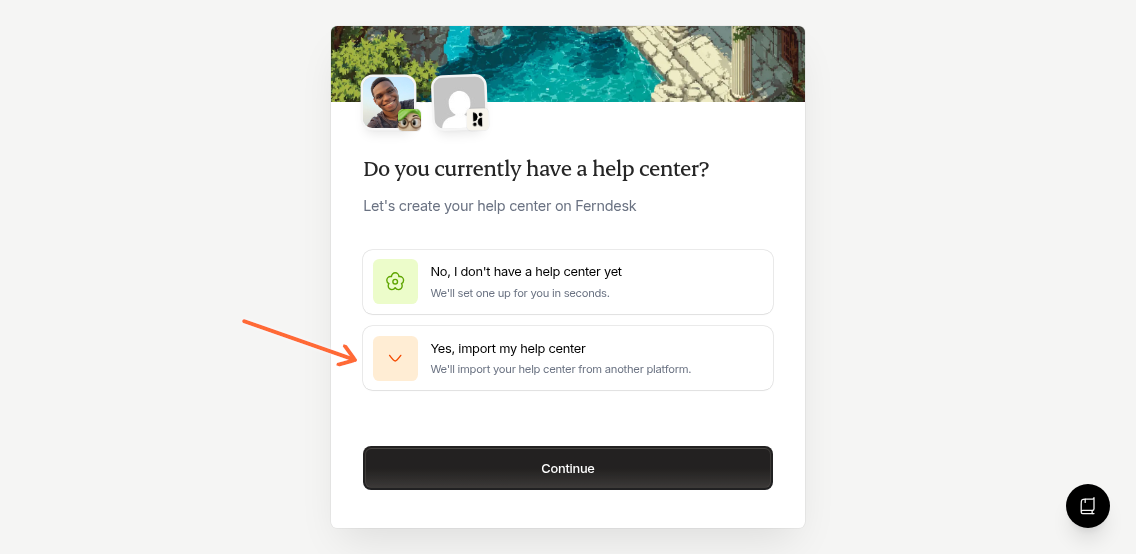
Select "Yes, import my help center" to start the migration process.
Select your platform
Choose where your help center is currently hosted.
Connect your account
Depending on your platform, you'll either:
OAuth (Intercom, Crisp): Click "Connect" and authorize Ferndesk
API credentials (Help Scout, Zendesk): Enter your API key or token
For API credentials, you'll need specific permissions. Help Scout requires "Docs: Create new, edit settings & Collections" access. Zendesk needs read access to articles.
For detailed setup instructions, see:
Import your content
After connecting, toggle "Migrate to Ferndesk" and click "Continue." Ferndesk will import your articles, collections, images, and links while setting up automatic redirects.
The progress screen shows real-time status. You can leave the page and return later—your migration continues in the background.
After migration
Once complete, review your imported content in the dashboard. Articles preserve their original structure and formatting. Publish articles individually or in bulk when ready.
Limitations
Private or restricted articles (Zendesk) are not currently supported
Invalid API credentials will prevent import—verify permissions before connecting
Large help centers may take several minutes to import